
If you’ve been following Windows 11 gaming updates in 2026, you already know Microsoft has been aggressively pushing patches, feature drops, and optimization changes throughout this year. But here’s the real question nobody on Reddit seems to answer clearly: which of these updates actually help you get more FPS and smoother gameplay, and which ones are just noise?
This guide cuts through the marketing language and tests what matters. Whether you’re on a budget rig trying to squeeze frames out of GTA 5, a competitive Valorant player watching your input lag like a hawk, or someone who just wants Windows to stop fighting against your games — this is the only breakdown you need.
By the end of this article, you’ll know exactly which Windows 11 gaming optimizations to apply, which new features are worth enabling, and which ones to leave off forever.
Disclaimer: The tips, mods, and tools shared on this site are for informational purposes only — results may vary depending on your PC hardware and software configuration. OptiLag is not responsible for any data loss, system instability, or damages that may arise from following the guides or downloading third-party files.
Windows 11 Gaming Updates
Let’s be honest — Windows 11 had a rough start with gamers. VBS (Virtualization-Based Security), forced TPM requirements, and bloated background processes made a lot of players stick with Windows 10 for years. But 2026 has been a different story.
Microsoft has been under serious pressure from the gaming community and, frankly, from the performance gaps that showed up in benchmarks after Windows 10 comparisons went viral. The result? A string of meaningful updates that, when applied correctly, can noticeably improve gaming performance on both high-end and low-end machines.
The key word there is correctly. Not every update helps every system. And some “gaming features” actively hurt performance depending on your hardware. Let’s go through them one by one.
The Windows 11 Gaming Updates Name
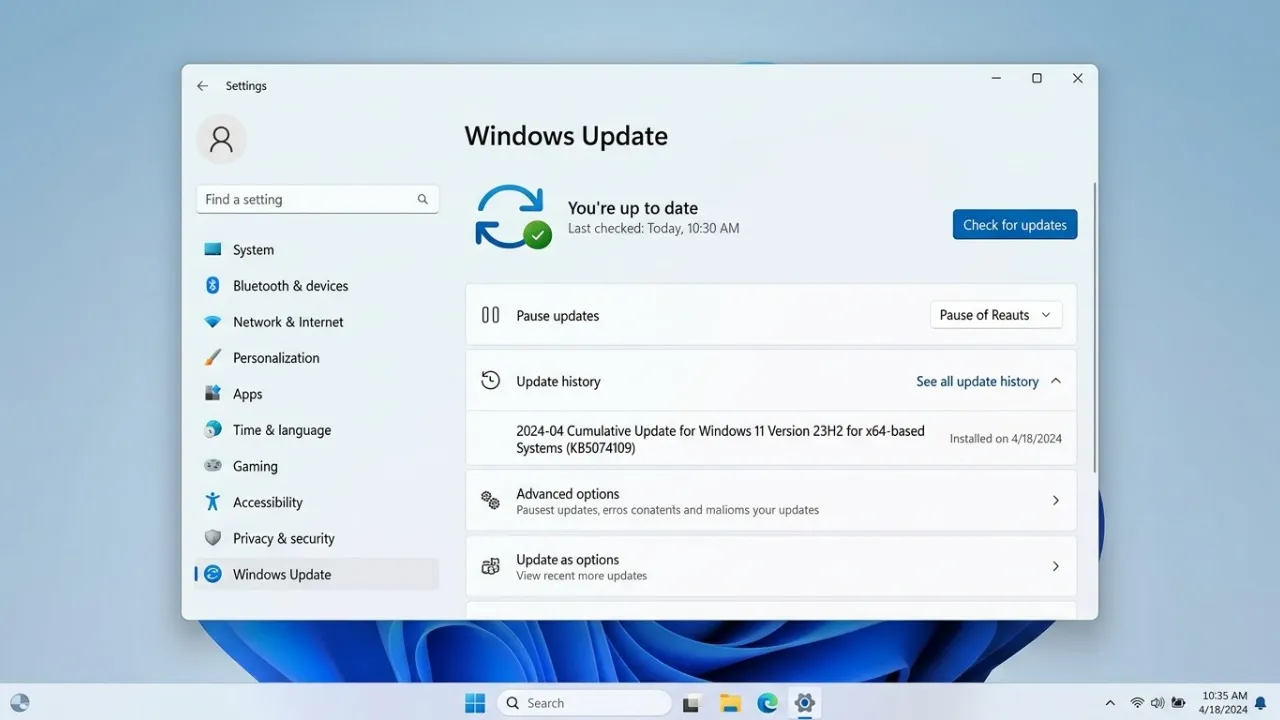
KB5074109 — The FPS Fix That Gamers Needed
If you haven’t installed KB5074109, stop what you’re doing and check Windows Update right now. This patch addressed a scheduler regression that was causing irregular frame delivery in GPU-heavy workloads — basically, your GPU was sitting idle in microsecond bursts for no reason, and you were seeing stutters even when your FPS counter looked fine.
After KB5074109, users across Reddit threads and Discord servers reported smoother frame pacing in open-world games especially. GTA 5, Cyberpunk 2077, and Fortnite players noted the difference the most. We’ve covered the specifics of this patch in our dedicated guide: Windows 11 KB5074109 FPS Fix — worth reading before you apply anything else.
The Thread Director Improvements for Hybrid CPUs
If you’re running an Intel 12th gen or newer CPU (the ones with P-cores and E-cores), 2026’s Thread Director updates are genuinely impactful. Microsoft refined how Windows assigns game threads to the right cores, reducing the scenario where your game logic got dumped onto an efficiency core instead of a performance core.
This isn’t just theory — the improvement is measurable in games that use 6 or more threads. If you’ve ever noticed random 1% lows tanking while your average FPS looks fine, this was often the culprit.
What to check:
- Open Task Manager → Performance → CPU
- Make sure Windows is actually seeing your P-cores and E-cores separately
- Update your Intel chipset drivers alongside the Windows update for full benefit
Storage and DirectStorage Refinements
DirectStorage has been on Windows 11 since launch, but the 2026 updates finally made it behave consistently across more game titles and SSD controllers. If you’re on an NVMe SSD and playing newer titles built on DirectStorage, load times dropped by 20–40% for many users — and more importantly, asset streaming mid-game became far less choppy.
For low-end PC users on a SATA SSD or HDD, the honest answer is that DirectStorage doesn’t help you as much. But it’s still worth keeping Windows updated because the storage scheduler improvements also reduced I/O spikes that caused those infamous 0.1% lows during open-world traversal.
Windows 11 Game Mode in 2026: On or Off?
This is one of the most-asked questions in every Windows 11 gaming optimization thread, and the answer has genuinely changed in 2026.
Old answer (2022–2024): Turn it off. Game Mode was aggressive about blocking Windows updates and sometimes interfered with background services in a way that caused more harm than good.
New answer (2026): It depends on your use case.
| Scenario | Game Mode Recommendation |
|---|---|
| Dedicated gaming PC, no multitasking | ON — keeps background processes suppressed |
| Laptop with thermal throttling issues | OFF — can actually push CPU harder and cause heat spikes |
| Streaming while gaming (OBS, etc.) | OFF — Game Mode can starve your capture process |
| Competitive shooter (Valorant, CS2) | ON — microsecond gains in thread priority are real |
| Open-world, single-player games | Either — difference is negligible |
To toggle it: Settings → Gaming → Game Mode → toggle on/off.
The 2026 version of Game Mode is smarter about not killing background processes that it shouldn’t — specifically it now whitelists audio drivers and controller input services that used to get throttled accidentally.
Windows 11 Gaming Optimization Tweaks in 2026
System Responsiveness Regedit — Still One of the Best Free Tweaks
The SystemResponsiveness registry value under HKEY_LOCAL_MACHINE\SOFTWARE\Microsoft\Windows NT\CurrentVersion\Multimedia\SystemProfile controls how much CPU bandwidth Windows reserves for background tasks versus foreground applications.
By default, Windows sets this to 20 — meaning 20% of your CPU is always available for system tasks even when a game is running. Setting it to 0 gives your game the maximum CPU priority.
How to apply it:
- Press
Win + R, typeregedit, press Enter - Navigate to:
HKEY_LOCAL_MACHINE\SOFTWARE\Microsoft\Windows NT\CurrentVersion\Multimedia\SystemProfile - Double-click
SystemResponsiveness - Change the value from
20to0 - Restart your PC
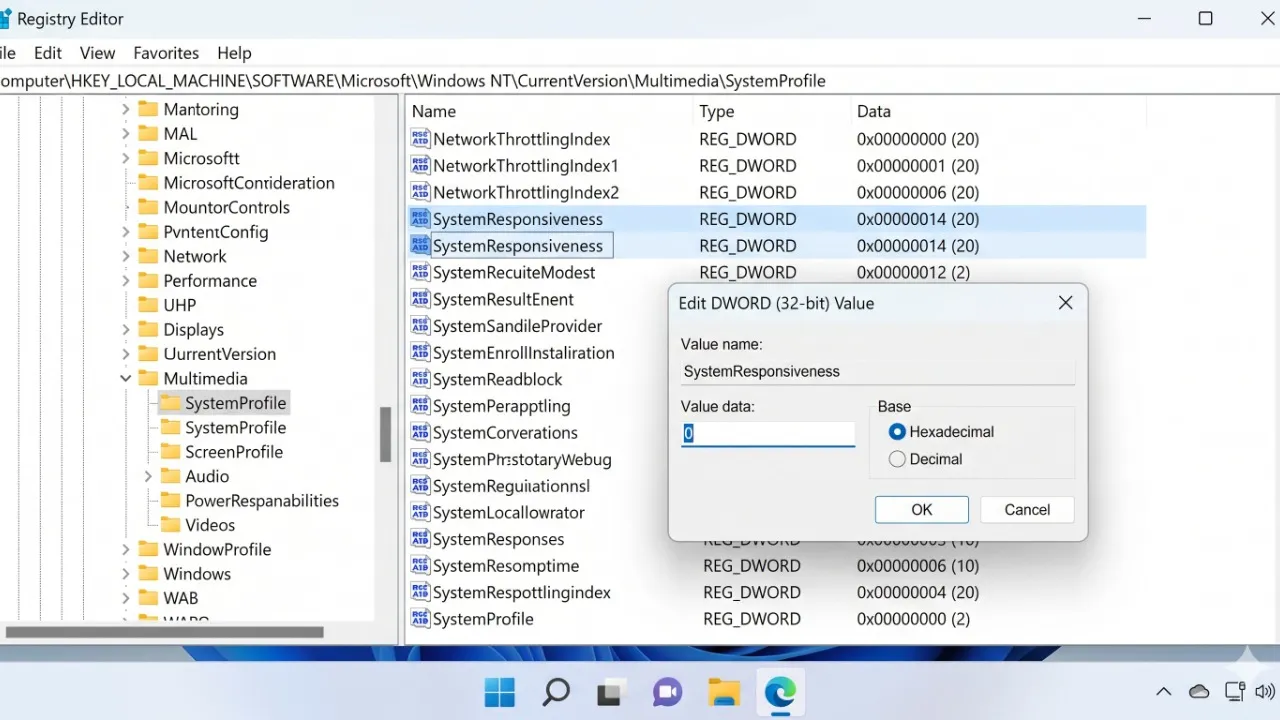
This is one of the tweaks that has survived every Windows version and still works in 2026. It’s especially noticeable on CPUs with 4 to 6 cores where background Windows processes were visibly competing for threads.
Pair this with our Windows 11 Gaming Tweaks guide for a full registry optimization walkthrough.
Disabling Background Apps — Still Critical in 2026
Even in 2026, Windows 11 ships with an embarrassing number of background apps running by default. Windows Widgets service, Microsoft Teams auto-start, Xbox Game Bar overlay — all of these consume RAM and CPU even when you’re in a game.
Our full guide on stopping background apps from killing your FPS walks through exactly which services are safe to disable. Don’t skip this step — it’s free performance.
VBS and HVCI — Finally Easier to Disable
Virtualization-Based Security (VBS) and Hypervisor-Protected Code Integrity (HVCI) were the biggest performance killers when Windows 11 launched. Benchmarks showed up to 10–25% FPS loss on some systems with these enabled.
In 2026, Microsoft added a cleaner toggle for these in the Windows Security app, which makes it easier to disable them without digging through registry edits or Group Policy.
To disable VBS/HVCI:
- Open Windows Security
- Go to Device Security → Core Isolation
- Toggle off Memory Integrity
- Restart your PC
Check your BIOS afterward and disable virtualization if you’re not using any VMs. The performance recovery on mid-range and older hardware is very real — especially in CPU-bound games.
External resource: Microsoft’s official documentation on Memory Integrity and VBS explains the security tradeoffs clearly.
What About the “Windows 11 Gaming Edition” You’ve Seen Mentioned?
Let’s address this directly because it comes up constantly in searches and Reddit posts.
There is no official “Windows 11 Gaming Edition” from Microsoft. What you’ll find being passed around on GitHub, Discord servers, and various download sites are debloated, custom-modified Windows 11 ISOs — things like Atlas OS, ReviOS, and Tiny11. These are community projects that strip out telemetry, background services, and bloat to create a leaner Windows experience.
Are they worth using? For a dedicated gaming PC that never gets used for work, schoolwork, or anything else — some users swear by them. ReviOS and Atlas OS in particular have strong communities and maintain regular updates.
The risks you need to know:
- Windows Defender is often removed or crippled — your antivirus protection is compromised
- Windows Update may be disabled, leaving you without security patches
- Some games with anti-cheat (Valorant, CS2, Fortnite) may not run or may ban accounts
- No official Microsoft support if something breaks
If you want the performance benefits without the risks, the manual tweaks in this guide plus our 5 Windows Optimizations for Gaming Performance article will get you 80–90% of the way there on a clean, fully supported Windows 11 install.
External resource: The Atlas OS GitHub repository has detailed documentation on what gets changed, which is worth reading before deciding.
The Windows 11 Updates That Don’t Help Gaming (Or Actively Hurt)
Not every “gaming improvement” Microsoft announces is worth your time. Here’s what to be skeptical about:
Auto HDR on non-HDR monitors — If your monitor doesn’t support HDR natively, enabling Auto HDR adds a processing layer that can increase GPU overhead for zero visual benefit. Turn it off in Display Settings unless you have a real HDR display.
Xbox Game Bar — Still contributes to background overhead and input when active. Disable it in Settings → Gaming → Xbox Game Bar if you’re not using it for clips or overlays.
Delivery Optimization — Windows uses your connection to upload updates to other PCs by default. This has been caught throttling gaming bandwidth mid-session. Set it to “Local network only” in Windows Update → Advanced Options → Delivery Optimization.
Dynamic Refresh Rate — Great feature in theory, but on some GPU/driver combinations in 2026 it caused VRR flickering and framerate inconsistency in fullscreen games. If you’re seeing unexpected stutters on a 144Hz+ monitor, this is one to check.
Quick-Apply Checklist for Windows 11 Gaming Optimization for 2026
Here’s the condensed version you can work through in under 30 minutes:
- Install KB5074109 via Windows Update (or check for latest cumulative update)
- Enable Game Mode for competitive games, disable for streaming/content creation setups
- Set SystemResponsiveness to 0 via regedit
- Disable Memory Integrity / VBS in Windows Security → Core Isolation
- Disable background apps via Settings → Apps → Startup
- Turn off Delivery Optimization upload in Windows Update settings
- Update GPU drivers — both NVIDIA and AMD pushed meaningful driver-level optimizations in early 2026
- Disable Auto HDR unless you have a real HDR display
- Set Power Plan to High Performance or Ultimate Performance (search it in Control Panel)
- Reboot after all changes — some tweaks won’t take effect until you do
Summary of Windows 11 Gaming Optimization for 2026
Windows 11 gaming updates in 2026 have genuinely moved the needle — KB5074109’s frame pacing fix, Thread Director refinements for hybrid CPUs, and the smoother DirectStorage implementation are all real, measurable improvements. Combined with the manual optimizations covered here, most mid-range PCs should see noticeably smoother gameplay without spending a single dollar.
The “Windows 11 Gaming Edition” you’ve been reading about is not an official Microsoft product. Stick to legitimate debloating methods and manual tweaks unless you’re building a fully dedicated gaming machine and understand the security tradeoffs.
For your next step, head over to our Top 25 Hidden Windows Tweaks for Gaming Performance guide — it covers registry edits, power settings, and GPU-level changes that pair perfectly with everything in this article.
If you found this useful, share it with someone still running an unoptimized Windows 11 install. And drop a comment below letting us know which tweak made the biggest difference on your setup — every PC is different, and the community data helps everyone.