
If you’ve been gaming on a low-end PC for any amount of time, you’ve definitely seen those ads. “Boost your FPS by 200%!” “Eliminate lag in one click!” Honestly, the first time I saw some of these claims I almost laughed. But I also kind of wanted to believe them — because when you’re stuck at 28 FPS in GTA 5, you’ll try almost anything.
So we actually did try them. Spent two weeks running the same benchmarks over and over on a proper budget machine to answer one question: do game booster apps actually work on low-end PCs in 2026, or is it all just clever marketing? The short answer is: it depends, and probably not in the way these apps want you to think. Keep reading — the full picture is worth knowing before you download anything.
What Is a Game Booster App and What’s It Supposed to Do?
A game booster is software that promises to improve gaming performance by closing background processes, managing system resources, and sometimes tweaking Windows settings on your behalf. The pitch makes sense on paper. Windows is running a lot of stuff you don’t need — update services, telemetry tasks, search indexing, random startup junk. All of that competes with your game for CPU cycles and RAM.
What a game booster tries to do is shut down that background noise right before you launch a game. Some of them also claim to prioritize your game’s CPU thread, adjust network settings, or squeeze extra performance out of your GPU.
Whether any of that actually translates into better frames on a machine with 8GB of DDR3 and a six-year-old GPU — that’s what we tested.
The Machine We Used (It’s Probably Similar to Yours)
I specifically didn’t want to test this on a mid-range system where everything already runs fine. The whole point was to see what happens on hardware that’s actually struggling.
- CPU: Intel Core i5-4460 (4th Gen, 4 cores)
- RAM: 8GB DDR3
- GPU: NVIDIA GTX 750 Ti (2GB VRAM)
- Storage: 500GB HDD
- OS: Windows 11 Home (fully updated)
This is the kind of setup a lot of people are still gaming on — hand-me-down parts, maybe a PC that was a budget buy a few years ago. Nothing exotic. We tested GTA 5, Valorant, and Roblox because they’re popular on lower-end hardware and they stress the system in different ways. Each game got a 10-minute session without the booster, FPS recorded, then the same session again with it running.
The 5 Game Booster Apps We Actually Tested
1. Razer Cortex
Razer Cortex is probably the most well-known of the bunch, which is partly why I was skeptical going in. Big brand, lots of marketing, free to download. Its core feature — called “Boost” — pauses background Windows services and kills non-essential processes right when you launch a game.
What it actually did: Before launching GTA 5, Cortex freed up around 400MB of RAM. That genuinely surprised me — I expected the number to be lower. On an 8GB system that’s already under pressure, 400MB is actually meaningful. Average FPS in GTA 5 climbed 4–6 frames, but the more noticeable change was in the 1% lows. They went from 18 FPS up to 24 FPS. If you’ve ever gamed at those numbers, you know that’s the difference between “playable” and “kind of awful.”
Verdict: More useful than I expected, specifically for RAM-limited machines. The FPS floor improvement is real. Just don’t go in expecting your 30 FPS game to suddenly run at 60.
2. MSI Afterburner (With RTSS)
Okay, MSI Afterburner is technically an overclocking and GPU monitoring tool — it’s not a “game booster” in the traditional sense. But I’m including it here because almost every performance guide recommends it, and after testing it I think it deserves a spot in this comparison. Paired with RivaTuner Statistics Server (RTSS), which installs alongside it, you can monitor GPU usage in real time, apply a mild overclock, and — this is the important part — cap your frame rate.
What it actually did: A conservative +100 MHz core clock and +250 MHz memory clock on the 750 Ti gave us 7–9 extra FPS in Valorant. Safe numbers, nothing aggressive. But the frame cap at 60 FPS using RTSS was honestly the bigger deal. Without a cap, our frame rate was bouncing between 42 and 71 FPS every few seconds — which makes the game feel choppy even when the average looks acceptable. With the cap on, it locked at 60 and suddenly felt smooth. Same hardware. Same settings. Just consistent frame delivery.
I’ve recommended this trick to friends with low-end machines before and they always come back surprised it actually works.
Verdict: Genuinely the best free performance tool in this whole list. The overclock helps, but the frame cap is the real magic.
3. Wise Game Booster
Wise Game Booster doesn’t try to do too much, which I actually respect. It’s a lightweight one-click process killer. No subscription upsells, no bloated dashboard, no confusing options. You open it, hit the button, it closes whatever it thinks you don’t need. That’s more or less it.
What it actually did: It closed between 18 and 22 background processes on our test machine, freeing up roughly 300MB of RAM. In Roblox specifically, average FPS climbed from 38 to 44. That’s a 15% jump, which sounds small until you remember that 38 FPS Roblox feels noticeably worse than 44 FPS Roblox — especially in busier game environments. Valorant gains were smaller, around 3 FPS. Still something.
Verdict: Worth installing if your machine hasn’t been cleaned up in a while and has a lot of random startup software running. If your system is already stripped down, you won’t feel much difference.
4. IObit Game Booster
IObit has been in the PC optimization space for a long time and their game booster is one of the more feature-packed options out there. It handles process management like the others but also bundles in automatic driver updates, disk defragmentation, and a few system cleanup utilities.
What it actually did: In terms of the core process-closing function, it performed about the same as Wise Game Booster — clearing 300–400MB of RAM with similar FPS results. Where it fell short was everything else. Running a disk defrag during a gaming session made no sense to me, and the automatic driver update feature kept surfacing notifications mid-session. The FPS gains from those extra features? Zero that we could measure. And the number of times it nudged us toward the paid Pro version during a single session was, frankly, a bit much.
Verdict: The basic engine works fine, but the software around it feels padded. Use it if you want, just be ready to dismiss upsell prompts.
5. Windows Game Mode (Built-In)
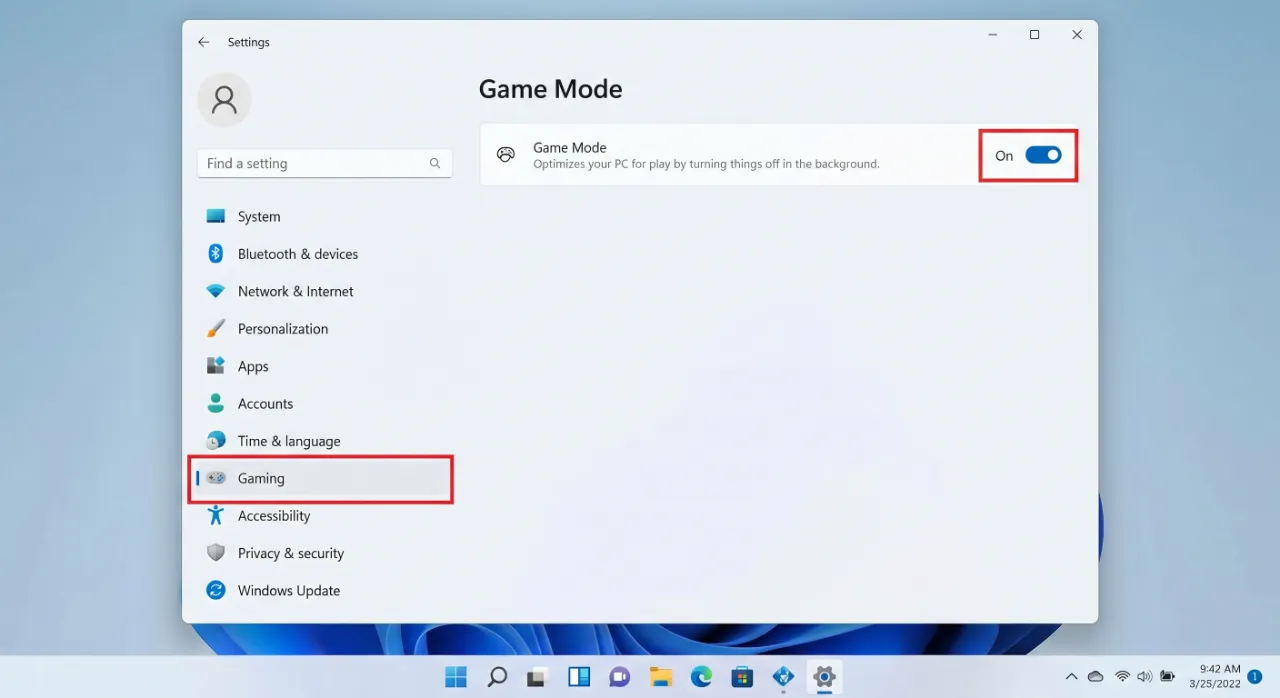
Before anyone downloads anything, there’s actually a built-in option worth checking: Windows Game Mode. It lives in Settings > Gaming > Game Mode and it’s supposed to tell Windows to prioritize your game’s resources and reduce background interference.
What it actually did: Not a lot, honestly. We saw 1–2 FPS improvement at best, comfortably within measurement noise. The one thing it helped with slightly was frame time consistency in GTA 5 — delivery was marginally smoother even when average FPS didn’t change much. Nothing dramatic.
Verdict: Enable it anyway. Costs nothing, takes five seconds, might help a little. Just don’t expect it to rescue a struggling PC on its own.
comparison across all five tools
Here’s the full comparison across all five tools:
| Tool | Avg FPS Gain | RAM Freed | Best For |
|---|---|---|---|
| Razer Cortex | +4 to +6 FPS | ~400MB | GTA 5, RAM-limited PCs |
| MSI Afterburner | +7 to +9 FPS | N/A | Valorant, any GPU |
| Wise Game Booster | +3 to +6 FPS | ~300MB | Roblox, bloated installs |
| IObit Game Booster | +3 to +5 FPS | ~350MB | Basic cleanup only |
| Windows Game Mode | +1 to +2 FPS | Minimal | Always-on baseline |
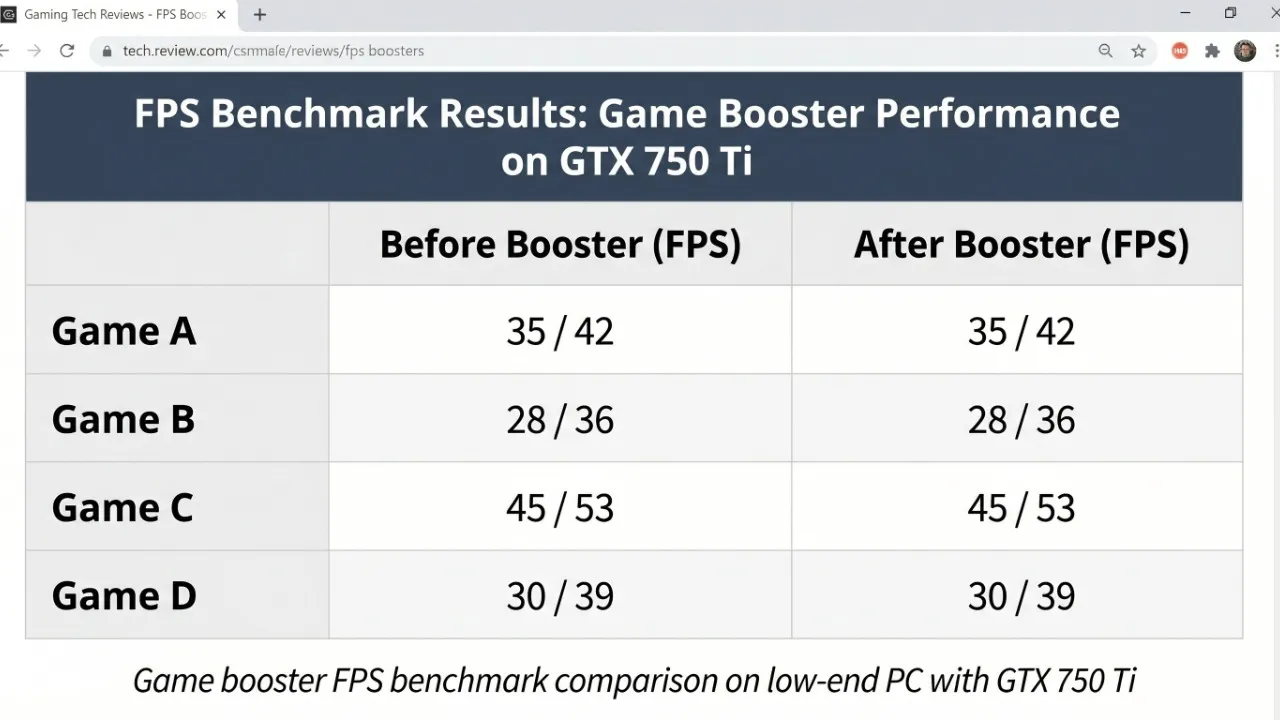
None of them doubled our FPS. None of them came close. The realistic ceiling for what a game booster can do — when it actually works — is somewhere around 5–10 FPS, mostly by clawing back RAM and reducing CPU load from stuff you didn’t know was running. If your PC is already lean and clean, a booster won’t move the needle much at all.
The Stuff Game Boosters Genuinely Can’t Fix
This part is worth spending time on, because I’ve seen people get really frustrated when a booster doesn’t solve their problem — usually because the problem was never something a booster could fix in the first place.
GPU bottlenecks. If your GPU is maxed out and can’t push more frames, closing Chrome in the background isn’t going to change that. The GTX 750 Ti has hardware limits. No software gets around them.
Outdated or broken drivers. Probably the most underrated cause of FPS drops on low-end machines. A game booster won’t touch your drivers — you have to do that yourself. Our guide on NVIDIA and AMD FPS settings and driver tweaks walks through how to handle it properly.
Thermal throttling. If your CPU or GPU is sitting at 90°C and throttling itself to protect the hardware, no software fix will help — and some booster tools with active background monitoring can actually push temps slightly higher. If your laptop sounds like a jet engine mid-game, check our laptop FPS boost and throttling guide before doing anything else.
Slow storage. Games on a spinning HDD constantly stream assets off disk. That causes stutters and pop-in that no game booster can work around. It’s a hardware problem, full stop.
What Actually Moves the Needle More Than Any Booster App
After all this testing, here’s what I’d tell a friend with a low-end machine who asked where to start:
Drop your in-game settings before anything else. This sounds obvious but a lot of people skip it. Turning shadows from High to Low, reducing draw distance, and dropping resolution from 1080p to 900p can add 20–30 FPS in games like GTA 5. Our resolution scaling guide shows you how to do this without making the game look completely terrible.
Update your GPU drivers. Every single time. I know it sounds like a cliché answer, but I’ve personally seen it fix 15+ FPS drops on machines that otherwise looked totally fine. Just do it first.
Change your power plan. Windows defaults to Balanced, which actively throttles your CPU to conserve power. Fine for a laptop on battery. Completely wrong for gaming. Switch to High Performance, or unlock the hidden Ultimate Performance plan — our power plan settings guide for gaming walks you through it.
Kill your startup apps permanently. Task Manager > Startup tab. Disable anything that doesn’t need to launch with Windows. This is essentially what game boosters do every session — you’re just doing it once and keeping it permanent. Full walkthrough in our guide on stopping background apps from killing your FPS.
Cap your frame rate with RTSS. If you take nothing else from this article, take this: install MSI Afterburner, set a 60 FPS cap, and see how much smoother your game feels. The raw number doesn’t change. The experience does. It’s weirdly satisfying the first time you notice it.
📸 Screenshot suggestion: Task Manager showing the Startup tab with multiple apps disabled — alt text: “Disabling Windows 11 startup apps to free up RAM and CPU for gaming”
Should You Actually Bother Installing a Game Booster?
After all the testing, here’s where I landed.
If you’ve got 4–8GB of RAM and you regularly game with a browser, Discord, Spotify, and whatever else open in the background — yeah, Razer Cortex or Wise Game Booster are worth having. The RAM savings are real and genuinely do improve your 1% lows. That’s not nothing.
If you’re only going to install one thing from this entire article, make it MSI Afterburner. The frame cap alone is worth more than every other booster on this list combined. It’s not a booster in the traditional sense, but in terms of what it actually does for real-world gameplay feel on a low-end machine, nothing else comes close.
Past that, the returns drop off fast. Running two boosters at once doesn’t compound the gains — you’re just closing the same 20 processes twice. And paid game boosters that charge you monthly for “premium” FPS improvements? Skip them entirely. Everything that actually matters is free.
The honest pecking order: fix your settings and drivers first, sort your power plan and startup apps second, then maybe layer a lightweight booster on top as a finishing touch. Not the other way around.
Wrapping Up: Do Game Booster Apps Work on Low-End PCs?
Kind of. For real. Not the “double your FPS” fantasy those ads are selling — but a legitimate, modest, measurable improvement when your machine has background bloat eating into its limited resources.
Expect 4–8 FPS gains at best, mostly in the form of smoother frame delivery rather than a big jump in average FPS. If your PC is already optimized, don’t bother. If it’s running a lot of background junk, a booster will help a little.
The better play is always the manual work first — power plan, startup apps, in-game settings, updated drivers — then use Razer Cortex or MSI Afterburner as a lightweight layer on top. That combination will genuinely improve your experience without turning your PC into a bloatware museum.
Got questions about your specific setup? Drop them in the comments — happy to help you figure out the best approach for your machine.