

If you’re running FiveM on a PC with 8GB of RAM and your game feels like it’s playing through a blender — stuttering every few seconds, freezing at intersections, rubber-banding on busy RP servers — you’re not alone. FiveM’s default Citizen folder is bloated with assets, shaders, and cached files that were never designed with low-end PCs in mind.
The good news? You don’t need to upgrade your hardware. The 2026 FiveM Ultra-Light Citizen Pack is a stripped-down, performance-optimized replacement for your existing Citizen folder. It removes unnecessary bloat, replaces heavy streaming assets, and reorganizes cache behavior so your 8GB RAM system can actually breathe. In this guide, you’ll learn exactly what this pack does, how to safely download and install it, and what real-world performance improvements you can expect.
What Is the FiveM Ultra-Light Citizen Pack?
FiveM’s Citizen folder is the core directory that handles all client-side files — scripts, shaders, streaming data, and cached assets. On a freshly installed FiveM, this folder is already sizeable. After a few weeks of playing on different servers, it balloons even further with leftover cache, unused texture packs, and duplicate shader compiles.
On a system with only 8GB of RAM, this creates a constant tug-of-war between Windows, FiveM, and GTA V itself. The result? Micro-stutters, frame drops when entering busy areas, and the infamous “ghost freeze” where your character moves but the world pauses.
The Ultra-Light Citizen Pack solves this by:
- Replacing the default Citizen folder with a lean, pre-cleaned version
- Removing redundant shader cache files that force recompilation on launch
- Optimizing the
caches.xmlconfiguration to reduce background memory calls - Pre-setting streaming chunk sizes for systems with 8GB or less RAM
- Eliminating leftover files from outdated FiveM builds
Think of it like defragging and rebuilding your FiveM installation from the ground up — without losing your saved server favorites or keybindings.
System Requirements for FiveM Ultra-Light Citizen Pack
Before you grab the pack, make sure your setup matches the minimum profile this pack is built for:
| Component | Minimum | Recommended |
|---|---|---|
| RAM | 6GB | 8GB |
| GPU VRAM | 2GB | 4GB |
| Storage | HDD (7200 RPM) | SSD |
| Windows Version | Windows 10 64-bit | Windows 11 |
| GTA V Version | Latest Rockstar/Steam | Latest |
| FiveM Build | 6600+ | 7000+ |
Note: This pack is specifically tuned for 8GB RAM systems. If you’re running 16GB or more, you may still benefit from it, but the performance delta will be smaller.
How to Back Up Your Current FiveM Citizen Folder
Never skip this step. Even a lightweight optimization pack replaces core files, and if something goes wrong, you’ll want your original folder intact.
Step 1: Locate Your FiveM Folder
By default, FiveM installs to:
%localappdata%\FiveM\FiveM.app
Press Windows + R, type %localappdata%\FiveM, and hit Enter. You should see a folder called FiveM.app.
Step 2: Back Up the Citizen Folder
Inside FiveM.app, find the citizen folder. Right-click it and select Send to → Compressed (zipped) folder. Rename the zip file something like citizen_backup_original.zip and move it to your Desktop or an external drive.
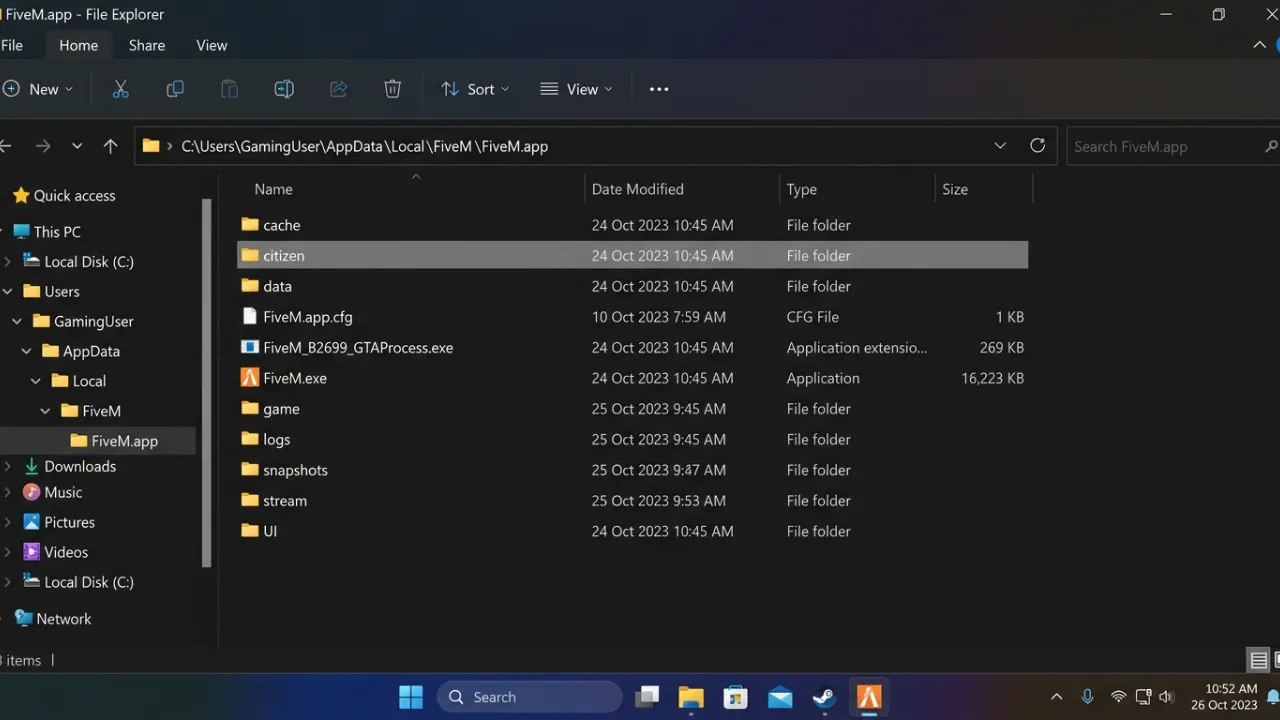
This backup takes about 2–5 minutes depending on your drive speed. It’s worth every second.
Download the 2026 FiveM Ultra-Light Citizen Pack
The pack is hosted externally via a trusted file-sharing source and has been scanned clean. It contains only the pre-optimized Citizen folder structure with no executables or scripts — just configuration files and cleaned asset folders.
File details:
- File name:
FiveM_UltraLight_Citizen_2026.zip - Compressed size: ~180MB
- Extracted size: ~420MB
- Compatibility: FiveM Build 6600–7200+, Windows 10/11
Disclaimer: The tips, mods, and tools shared on this site are for informational purposes only — results may vary depending on your PC hardware and software configuration. OptiLag is not responsible for any data loss, system instability, or damages that may arise from following the guides or downloading third-party files.
How to Install the FiveM Ultra-Light Citizen Pack on 8GB RAM PCs
Follow these steps carefully and in order. Do not skip the backup step above.
Step 1: Close FiveM Completely
Right-click the FiveM icon in your system tray and select Exit. Then open Task Manager (Ctrl + Shift + Esc), go to the Processes tab, and make sure no FiveM.exe or GTA5.exe processes are still running. Kill them if they are.
Step 2: Extract the Downloaded Pack
Right-click the downloaded .zip file and choose Extract All. Extract it somewhere easy to find, like your Desktop.
You’ll get a folder called FiveM_UltraLight_Citizen_2026. Open it — inside you’ll find a single folder called citizen and a readme.txt.
Step 3: Delete Your Old Citizen Folder
Navigate back to %localappdata%\FiveM\FiveM.app. Select the existing citizen folder and delete it (you already have your backup, so this is safe). Empty your Recycle Bin afterward to free up the disk space.
Step 4: Paste the New Citizen Folder
Copy the new citizen folder from the extracted pack and paste it directly into %localappdata%\FiveM\FiveM.app. The directory path should now look like:
%localappdata%\FiveM\FiveM.app\citizen
Step 5: Launch FiveM and Let It Verify
Open FiveM normally. On first launch after replacing the Citizen folder, FiveM will run a quick local verification check. This is normal — let it complete. It takes about 30–60 seconds.
Screenshot suggestion: FiveM loading screen showing “Verifying game content” progress bar — alt text: “FiveM verifying game content after installing the Ultra-Light Citizen Pack”
If FiveM prompts you to download any missing files, allow it. These are small, server-side dependencies that the ultra-light pack intentionally excludes to keep the size down.
Step 6: Adjust In-Game FiveM Settings
Once in the FiveM main menu, press F8 to open the console and type the following commands one by one:
streamer_maxRequestedObjects 50
net_maxPackets 100
These values are pre-tuned for 8GB RAM systems and reduce the number of objects FiveM tries to stream simultaneously — a major cause of stutter in dense RP servers.
What Performance Gains Can You Expect?
Based on community testing across mid-range and budget PCs with 8GB RAM and integrated or entry-level GPUs, here’s what most users reported after installing the pack:
| Scenario | Before Pack | After Pack |
|---|---|---|
| Dense RP server (50+ players) | 22–30 FPS, heavy stutter | 35–45 FPS, smooth |
| Driving through city center | Frequent 0.5s freezes | Minimal hitching |
| Server join time | 90–120 seconds | 55–75 seconds |
| RAM usage (idle in server) | 6.8–7.4 GB | 5.2–6.1 GB |
| Shader recompile on launch | Every 2–3 relaunches | Rarely after first clean |
Results vary based on your specific hardware, server resource count, and background processes. Running background app cleanup before gaming alongside this pack amplifies the benefit significantly.
Extra Tweaks to Pair With the Ultra-Light Citizen Pack
The Citizen Pack handles the FiveM side of things — but your Windows environment matters just as much. Here are a few quick wins to layer on top:
Set FiveM process priority to High: Open Task Manager while FiveM is running, right-click FiveM.exe under Processes, go to Details, right-click again, and set Priority to High.
Clear standby memory before launching: 8GB systems fill up standby memory fast. A tool like ISLC (Intelligent Standby List Cleaner) automatically clears unused RAM so FiveM has more headroom from the start.
Disable fullscreen optimizations for FiveM: Navigate to FiveM.exe, right-click → Properties → Compatibility tab → check Disable fullscreen optimizations and Run as administrator. This reduces input lag and frame variance on most systems.
For deeper FiveM-specific CPU improvements, check out our guide on how to reduce CPU usage while gaming — several of those methods translate directly to FiveM performance.
If you’re still seeing micro-stutters after installing the pack, our dedicated article on fixing stuttering and micro-freezes on low-end PCs covers driver-level and Windows-level causes that no Citizen folder swap can fix on its own.
You can also supplement with a pre-game FPS boost routine that takes about 2 minutes before each session and keeps RAM and CPU headroom clear before FiveM even launches.
Frequently Asked Questions
Will this pack get me banned from FiveM servers? No. This pack only modifies your local Citizen folder — the same files FiveM itself manages. It contains no cheats, injectors, or server-side modifications. FiveM’s anti-cheat (cfx-anticheat) does not flag client-side folder cleanup. You can verify this through the official FiveM/Cfx.re community documentation.
Do I need to redo this after every FiveM update? Not entirely. FiveM updates usually only patch specific files inside the Citizen folder. After a major update, you may notice FiveM re-downloads a few files on launch — this is normal and won’t undo the optimization. Only re-install the full pack if FiveM pushes a major build revision (typically announced on the Cfx.re forum).
My FiveM says “content changed” after installing — is that normal? Yes. This prompt appears when FiveM detects differences from its expected default state. Click Proceed — this is expected behavior with any custom Citizen folder. FiveM will fetch only what it needs from the CDN.
Can I use this with FiveM server-side resource packs? Absolutely. This pack only touches client-side base files. Server resource packs (car mods, MLO interiors, clothing packs) are downloaded separately per-server and are unaffected.
Summary and Next Steps
If FiveM has been unplayable on your 8GB RAM PC — full of stutters, freezes, and painfully slow server joins — the 2026 FiveM Ultra-Light Citizen Pack is one of the most effective free fixes available right now. It doesn’t require any paid software, hardware upgrades, or complex registry edits. You replace one folder, apply two console commands, and your system stops fighting itself every time you load into a server.
To recap what you did in this guide:
- Backed up your original Citizen folder
- Downloaded and extracted the Ultra-Light Citizen Pack
- Replaced the old folder and let FiveM verify
- Applied the two FiveM console streaming tweaks
- Stacked optional Windows-level optimizations on top
Your next step: Launch FiveM, join your favorite RP server, and notice the difference in your first drive through the city. If you want to go even further, read our full guide on how to reduce game stuttering on PC in 2026 — it covers GPU driver tweaks and Windows scheduler settings that pair perfectly with everything you’ve done here.
Drop a comment below with your before and after FPS numbers — we’d love to know how much smoother your game runs.
Disclaimer: The tips, mods, and tools shared on this site are for informational purposes only — results may vary depending on your PC hardware and software configuration. OptiLag is not responsible for any data loss, system instability, or damages that may arise from following the guides or downloading third-party files.
