

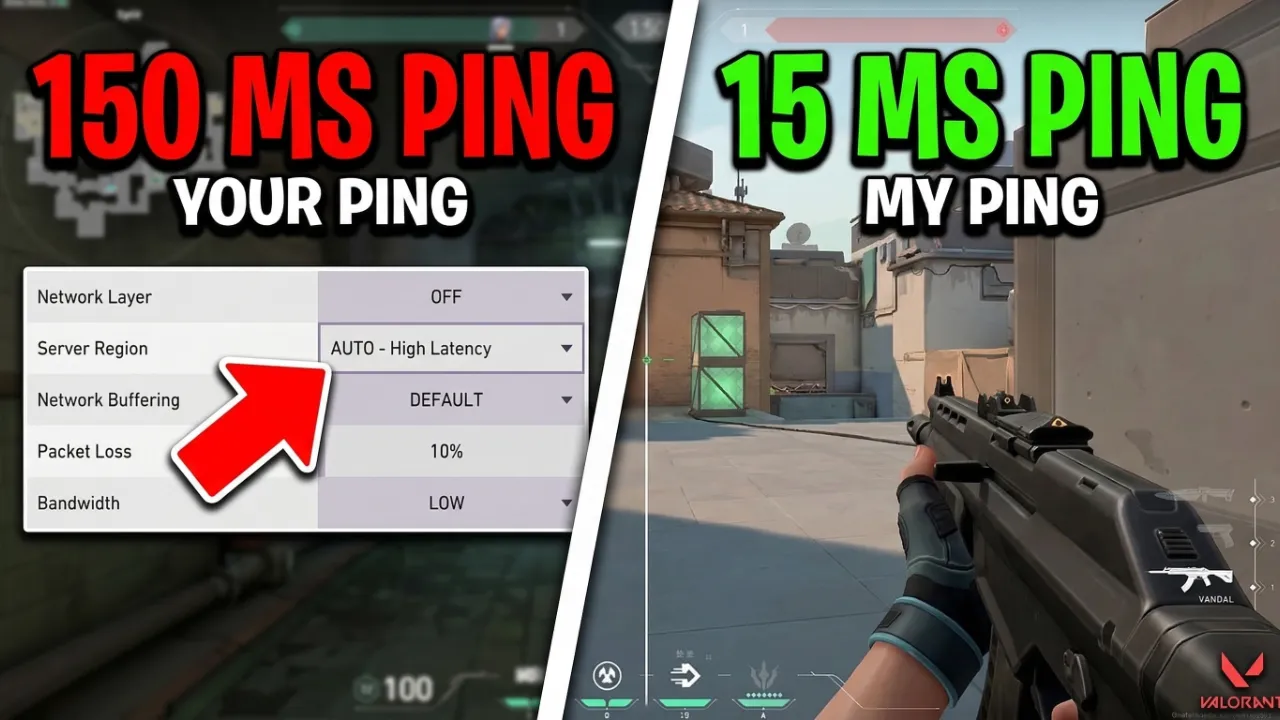
If you’ve ever been headshot by someone who wasn’t even on your screen yet, or watched your character teleport backwards mid-fight, you already know the pain of high ping.
It’s frustrating, it’s demoralizing, and honestly, it feels deeply unfair — especially when you’ve practiced for hours only to lose because of a number on your screen.
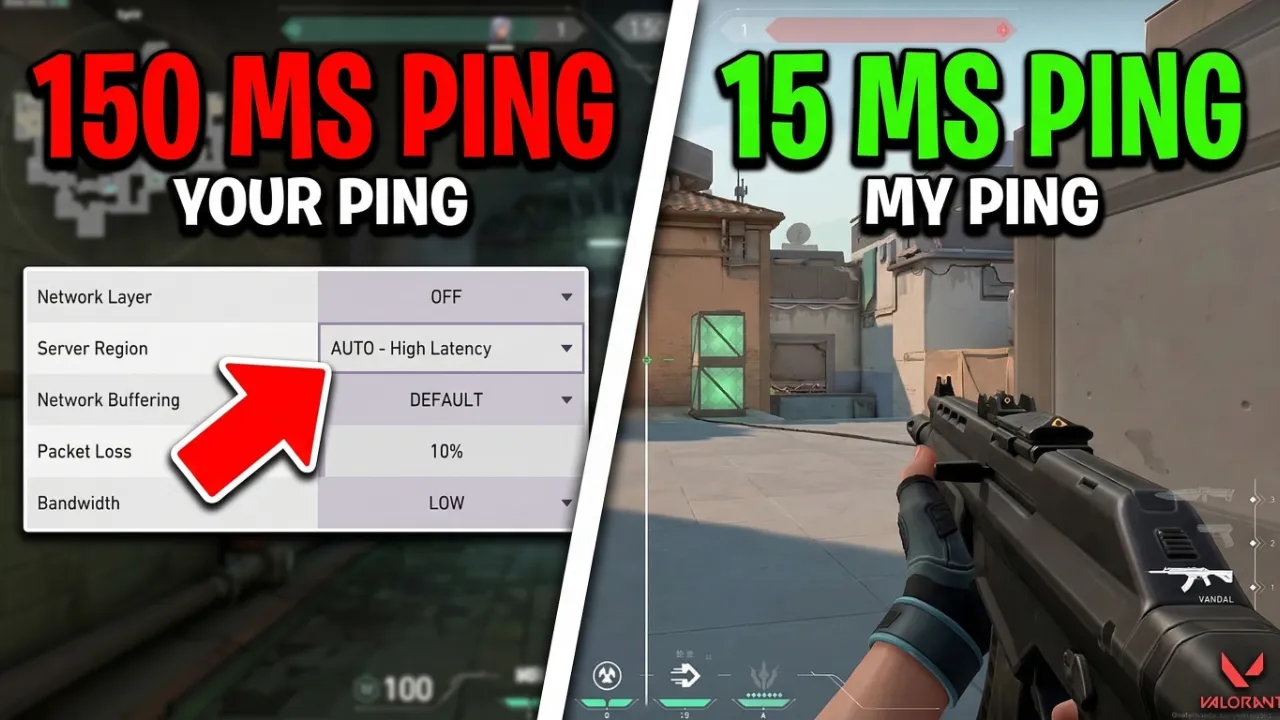
The good news? You can fix it. This guide walks you through everything: what ping actually is, why it spikes, and — most importantly — how to use GearUP Booster and other proven methods to get you back to smooth, low-latency gameplay.
What Is Ping and Why Should You Care?
Ping is the time (in milliseconds) it takes for your device to send a signal to a game server and receive a response back. Think of it like shouting across a football field and waiting for the echo. The longer it takes, the higher your ping — and the more out-of-sync you are with everyone else in the lobby.
For competitive games like Valorant, CS2, Fortnite, or Apex Legends, anything below 50ms is considered excellent. Once you creep above 100ms, the problems start becoming visible: delayed shots, rubberbanding, input lag, and in severe cases, complete disconnects. For fast-paced FPS and battle royale titles, even a 30ms spike can be the difference between a clean kill and dying to a ghost bullet.
Common Causes of High Ping in Competitive Games
Before jumping to fixes, you need to understand why your ping is high in the first place. Here are the most common culprits:
- Wi-Fi instability — Wireless signals are easily interrupted by walls, other devices, and neighboring networks
- Too many devices on your network — Every device streaming, downloading, or browsing eats into your available bandwidth
- Background applications running on your PC — Chrome, Discord updates, Steam downloads, and antivirus scans all compete for your connection
- Distant or overcrowded game servers — If you’re connecting to a server halfway across the world, physics literally works against you
- Poor network routing — Your data doesn’t always take the most efficient path to game servers; sometimes ISPs route it the long way round
- Outdated network drivers — An old or corrupt network adapter driver can throttle performance silently
How to Install GearUP Booster (Step-by-Step)
GearUP Booster is one of the most powerful tools built specifically for competitive gamers. Unlike a generic VPN, it uses AI-driven node diagnostics to automatically find the fastest routing path to your game server — across more than 2,500 supported titles. Setting it up takes less than 2 minutes.
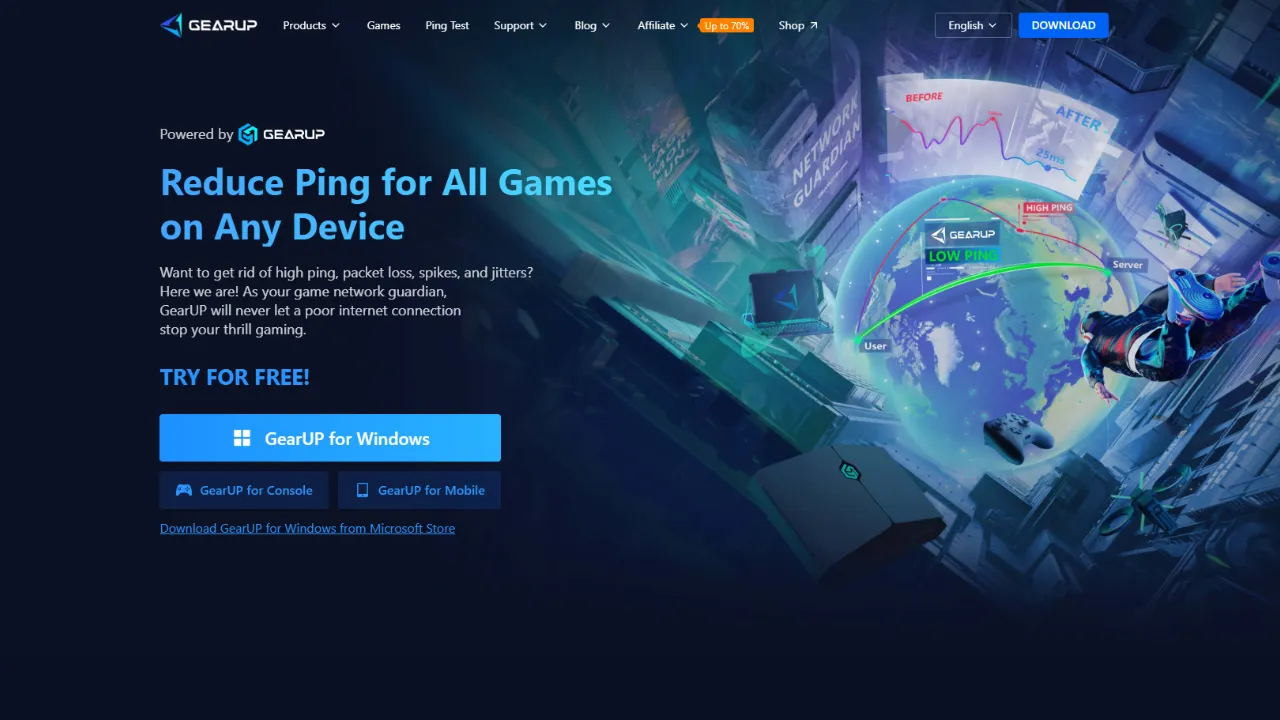
Step 1: Download GearUP Booster
Head to the official GearUP Booster website and download the installer for Windows. The setup file is lightweight and installs quickly without bloating your system.
Step 2: Launch and Search Your Game
Open GearUP Booster and use the search bar to find your game — whether it’s Valorant, Warzone, CS2, or any other title. The app has a massive library, so it almost certainly supports whatever you’re playing.
Step 3: Select Your Server Region
GearUP lets you pick the specific server region — or in some games, even the exact state or city — to connect to. Choosing the closest server to your location dramatically cuts down your ping.
Step 4: Hit Boost and Launch Your Game
Click the Boost button before launching your game. GearUP will open a private, optimized route between your PC and the game server — fewer hops, less packet loss, more stability. Then launch the game normally and feel the difference.
It genuinely is plug-and-play. No confusing configurations, no command-line tools. Just boot it up and play.
Manual Fixes to Lower Ping Fast
GearUP handles the heavy lifting, but pairing it with these manual tweaks will push your connection even further.
Switch to a Wired Ethernet Connection
This is the single most impactful thing most gamers can do. A wired connection is dramatically more stable and consistent than Wi-Fi, eliminating wireless interference entirely. If you’re serious about competitive play, this isn’t optional — it’s essential. Learn more about why ethernet beats Wi-Fi for gaming here.
Close All Background Applications
Before launching any competitive game, close Chrome tabs, pause any downloads, and shut down applications like Discord overlays, Spotify, OneDrive, and any streaming software you aren’t actively using. These background processes quietly steal bandwidth and CPU cycles. It takes 30 seconds and can shave 10–20ms off your ping instantly.
Change Your DNS Server
Your default ISP-provided DNS can be slow. Switching to Google DNS (8.8.8.8) or Cloudflare DNS (1.1.1.1) reduces the time it takes to resolve server addresses. On Windows, go to Network Settings → Change Adapter Options → IPv4 Properties and enter the new DNS manually.
Connect to the Right Game Server
Many competitive games let you manually choose your server region. Always pick the one closest to your physical location — routing through a faraway server introduces unnecessary distance for every packet you send. In Valorant, for instance, players in South Asia should always prioritize Singapore or Mumbai servers over Frankfurt or US East.
Update Your Network Adapter Drivers
Outdated drivers quietly degrade your connection without showing obvious symptoms. Open Device Manager, find your Network Adapter, right-click and select Update Driver. Alternatively, download the latest drivers directly from your motherboard or laptop manufacturer’s support page. Game server performance guides often cite driver updates as one of the most overlooked fixes.
Enable QoS on Your Router
Quality of Service (QoS) is a router-level feature that lets you prioritize gaming traffic over other types of data on your network. Log into your router admin panel (usually 192.168.1.1 or 192.168.0.1), find the QoS settings, and add your gaming PC as the highest priority device. This is especially useful if you share the network with family members who stream videos.
Optimize Windows for Low Latency
Windows isn’t optimized for gaming out of the box. A few key tweaks can reduce system-level latency significantly:
- Set your Power Plan to High Performance (Control Panel → Power Options)
- Disable Xbox Game Bar and background recording (Settings → Gaming)
- Turn off automatic Windows Updates during gaming sessions
- Disable unnecessary startup programs through Task Manager → Startup
These changes force Windows to dedicate more CPU and network resources to your game rather than background processes. CacheFly’s latency guide explains why system-level optimization matters just as much as network fixes.
What Good Ping Looks Like Per Game Type
Not all games demand the same latency tolerance. Here’s a practical reference:
| Game Genre | Ideal Ping | Playable Limit |
|---|---|---|
| FPS / Battle Royale | < 30ms | < 60ms |
| MOBA (e.g., Dota 2) | < 50ms | < 100ms |
| MMO / RPG | < 100ms | < 250ms |
| Fighting Games | < 30ms | < 50ms |
| Real-Time Strategy | < 50ms | < 120ms |
GearUP vs. Other Solutions: Why It Stands Out
There are several tools available for reducing ping — ExitLag, NoPing, Mudfish — but GearUP Booster consistently stands out for a few reasons. First, its AI node diagnostics automatically adapt and switch routes in real-time, so you’re always on the fastest available path without manual intervention. Second, it supports over 2,500 games, which is far more than most competitors. Third, unlike generic VPNs that can actually increase ping by routing traffic through distant servers, GearUP is purpose-built for gaming — its entire infrastructure is designed around minimizing latency, not encrypting browsing data.
For players in regions like South Asia where ISP routing can be notoriously inconsistent, GearUP Booster is often the difference between a 150ms connection and a 40ms one — literally game-changing.
Final Checks Before Every Competitive Session
Build these into a pre-game routine and your ping will stay consistently low:
- Launch GearUP Booster first — before opening the game client
- Close all background apps — browser, music players, downloaders
- Check your internet speed — aim for at least 25 Mbps download for smooth online play
- Verify your server region — make sure you’re not accidentally on a distant server
- Run on Ethernet — disconnect from Wi-Fi if at all possible
- Check for Windows Update activity — pause updates if they’re running
High ping isn’t just a technical inconvenience — it chips away at your confidence, makes you second-guess your own skills, and quite literally costs you games you should have won. With GearUP Booster installed and these manual optimizations in place, you’re not just fixing a number on the screen. You’re removing the one excuse that was standing between you and your rank. Now go play your best game.

3 thoughts on “How to Fix PING in Competitive Games (GearUp Review)”