
If you’re tired of rubber-banding enemies, inconsistent frame rates, and sluggish inputs during ranked matches, Hone might be the tool you’ve been missing.
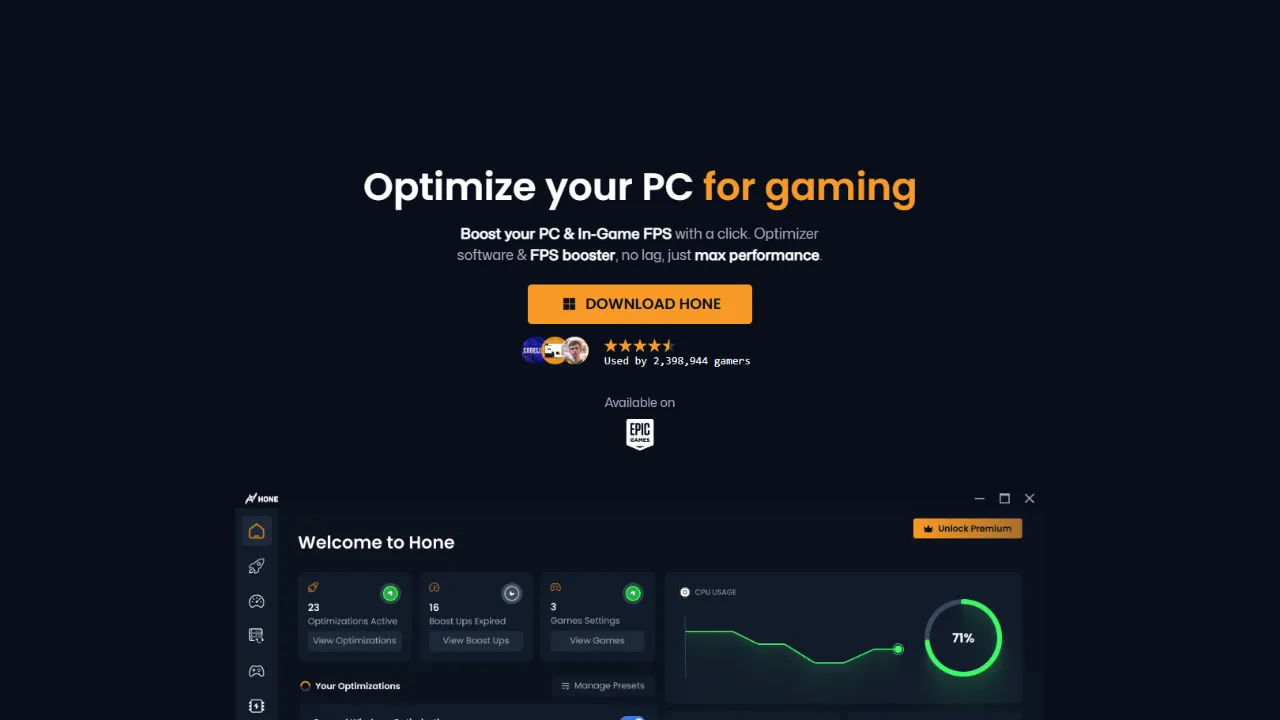
Hone is a free PC optimization software built specifically for gamers — it automates dozens of Windows tweaks that would otherwise take hours to configure manually.
This guide covers the best Hone optimization settings to maximize your FPS and reduce ping across games like Valorant, CS2, Fortnite, and more. You’ll walk away with a fully tuned setup and know exactly which settings matter most.
What Is Hone and Why Gamers Use It
Hone is a free gaming optimizer for Windows that applies system-level tweaks to reduce latency, free up resources, and improve frame consistency. Unlike bloated “PC cleaner” tools that promise miracles, Hone focuses purely on gaming performance: network prioritization, background process management, GPU scheduling, and CPU affinity settings.
Key things Hone does:
- Kills non-essential background processes before you launch a game
- Optimizes your network adapter settings for lower ping
- Applies GPU and CPU power profile changes
- Adjusts Windows visual effects and scheduler settings
- Monitors real-time FPS, ping, and temperature while gaming
Hone is particularly useful if you’re on a mid-range or low-end PC where every freed-up CPU core and every millisecond of network latency matters. If you’ve ever tried applying Windows tweaks manually from a Reddit thread and found the process overwhelming, Hone consolidates most of them into a single interface.
How to Install Hone and Set It Up Correctly
Before touching any settings, get the installation right. A misconfigured install is the most common reason users don’t see results.
Download and Installation Steps
- Go to the official Hone website and download the latest installer
- Run the installer as Administrator — right-click → “Run as administrator”
- When prompted, allow Hone to install its network driver (this is required for ping optimization)
- Sign in or create a free account — some features require a logged-in session
- Let Hone complete its initial system scan before changing any settings
Do not install Hone on a system drive that’s almost full. It needs headroom to operate the game launcher and optimization engine effectively. Also, disable any other third-party optimizer tools like Razer Cortex or MSI Afterburner’s overlay temporarily to avoid conflicts during initial setup.
For a visual walkthrough of the full process, check out this detailed guide on how to install Hone optimization settings on a low-end PC.
Connecting Your Games
After install, Hone scans your system for installed games. Make sure your game library path is correct — if you’ve installed games on a secondary drive (D:\ or E:), you may need to add the path manually under Settings → Game Library.
Best Hone Network Settings for Lower Ping
This is where Hone genuinely earns its reputation. The network optimization module is more granular than most tools offer for free.
Network Adapter Optimization
Navigate to Hone Dashboard → Network → Adapter Settings and apply these:
- Disable Nagle’s Algorithm: Enabled by default on Windows, Nagle’s Algorithm batches small TCP packets together to reduce overhead — but this adds latency in games. Hone disables it automatically when you toggle “Low Latency Mode.”
- Receive Side Scaling (RSS): Set to Enabled. This distributes network processing across CPU cores instead of bottlenecking it on a single core.
- Interrupt Moderation: Set to Disabled or Minimal. This reduces the delay between your NIC receiving a packet and your CPU processing it.
- DNS Optimization: Hone can switch your DNS to faster servers (Cloudflare 1.1.1.1 or Google 8.8.8.8). Use whichever tests faster from your location — Cloudflare wins for most regions in Europe and North America.
Choosing the Right Server Region
Hone’s ping optimizer works best when you manually select your server region inside the app. Many games default to auto-select, which can route you to a distant server. In the Network → Server Region tab, lock your game to the closest data center.
For additional ping reduction strategies that work alongside Hone, see this comprehensive guide on how to fix ping in competitive games.
Best Hone FPS Settings for Maximum Performance
Hone’s FPS optimization tools work at both the OS level and per-game level. Here’s how to configure them properly.
Process Priority and CPU Affinity
Under Hone → Performance → Process Manager:
- Set your game’s process priority to High (not Realtime — Realtime can cause system instability by starving background services the OS needs)
- Enable CPU Core Exclusion: Hone can reserve CPU core 0 and core 1 for Windows system processes, directing your game to use the remaining cores. On 6-core and 8-core CPUs, this often improves frame time consistency noticeably
- Enable Background Process Termination: This kills resource-heavy apps — browser tabs, Discord video rendering, update services — before your game launches
GPU Optimization Settings
Navigate to Performance → GPU Settings:
- Hardware-Accelerated GPU Scheduling (HAGS): Hone will recommend enabling or disabling this based on your GPU. On NVIDIA RTX 30 and 40 series, enabling HAGS reduces input lag. On older GPUs (GTX 1000 series), disabling it often performs better
- Shader Cache: Ensure this is enabled. Pre-compiled shaders prevent mid-game stutter caused by the GPU compiling shaders on the fly
- Power Mode: Set your GPU power mode to Maximum Performance. Hone applies this through Windows registry, but verify it’s also set in your NVIDIA Control Panel or AMD Radeon Software
For a broader look at GPU-level settings that complement Hone, this NVIDIA and AMD FPS settings guide covers what Hone doesn’t touch.
Windows Visual Effects and Scheduler
Hone applies these automatically under its “Game Mode” profile, but it’s worth knowing what’s being changed:
- Visual Effects: Disables animations, transparency, and shadow effects — frees up CPU and GPU resources
- Windows Game Mode: Hone enables Windows Game Mode and also disables the Xbox Game Bar, which consumes background resources even when you’re not using it
- Timer Resolution: Hone sets the Windows multimedia timer resolution to 0.5ms, down from the default 15.6ms. This improves frame time precision and reduces input lag measurably
Per-Game Profiles: Tuning Hone for Specific Titles
One of Hone’s most underused features is per-game optimization profiles. Instead of applying a single global setting, you can tune the tool for each game’s specific demands.
Valorant Settings in Hone
Valorant is a CPU-bound game. Its engine (Unreal Engine 4) is heavily single-threaded, so CPU optimization matters more than GPU here.
In Hone’s Valorant profile:
- Enable CPU Priority: High
- Set Network Mode: Ultra Low Latency
- Disable HAGS (Valorant runs better without it on most mid-range cards)
- Enable Background App Termination
Pair these with the right in-game settings. This guide on best Valorant low-end settings covers the in-game counterpart to Hone’s system-level changes.
CS2 Settings in Hone
CS2 benefits significantly from lower input lag and consistent frame pacing. Apply these in Hone’s CS2 profile:
- Enable Fullscreen Exclusive Mode support (forces exclusive fullscreen, bypassing the DWM compositor for lower input lag)
- Set CPU priority to High
- Enable Network Adapter Optimization
- Set timer resolution to 0.5ms
Fortnite Settings in Hone
Fortnite is unique because it supports a Performance rendering mode that drops to DirectX 11 with simplified visuals. Hone works best with Fortnite when you:
- Set GPU power mode to Maximum Performance
- Disable background browser processes (Fortnite’s launcher, the Epic Games Store, keeps several processes alive during gameplay)
- Enable RAM Optimization to release memory held by the launcher
Hone’s RAM and Storage Optimization Features
Beyond CPU and network, Hone includes RAM management and storage tweaks that many users skip entirely.
RAM Optimization: Hone can release idle RAM before game launch. On systems with 8GB or less, this can recover 1–2GB that browsers and background apps are holding — a meaningful difference for memory-hungry titles.
Storage Read Priority: Hone adjusts Windows I/O scheduler settings to prioritize reads from your game install directory. This reduces in-game loading stutters caused by the OS queuing game file reads behind background disk operations.
Prefetch and Superfetch Management: Hone disables Windows Superfetch (SysMain) during gaming sessions. Superfetch pre-loads apps into RAM in anticipation of use — helpful for desktop productivity, counterproductive for gaming because it competes for RAM bandwidth.
If you’re dealing with persistent FPS drops despite these settings, the issue may be elsewhere. This guide to FPS drops every few seconds covers the diagnostic process step by step.
Common Mistakes When Using Hone
Even with the right tool, bad configuration kills results. These are the most frequent errors:
- Running Hone without admin privileges: Many of its most impactful changes require elevated permissions. Always launch with “Run as administrator.”
- Using Hone alongside other optimizers: Razer Cortex, Game Fire, and similar tools fight over the same settings. Pick one.
- Setting process priority to Realtime: This can cause the OS to become unresponsive. Use High instead.
- Ignoring the network driver install: Skipping Hone’s custom network driver leaves its ping optimization features non-functional.
- Not restarting after applying changes: Several settings — particularly registry edits and network adapter changes — require a full system restart to take effect.
- Applying every toggle blindly: HAGS, for example, helps on newer hardware and hurts on older hardware. Read Hone’s recommendations before enabling everything.
Conclusion: Best Hone Optimization Settings for Real Results
The best Hone optimization settings aren’t a single toggle — they’re a combination of network adapter tuning, per-game CPU and GPU profiles, background process management, and Windows scheduler adjustments working together. Start with the network settings to attack ping, then move to the FPS and GPU profile settings, and finish with per-game configuration for your primary titles.
For most gamers, the biggest wins come from three things: disabling Nagle’s Algorithm for network latency, setting the timer resolution to 0.5ms for frame timing, and killing background processes before launch. Those three alone will produce noticeable results on any system.
Apply the settings in this guide, restart your system, and test in a practice mode or bot lobby before jumping into ranked — so you’re comparing apples to apples.
FAQ: Hone Optimization Settings
What does Hone actually do to improve FPS?
Hone improves FPS by killing background processes that consume CPU and RAM, adjusting Windows power and scheduling settings, disabling GPU-throttling policies, and setting process priority for your game to High. It automates tweaks that would otherwise require manual registry edits and driver configuration.
Is Hone safe to use?
Yes. Hone is widely used in the gaming community and doesn’t modify game files. Its changes are applied at the OS and driver level. All settings can be reverted through Hone’s reset function or manually through Windows. It does not interact with game anti-cheat systems.
Does Hone reduce ping?
Hone can reduce ping by disabling Nagle’s Algorithm, optimizing network adapter interrupt settings, switching DNS servers, and applying low-latency network profiles. Results vary by ISP and routing, but users on Wi-Fi or congested networks typically see the most improvement from the best Hone optimization settings.
What’s the best Hone setting for Valorant?
For Valorant, the most impactful Hone settings are CPU priority set to High, Ultra Low Latency network mode, background app termination enabled, and HAGS disabled. Valorant is CPU-bound, so freeing up CPU resources has more impact than GPU tweaks.
Can I use Hone on a low-end PC?
Yes, Hone is particularly effective on low-end PCs because those systems have the least headroom — every freed resource matters more. The background process termination and RAM optimization features provide the most benefit on systems with 8GB RAM or less.
Does Hone work with all games?
Hone supports most modern PC titles and has pre-configured profiles for popular games like Valorant, CS2, Fortnite, Apex Legends, and Roblox. For games without a dedicated profile, you can create a custom profile using the manual settings panel.
Should I use Hone with NVIDIA Control Panel settings?
Yes. Hone and NVIDIA Control Panel operate at different levels — Hone handles OS-level scheduling and network settings, while NVIDIA Control Panel controls GPU-specific rendering options. Using both together produces better results than either alone. Hone will remind you of recommended NVIDIA settings but won’t override them automatically.
What is the best Hone optimization setting for reducing input lag?
The most effective Hone settings for input lag are: timer resolution set to 0.5ms, fullscreen exclusive mode enabled, HAGS toggled based on your GPU generation (enabled for RTX 30/40, disabled for GTX 10/16), and Windows visual effects disabled. These changes reduce the delay between your mouse/keyboard inputs and on-screen response.