
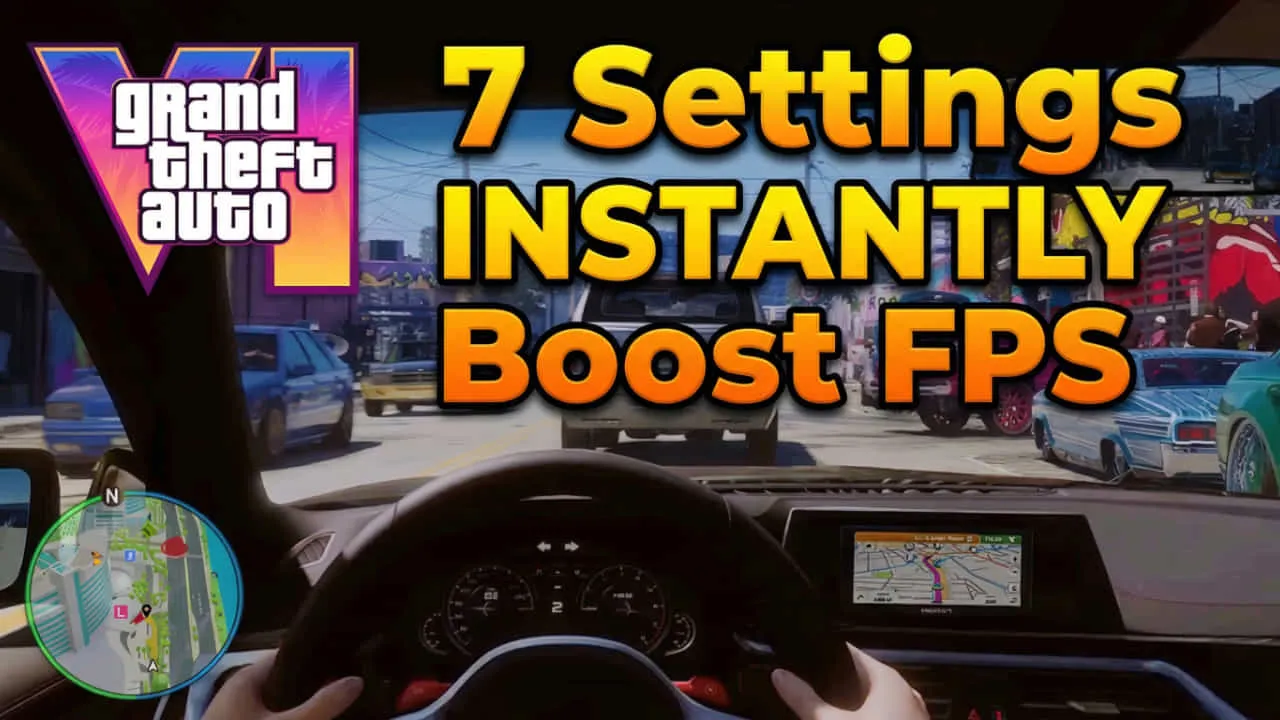
The anticipation for GTA VI is reaching a fever pitch. As Rockstar Games prepares to deliver what could be the most technically demanding open-world experience ever created, gamers are already wondering: “Will my rig handle it?” While hardware upgrades are the most direct path to performance, there are several overlooked software settings and system tweaks that can instantly boost your FPS.
In this comprehensive guide, we’ll explore 7 critical settings that are often ignored but can make a massive difference in GTA VI and other modern titles.
Must check: How to Fix PING in Competitive Games (GearUp Review)
1. Disable Fullscreen Optimizations
Windows 10 and 11 come with a feature called “Fullscreen Optimizations.” While intended to provide the benefits of both Borderless Windowed and Exclusive Fullscreen modes, it often introduces input lag and performance stutters in demanding games like GTA. To disable it, right-click the game’s executable, go to Properties > Compatibility, and check “Disable fullscreen optimizations.” This ensures the game has direct control over your display resources.
2. High Performance Power Plan
By default, Windows uses a “Balanced” power plan that may throttle your CPU to save energy. For gaming, you want every ounce of power available. Switch to the “High Performance” or “Ultimate Performance” plan in the Control Panel’s Power Options. This prevents your processor from downclocking during intense gameplay sequences in the busy streets of Vice City.
3. Optimize GPU Hardware Scheduling
Hardware-Accelerated GPU Scheduling is a Windows setting that allows your graphics card to manage its own video memory. Turning this on can reduce latency and improve average frame rates, especially on mid-range cards. You can find this under Settings > System > Display > Graphics > Change default graphics settings.
4. Adjust Shader Cache Size
Stutters in open-world games are often caused by shaders being compiled on the fly. In your NVIDIA Control Panel (or AMD Software), increase the Shader Cache Size to 10GB or “Unlimited.” This allows the game to store more pre-compiled shaders on your disk, significantly reducing stutters when entering new areas of the map.
5. Disable Game Mode and Game Bar
While Microsoft claims “Game Mode” helps performance, many users find it causes more harm than good by aggressively managing background processes. Similarly, the Xbox Game Bar can consume valuable CPU cycles. Disabling these in the Windows Settings can lead to a more stable frametime graph.
Must check: 15 Pre-Game Tweaks to Boost FPS on Any Budget PC (2026 Guide)
6. Fine-Tune Virtual Memory (Page File)
If you have less than 32GB of RAM, your system will rely heavily on the Page File. Ensure your Page File is located on your fastest NVMe SSD, not a mechanical HDD. Setting a manual size (e.g., 1.5x your RAM) can also prevent the system from resizing the file during gameplay, which causes massive FPS drops.
7. Disable Windows Transparency Effects
It sounds minor, but the transparency effects in the Windows UI use GPU resources. Turning off “Transparency effects” in Settings > Personalization > Colors can free up a small amount of VRAM and GPU overhead, which might be just enough to push you over that 60 FPS threshold in GTA VI.
Conclusion
Boosting FPS isn’t always about buying a new RTX 50-series card. By optimizing these 7 overlooked settings, you can squeeze every bit of performance out of your current hardware. As we wait for GTA VI, these tweaks will ensure your system is lean, mean, and ready for the next generation of gaming. Stay tuned to OptiLag for more deep dives into game optimization!