
You’re hitting 144 FPS in your game — so why does it still feel choppy? If your gameplay feels sluggish, stuttery, or inconsistent despite high framerates, the culprit is almost always input lag or poor frame pacing. These two issues are among the most misunderstood problems in PC gaming, and this guide will walk you through exactly what they are and how to fix them.
Also read: 15 Pre-Game Tweaks to Boost FPS on Any Budget PC (2026 Guide)
What Is Input Lag and Why Does It Matter?
Input lag is the delay between your physical action (e.g., clicking the mouse or pressing a key) and what appears on screen. Even at 144 FPS, you can experience significant input lag due to settings like V-Sync, buffering, and software overhead. Input lag is measured in milliseconds (ms), and anything above 20ms can start feeling noticeably sluggish in fast-paced games like CS2, Valorant, or Apex Legends.
What Is Frame Pacing and How Is It Different from FPS?
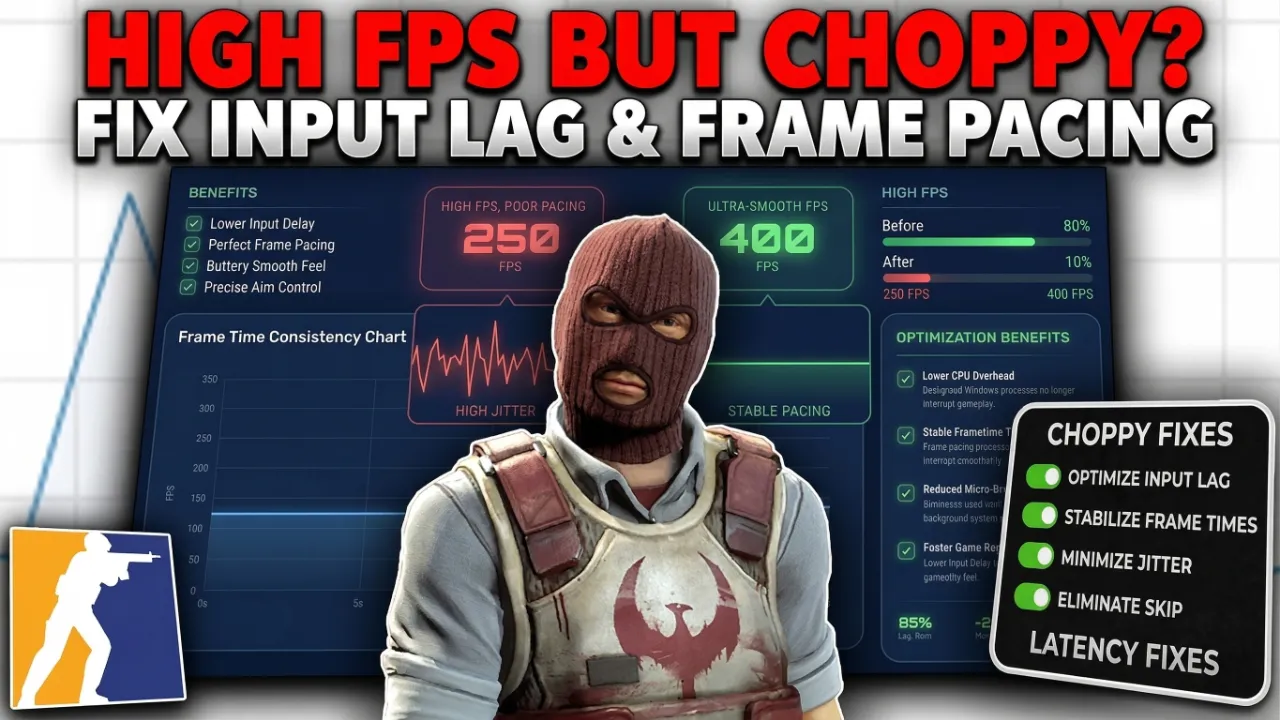
Frame pacing refers to how consistently frames are delivered to your monitor. A game running at 100 FPS should deliver one frame every 10ms. But if frames arrive at irregular intervals — say 5ms, then 20ms, then 5ms again — the game will look choppy even though your FPS counter reads high. This inconsistency is called frame pacing issues or frame time variance, and it’s a very common cause of the “high FPS but choppy” problem.
Common Causes of Input Lag and Frame Pacing Issues
Before fixing these problems, it helps to understand what causes them. Here are the most frequent culprits:
- V-Sync Enabled: V-Sync forces your GPU to wait for the monitor’s refresh cycle, adding input lag.
- Uncapped FPS with no frame limiter: Causing GPU overload and erratic frame delivery.
- High in-game graphics settings: GPU overload leads to uneven frame times.
- Background processes: CPU usage spikes cause inconsistent frame generation.
- Outdated or wrong GPU drivers: Can cause stuttering and poor frame pacing.
- Wrong power plan: Windows balanced power mode throttles CPU performance.
How to Fix Input Lag on PC (Step-by-Step)
Follow these steps to reduce input lag and get a more responsive gaming experience:
Disable V-Sync
V-Sync (Vertical Sync) forces your GPU to synchronize its output with your monitor’s refresh rate. This eliminates screen tearing but significantly increases input lag. Go into your game’s graphics settings and turn V-Sync OFF. If you need tear prevention, use NVIDIA G-Sync or AMD FreeSync instead, which are adaptive sync technologies that don’t add input lag.
Use an In-Game or RTSS Frame Rate Limiter
Running uncapped FPS can cause your GPU to alternate between heavy and light workloads, leading to irregular frame delivery. Set a frame rate cap at around 10-20 FPS below your monitor’s refresh rate. For example, on a 144Hz display, cap at 120-130 FPS. You can do this in-game or using RivaTuner Statistics Server (RTSS). This produces more consistent frame pacing and often reduces input lag.
Enable NVIDIA Reflex or AMD Anti-Lag
If you own an NVIDIA GPU, enable NVIDIA Reflex Low Latency in supported games. This technology reduces the render queue and minimizes the delay between your input and the frame being rendered. AMD users can enable Anti-Lag in the Radeon software or in-game for supported titles. Both technologies specifically target the CPU-to-GPU submission pipeline to cut input lag.
Also read: Best Must have Software For Gaming PC (2026)
Set Windows Power Plan to High Performance
Go to Control Panel > Power Options and select High Performance or Ultimate Performance (if available). This prevents Windows from throttling your CPU to save power, which can cause intermittent stutters and inconsistent frame times during gaming.
Update Your GPU Drivers
Outdated GPU drivers can introduce bugs that affect frame pacing and rendering stability. Visit NVIDIA’s or AMD’s website and install the latest Game Ready or Adrenalin driver. It’s also worth trying a clean driver installation using Display Driver Uninstaller (DDU) to remove any corrupt driver files before reinstalling.
Kill Background Processes
Press Ctrl + Shift + Esc to open Task Manager and close any applications consuming significant CPU or disk usage. Common culprits include browser tabs, Discord video, Windows Update, and antivirus scans. You can also disable startup programs to prevent them from running in the background while gaming.
How to Fix Frame Pacing Issues
Frame pacing issues often require a different approach than pure input lag fixes. Here are proven methods to smooth out your frame delivery:
- Enable G-Sync or FreeSync: These adaptive sync technologies match your monitor refresh rate dynamically to your GPU output, virtually eliminating frame pacing issues caused by mismatched rates.
- Lower graphically demanding settings: Settings like Ray Tracing, Ambient Occlusion, and Shadows cause GPU spikes. Reducing these creates more consistent frame times.
- Use DXVK or DirectX 12/Vulkan: These modern APIs have better multi-threaded CPU utilization, leading to smoother frame delivery compared to older DX11 in many games.
- Cap your FPS to a stable range: If your GPU can hit 150 FPS max, capping at 120 FPS keeps frame times far more consistent than letting them fluctuate between 60-150.
How to Check Input Lag and Frame Times
To diagnose the actual severity of your problem, use these free tools:
- MSI Afterburner + RivaTuner: Overlay that shows real-time frame times, GPU/CPU usage.
- CapFrameX: Captures and analyzes frame time data from your gaming sessions.
- NVIDIA FrameView: Free tool from NVIDIA that logs frame time and latency data.
- RTSS (RivaTuner Statistics Server): Provides a real-time frame time graph overlay.
Conclusion
High FPS doesn’t automatically mean smooth, responsive gameplay. Input lag and frame pacing issues are two distinct problems that can make your game feel choppy even when your FPS counter looks great. By disabling V-Sync, capping your frame rate, using adaptive sync, updating drivers, and killing background processes, you can dramatically improve both input response and visual smoothness. Start with the simplest fixes first — disabling V-Sync and setting a frame limiter — and then move to more advanced solutions if needed. Your gaming experience should feel noticeably more fluid after applying these changes.
3 thoughts on “High FPS but Choppy? Fix Input Lag and Frame Pacing”