

Your PC stutters mid-match. FPS tanks every time Windows decides to run background updates. You’ve already lowered your in-game graphics to the bare minimum, but the lag is still there. Sound familiar? You’re not alone — millions of gamers on Windows 10 fight this exact battle every day, and most of them don’t realize the real culprit isn’t their hardware. It’s an unoptimized OS eating up resources your games desperately need.
The good news? You don’t need to spend a single rupee (or dollar) to fix it. There are genuinely powerful, completely free Windows 10 optimizer tools designed specifically to squeeze every last drop of performance out of your rig. This guide covers the best ones — what they do, how to use them, and which ones actually deliver real FPS gains.
By the time you’re done reading, your Windows 10 gaming PC will be leaner, faster, and ready to push higher frames without any hardware upgrades.
Why Your Gaming PC Needs a Free Windows 10 Optimizer
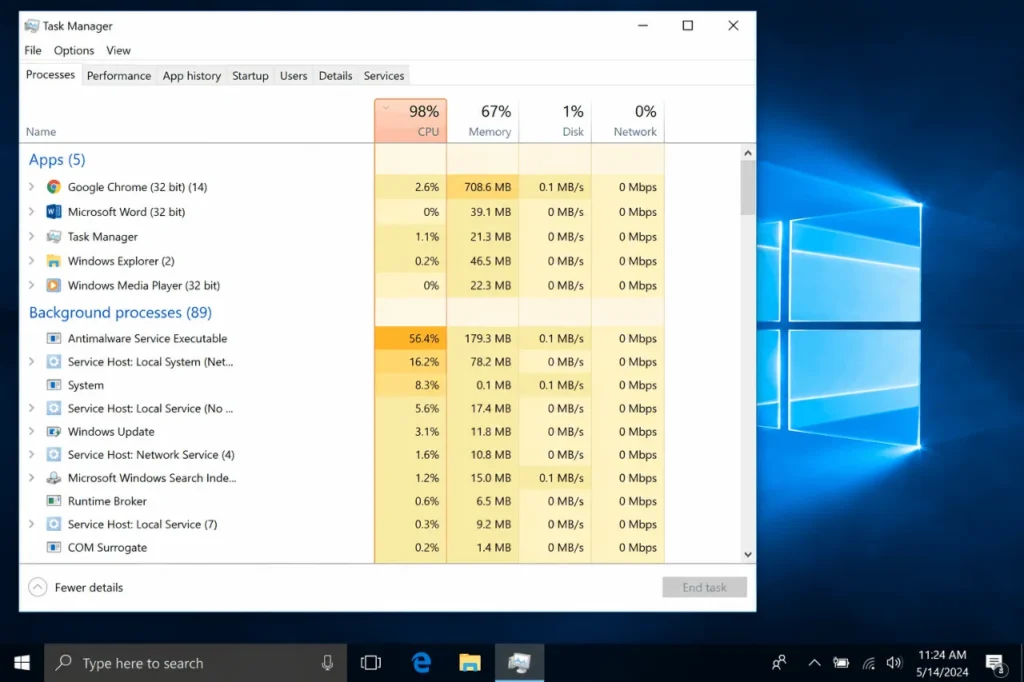
Windows 10 is a fantastic OS, but it wasn’t built with gaming as its top priority. Out of the box, it runs dozens of background services, syncs OneDrive, indexes files, runs Cortana, and sends telemetry — all while you’re in the middle of a ranked match. Every one of those processes steals CPU cycles, RAM, and disk bandwidth from your game.
A good Windows 10 optimizer targets exactly these bloat sources. It disables unnecessary startup programs, cleans junk files, tweaks system settings for performance, and often includes a dedicated gaming mode that pauses background activity the moment you launch a game. The result is smoother gameplay, faster load times, and more consistent frame rates.
The key word here is “free.” Not free trials. Not freemium with locked features. The tools below are fully functional at no cost, and they’ve been tested on real gaming setups.
The 7 Best Free Windows 10 Optimizers for Gamers
1. MSI Afterburner — GPU Monitoring + In-Game Overlay
MSI Afterburner is the most popular free GPU tool in the gaming world, and for good reason. While it’s best known as an overclocking utility, its real value for everyday gamers is its real-time hardware monitoring and in-game overlay. You can see your GPU temp, CPU usage, FPS, RAM usage, and more — all overlaid on your screen while playing.
It helps you identify whether your GPU is being bottlenecked, if thermals are causing throttling, or if a background process is spiking your CPU. Once you know the problem, you can fix it.
- Best for: GPU monitoring, overclocking, performance overlay
- Works on: All NVIDIA and AMD GPUs
- Download: Free from MSI’s official site
Download MSI Afterburner Free100% Secured | Safe | Verified
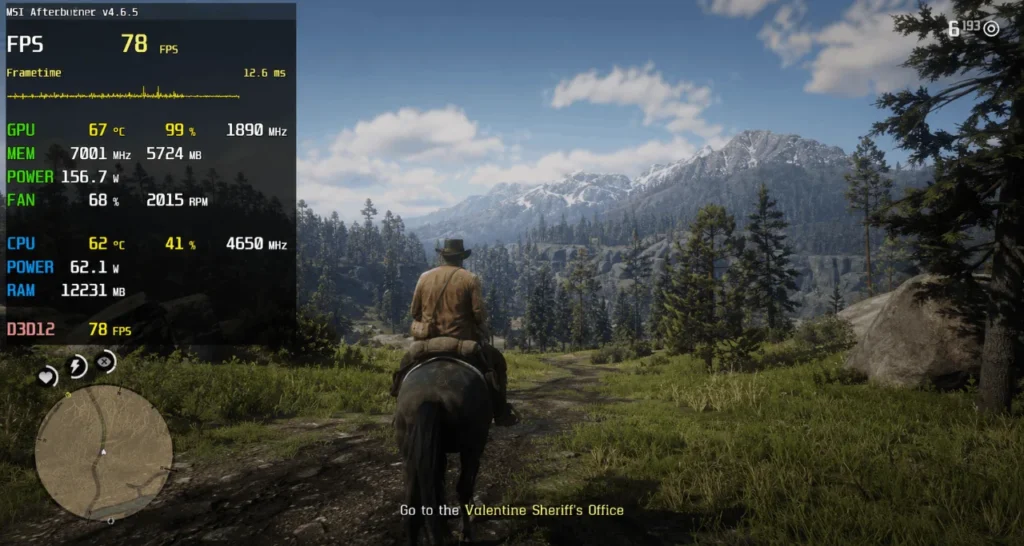
Takeaway: Use the overlay for at least one gaming session before making any other changes. You’ll understand exactly where your performance is leaking before you start fixing it.
2. CCleaner Free — Junk Files and Registry Cleaner
CCleaner has been around for over a decade, and it remains one of the most reliable free PC optimizer tools for Windows 10. Its primary job is removing junk files — temporary files, browser caches, leftover installer data — that quietly pile up and slow your system down over time.
For gamers, the most useful feature is the Startup Manager, which lets you disable programs that launch automatically with Windows. Every app you stop from auto-starting is RAM and CPU time handed back to your games.
- Best for: Junk file removal, startup app management, browser cache cleaning
- Key feature: Startup manager — disable useless auto-launch apps
- Warning: Avoid aggressive registry cleaning; stick to junk files and startup management
Download CCleaner Free100% Secured | Safe | Verified
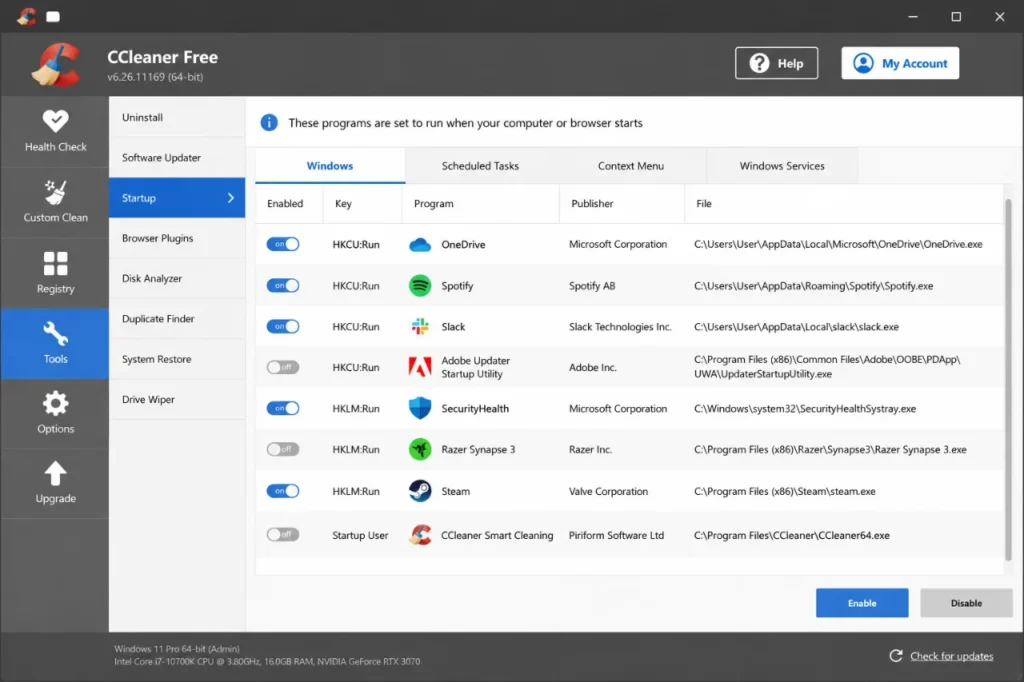
Takeaway: Run CCleaner’s junk file scan once a week, and immediately after installing/uninstalling games. Use the startup manager to trim your boot list down to essentials only.
3. Razer Cortex — Dedicated Free Gaming Optimizer
Razer Cortex is one of the few free optimizer tools built specifically for gamers. When you launch a game through Cortex, it automatically suspends non-essential Windows processes and services to free up RAM and CPU. When the game closes, everything resumes. No manual fiddling required.
It also includes a built-in game launcher, FPS counter, and game stats tracker. The Boost feature has been shown to recover anywhere from 5–15 FPS on mid-range PCs by simply cutting background memory usage before a session.
- Best for: Automated in-session optimization, FPS boosting, game launching
- Key feature: Auto-suspend background processes when a game is detected
- Bonus: Game statistics, achievement tracking, and deals
Download Razer Cortex Free100% Secured | Safe | Verified
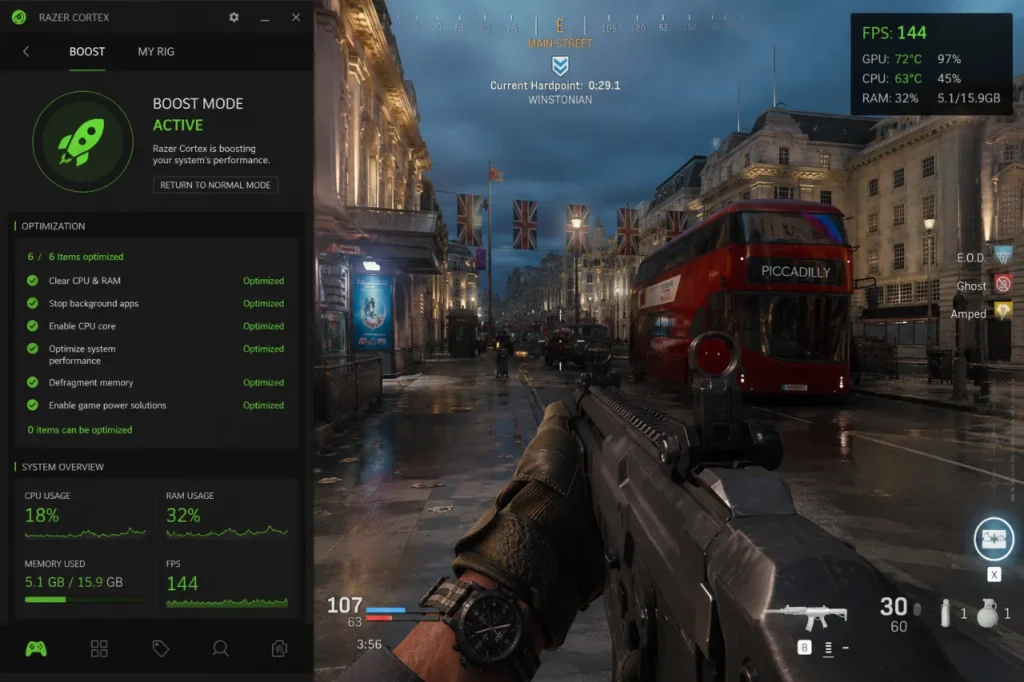
Takeaway: Set Razer Cortex as your default game launcher. The auto-boost feature works best when you have 8GB RAM or less — the freed memory headroom translates directly to more stable frame rates.
4. O&O ShutUp10++ — Windows 10 Privacy and Bloat Disabler
O&O ShutUp10++ is a portable, zero-install tool that lets you disable the telemetry, data collection, and background services that Windows 10 runs constantly. None of these services benefit your gaming — they just quietly consume CPU and network bandwidth.
With a single click on the “Recommended Settings” preset, you can safely disable Cortana, Windows telemetry, background app refresh, advertising ID, and more. It’s one of the most impactful free tweaks you can make on a gaming PC.
- Best for: Disabling Windows 10 bloat, telemetry, and background syncs
- Key feature: “Apply recommended settings” one-click preset for safe optimizations
- Note: Portable app — runs without installation, leaves no traces
Download O&O ShutUp10++ Free100% Secured | Safe | Verified
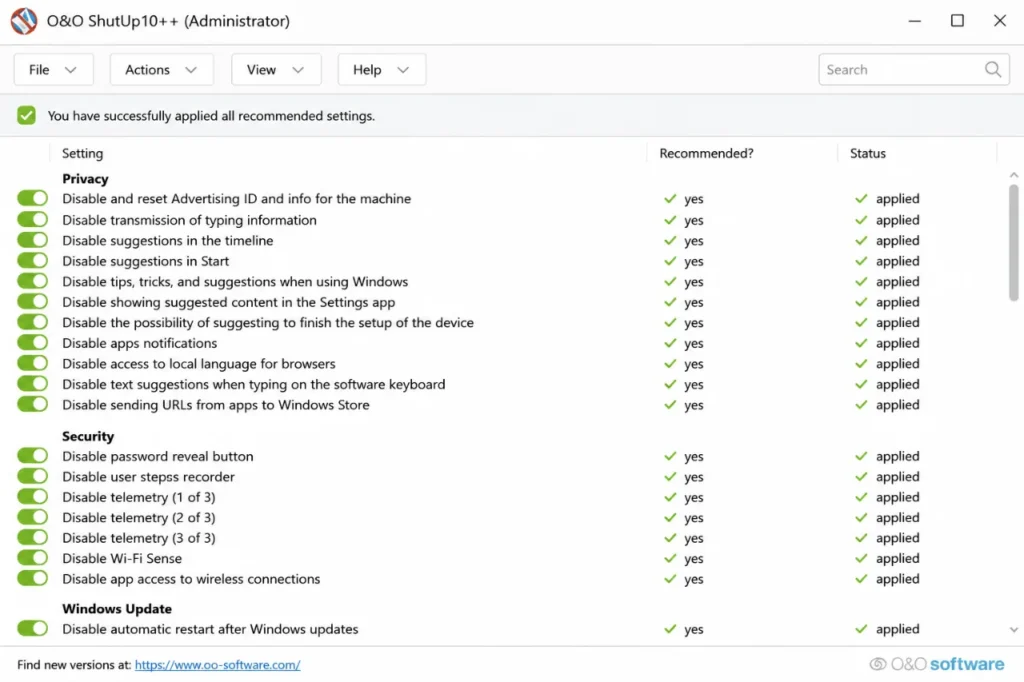
Takeaway: Apply the recommended settings, restart once, and you’re done. You’ll notice Windows feels snappier, and network usage during gaming sessions drops noticeably.
5. HWiNFO64 — Advanced Hardware Monitoring for Gamers
HWiNFO64 is the deepest free hardware monitor available for Windows 10. Where Task Manager gives you surface-level data, HWiNFO gives you full sensor readings — CPU core temps, per-core clocks, GPU voltage, VRAM usage, fan speeds, motherboard sensors, and more.
This is an essential diagnostic tool for gamers dealing with FPS drops, stutters, or thermal throttling. If your CPU is hitting 95°C during gaming, HWiNFO will show you exactly which core is the problem and at what clock speed it’s throttling.
- Best for: Deep hardware monitoring, thermal diagnosis, logging sensor data
- Key feature: Sensor logging to CSV — track performance over a full gaming session
- Integrates with: MSI Afterburner for in-game overlay display
Download HWiNFO64 Free100% Secured | Safe | Verified
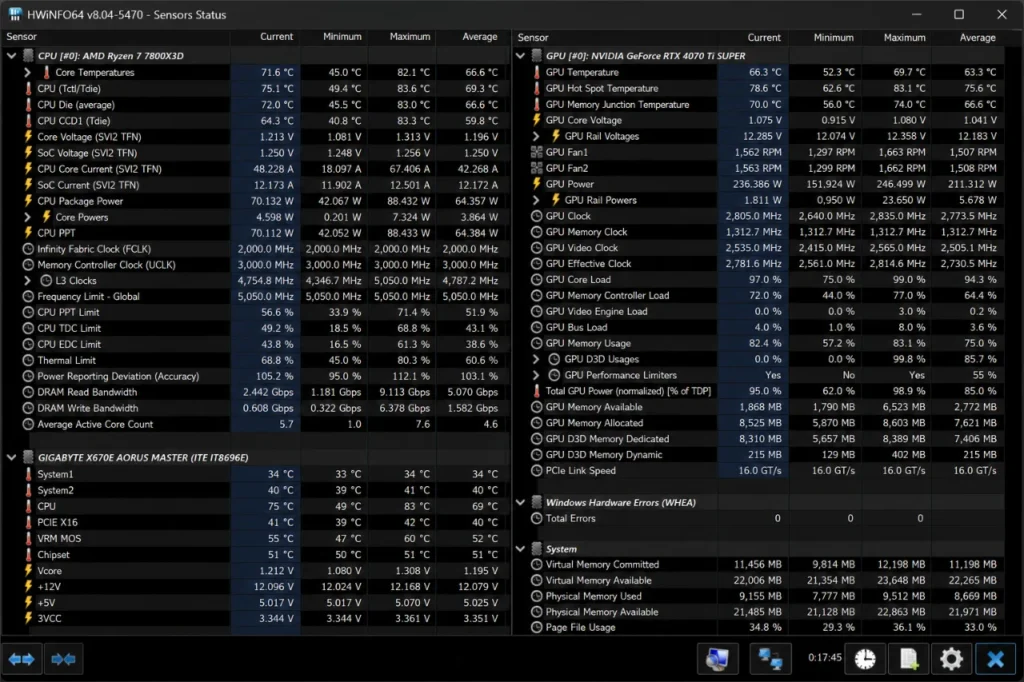
Takeaway: Pair HWiNFO with MSI Afterburner for a complete real-time monitoring setup. Run a sensor log during a 30-minute gaming session and review it after — you’ll spot thermal or usage spikes you’d never notice otherwise.
6. Process Lasso — Smart CPU Priority Manager
Process Lasso is a free process management tool that goes far beyond what Windows Task Manager can do. Its core feature, ProBalance, automatically adjusts the CPU priority of background processes in real time to ensure your foreground game always gets the resources it needs first.
It also lets you set custom CPU affinities, energy profiles, and priority rules for specific games — so your settings apply automatically every time you launch that game. No need to manually babysit Task Manager mid-session.
- Best for: CPU priority management, background process throttling, energy profiles
- Key feature: ProBalance — real-time automatic background process management
- Free tier: Fully functional; the paid version adds more presets and remote management
Download Process Lasso Free100% Secured | Safe | Verified
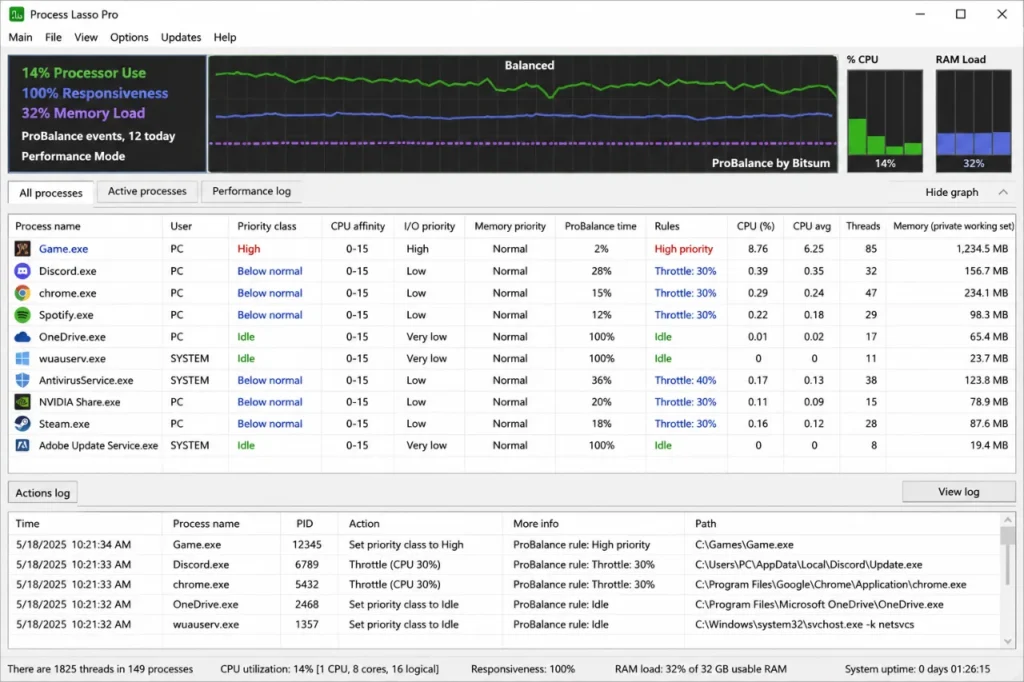
Takeaway: Right-click your game executable in Process Lasso and set it to “Always — High” priority. Enable ProBalance and leave it running in the system tray — it silently keeps everything else from stealing your CPU during sessions.
7. ThisIsWin11 / Optimizer (by hellzerg) — All-in-One Windows 10 Tweaker
The open-source Optimizer tool by hellzerg on GitHub is a powerful all-in-one Windows 10 tweaker built specifically for performance. It’s completely free, doesn’t require installation, and covers everything from disabling Windows Defender for testing, to enabling Ultimate Performance power plans, removing OneDrive, disabling game bar, and much more.
This is the tool to use when you want a complete system-level tune-up in one place. It’s not for complete beginners — but techie gamers will love the granular control it offers over Windows 10’s hidden settings.
- Best for: Deep system tweaks, power plan settings, disabling Windows gaming overhead
- Key feature: One-click Ultimate Performance power plan activation
- Warning: Read each option before enabling — some tweaks are aggressive
Download Optimizer by hellzerg Free100% Secured | Safe | Verified
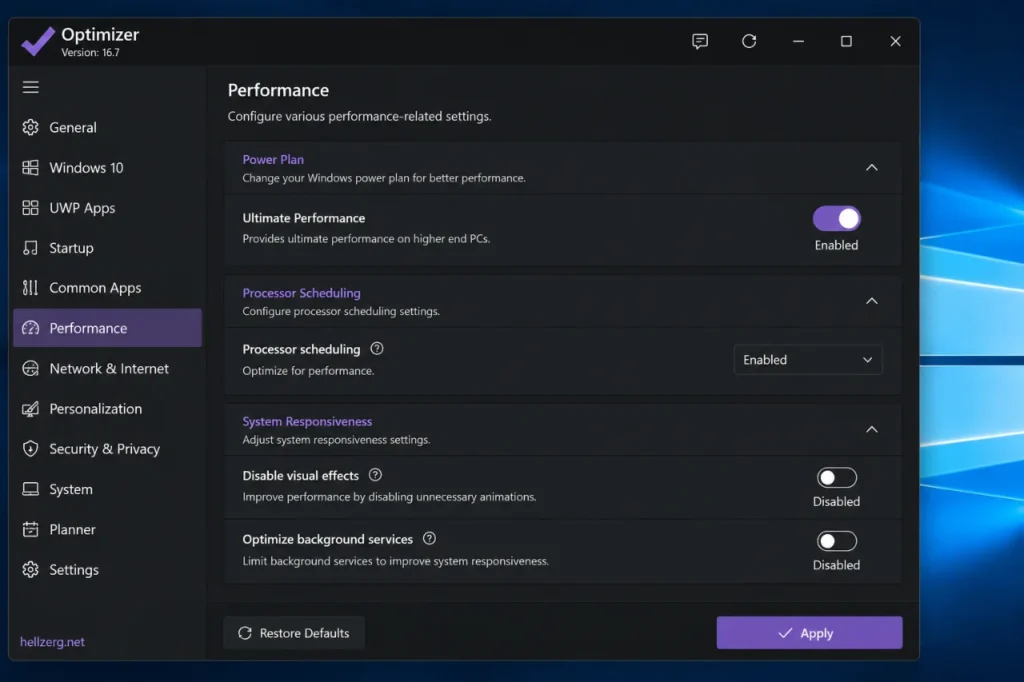
Takeaway: Start with the “Windows 10” tab and enable Ultimate Performance mode. Then work through the Gaming tab. Avoid touching anything labeled “Experimental” unless you’ve done your research.
Quick Comparison: Best Free Windows 10 Optimizer Tools for Gaming
| Tool | Best For | Gaming Mode | Install Required | Skill Level |
|---|---|---|---|---|
| MSI Afterburner | GPU monitoring + OC | ❌ (monitoring only) | Yes | Beginner |
| CCleaner Free | Junk cleanup, startup | ❌ | Yes | Beginner |
| Razer Cortex | Auto in-session boost | ✅ | Yes | Beginner |
| O&O ShutUp10++ | Bloat/telemetry disabler | ❌ | No (portable) | Beginner |
| HWiNFO64 | Hardware diagnostics | ❌ (monitoring only) | Optional | Intermediate |
| Process Lasso | CPU priority management | ✅ (ProBalance) | Yes | Intermediate |
| Optimizer (hellzerg) | Deep system tweaks | ✅ | No (portable) | Advanced |
How to Use These Windows 10 Optimizers Together
These tools aren’t competing with each other — they cover different layers of your system. Here’s the recommended setup order for techie gamers:
- Run O&O ShutUp10++ first — Apply recommended settings and restart. This clears the Windows background noise before anything else.
- Install CCleaner — Clean junk files and trim your startup list on day one.
- Install MSI Afterburner + HWiNFO64 — Configure the in-game overlay to monitor FPS, temps, and GPU usage during a test session.
- Install Razer Cortex — Set it as your game launcher going forward. Let it handle session-level optimization automatically.
- Install Process Lasso — Enable ProBalance, then set per-game CPU priority rules.
- Run hellzerg Optimizer last — Apply targeted tweaks after you’ve diagnosed what’s limiting your system using the monitoring tools.
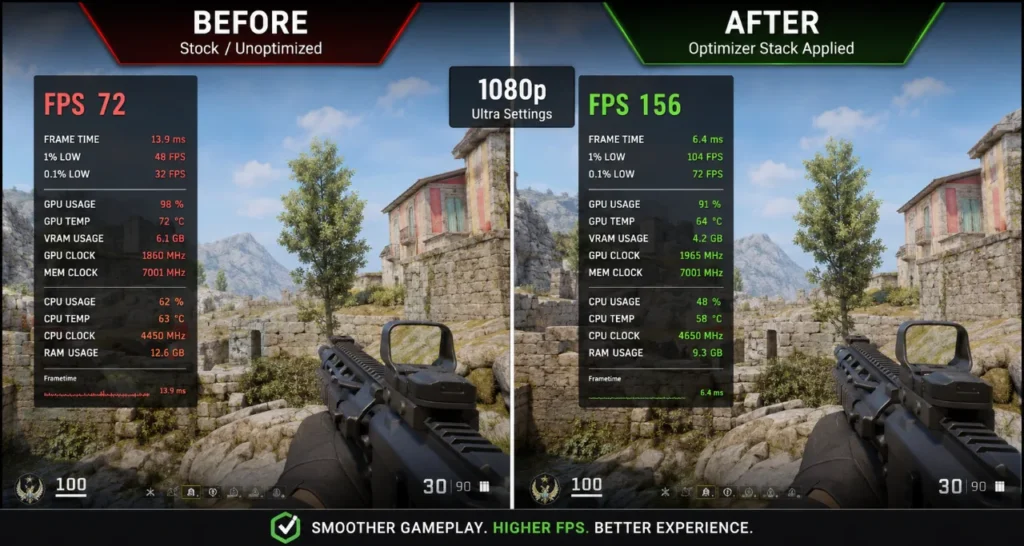
This layered approach gives you clean diagnostics first, then targeted fixes — which is how techie gamers actually solve performance problems instead of randomly pressing buttons.
Built-In Windows 10 Settings You Should Also Change
Before or alongside these tools, make sure you’ve already enabled these native Windows 10 performance settings. Many gamers skip these entirely:
- Game Mode: Settings → Gaming → Game Mode → Turn On
- Hardware-Accelerated GPU Scheduling (HAGS): Settings → Display → Graphics Settings → Enable (for compatible GPUs)
- Power Plan: Set to Ultimate Performance (if visible) or at minimum High Performance — never Balanced while gaming
- Xbox Game Bar: Settings → Gaming → Xbox Game Bar → Turn Off (it uses background resources)
- Background Apps: Settings → Privacy → Background Apps → Turn off all non-essential ones
For a more detailed walkthrough on registry-level Windows tweaks, check out Top 25 Hidden Windows Tweaks for Gaming Performance — it goes deep into settings that no standard optimizer touches.
Common Mistakes Gamers Make with Optimizer Tools
A lot of players download five different optimizer tools and run them all at once expecting 30 extra FPS overnight. Here’s what actually happens: conflicting tweaks, broken system settings, and occasionally a PC that won’t boot properly.
Avoid these mistakes:
- Don’t use multiple “all-in-one” boosters simultaneously. Pick one (like Razer Cortex or hellzerg Optimizer), not five.
- Don’t blindly accept every tweak in aggressive tools. Read what each setting does.
- Don’t skip the monitoring step. Running diagnostics first tells you exactly what’s wrong — don’t optimize blindly.
- Don’t ignore thermals. If your CPU is throttling due to heat, no software optimizer will fix that. You need to clean your cooler or repaste your CPU.
If you’re dealing with 100% CPU or disk usage while gaming, that’s often a separate issue from general bloat. Read How to Fix 100% CPU or Disk Usage While Gaming in Windows for targeted fixes.
And if you’re also dealing with FPS drops every few seconds, background app interference is usually the cause — Stop Background Apps Killing FPS on Windows 11/10 walks you through exactly which apps to kill.
Should You Use Paid Optimizer Tools?
The short answer for most gamers: no. The tools listed here — all free — cover every meaningful optimization category. Paid tools like Advanced SystemCare Pro or IObit Driver Booster often upsell features that don’t meaningfully improve gaming performance, and some bundle unwanted software.
The only scenario where paid tools make sense is enterprise IT management, where features like remote monitoring and automated scheduling are genuinely needed. For gaming? Free tools do the job better, with less risk.
Microsoft’s own documentation on Windows 10 performance settings is also worth reading — it covers system-level baseline settings directly from the source.
Final Thoughts — Fix Your PC Before Blaming Your Hardware
Most Windows 10 gaming PCs are running at 60–70% of their actual potential because of unoptimized OS settings and background process bloat. The free tools covered in this guide — MSI Afterburner, CCleaner, Razer Cortex, O&O ShutUp10++, HWiNFO64, Process Lasso, and hellzerg Optimizer — address this at every level, from surface-level junk files to deep system tweaks.
Start with monitoring, cut the bloat, layer in the automated tools, and apply targeted tweaks last. That’s the techie gamer approach — measured, methodical, and effective.
Ready to go further? The full optimizer toolkit, tested gaming tweaks, and FPS guides for specific titles are all waiting for you at Optilag — Best Free Windows 10 Optimizer Tools for Gaming PCs. Bookmark it — you’ll be coming back.
Also worth reading from Optilag:
- Best Free PC Optimization Software in 2026 — Tested & Ranked
- How to Reduce CPU Usage While Gaming in 2026
- How to Fix FPS Drops in Games — The Ultimate 2026 Guide
