

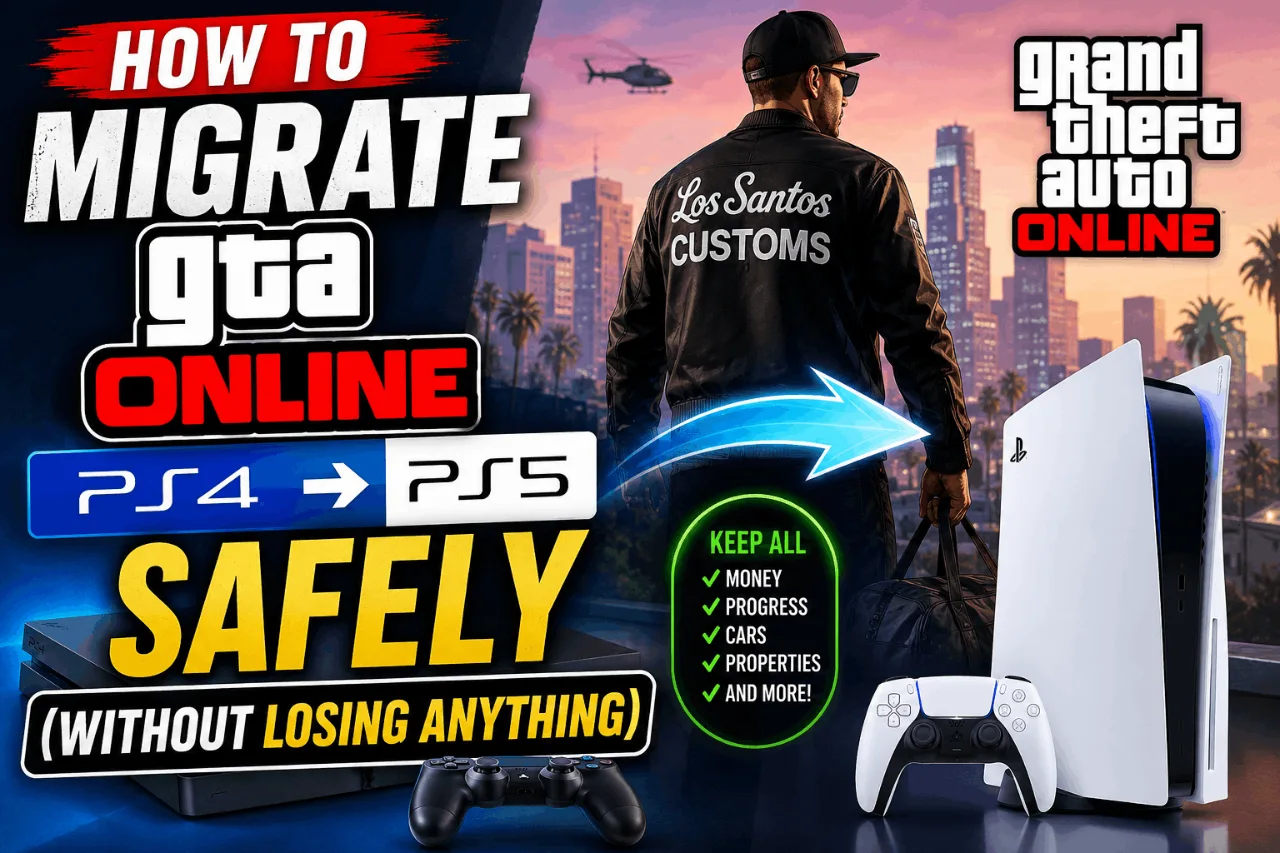
So you finally made the jump to PS5 — congratulations. The load times alone are worth the upgrade. But now comes that slightly terrifying moment every long-time GTA Online player dreads: getting your character, your money, your properties, and your entire criminal empire moved over safely to the new console.
You’ve got millions in the bank. A fully upgraded Oppressor Mk II. A CEO office in Maze Tower. The last thing you want is to boot up GTA Online on your PS5 and find yourself staring at a brand new character creation screen with zero dollars and zero rank.
The good news? Rockstar has made the GTA Online PS4 to PS5 migration process relatively painless — as long as you know what you’re doing before you start. This guide will walk you through every step, explain what transfers over and what doesn’t, and help you avoid the common mistakes that can leave players confused or stuck.
What Actually Transfers When You Migrate GTA Online from PS4 to PS5?
Before you do anything, it helps to know exactly what you’re working with. When you migrate your GTA Online profile, here’s what comes with you:
- GTA$ (in-game money) — every dollar you’ve earned stays intact
- Character rank and RP — your level and reputation transfer fully
- All owned properties — apartments, offices, bunkers, nightclubs, everything
- Vehicles — your entire garage comes with you
- Weapons and upgrades — loadout fully preserved
- Clothing and appearance — your character’s look transfers over
- Criminal Enterprise Starter Pack benefits — if you had them on PS4, they carry over
The migration is essentially a full account copy. All cash, vehicles, weapons, and properties will be available on PS5 once the migration is complete. Nothing is wiped. Nothing resets.
One important thing to keep in mind: this migration is a one-time process, so choose wisely. If you have multiple characters or accounts, you can only bring one PS4 profile across — there’s no merging two accounts together, and you can’t undo the migration once it’s done.
Before You Start: Two Things to Check
1. Make Sure You’re Using the Same Rockstar Social Club Account
This is the single most important prerequisite, and it’s where a lot of players trip up. Your Rockstar Social Club account serves as the bridge between your PS4 and PS5 consoles. If your PS5 PSN account is linked to a different Rockstar Social Club login than your PS4, the migration prompt won’t appear — and your profile won’t show up.
Log into your Rockstar Social Club account at socialclub.rockstargames.com and double-check that your PS4 is listed under linked accounts. Then make sure your PS5 is linked to that exact same Rockstar account before you launch the game.
2. Download GTA 5 (Enhanced Version) on PS5
The PS5 version is a separate download — it’s not just a patch or upgrade to the PS4 version. You’ll need to grab the GTA 5 Enhanced Edition from the PlayStation Store. If you already own GTA 5 on PS4, you might be eligible for a discounted or free upgrade depending on your purchase history, so check your PS5 library first before buying again.
Step-by-Step: How to Migrate Your GTA Online Profile from PS4 to PS5
Step 1 — Launch GTA Online on Your PS5
Fire up GTA 5 Enhanced on your PS5 and navigate to the Online tab from the main menu. Provided your console profiles share the same Rockstar Social Club info, you should get an automatic “Migrate Profile” prompt to appear.
If you see this prompt on your first launch, you’re in great shape. Just follow the on-screen steps.
Step 2 — Choose the Profile You Want to Migrate
You’ll see any GTA Online profiles you may have from last-gen consoles. If you have more than one — for example, a PS4 profile and an Xbox One profile — you must choose which one to transfer. You cannot merge accounts or transfer more than one.
Take a moment here. Review both profiles if applicable and decide which one represents more progress, more assets, and more of your playtime. Once you confirm, that’s it.
Step 3 — Confirm the Migration
After selecting the profile, you’ll receive a notification that you should review to confirm you are migrating the appropriate profile. Read through it carefully. It’ll show you some basic stats so you can verify you’ve picked the right one.
Hit confirm and let Rockstar’s servers do their thing. Don’t force-close the game or turn off your PS5 during this step — just wait it out. Some players see a brief black screen during the process, which is completely normal.
Step 4 — Choose Your Character on PS5
You now get two character slots to work with, so you’ll need to choose a character on the next screen. Your migrated profile should show as Character 1. Select it to load in exactly where you left off.
You also have the option to start a new character through the new GTA Online Career Builder by creating one in the second slot. If you already had two characters on PS4 and want to try the Career Builder, you’ll need to delete one of your existing characters first to make room.
Step 5 — What Happens If You Missed the Initial Prompt?
No problem. If you chose not to migrate your profile during your initial entry into GTA Online on PS5, you can do so later through the Pause Menu by selecting Online, then Migrate Profile.
Just press the Options button while in-game, go to Online, and you’ll find the Migrate Profile option sitting right there. The process from that point is identical to what’s described above.
What Doesn’t Transfer — And What to Watch Out For
It’s not all smooth sailing. A few things are worth flagging before you dive in:
Progress stays separate going forward. Once you’ve migrated, any new progress you make on PS5 won’t reflect back on your PS4 version. Migrating a profile does not remove characters from the previous gen versions — but any new progress will be tied to each respective console. Think of them as separate saves from that point on.
PC progress cannot be transferred. If you’ve also played GTA Online on PC and were hoping to bring that character over, it’s not possible. This process will only work for fans on consoles — PC progress cannot be transferred to Xbox or PlayStation.
Criminal Enterprise Starter Pack benefits. Criminal Enterprise Starter Pack benefits on PS5 can only be accessed through a migrated character that had access to them on PS4. You can’t claim them fresh on a new PS5 character.
One-way ticket. There’s no going back once migration is done. Your PS5 character and your PS4 character will exist independently, but progress won’t sync between them.
Troubleshooting: What to Do If the Migration Prompt Doesn’t Appear
This is the most common headache players run into. If you launch GTA Online on PS5 and there’s no migration prompt, here’s what to check:
Verify your Social Club account is linked correctly. Head to socialclub.rockstargames.com, log in, and look under your linked accounts. If your PS4 PSN isn’t listed, add it manually.
Make sure both consoles are on the same PSN account. If you’re using a different PSN profile on your PS5 than your PS4, Rockstar won’t detect the existing account.
Try migrating through the Pause Menu instead. Sometimes the auto-prompt doesn’t fire on first launch. Go in-game, hit Options > Online > Migrate Profile and trigger it manually.
Check Rockstar’s server status. If Rockstar’s servers are struggling, the migration can fail or hang. Give it a few hours and try again during off-peak hours.
If none of the above works, contacting Rockstar Support directly is your best option — they can verify your account linkage and escalate if needed.
Does the PS5 Version of GTA Online Actually Make a Difference?
Short answer: yes. And it’s more noticeable than you might expect.
The PS5 version of GTA Online loads significantly faster thanks to the console’s SSD. What used to take two to three minutes of staring at loading screens now takes seconds. The game also runs at a smoother and more stable frame rate, and the visual quality is a noticeable step up in areas like lighting and draw distance.
If you’ve been sitting on a large GTA$ balance and a pile of properties, all of that feels even better when the game is actually running the way it was meant to. Your Nightclub earns the same passive income. Your CEO missions load quicker. Your vehicle spawns feel snappier.
For players who’ve put serious hours into GTA Online over the years, the migration is absolutely worth doing. There’s really no reason to leave your progress behind.
Related: Keep Your PC Running Smooth for GTA Online
If you play GTA Online on PC as well (or just want to squeeze more performance out of any platform), these Optilag guides are worth bookmarking:
- How to Fix High Ping and Network Lag in Online Games — tackles the connection issues that can ruin a smooth GTA Online session
- Fix 100% CPU or Disk Usage While Gaming in Windows — if your PC is struggling in the background while you play
- How to Fix GTA Online Infinite Loading Screen — one of the most frustrating GTA Online bugs, with real solutions
- GTA 5 FPS Fix — Low GPU Usage, Memory Leak & Bottleneck Guide — if you’re on PC and frames are dropping for no obvious reason
Quick Reference: GTA Online PS4 to PS5 Migration at a Glance
| What You’re Doing | How to Do It |
|---|---|
| Trigger migration on first launch | Select Online > Migrate Profile from main menu |
| Trigger migration later | Pause Menu > Online > Migrate Profile |
| Fix missing prompt | Verify Rockstar Social Club account linkage |
| Choose character after migration | Select Character 1 (your migrated profile) |
| Try the Career Builder | Use Character 2 slot (delete existing char if needed) |
Final Thoughts
Migrating your GTA Online profile from PS4 to PS5 is one of those things that sounds more complicated than it actually is. As long as your Rockstar Social Club account is properly linked across both consoles, the process usually takes just a few minutes and preserves everything you’ve built.
The key things to remember: it’s a one-time migration, you can only bring one profile across, and you can’t undo it once it’s done. Take thirty seconds to verify your account is set up correctly before you press confirm, and you’ll be fine.
Once you’re in, enjoy the faster load times, the smoother frame rate, and the fact that your Los Santos empire is exactly where you left it — just running better than ever.
Got stuck somewhere in the process or have a migration issue that isn’t covered here? Drop a comment below and we’ll help you figure it out.
Disclaimer: The tips, mods, and tools shared on this site are for informational purposes only — results may vary depending on your PC hardware and software configuration. OptiLag is not responsible for any data loss, system instability, or damages that may arise from following the guides or downloading third-party files.
