How to Fix High DPC Latency Causing Audio Pops and Game Stutters in 2026
If you’ve ever been deep in a gaming session or a voice call and suddenly heard a loud crackling pop from your speakers — or watched your game freeze for a half-second even though your FPS looks fine — high DPC latency is almost certainly the culprit. It’s one of the most frustrating PC problems because it doesn’t show up in Task Manager, your GPU usage looks normal, and nothing obvious seems wrong.
This guide breaks down exactly what DPC latency is, why it destroys audio quality and gaming smoothness, and how to fix it step by step using free tools in 2026. By the end, your PC should be delivering clean audio and stutter-free gameplay.
What Is DPC Latency and Why Does It Ruin Your Gaming Experience?
DPC stands for Deferred Procedure Call. In plain English, it’s a mechanism Windows uses to let hardware drivers handle urgent tasks — things like processing audio samples, network packets, or USB input — in small time-sliced chunks.
When a driver takes too long to finish its DPC task, it blocks everything else. Audio drops out for a fraction of a second. Your game input hangs. You hear a pop or a crackle. Your mouse feels sluggish for a moment.
Healthy DPC latency sits below 100 microseconds. Anything above 500 µs will start causing audible issues. Values above 1000 µs (1 millisecond) cause serious audio glitches and noticeable gaming stutter even on a high-end PC.
The worst part? High DPC latency usually comes from a single misbehaving driver — and Windows gives you no warning about it whatsoever.
How to Diagnose High DPC Latency (Free Tool)
Before fixing anything, you need to confirm that DPC latency is actually your problem and identify which driver is responsible. The best free tool for this is LatencyMon by Resplendence Software.
Step 1 — Download and Run LatencyMon
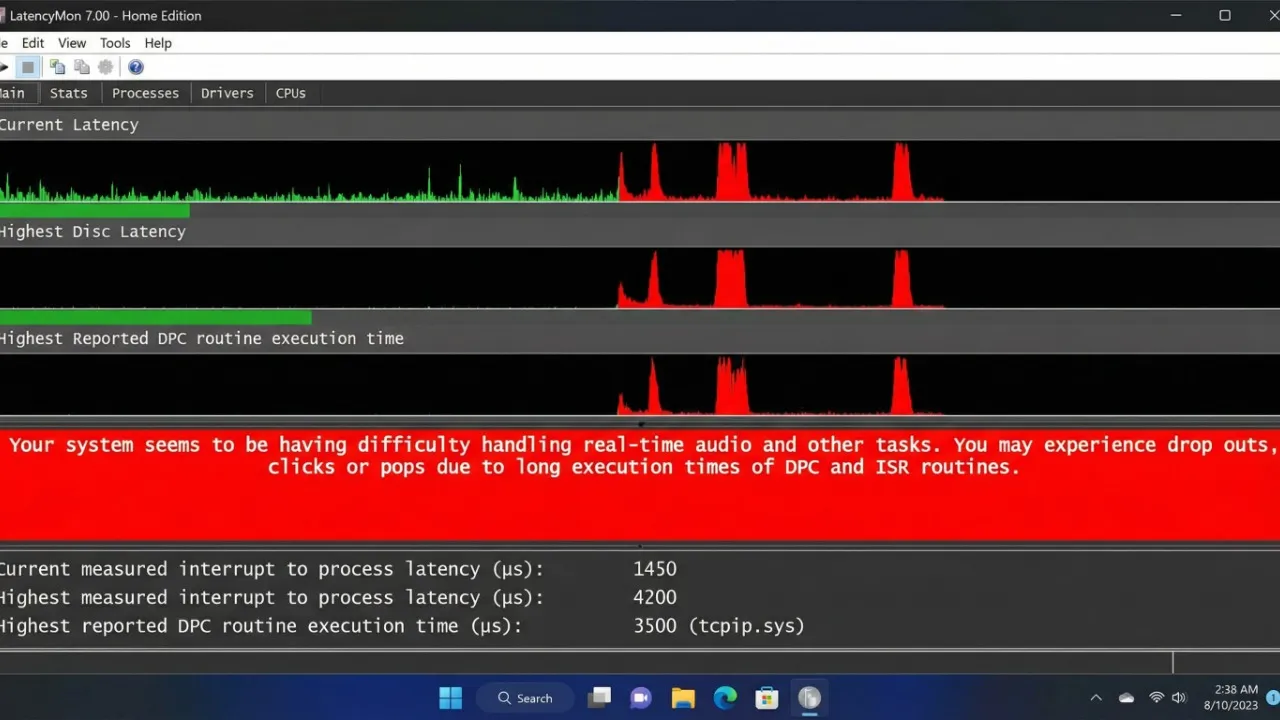
[wp-button color=”green” link=”https://www.resplendence.com/latencymon” text=”⬇ Download LatencyMon Free” target=”_blank”]Install and launch LatencyMon, then click the green Play button to start monitoring. Let it run for at least 3–5 minutes while you do something that usually triggers the problem — play a game, play audio, or browse the web.
Step 2 — Read the Results
Switch to the Drivers tab. LatencyMon will show you a ranked list of drivers by their highest measured execution time. Look for anything showing an Execution Time above 500 µs. The most common offenders are:
ndis.sys— Network adapter driverntoskrnl.exe— Windows kernel (often caused by memory or CPU power states)dxgkrnl.sys— DirectX/GPU driverstorport.sys— Storage driver (common with NVMe drives)usbxhci.sys— USB controller
Write down the top two or three culprits before moving to the fix section.
Fix 1 — Update or Roll Back the Problem Driver
The single most effective fix for high DPC latency is correcting the driver that’s causing it.
If It’s Your Network Driver (ndis.sys)
Go to Device Manager → Network Adapters, right-click your Ethernet or Wi-Fi adapter, and select Update Driver → Search Automatically. If that shows no updates, visit your motherboard manufacturer’s website directly and download the latest LAN or Wi-Fi driver.
For many users on Intel or Realtek NICs, installing the Intel Network Adapter Diagnostic Driver or the latest Realtek PCIe driver from the manufacturer’s site — rather than the generic Windows one — drops DPC latency dramatically.
If It’s ntoskrnl.exe
This usually points to C-States (CPU power saving states) interfering with real-time processing. Head to your BIOS/UEFI settings and disable C6 State or Package C-States. This keeps your CPU from micro-sleeping between tasks and is one of the most effective latency tweaks you’ll ever make.
If It’s Your GPU Driver (dxgkrnl.sys)
A full clean reinstall often fixes this. Download DDU (Display Driver Uninstaller), boot into Safe Mode, uninstall your current GPU driver completely, then install the latest stable version from NVIDIA or AMD.
[wp-button color=”blue” link=”https://www.wagnardsoft.com/forums/viewtopic.php?t=4274″ text=”⬇ Download DDU (Display Driver Uninstaller)” target=”_blank”]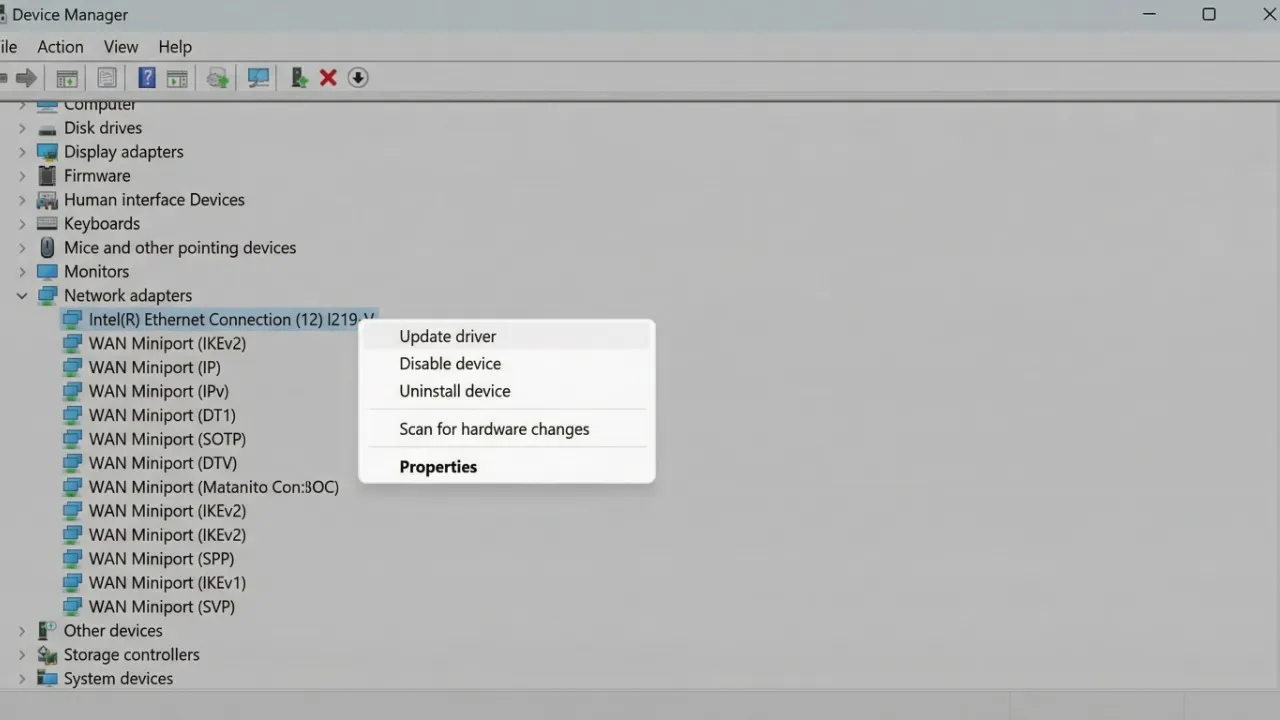
Fix 2 — Disable or Change Your Network Adapter’s Power Management
Windows loves to put your network adapter into a low-power state to save electricity. This is catastrophic for DPC latency.
- Open Device Manager
- Expand Network Adapters and double-click your adapter
- Go to the Power Management tab
- Uncheck “Allow the computer to turn off this device to save power”
- Click OK
Then go to Advanced tab in the same adapter properties. Look for settings called Energy Efficient Ethernet, Green Ethernet, or Power Saving Mode and set all of them to Disabled.
This alone fixes audio pops for a significant number of users with Realtek or Intel NICs.
Fix 3 — Disable HPET (High Precision Event Timer)
HPET is a system timer that was designed to improve timing accuracy — but on modern hardware, it often does the opposite and introduces DPC spikes. Disabling it is a well-known low-latency tweak.
Run Command Prompt as Administrator and paste this command:
bcdedit /deletevalue useplatformclock
bcdedit /set disabledynamictick yes
Then reboot. In most cases on Ryzen and 12th/13th/14th gen Intel systems, this reduces average DPC latency noticeably.
If you want a one-click script for this, check out the guide on Optilag’s Windows 11 gaming tweaks page for a batch file that handles this and several other latency optimizations at once.
Fix 4 — Tackle USB and Wireless Interference
USB 3.0 controllers are a notorious source of DPC spikes, especially if you have USB hubs, wireless receivers (like a Logitech USB dongle), or external drives plugged in.
Try these steps one at a time and run LatencyMon after each to see which one makes a difference:
- Unplug all non-essential USB devices and check if DPC latency drops. Add them back one by one to identify the guilty device.
- Move wireless dongles (mice, headsets, keyboards) to a USB 2.0 port rather than USB 3.0 — this alone can cut USB-related DPC spikes significantly.
- Disable USB Selective Suspend: Go to Power Options → Change Plan Settings → Advanced Power Settings → USB Settings → USB Selective Suspend Setting → Disabled.
- Update your USB controller driver through Device Manager under Universal Serial Bus Controllers.
Fix 5 — Use an Optimized Power Plan
Your power plan directly controls how aggressively Windows manages CPU and hardware states — which feeds directly into DPC latency.
Switch to the High Performance or Ultimate Performance power plan. You can enable Ultimate Performance with this command in an Administrator Command Prompt:
powercfg -duplicatescheme e9a42b02-d5df-448d-aa00-03f14749eb61
Then open Power Options and select the newly added Ultimate Performance plan.
For a complete guide on squeezing every bit of performance from your power settings, read our best power plan settings for gaming guide which covers per-game configurations and laptop-specific tweaks.
Fix 6 — Check for Windows Update Driver Conflicts
Sometimes a Windows Update silently replaces a working driver with a generic one that performs poorly. This is especially common after major Windows 11 feature updates.
Go to Settings → Windows Update → Advanced Options → Optional Updates. If you see driver updates listed here, install them. Alternatively, use Device Manager → View → Show Hidden Devices to spot any devices with a yellow warning icon that might have had their driver replaced.
You can also prevent Windows from automatically replacing drivers by going to System Properties → Hardware → Device Installation Settings and choosing “No” for automatic driver downloads.
Verify Your Fix With LatencyMon
After applying your fixes, run LatencyMon again for 5 minutes under the same load conditions as before. A successful fix will show:
| Metric | Before Fix | Target After Fix |
|---|---|---|
| Highest DPC Latency | 800–3000+ µs | Below 150 µs |
| Interrupt to Process | High | Below 200 µs |
| Status Message | Red / Warning | Green / Good |
If you’re still seeing one stubborn driver above 300 µs, focus your next round of troubleshooting entirely on that specific driver using forums or your hardware manufacturer’s support page.
Still Experiencing Stutter? Check These Too
High DPC latency is one cause of audio pops and micro-stutters — but not the only one. If LatencyMon looks clean after your fixes but you’re still experiencing choppy gameplay, the issue might be frame pacing or CPU throttling instead.
Take a look at our guide on fixing high FPS but choppy gameplay and input lag — it covers frame time variance, VRR issues, and GPU scheduling settings that LatencyMon won’t catch. And if your CPU is spiking during gaming, our article on how to reduce CPU usage while gaming walks through background process management and scheduler tweaks.
For network-related audio pops specifically in online games, it’s also worth reading how to fix packet loss in gaming — sometimes what sounds like a local audio glitch is actually the game engine reacting to packet loss spikes.
Summary — Your DPC Latency Fix Checklist
Here’s everything in order of impact. Work through this list top to bottom and test with LatencyMon after every change:
- Run LatencyMon and identify the top offending driver
- Update or clean-reinstall the problem driver (especially NIC and GPU drivers)
- Disable Energy Efficient Ethernet and power management on your network adapter
- Disable HPET via Command Prompt and restart
- Unplug non-essential USB devices and move dongles to USB 2.0
- Disable USB Selective Suspend in Power Options
- Switch to Ultimate Performance power plan
- Check for Windows Update driver conflicts and roll back if needed
Most users see their DPC latency drop below 200 µs after completing steps 1 through 4 alone. Steps 5 through 8 are worth doing if problems persist, especially on systems with many USB peripherals or on laptops.
Ready to Take Your PC Performance Further?
Fixing DPC latency is one piece of a bigger puzzle. If you want your entire Windows 11 setup dialed in for the lowest possible latency and the highest stable FPS, check out our top 25 hidden Windows tweaks for gaming performance — it covers registry edits, scheduler settings, and GPU optimizations that most guides skip entirely.
Drop a comment below with your LatencyMon results before and after following this guide — it helps other readers know which fix worked for their specific hardware.