

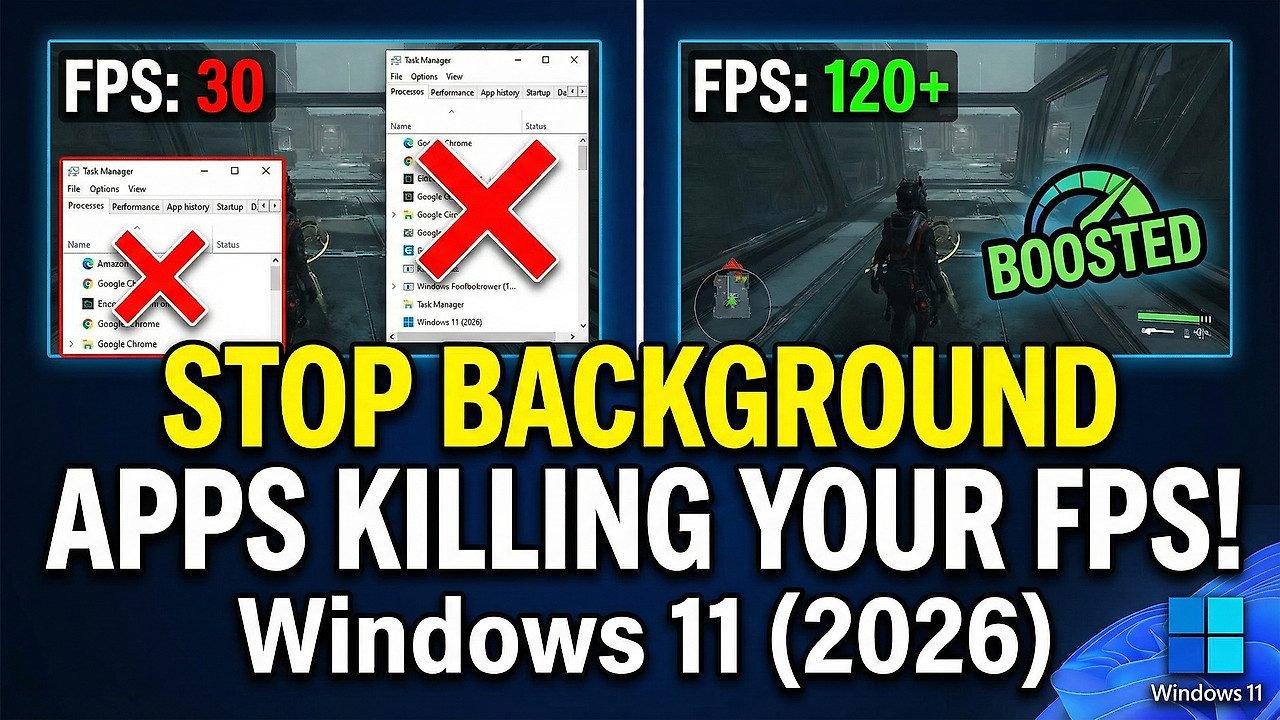
You launch your favorite game, pump up the graphics settings, and then — stutters. Frame drops. That infuriating lag that makes competitive play feel like a slideshow. You didn’t change anything, so what’s going on? The likely culprit is sitting right there in the background: apps, processes, and Windows services quietly eating your RAM, CPU cycles, and GPU bandwidth while you’re trying to frag enemies.
If you’re serious about gaming on Windows 11, knowing how to stop background apps killing your FPS in Windows 11 is one of the most impactful optimizations you can make. And the good news? Most of it takes less than ten minutes. This guide walks you through everything — from basic settings toggles all the way to registry tweaks and safe mode tricks — so you can squeeze every last frame out of your hardware.
Why Background Apps Are Literally Killing Your FPS
Modern Windows 11 installs come loaded with apps that run in the background by default. Microsoft Edge preloading, OneDrive syncing, Xbox Game Bar, Windows Update downloading, antivirus scanning, Discord, Steam, browser extensions — the list goes on. Each one of these processes isn’t just sitting idle. They’re actively consuming CPU threads, RAM, and sometimes even your GPU.
Think of your PC’s resources like lanes on a highway. Your game deserves the fast lane, but background apps keep merging in, slowing everyone down. When a background process triggers a garbage collection cycle or a cloud sync operation in the middle of a fight, your frame time spikes and you feel it as a stutter or frame drop. According to Digital Trends, disabling unnecessary startup and background apps is consistently one of the top free performance gains for Windows users.
The problem is even worse on mid-range systems where CPU and RAM headroom is tight. If you’re running 16 GB of RAM and Windows 11 is already consuming 4–5 GB before you even launch a game, you’re starting from behind.
⚠️ Watch Out
Many background processes look harmless but consume significant resources in bursts — especially during syncing, indexing, or update checks. These burst spikes are what cause micro-stutters.
How to Turn Off Background Apps in Windows 11 (The Right Way)
Windows 11 changed where background app settings live compared to Windows 10, which confuses a lot of people. Let’s break it down clearly. There are actually a few different layers here — per-app background permissions, startup apps, and system-level processes — and you’ll want to tackle all of them.
Method 1: Per-App Background Permissions
This is the cleanest way to stop background apps on Windows 11 without breaking anything. You’re telling Windows which apps are allowed to run in the background at all.
- Press
Win + Ito open Settings - Go to Apps → Installed Apps
- Click the three-dot menu next to any app → Advanced options
- Under “Background apps permissions,” change the dropdown from Always to Never
- Repeat for all non-essential apps
Apps you should absolutely restrict from running in the background include: Spotify, Microsoft Teams (if you’re not on a call), OneDrive, Photos, Maps, Mail, and any app you only use occasionally. Just be careful not to restrict security software.
Method 2: Disable All Background Apps at Once via Group Policy
If you want a broader approach, Windows 11 Pro users can use the Group Policy Editor to disable background apps globally — a move that many Reddit users in communities like r/Windows11 and r/pcgaming recommend for dedicated gaming rigs.
- Press
Win + R, typegpedit.msc, press Enter - Navigate to:
Computer Configuration → Administrative Templates → Windows Components → App Privacy - Find “Let Windows apps run in the background” and double-click it
- Set it to Enabled, and in the options below, set the default to Force Deny
- Apply and restart
💡 Pro Tip
Windows 11 Home doesn’t include Group Policy Editor. Instead, use the Registry method described in Section 4, or use a third-party tool like Ultimate Windows Tweaker which provides a GUI for the same settings.
Method 3: Kill Startup Apps
This is often the biggest FPS killer people overlook. Startup apps don’t just slow your boot — they keep running quietly in the background, chewing through resources the whole time your PC is on.
- Press
Ctrl + Shift + Escto open Task Manager - Click the Startup apps tab
- Sort by “Startup impact” — disable anything marked High or Medium that you don’t actively need
- Right-click → Disable
Common culprits: Discord auto-launch (open it manually when needed), Steam (same idea), Epic Games Launcher, Adobe Creative Cloud, Spotify, and any OEM bloatware like HP Support Assistant or Lenovo Vantage.
Turn Off Background Apps: Shortcut Keys & Quick Methods
Sometimes you just want a fast way to nuke distractions before a gaming session without diving deep into settings menus. Windows 11 has a few turn off background apps Windows 11 shortcut key approaches worth knowing about.
The fastest combination for quick cleanup before gaming:
Ctrl + Shift + Esc— Opens Task Manager instantly. Go to Processes, sort by CPU or Memory, and end tasks you don’t need right now.Win + XthenT— Quick shortcut to Task Manager from the power user menuWin + G— Opens Xbox Game Bar where you can see performance overlays and close some background activity- Create a batch file that kills known resource hogs like OneDrive, Teams, or Edge — then pin it to your taskbar and run it before gaming sessions
That last one sounds technical, but it’s simpler than it sounds. You can create a .bat file with commands like taskkill /f /im OneDrive.exe for each process you want terminated, save it to your desktop, and run it as a pre-game ritual. Gamers on Reddit who take their FPS seriously swear by this kind of pre-session cleanup script.
🚀 Quick Pre-Gaming Checklist
Before launching any game: close your browser, pause OneDrive sync, exit Discord (or disable overlay), stop any active downloads in Steam or Epic, and end background Edge processes via Task Manager. This alone can recover 5–15% of CPU headroom on an average system.
Disable Background Apps in Windows 11 via Registry
For those on Windows 11 Home — or anyone who wants a persistent system-level block — the registry method for disable background apps Windows 11 registry is your best option. It achieves the same result as the Group Policy approach but works on all editions.
⚠️ Important
Always back up your registry before making changes. Press Win + R, type regedit, go to File → Export, and save a full backup. This takes 30 seconds and could save hours of headaches.
- Press
Win + R, typeregedit, press Enter - Navigate to:
HKEY_LOCAL_MACHINE\SOFTWARE\Policies\Microsoft\Windows\AppPrivacy - If the
AppPrivacykey doesn’t exist, right-clickWindows→ New → Key → name itAppPrivacy - Inside AppPrivacy, right-click → New → DWORD (32-bit) Value
- Name it
LetAppsRunInBackground - Double-click it and set the value to 2 (2 = Force Deny)
- Restart your PC
Setting this value to 2 globally prevents Microsoft Store apps from running in the background. For win32 (traditional) apps, you’ll still want to manage startup entries and Task Manager manually — the registry key only controls UWP-style apps.
According to the Microsoft documentation on Windows privacy settings, this policy is the official supported method for restricting background app behavior at the OS level, and it’s stable across Windows 11 updates.
Safe Mode: Testing FPS Without Background Apps
Here’s a trick that not many gamers know about — using stop background apps killing your FPS in Windows 11 safe mode as a diagnostic tool. Safe Mode boots Windows with the absolute minimum set of drivers and services, which makes it perfect for testing whether your FPS issues are caused by background software or something deeper like a driver or hardware problem.
You can’t typically run modern games in Safe Mode, but you can use it to identify what’s causing your problems. If your system runs buttery smooth in safe mode but stutters in normal mode, the culprit is definitely a software or service — not your GPU or CPU hardware.
A Better Alternative: Clean Boot
Instead of full Safe Mode, a Clean Boot is more useful for gamers. It disables all non-Microsoft startup items and services, essentially mimicking a stripped-down environment where only Windows core processes run alongside your game.
- Press
Win + R, typemsconfig, press Enter - Go to the Services tab, check Hide all Microsoft services, then click Disable all
- Go to the Startup tab → click Open Task Manager → disable everything in the list
- Restart your PC and test your game performance
- If FPS improves significantly, re-enable services in batches to pinpoint the offender
This is the method that tech support professionals use, and it’s surprisingly effective at isolating exactly which background app or service is hurting your performance.
Killing Adobe Background Processes in Windows 11
Adobe Creative Cloud is one of the most notorious background resource hogs on any Windows system. If you have Photoshop, Premiere, Illustrator, or Acrobat installed, you likely have multiple Adobe processes running silently at all times — disable Adobe background processes Windows 11 and you might be shocked by what comes back.
Adobe runs a suite of background helpers including the Creative Cloud Desktop app, Adobe Update Service, Adobe CEF Helper, and various crash reporters. Combined, these can consume 200–400 MB of RAM and occasional CPU bursts, especially when checking for updates.
How to Stop Adobe Background Processes
- Open the Creative Cloud Desktop app → click your profile icon → Preferences → General → uncheck “Launch Creative Cloud at Login”
- In the same app, go to Apps → uncheck “Enable Auto-Update” for individual apps you don’t need updated automatically
- Open Task Manager and end processes:
Adobe CEF Helper,Adobe Desktop Service,AdobeUpdateService,armsvc.exe - Via Services (
services.msc): Find Adobe-related services and set their startup type to Manual instead of Automatic
As Adobe’s own support documentation confirms, Creative Cloud can be set to not launch at startup without affecting the functionality of installed apps — they’ll still open fine when you need them.
Game Mode and Other Windows 11 Gaming Optimizations
Beyond just killing background apps, Windows 11 has some built-in features specifically designed to help with gaming performance. Most people either have them misconfigured or don’t know they exist. Here’s what actually matters.
Enable Game Mode (But Understand Its Limits)
Windows 11 Game Mode (Win + I → Gaming → Game Mode) tells Windows to prioritize your game’s CPU and GPU resources and reduce background activity when a game is running. It’s worth having on, but it’s not a silver bullet — it won’t stop all background apps, and some users report it causes issues with certain games.
For maximum control, combine Game Mode with manual background app management rather than relying on it alone.
Hardware-Accelerated GPU Scheduling (HAGS)
This is a Windows 11 feature that reduces GPU latency by letting the GPU manage its own memory directly. For gaming, it can reduce frame time variance. Go to Settings → Display → Graphics → Change default graphics settings and enable “Hardware-accelerated GPU scheduling” — assuming you have an NVIDIA RTX or AMD RX 5000+ series GPU and recent drivers.
Variable Refresh Rate & High Refresh Rate
Also in the same Graphics settings area, enable “Variable refresh rate” if your monitor supports G-Sync or FreeSync. This doesn’t stop background apps but dramatically reduces how much you notice frame time variance when it does occur.
Disable Xbox Game Bar Entirely
Xbox Game Bar (Win + G) runs background services even when you’re not using it. Unless you actively use its features, disable it: Settings → Gaming → Xbox Game Bar → toggle it off. This alone frees up resources and eliminates one background process cluster.
ℹ️ Worth Reading
The team at Tom’s Hardware has extensive benchmarks showing the real-world FPS impact of various Windows 11 background optimizations — worth bookmarking for reference.
Does This Apply to Windows 10 Too?
If you’re reading this on a Windows 10 machine — welcome. Most of these tips apply to you as well. Turn off background apps Windows 10 settings are actually a bit easier to find than in Windows 11. In Windows 10, you can go to Settings → Privacy → Background apps and see a toggle to let apps run in the background, plus individual toggles per app. This single unified page doesn’t exist the same way in Windows 11, which is why so many people report being unable to find the setting after upgrading.
The Registry method, startup app management, and Clean Boot procedures are identical between Windows 10 and 11. So if you’re comfortable with those, everything transfers over directly.
The main difference is that Windows 11 gives more granular per-app control through Advanced Options, while Windows 10 had that simple master toggle. Microsoft removed or relocated that in Windows 11, which caused a lot of confusion and Reddit threads asking “how to stop background apps killing your FPS in Windows 11” — particularly among users who upgraded from 10.
Can’t Find Background Apps in Windows 11? Here’s Why
This is one of the most common frustrations people run into. You go looking for the “Background apps” page in Settings and it’s just… not there where you’d expect it. The reason is that Microsoft restructured the Settings app in Windows 11, and the background app permissions now live inside individual app settings rather than a centralized page.
If you can’t find background apps Windows 11, here’s where to look:
- Go to
Settings → Apps → Installed Apps→ click the ••• menu on any app → Advanced options - Alternatively, search “background apps” in the Windows search bar — this should surface the relevant settings directly
- If you’re a Windows 11 Home user without Group Policy, the Registry method is your only system-wide option
- Some Microsoft-built apps like Edge have their own background running settings inside the app itself — check Edge’s settings under “System and performance”
It’s also worth noting that not all apps will show Advanced Options — only apps that support background permissions management. Win32 (classic desktop) apps like Chrome, VLC, or Notepad won’t appear here at all. Those need to be managed through Task Manager or by simply closing them before gaming.
Advanced Tweaks: Going Deeper for Maximum FPS
If you’ve done everything above and still want to push further, here are some additional optimizations that serious gamers use. These are safe but slightly more involved.
Adjust Windows Update Delivery Optimization
Windows Update can download in the background and throttle your bandwidth and CPU at the worst possible moments. Go to Settings → Windows Update → Advanced Options → Delivery Optimization → Advanced Options and set download rate limits so Windows doesn’t consume your connection mid-game. You can also pause updates temporarily before long gaming sessions.
Disable Superfetch / SysMain Service
The SysMain service (formerly Superfetch) preloads frequently-used apps into RAM. On systems with plenty of RAM, it can help — but on tighter systems, it competes with your game for memory bandwidth. Open services.msc, find SysMain, and set it to Manual or Disabled if you’re RAM-constrained.
Configure Your Antivirus Exclusions
Real-time antivirus scanning is one of the sneakiest FPS killers. Windows Defender will sometimes scan game files mid-session if they’re in a scanned directory. Add your entire Games folder as an exclusion in Windows Security → Virus & Threat Protection → Manage Settings → Exclusions. Just make sure you trust the game source first. According to Microsoft’s own guidance on exclusions, this is a supported and recommended approach for trusted software.
Set Your Game’s Process Priority
When a game is running, open Task Manager, find the game’s .exe process, right-click → Set Priority → High. This tells Windows to give your game’s threads preferential CPU scheduling over background processes. Don’t set it to Realtime — that can cause system instability.

7 thoughts on “Stop Background Apps Killing Your FPS in Windows 11 (2026)”