

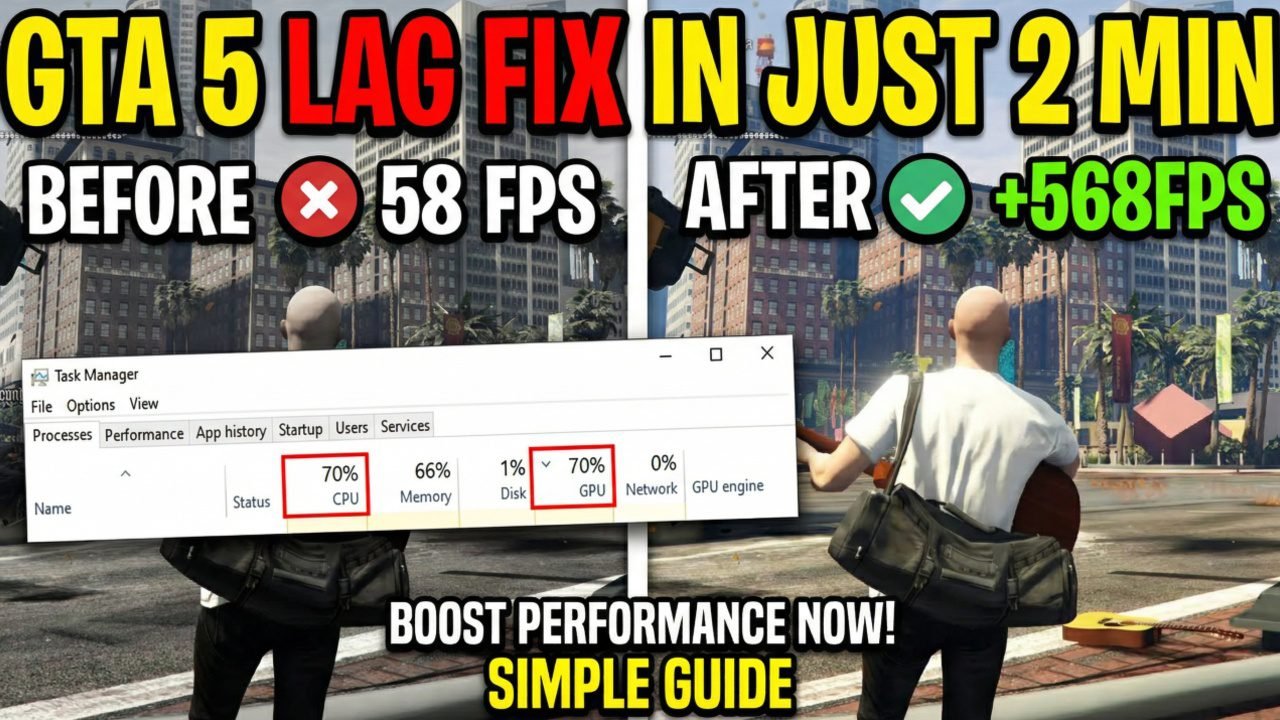
GTA 5 can feel laggy or stuck around 30 FPS on low‑end or older PCs, but a few smart tweaks can often push it much closer to a smoother 60 FPS experience without new hardware.
1. Give GTA 5 higher CPU priority
- Open Task Manager, go to the Details tab, right‑click GTA5.exe, choose “Set priority” and select High (never Real Time) so the CPU favors the game over background tasks.
- You need to repeat this after every restart or game launch, but it can reduce stutters and improve frame time stability on weaker CPUs.
2. Turn off VSync for less input lag
- In GTA 5’s graphics settings, disable VSync to remove the built‑in FPS cap and reduce input latency, which makes aiming and driving feel more responsive.
- You might see some minor screen tearing, but many players prefer the smoother, “snappier” feel, especially on 60 Hz monitors.
3. Lower shadow quality for big FPS gains
- Shadows are one of the heaviest settings in GTA 5, so lower Shadow Quality by at least one step (for example, from Very High to High, or to Normal) to free a lot of GPU power.
- You lose a bit of visual detail in dark areas, but this trade‑off often gives a noticeable FPS boost, especially on low‑end or laptop GPUs.
4. Update GPU drivers
- Install the latest graphics drivers for your Nvidia, AMD, or Intel GPU so you get game‑specific optimizations, bug fixes, and “free” performance improvements.
- Clean‑installing drivers (using the “clean install” or “factory reset” option) can also fix old configuration issues that cause stutter or crashes.
5. Close background apps
- Before launching GTA 5, close browsers, Discord, Spotify, launchers, and any auto‑start utilities so they do not eat into your RAM, CPU, and disk bandwidth.
- Fewer background processes can noticeably reduce random lag spikes and loading hitches on systems with limited memory or older hard drives.
6. What to expect from these tweaks
- When you combine higher process priority, better graphics settings (no VSync, lower shadows), updated drivers, and a clean background, some low‑end systems can see jumps from around 30 FPS toward 60 FPS in many areas of the game.
- Results vary by PC, but these changes are safe, reversible, and cost‑free, making them ideal first steps before considering hardware upgrades.

One thought on “GTA 5 Lag fix in 2 Minutes (Tutorial)”