
Is there anything more annoying than spending hours perfecting a mod list, getting your ReShade presets just right, and then having the game refuse to launch? Honestly, when Rockstar added BattlEye anti-cheat to GTA 5, it felt like a massive middle finger to the modding community that has kept this game alive for over a decade. I get it—cheaters in Online are a nightmare—but those of us just trying to enjoy a photorealistic Story Mode shouldn’t have to suffer for it.
The good news is that after messing around with the files for a few days, I found that Rockstar actually left us a “backdoor” of sorts. You can still run your gta 5 mods battleye setup as long as you know where the toggle is hidden. If you’re seeing a crash or an error message saying that your game files are “unauthorized,” don’t panic. Here is exactly how I fixed it on my rig.
Why BattlEye is Breaking Your Mods
To understand how to fix battleye gta 5 errors, you have to understand what the software is actually doing. BattlEye is a kernel-level anti-cheat. It scans your game directory for “injected” files. Since every single-player mod—from Script Hook V to simple texture replacements—technically “injects” code or replaces original files, BattlEye sees them as a threat and kills the process.
I noticed that even simple visual mods that don’t change gameplay are being flagged. It’s a bit overkill for a game this old, in my humble opinion. If you try to launch with your mods active while the anti-cheat is running, the game will either crash or dump you back to the launcher with a generic error code.
Method 1: The Rockstar Games Launcher Toggle
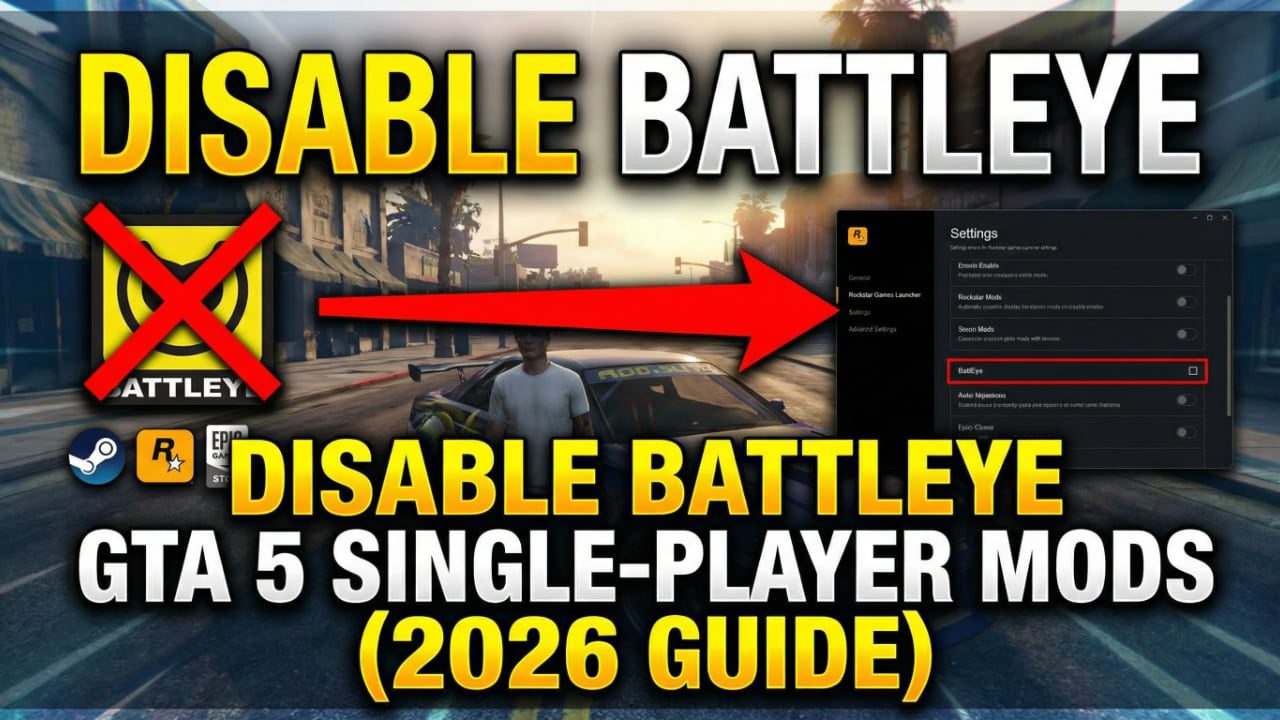
This is the “official” way to do it. If you’re using the Rockstar Launcher directly, they actually gave us a switch. It’s hidden in the settings, and for some reason, it defaults to “on” even if you only play Story Mode.
- Open the Rockstar Games Launcher.
- Click your Profile icon in the top right and hit Settings.
- On the left, click Grand Theft Auto V under your installed games.
- Scroll down until you see BattlEye.
- Uncheck the box that says Enable BattlEye for Grand Theft Auto V.
Once you uncheck that, the launcher stops trying to load the anti-cheat service when the game starts. I’ve found that this is the most stable way to get things running.
Method 2: How to Disable BattlEye GTA 5 Steam and Epic Games
If you aren’t using the standalone Rockstar app, things get a little more complicated. Many people ask how to disable battleye gta 5 without rockstar launcher intervention, and the answer lies in the “Launch Options.”
Steam Users
If you specifically need to know how to disable battleye gta 5 steam version, follow these steps. It’s much faster than digging through the Rockstar settings every time.
- Right-click Grand Theft Auto V in your Steam Library.
- Select Properties.
- In the General tab, find the Launch Options box.
- Type in:
-nobattleye - Close the window and launch.
Epic Games Users
For those wondering how to disable battleye gta 5 epic games, it’s a similar process:
- Open the Epic Games Launcher.
- Go to Settings (usually under your profile icon).
- Scroll down to Manage Games and click the arrow next to GTA V.
- Check Additional Command Line Arguments.
- Paste in:
-nobattleye
Personal Observation: Even with these arguments, the Rockstar Launcher might still pop up and ask for permission. Just make sure the “Enable BattlEye” box is unchecked in that pop-up too, or it will override your Steam/Epic settings.
What About Fitgirl and Other Repacks?
I see a lot of people searching for how to disable battleye gta 5 fitgirl or other repack versions. Usually, those versions have the anti-cheat components stripped out or disabled by default since they aren’t meant for Online play anyway. However, if your repack is based on a newer build of the game, you might still run into “Social Club” errors. In those cases, looking for a “No-BattlEye” crack or simply ensuring your commandline.txt in the main folder includes the -nobattleye string usually does the trick.
The “Can I Still Play Online?” Question
This is the big one. Everyone wants to know how to disable battleye gta 5 and play online. I’m going to be real with you: You can’t. If you disable BattlEye, you are effectively locking yourself out of the Online servers. If you try to join a session, you will get a screen saying “battleye is required to play gta online.” ### Comparison: Modding vs. Online Access
| Feature | BattlEye ON | BattlEye OFF |
| Story Mode | Works (No Mods) | Works (Mods Allowed) |
| GTA Online | Full Access | Restricted |
| Script Hook V | Crashes Game | Functional |
| Visual Mods (ReShade) | Blocked | Functional |
| Security Risk | Low | Higher (if you’re not careful) |
Basically, you have to choose. I personally keep two separate installations of the game—one “clean” one for Online and one “modded” one for my single-player photography. It takes up a ton of SSD space, but it’s the only way to stay safe from a ban.
Troubleshooting: Why am I still crashing?
So, you disabled BattlEye but the game still won’t start? I’ve been there. Usually, it isn’t the anti-cheat anymore; it’s the “residue” left behind.
1. The Script Hook V Problem
Every time Rockstar updates the game (which they do often just to tweak the launcher), Script Hook V breaks. If your game crashes after the Rockstar logo, go download the latest version of Script Hook V. If the developer hasn’t updated it yet, you’re stuck waiting. There’s no way around it.
2. Leftover DLL Files
Sometimes BattlEye leaves a service running in the background. Open your Task Manager and make sure there isn’t a “BattlEye Service” still active. Also, check your GTA 5 main directory for a folder literally named “BattlEye.” If you’re strictly playing modded single-player, you can sometimes rename that folder to “BattlEye_Backup” to stop the game from finding it.
3. Verify Your Files (The Last Resort)
If you’ve messed with the files too much, something might have corrupted.
- On Steam: Right-click > Properties > Installed Files > Verify Integrity.
- On Rockstar Launcher: Settings > GTA V > Verify Integrity.
Observation: Be careful here! Verifying files will often overwrite your dinput8.dll or other mod files. You’ll have to put them back in once the verification is finished. It’s a pain, but sometimes it’s the only way to clear a “Social Club” error.
Final Advice: Use a Mod Manager
If you’re tired of toggling settings back and forth, please do yourself a favor and use a GTA 5 Mod Manager. These tools can automate the process of disabling BattlEye when you want to play with mods and re-enabling it when you want to go Online. It saves so much time and prevents you from accidentally taking a modded file into an Online session, which is the fastest way to get your account flagged.
Modding in 2026 isn’t as easy as it was in 2015, but it’s still worth it. Don’t let the anti-cheat stop you from enjoying the game the way you want to.
Still having issues with your specific mod setup? Drop a comment below with your error code and I’ll try to help you out.
Next Step for You: Would you like me to show you which specific ReShade versions are currently working best with the -nobattleye command?