

Struggling with fullscreen problems in GTA 4 using DXVK? This hands-on guide covers every fix I’ve tested—from configuration tweaks to display settings that actually work.
Let me be honest with you. GTA 4 is one of those games that aged terribly when it comes to modern hardware compatibility. Rockstar’s PC port was notoriously rough, and while DXVK does wonders for translating DirectX calls to Vulkan, the fullscreen implementation can be… frustrating.
I spent way too many hours troubleshooting this myself. The game would either refuse to go fullscreen, display black borders, flicker constantly, or just crash entirely. If you’re reading this, you probably know exactly what I’m talking about.
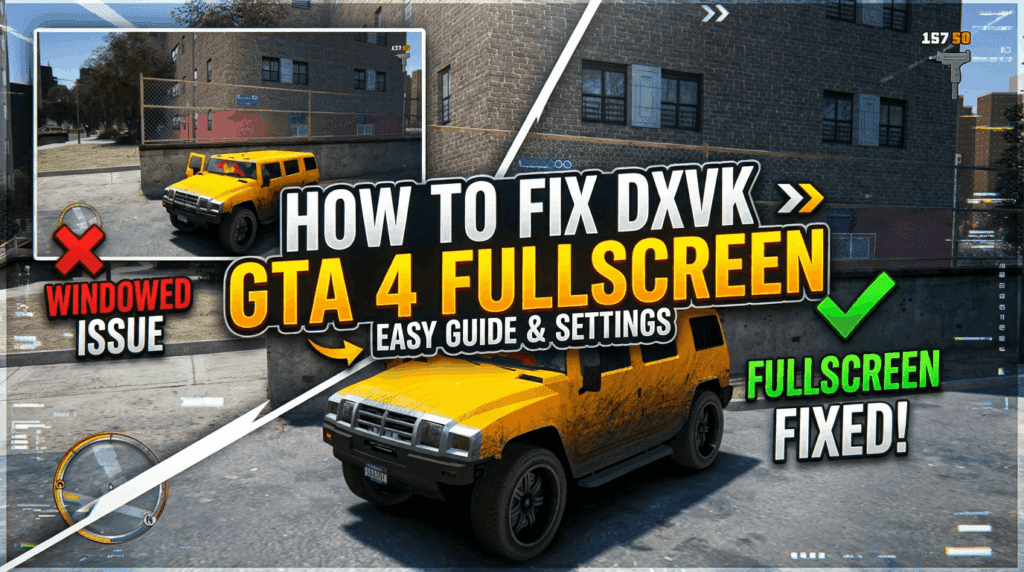
The core issue comes down to how DXVK handles display modes differently than native DirectX 9. Combined with GTA 4’s already problematic rendering pipeline, things get messy fast.
Understanding Your DXVK Configuration File
Before touching anything else, you need to locate your dxvk.conf file. This is where most of the magic happens.
The file should be in the same directory as your GTA 4 executable, typically:
textC:\Program Files\Rockstar Games\Grand Theft Auto IV\
If you don’t have a dxvk.conf file yet, just create a new text file and rename it. Honestly, the official DXVK GitHub repository has solid documentation on this, but I’ll walk you through the specific settings that fixed my fullscreen headaches.
Primary Fixes for DXVK GTA 4 Fullscreen Issues
Method 1: Force Borderless Fullscreen Mode
This is the fix that works for most people. Add these lines to your dxvk.conf:
textdxvk.enableAsync = true
d3d9.presentInterval = 1
d3d9.customVendorId = 10de
d3d9.customDeviceId = 1b06
The presentInterval setting synchronizes frame presentation properly, which often resolves the fullscreen flickering issue.
Method 2: Modify Display Resolution Handling
Sometimes GTA 4 just refuses to detect your native resolution correctly through DXVK. Here’s what worked for me:
- Open your commandline.txt in the GTA 4 folder
- Add these launch parameters:
-width 1920-height 1080-fullscreen-norestrictions
Replace the resolution values with your actual monitor resolution. This forces the game to use specific display settings instead of trying to auto-detect them.
[Image Suggestion: Screenshot showing commandline.txt with proper parameters]
Method 3: Adjust DXVK Frame Latency Settings
Add this to your dxvk.conf:
textdxvk.numBackBuffers = 3
d3d9.maxFrameLatency = 1
I’ll be real—this setting made a noticeable difference in stability. The game felt smoother entering and exiting fullscreen mode.
Configuration Comparison Table
| Setting | Purpose | Recommended Value |
|---|---|---|
| dxvk.enableAsync | Reduces shader compilation stutter | true |
| d3d9.presentInterval | VSync and frame timing | 1 |
| dxvk.numBackBuffers | Display buffer management | 3 |
| d3d9.maxFrameLatency | Input lag reduction | 1 |
| d3d9.forceSwapchainMSAA | Anti-aliasing handling | 0 |
Alternative Solutions Worth Trying
Use DXVK-async Fork
The standard DXVK release works fine, but the async fork from GitHub user Sporif handles shader compilation differently. Some users report better fullscreen stability with this version.
Install the ZolikaPatch Mod
Here’s something I wish I’d known earlier. The ZolikaPatch mod fixes numerous GTA 4 issues including display problems. It’s basically essential for modern systems.
Steps to install:
- Download ZolikaPatch from GTAForums
- Extract files to your GTA 4 directory
- Configure ZolikaPatch.ini for your preferences
- Launch the game through the patched executable
This mod addresses underlying game bugs that cause fullscreen issues even without DXVK.
[Image Suggestion: Before/after comparison showing proper fullscreen display]
When Nothing Else Works: The Nuclear Option
Sometimes you need to start fresh. I hate suggesting this, but it genuinely works.
Complete reset procedure:
- Back up your save files from Documents folder
- Uninstall GTA 4 completely
- Delete remaining files in the installation directory
- Remove DXVK DLL files and configuration
- Clear shader cache from
%LOCALAPPDATA%\DXVK_cache - Reinstall the game
- Apply DXVK fresh with recommended settings
- Test before installing other mods
It’s tedious. I know. But corrupted configurations cause more issues than people realize.
Hardware and Driver Considerations
Your GPU drivers matter more than you might think. DXVK translates DirectX to Vulkan, so Vulkan driver support is critical.
For NVIDIA users:
- Ensure you’re running driver version 525 or newer
- Check Vulkan runtime installation via Vulkan.org
For AMD users:
- Update to latest Adrenalin drivers
- Verify Vulkan support in Radeon Software
[Image Suggestion: Driver settings panel showing Vulkan configuration]
Quick Troubleshooting Checklist
Run through this before trying complex fixes:
- Verify DXVK DLLs are properly placed (d3d9.dll in game folder)
- Confirm dxvk.conf file has no syntax errors
- Check that no conflicting mods are installed
- Ensure Windows display scaling is set to 100%
- Disable any overlay software temporarily
- Run the game as administrator
That last point about display scaling? It caused me two days of troubleshooting headaches. Windows scaling messes with fullscreen detection in older games constantly.
Final Thoughts and Community Resources
Fixing DXVK fullscreen issues in GTA 4 requires patience. The good news is that once you get it working, the game actually runs remarkably well with Vulkan translation—often better than the original DirectX implementation.
If you’re still stuck, the r/GTAIV subreddit has active community members who’ve solved all kinds of obscure problems. The PCGamingWiki GTA 4 page is also invaluable for compatibility fixes.
Take Action Now
Have these fixes worked for you? I’d genuinely like to hear about your experience in the comments below. If you’ve found a solution I haven’t covered, share it—this community knowledge helps everyone struggling with GTA 4 on modern systems.
Bookmark this guide for future reference, and consider checking out related content on optimizing other legacy games with DXVK. Sometimes the solution that works for one game applies to others.
