

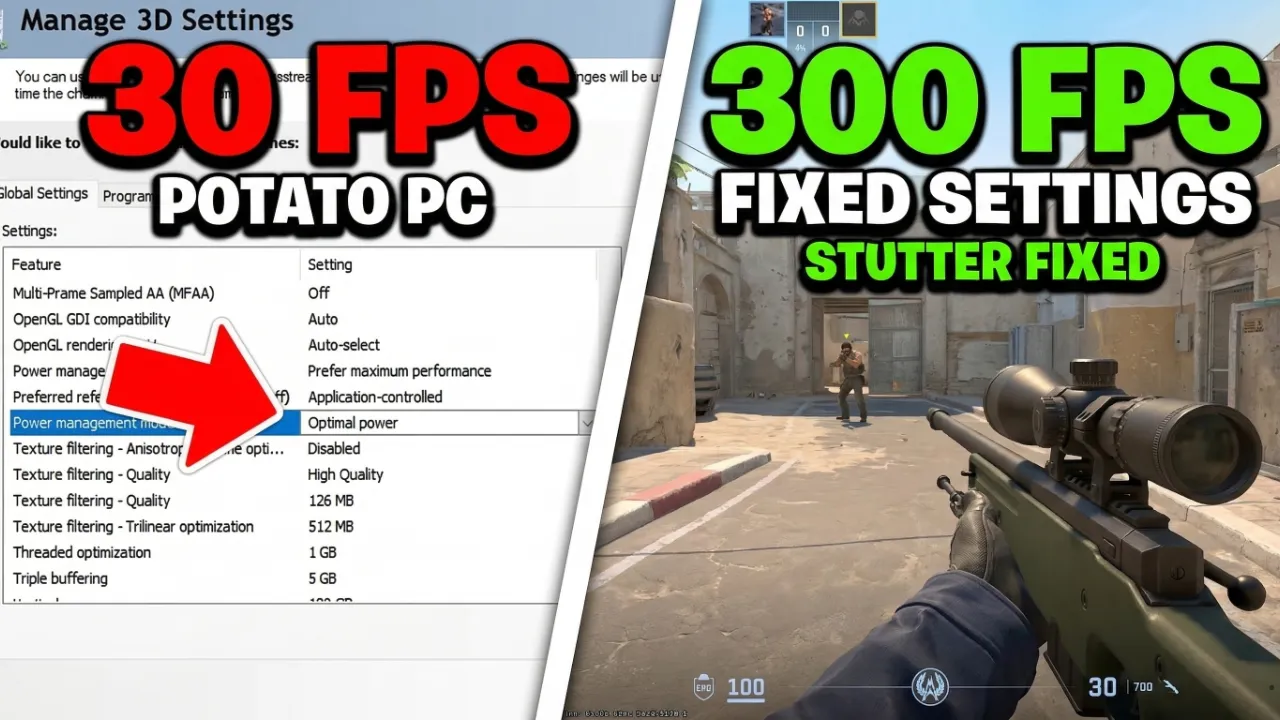
You load into Dust2. The buy phase ends. Smoke pops. And your game turns into a slideshow at 35 FPS right when someone swings the corner. Dead. Frustrated. Again.
If that sounds familiar, you’re not alone. Thousands of CS2 players run the game on low-end laptops, old desktops, and budget rigs that were never built for modern gaming. The shift from CS:GO to CS2’s Source 2 engine hit potato PC players especially hard — the game just demands more from your hardware.
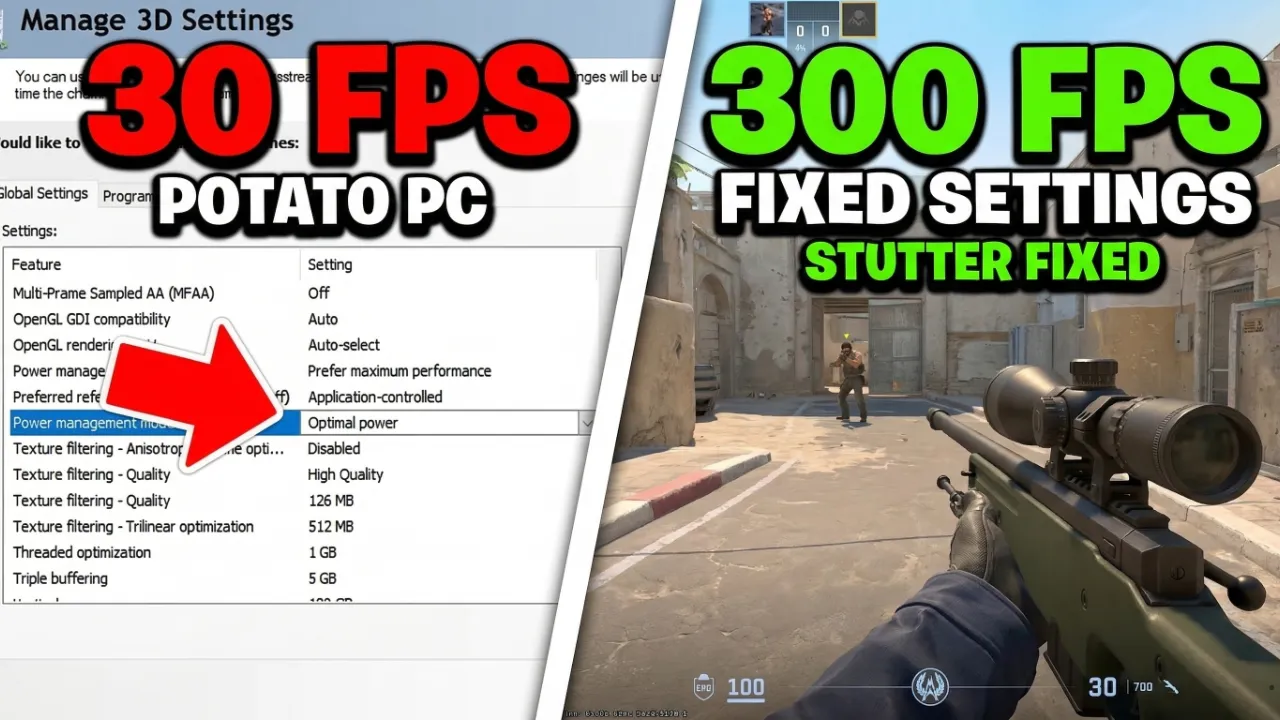
But here’s the thing: you don’t need a new PC. What you need is the right setup. This guide walks you through every proven method to boost CS2 FPS on a low-end PC, fix annoying stutters, and actually enjoy the game — even on hardware that struggles.
Let’s get into it.
Why CS2 Runs So Poorly on Low-End and Potato PCs
CS2 runs on Valve’s Source 2 engine, which is significantly more demanding than the old Source engine that powered CS:GO. Better lighting, richer textures, and more complex rendering all add up to a heavier workload on both your CPU and GPU.
On a potato PC, one of two things is almost always happening:
- Your CPU is maxed out handling game logic, AI, and physics
- Your GPU can’t render frames fast enough at your current settings
Sometimes both happen at once, which causes the dreaded combination of low FPS and random stuttering. The good news is that each bottleneck has a fix — and most of them are completely free.
Step 1: Fix Windows Settings to Boost CS2 FPS on Low-End PCs
Before touching CS2 itself, your Windows setup matters more than most people realize. These tweaks alone can push an extra 10–20 FPS without changing a single in-game setting.
Switch to High Performance Power Plan Open Control Panel → Power Options → Select High Performance. Windows defaults to Balanced mode, which throttles your CPU to save power. That’s great for battery life — terrible for gaming. High Performance tells your CPU to run at full speed, all the time.
Turn Off Xbox Game Bar and Game Mode Go to Settings → Gaming → Xbox Game Bar → toggle it Off. Then disable Game Mode too. Yes, Game Mode sounds helpful, but on low-RAM systems (8GB or less), it can actually cause stuttering by interfering with memory allocation.
Kill Startup Programs Open Task Manager → Startup tab and disable everything you don’t absolutely need. Spotify, Discord auto-launch, OneDrive sync — all of these eat RAM and CPU before CS2 even opens. Every resource you free up here goes directly to your game.
Keep GPU Drivers Updated This one is simple but often ignored. Head to the NVIDIA driver download page or AMD’s official driver support page and install the latest stable release. Driver updates frequently include game-specific performance optimizations, and running an outdated driver can leave real FPS on the table.
Step 2: Best CS2 Launch Options for FPS Boost on Potato PCs
CS2 launch options are one of the fastest ways to squeeze more performance out of weak hardware. Right-click CS2 in Steam → Properties → General → Launch Options, then paste this:
-novid -high -threads 4 -nojoy +fps_max 0 +cl_showfps 1Here’s exactly what each option does:
- -novid — Skips the intro cinematic on startup. Small thing, but it reduces load-time stress.
- -high — Runs CS2 as a high-priority process in Windows, so background apps get starved instead of your game.
- -threads 4 — Sets how many CPU threads CS2 uses. Replace
4with your actual thread count. Check this in Task Manager → Performance → CPU. - -nojoy — Disables joystick polling. If you don’t use a controller, this frees up unnecessary CPU cycles.
- +fps_max 0 — Uncaps your frame rate so CS2 runs as fast as your hardware physically allows.
- +cl_showfps 1 — Displays a live FPS counter so you can actually track the impact of your changes.
For a full list of supported commands, Valve’s official developer documentation is the most reliable reference available.
Step 3: Best CS2 Video Settings for Low-End PCs
Here’s where a lot of players go wrong — they set everything to Low and assume that’s optimal. But some settings barely affect FPS while destroying your visual clarity. Others tank your frames while looking almost identical. Here’s the smart breakdown:
| Setting | Best Value | Notes |
|---|---|---|
| Resolution | 1280×960 or 1024×768 | Single biggest FPS gain available |
| Display Mode | Fullscreen | Always faster than borderless window |
| Global Shadow Quality | Very Low | Major FPS impact, drop it without hesitation |
| Model / Texture Detail | Low | Reduces VRAM pressure significantly |
| Shader Detail | Low | One of the heaviest GPU loads in CS2 |
| Multicore Rendering | Enabled | Spreads work across all your CPU cores |
| MSAA Anti-Aliasing | None | Extremely expensive, skip completely |
| Texture Filtering | Bilinear | Lowest quality, highest performance |
| V-Sync | Disabled | Adds input lag and caps FPS — always off |
| Boost Player Contrast | Enabled | Helps spot enemies, zero FPS cost |
Pro tip on resolution: Running 4:3 stretched at 1280×960 doesn’t just boost FPS — it makes player models appear wider on screen, which many players find easier to hit. It’s why a huge portion of competitive players still use stretched resolutions to this day.
Step 4: GPU Control Panel Settings That Fix CS2 FPS Drops
The in-game settings only go so far. Your GPU’s control panel lets you push further.
For NVIDIA Users: Open NVIDIA Control Panel → Manage 3D Settings → Program Settings → Add CS2, then apply:
- Power Management Mode → Prefer Maximum Performance
- Texture Filtering Quality → High Performance
- Low Latency Mode → Ultra
- Vertical Sync → Off
- Shader Cache Size → Unlimited
- Threaded Optimization → On
For AMD Users: Open AMD Radeon Software → Gaming → Find or add CS2, then set:
- Radeon Anti-Lag → Enabled
- Texture Filtering Quality → Performance
- Surface Format Optimization → Enabled
- Wait for Vertical Refresh → Off
- Shader Cache → AMD Optimized
These GPU-level changes can add anywhere from 5 to 30 FPS depending on how old your card is. The Low Latency Mode setting on NVIDIA is particularly powerful — it keeps your input feeling sharp even when frames are limited.
Step 5: Fix CS2 Stuttering on Low-End PCs (The Real Causes)
Low FPS and stuttering are two different problems. You might average 80 FPS but still feel like the game is hitching every few seconds. Here’s why that happens and how to fix it:
Shader Pre-Compilation Not Finished After installing CS2 or after a major update, the game compiles shaders in the background. Until this finishes, you’ll get brutal stuttering no matter what. Check the main menu for a progress indicator. Wait for it to complete fully before queuing. Seriously — go make a coffee.
RAM Running in Single-Channel Mode This is one of the most overlooked performance issues on budget PCs. If you have two RAM sticks installed in the same colored slots on your motherboard, you’re running single-channel memory, which nearly halves your memory bandwidth. Moving one stick to the correct slot enables dual-channel mode — and it’s completely free. Check your motherboard manual for the right configuration. The difference in stutter reduction can be dramatic.
Windows Pagefile Too Small If your system has 8GB of RAM or less, CS2 can run out of memory and start leaning heavily on your pagefile (virtual memory on disk). Go to Control Panel → System → Advanced System Settings → Performance Settings → Advanced → Virtual Memory. Set a custom size: Initial = 1.5x your RAM in MB, Maximum = 3x your RAM in MB. For 8GB RAM, that’s 12288 MB initial / 24576 MB maximum.
Overlays Causing Micro-Stutters Discord overlay, GeForce Experience overlay, and Steam overlay all inject code into CS2’s rendering process. Disable them all. In Steam, right-click CS2 → Properties → uncheck “Enable Steam Overlay While In-Game.” In Discord, go to Settings → Game Overlay → toggle off. These overlays cause tiny, consistent hitches that add up into a noticeably choppy experience.
CS2 on a Mechanical Hard Drive If CS2 is installed on an HDD, you’ll experience loading stutters and hitches during early-game asset streaming. An SSD — even a basic 120GB one — makes an enormous difference. If upgrading storage isn’t in the budget right now, at minimum defragment your HDD regularly to keep read speeds as fast as possible.
Step 6: CS2 Autoexec Config for Maximum FPS on Potato PCs
An autoexec.cfg file automatically runs console commands every time CS2 starts. Create a text file named autoexec.cfg and place it here:
Steam\steamapps\common\Counter-Strike Global Offensive\game\csgo\cfg\Add these commands inside:
fps_max 0
cl_forcepreload 1
mat_queue_mode 2
r_dynamic 0
r_drawtracers_firstperson 0
func_break_max_pieces 0
violence_ablood 0
violence_agibs 0
cl_disablehtmlmotd 1
What these do:
mat_queue_mode 2— Forces multi-threaded material processing, huge on multi-core CPUsr_dynamic 0— Disables dynamic lighting from gunfire and explosions, major FPS saverfunc_break_max_pieces 0— Stops broken objects from spawning debris particlescl_forcepreload 1— Preloads map assets before a match starts, reducing mid-game hitchesviolence_ablood / agibs 0— Disables blood and gibs, genuinely helps very weak GPUs
Also add -exec autoexec to your Steam launch options to ensure the file runs at every startup. For a complete, searchable database of every CS2 console command available, Total CS is one of the most comprehensive free resources out there.
Step 7: Check for Thermal Throttling — The Hidden FPS Killer
Here’s something most guides skip: if your CPU or GPU is overheating, it automatically slows itself down. This is called thermal throttling, and on a dusty laptop or aging desktop, it can quietly cut your performance by 20–30% without any obvious warning.
Download HWMonitor and watch your temperatures during a CS2 match. Danger zones:
- CPU above 90°C → Throttling is likely happening
- GPU above 85°C → Performance is being reduced to protect the hardware
If you’re hitting those numbers, clean the dust out of your PC or laptop vents, replace dried-out thermal paste on your CPU, and improve airflow if you’re in a desktop case. These are free or near-free fixes that can add a significant FPS boost just by letting your hardware run at the speed it was designed for.
Bonus: Should You Use an FPS Unlocker or Third-Party Optimizer?
Short answer: no. Tools like “CS2 FPS boosters” and “game optimizers” you find scattered around forums are almost always bloatware at best, malware at worst. Valve’s anti-cheat (VAC) can also flag certain third-party injectors, which could get your account banned.
Everything you need to fix CS2 FPS and stuttering on a low-end PC is built into Windows, your GPU’s control panel, and CS2’s own settings. No third-party tool required.
Final Thoughts: You Can Play CS2 on a Potato PC
Look — we’re not going to pretend a 10-year-old laptop will hit 300 FPS after reading a guide. That’s not realistic. But most low-end PC players are genuinely leaving a huge amount of performance untapped. Combine the Windows power plan fix, GPU control panel settings, the right launch options, dual-channel RAM, and a clean autoexec — and hitting a stable 80–100 FPS on modest hardware is absolutely achievable.
Smooth, consistent FPS matters more than peak FPS anyway. A locked 75 FPS with no stutters will feel better than a fluctuating 90–40 FPS every single time.
You’ve already got the PC. Now you’ve got the setup. Go frag some kids.
Last updated: March 2026 — Verified against current CS2 build and latest GPU driver releases.

One thought on “CS2 FPS Boost for Potato Fix CS2 Stutter & Get More Frames in 2026”