

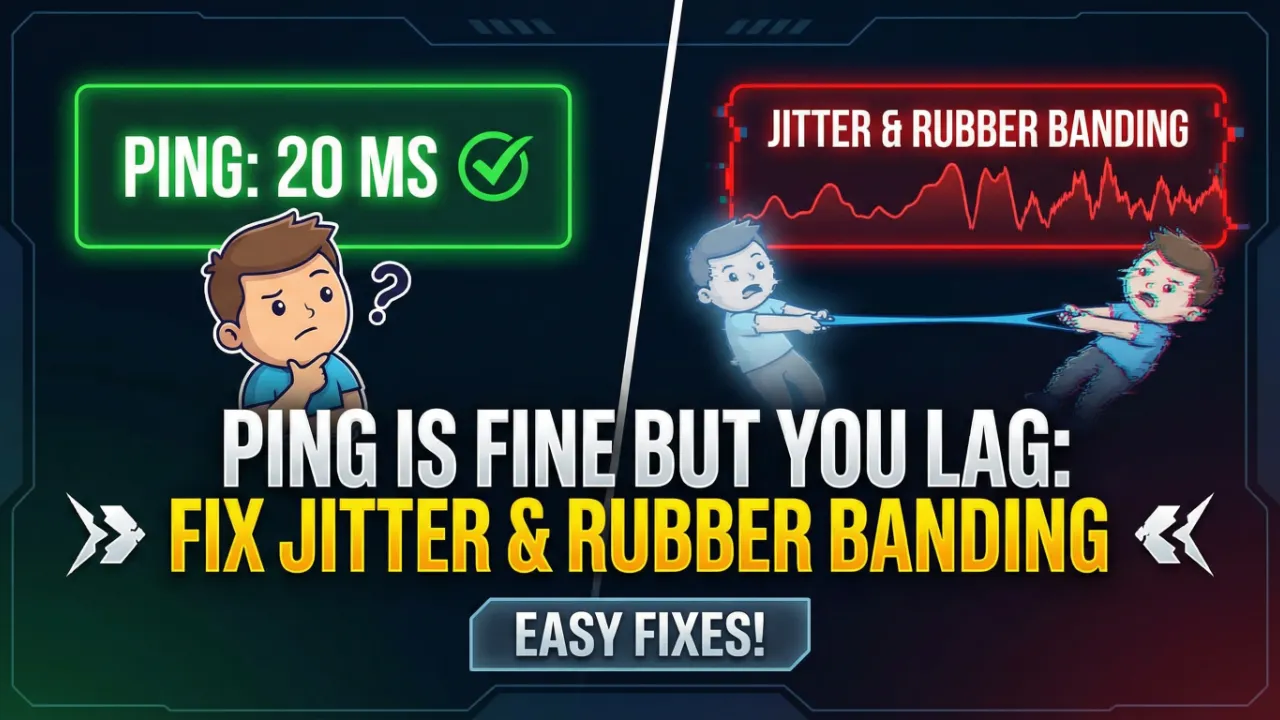
Does your ping low but you’re still lagging? Learn how to fix jitter, packet loss, and rubber banding to get a smooth, competitive gaming experience.
You check your ping, and it reads a solid 20ms. Everything should feel smooth. But your character teleports across the map, shots don’t register, and movement feels like dragging through mud.
Sound familiar? When your ping is fine but you lag, the real culprits are almost always jitter and rubber banding — two hidden network problems that most players overlook entirely.
This guide breaks down exactly why this happens and how to fix it for good.
What Is Jitter and Why Does It Cause Lag With Low Ping?
Ping measures the average round-trip time between your device and a game server. It’s a single number. But it doesn’t tell the full story.
Jitter refers to the variation in your ping over time. Imagine your ping bouncing between 15ms, 80ms, 22ms, and 95ms within seconds. The average might still show 40ms, but the inconsistency creates massive problems.
Game engines expect data packets to arrive at steady intervals. When jitter disrupts that rhythm, the game can’t predict your position accurately. The result? Your character snaps backward, stutters, or freezes momentarily — even though your ping counter looks perfectly healthy.
How Jitter Differs From High Latency
High latency means consistent delay. You can actually adapt to it. A steady 100ms ping is playable in most games.
Jitter, however, is unpredictable. Your game client and the server constantly disagree about where you are. That disagreement creates the rubber banding effect that makes online gaming unbearable.
What Causes Rubber Banding in Games?
Rubber banding happens when the server corrects your position after receiving delayed or out-of-order packets. Your client shows you moving forward, but the server pulls you back to where it last confirmed your location.
Several factors contribute to this frustrating network instability:
1. Wi-Fi Interference and Signal Congestion
Wi-Fi is the number one cause of jitter for gamers. Wireless signals compete with neighboring networks, Bluetooth devices, microwaves, and even walls. Every interruption adds packet delay variation.
2. Network Congestion on Your Local Network
Streaming Netflix on one device, downloading files on another, and gaming simultaneously creates a traffic jam on your home network. Without proper traffic prioritization, your game packets get delayed randomly.
3. ISP Routing Issues
Sometimes the problem sits entirely outside your home. Your Internet Service Provider might route your traffic through congested or inefficient paths. This creates inconsistent packet delivery even on a fast connection.
4. Background Applications and Updates
Windows updates, cloud syncs, antivirus scans, and browser tabs consume bandwidth silently. These background processes introduce micro-bursts of traffic that spike your jitter.
5. Outdated or Misconfigured Network Drivers
Faulty network adapter drivers can cause packet handling errors. This leads to irregular data transmission that directly impacts gaming performance.
How to Fix Jitter and Rubber Banding: Proven Solutions
Now for the part that matters. Here are actionable steps to eliminate lag even when your ping appears normal.
Switch to a Wired Ethernet Connection
This single change fixes jitter for the majority of players. A direct Ethernet cable removes wireless interference completely. Use a Cat6 or Cat6a cable for the best results.
If running a cable isn’t feasible, consider a powerline adapter or MoCA adapter as reliable alternatives to Wi-Fi.
Enable Quality of Service (QoS) on Your Router
QoS settings let you prioritize gaming traffic over other data on your network. Access your router’s admin panel (typically at 192.168.1.1) and assign high priority to your gaming device or specific ports.
Most modern routers from brands like ASUS, NETGEAR, and TP-Link include built-in gaming QoS features.
Optimize Your DNS Settings
Switching to faster DNS servers reduces lookup times and can improve routing efficiency. Try these popular options:
- Google DNS: 8.8.8.8 / 8.8.4.4
- Cloudflare DNS: 1.1.1.1 / 1.0.0.1
Change these settings in your network adapter properties or directly on your router.
Close Background Applications
Before gaming, shut down unnecessary programs. Disable automatic updates temporarily. Close cloud storage syncs. Use Task Manager (Windows) or Activity Monitor (Mac) to identify bandwidth-hungry processes.
Update Network Drivers and Firmware
Visit your motherboard or network adapter manufacturer’s website for the latest drivers. Also, check your router manufacturer’s page for firmware updates. Outdated firmware frequently causes packet handling bugs.
Use a Gaming VPN Strategically
A reputable gaming VPN like ExitLag or WTFast can sometimes fix poor ISP routing. These services optimize the path your data takes to reach game servers, reducing jitter caused by inefficient routes.
Note: A VPN won’t help if the problem originates inside your home network.
Adjust In-Game Network Settings
Many games offer network-related settings that help compensate for jitter:
- Interpolation settings
- Network smoothing
- Rate/tickrate commands (in games like CS2 or Valorant)
Lowering interpolation can make gameplay feel more responsive on unstable connections.
How to Measure Jitter on Your Connection
You can’t fix what you can’t measure. Use these tools to diagnose jitter accurately:
- PingPlotter — Visualizes jitter and packet loss across every network hop
- WinMTR — Free alternative that combines ping and traceroute data
- Speedtest by Ookla — Now includes jitter measurement in results
Ideal jitter for gaming: Below 5ms
Playable jitter: Below 15ms
Problematic jitter: Above 30ms
Run tests at different times throughout the day. Jitter often worsens during peak evening hours when ISP networks experience heavy load.
When to Contact Your ISP
If you’ve optimized everything on your end and jitter persists, the problem likely lives with your Internet Service Provider. Contact them with specific data:
- PingPlotter screenshots showing where jitter spikes occur
- Times when the issue is worst
- Specific game servers affected
Armed with this evidence, ISPs can investigate routing problems or infrastructure issues on their end. If they can’t resolve it, switching providers may be your best long-term solution.
Final Thoughts
A low ping number means nothing if your connection quality fluctuates wildly. When your ping is fine but you still lag, focus your troubleshooting on jitter reduction and rubber banding fixes rather than chasing faster download speeds.
Switch to Ethernet. Enable QoS. Kill background processes. Measure your jitter. These steps solve the problem for most gamers without spending a single dollar.
Stop blaming the server. Fix your connection stability, and the game will finally feel as smooth as your ping says it should.
