

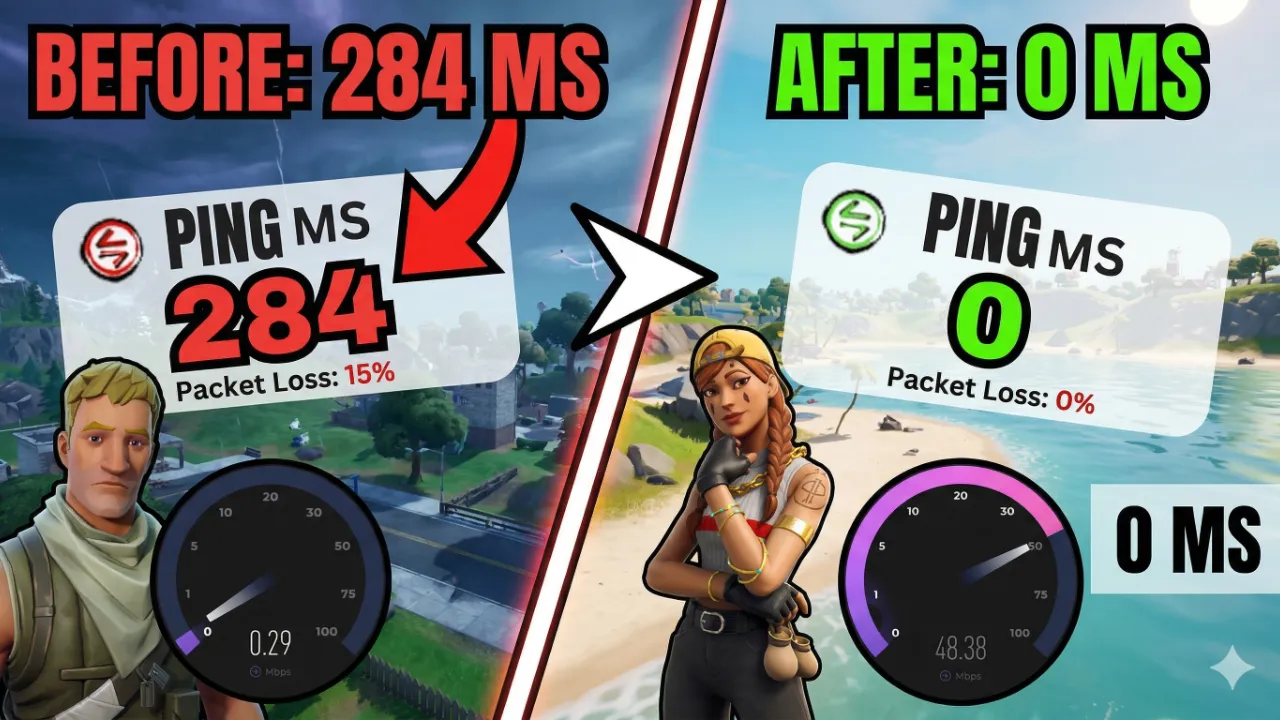
If you have ever been on the verge of winning a ranked match only to have your screen freeze due to high ping, you already know how devastating network lag can be. High ping and network lag in online games are among the most frustrating issues gamers face in 2026. Whether you play competitive shooters like CS2 and Valorant, battle royales like Fortnite, or MMORPGs, a laggy connection can cost you matches, rankings, and enjoyment. This comprehensive guide walks you through every proven method to fix high ping and reduce network lag so you can game at your best.
What Is Ping and Why Does It Matter in Gaming?
Ping, measured in milliseconds (ms), is the time it takes for a data packet to travel from your device to the game server and back. A low ping (under 30ms) means near-instant responses, while a high ping (above 100ms) causes noticeable delays between your actions and what happens on screen. In fast-paced online games, even a 50ms difference can be the gap between a headshot and a miss. Network lag occurs when your ping spikes or remains consistently high, resulting in rubberbanding, delayed inputs, and a poor overall gaming experience.
Common Causes of High Ping and Network Lag
Before jumping into fixes, it helps to understand what causes high ping in the first place. The most common culprits include:
- Wi-Fi interference: Wireless connections are prone to packet loss and latency spikes caused by walls, other devices, and radio interference.
- ISP throttling: Some Internet Service Providers deliberately slow down gaming traffic during peak hours.
- Background applications: Downloads, streaming services, and cloud backups can consume significant bandwidth while you game.
- Outdated network drivers: Old drivers can cause inefficient packet handling and increased latency.
- Distant game servers: Connecting to a server geographically far from you will always result in higher ping.
- Router firmware issues: An outdated router or misconfigured QoS settings can bottleneck your gaming traffic.
Fix 1: Switch to a Wired Ethernet Connection
The single most effective way to reduce network lag is to ditch Wi-Fi and plug directly into your router using an Ethernet cable. Wired connections offer significantly lower latency, zero packet loss under normal conditions, and more stable speeds. If running a cable is not feasible, consider using a Powerline adapter or MoCA adapter to get a wired-like connection through your home’s existing infrastructure. Gamers who switch from Wi-Fi to Ethernet typically see ping reductions of 20 to 60ms instantly.
Fix 2: Close Background Applications Consuming Bandwidth
Before launching your game, make sure no other applications are hogging your bandwidth. Common offenders include Windows Update, Google Drive sync, Dropbox, Steam downloading other games, Discord video calls, and streaming services running on other devices. Open Task Manager (Ctrl + Shift + Esc), navigate to the Performance tab, then click Open Resource Monitor. Under the Network tab, you can see exactly which processes are using bandwidth. Kill any non-essential processes before gaming sessions to free up your connection.
Fix 3: Update Your Network Adapter Drivers
Outdated or corrupted network adapter drivers are a surprisingly common cause of high ping and packet loss. To update them, right-click the Start button and open Device Manager. Expand the Network Adapters section, right-click your Ethernet or Wi-Fi adapter, and select Update Driver. Alternatively, visit your motherboard or laptop manufacturer’s website to download the latest driver directly. After updating, restart your PC and test your ping in-game to see if it improves.
Fix 4: Configure Quality of Service (QoS) on Your Router
Quality of Service (QoS) is a router feature that prioritizes certain types of network traffic over others. By setting your gaming device or gaming applications as high priority in your router’s QoS settings, you ensure that your gaming packets get through faster even when other devices on the network are streaming or downloading. Log in to your router admin panel (typically at 192.168.1.1 or 192.168.0.1), find the QoS settings, and assign your PC or gaming console the highest priority. This can meaningfully reduce ping spikes during peak household internet usage.
Fix 5: Choose the Right Game Server Region
Most online games allow you to manually select which server region you connect to. Always choose the server closest to your physical location. For example, if you are in South Asia, connecting to Singapore or Mumbai servers will give dramatically lower ping than connecting to US East or European servers. In games like Valorant, CS2, or PUBG, check your data center selection in the settings menu and lock in the nearest region. Avoiding auto-select features can prevent the game from routing you to a suboptimal server.
Fix 6: Use a Gaming VPN or Gaming DNS
While a regular VPN can increase ping, dedicated gaming VPNs like ExitLag, Mudfish, or WTFast are specifically designed to optimize routing paths between you and game servers. These services find faster routes that bypass congested internet nodes, potentially reducing your ping by 10 to 40ms depending on your location and ISP routing. Additionally, switching your DNS server from your ISP’s default to a faster option like Google DNS (8.8.8.8) or Cloudflare DNS (1.1.1.1) can speed up the domain resolution process and marginally improve connection responsiveness.
Fix 7: Flush DNS Cache and Reset Network Settings
Over time, your system’s DNS cache can become cluttered with outdated entries that slow down network lookups. Flushing the DNS cache is a quick and effective fix. Open Command Prompt as Administrator and run the following commands one at a time:
- ipconfig /flushdns – Clears the DNS resolver cache
- ipconfig /release – Releases your current IP address
- ipconfig /renew – Requests a new IP from your DHCP server
- netsh int ip reset – Resets TCP/IP stack
- netsh winsock reset – Resets Winsock catalog
After running these commands, restart your PC and check if your ping has improved in-game.
Fix 8: Disable Windows Auto-Tuning for Network
Windows has a feature called Receive Window Auto-Tuning that adjusts TCP receive window size automatically. While it sounds helpful, it can sometimes cause latency issues in gaming. To disable it, open Command Prompt as Administrator and type: netsh int tcp set global autotuninglevel=disabled. This can help stabilize your ping and reduce random lag spikes, especially in games that are sensitive to TCP settings. If this makes things worse, simply re-enable it by setting autotuninglevel back to normal.
Fix 9: Restart or Upgrade Your Router
Routers can develop performance issues over extended periods of uptime due to memory leaks and cache buildup. A simple restart of your router every few days can help maintain optimal performance. If your router is more than four years old or does not support Wi-Fi 6 (802.11ax) or modern QoS features, it may be time to upgrade. Newer routers offer better traffic management, lower latency, and more reliable connections for multiple gaming devices simultaneously. Gaming-focused routers from brands like ASUS ROG, Netgear Nighthawk, and TP-Link Archer are excellent choices for serious gamers.
Fix 10: Contact Your ISP About Gaming Traffic
If you have tried all the above fixes and still experience consistently high ping, the issue may lie with your Internet Service Provider. Some ISPs throttle gaming traffic or route data through congested nodes. Contact your ISP and ask specifically about gaming latency, peak-hour performance, and whether they offer a gaming-optimized plan. Running speed and ping tests at different times of day using tools like Ping.canopy.tools or Speedtest.net can help you build a case showing your ISP the problem pattern.
How to Monitor Your Ping in Real Time
Keeping an eye on your ping while gaming helps you catch issues early. Most games have a built-in ping display in the settings or HUD. You can also use third-party tools like MSI Afterburner with RivaTuner, NZXT CAM, or the Windows Xbox Game Bar overlay (Win + G) which shows real-time network stats. Monitoring ping over time reveals patterns — for instance, spikes at 9 PM might indicate ISP congestion during peak hours, while constant high ping regardless of time points to a routing or hardware issue.
Final Thoughts: Getting the Lowest Ping Possible in 2026
Fixing high ping and network lag requires a systematic approach. Start with the easiest changes — switch to Ethernet, close background apps, and select the nearest server. Then move on to driver updates, router settings, and DNS tweaks. Most gamers who follow this guide see significant improvements in their connection stability and ping times. A smooth, low-latency connection is just as important as a high-FPS gaming rig, and with the steps above, you now have everything you need to eliminate network lag from your gaming sessions for good.
