

Struggling with low FPS on a budget PC? Discover 15 proven pre-game tweaks to boost FPS, reduce lag, and maximize performance without spending a cent.
If your PC stutters every time you load into a match, trust me — you are not alone. I have been gaming on budget hardware for years, and there is this specific kind of frustration when your rig just refuses to push a stable 60 FPS. The thing is, before you go blaming your GPU or thinking you need an upgrade, there are tweaks you can do right now — for free — that genuinely move the needle.
This guide covers 15 pre-game tweaks to boost FPS on a budget PC that I have personally tested, verified, or dug into deeply. Some are obvious. A few are not. All of them work.
Why Pre-Game Optimization Matters More Than You Think
Most PC gamers focus entirely on in-game settings, which is fine. But the real performance gains often live outside the game — in Windows settings, background processes, driver configurations, and power profiles. A study by Digital Foundry showed that system-level optimizations can yield anywhere from 10% to 30% FPS improvements on mid-range and budget hardware, depending on the workload.
That is not nothing. On a budget build, that 15 extra frames could be the difference between a choppy experience and a genuinely playable one.
Check this trick: Stop Background Apps Killing Your FPS in Windows 11 (2026)
Tweak 1: Set Your Power Plan to High Performance
This one is almost embarrassingly easy and yet so many people skip it.
Windows defaults to a “Balanced” power plan, which throttles your CPU to save energy. For gaming, you want every clock cycle you can get.
How to do it:
- Press
Win + R, typepowercfg.cpl, and hit Enter - Select “High Performance” — or “Ultimate Performance” if it appears
- If Ultimate Performance is missing, open PowerShell as admin and run:
powercell -duplicatescheme e9a42b02-d5df-448d-aa00-03f14749eb61
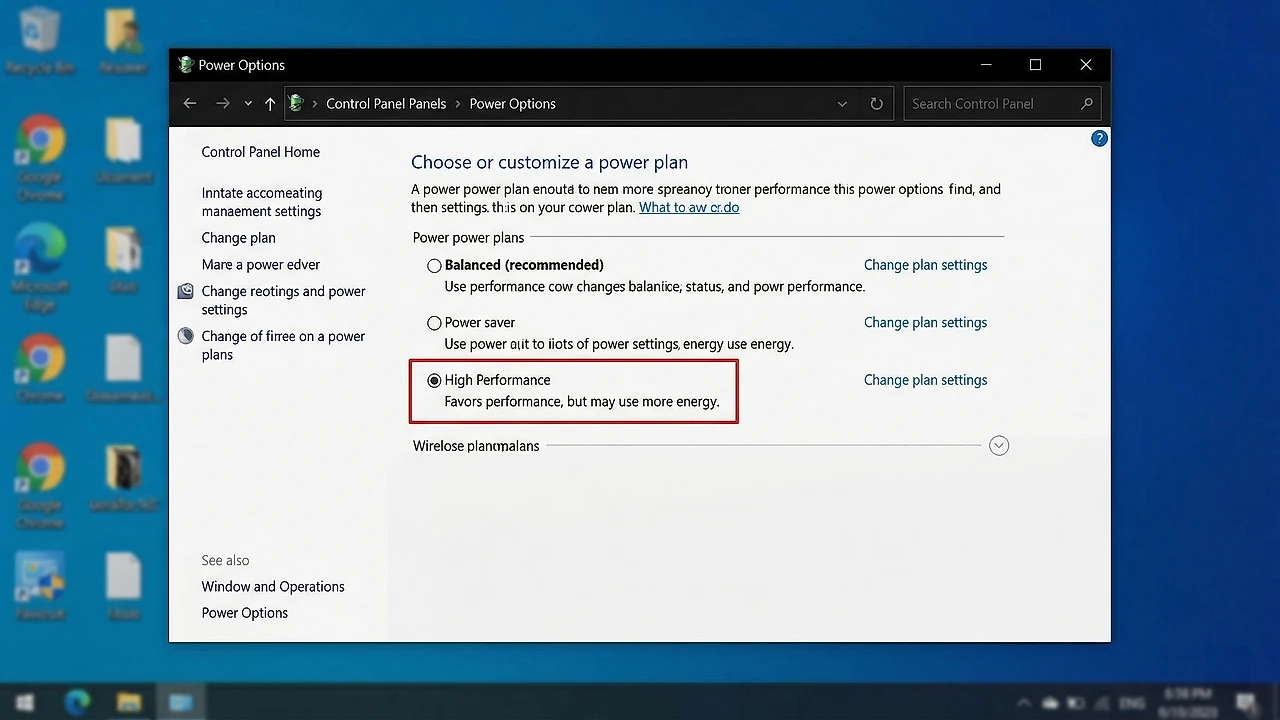
This single tweak has given me a noticeable FPS bump in CPU-bound titles. Not a placebo effect — actual measurable gains.
Tweak 2: Update (or Clean Install) Your GPU Drivers
Outdated or corrupted drivers are a silent FPS killer. NVIDIA and AMD both release driver updates that include game-specific optimizations.
More importantly — do a clean install using Display Driver Uninstaller (DDU) rather than just updating on top of old drivers. Residual files from old driver versions cause stutters and frame drops that are almost impossible to diagnose otherwise.
Tweak 3: Kill Background Processes Before Launching
Before loading into any game, open Task Manager (Ctrl + Shift + Esc) and look at what is eating your RAM and CPU.
Common culprits:
- Browser tabs (Chrome is notorious)
- Discord video/screen share
- OneDrive syncing
- Windows Update running in the background
- Antivirus real-time scans
Kill what you do not need. On a system with 8GB of RAM especially, every gigabyte matters.
Pro tip: Create a simple batch script that closes these automatically before gaming. It takes 10 minutes to set up and saves you the manual work every session.
Tweak 4: Enable Windows Game Mode
Windows Game Mode is actually useful now — the early versions were genuinely bad, but Microsoft has improved it considerably since Windows 10.
To enable:
- Press
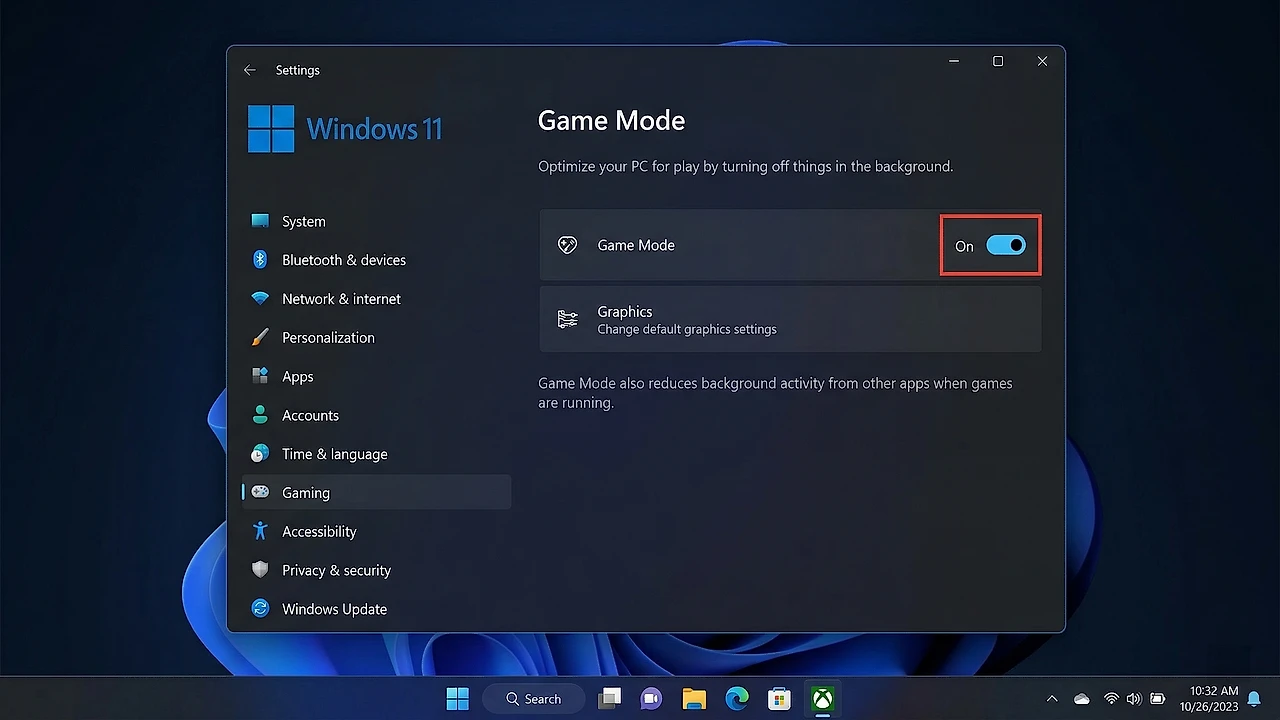
Win + Ito open Settings - Go to Gaming > Game Mode
- Toggle it on
What it does: prioritizes CPU and GPU resources toward your game and suppresses background Windows Update activity while gaming. On budget hardware, this matters more than you might expect.
Tweak 5: Adjust In-Game Resolution and Render Scale
I know this feels like a cop-out, but hear me out. Running at native 1080p at low settings is often worse than running at 900p with medium settings on a budget GPU. Render scale and resolution have a disproportionate impact on frame rate compared to most other settings.
Quick comparison table:
| Resolution | Render Scale | Avg FPS Impact | Visual Quality |
|---|---|---|---|
| 1920×1080 | 100% | Baseline | High |
| 1920×1080 | 75% | +15-25% FPS | Medium |
| 1600×900 | 100% | +20-30% FPS | Medium |
| 1280×720 | 100% | +40-60% FPS | Low |
Find the sweet spot for your specific game and monitor. Many competitive titles like Valorant and CS2 are actually designed to run at lower resolutions without looking terrible.
Tweak 6: Disable Xbox Game Bar and DVR
Xbox Game Bar and background recording features consume CPU and RAM constantly, even when you are not actively using them. On a budget PC, this overhead is significant.
To disable:
- Settings > Gaming > Xbox Game Bar — toggle off
- Settings > Gaming > Captures — turn off “Record in the background while I’m playing a game”
This alone freed up about 300-500MB of RAM on my system. Small, but meaningful on an 8GB build.
Tweak 7: Optimize Your RAM (Enable XMP/EXPO)
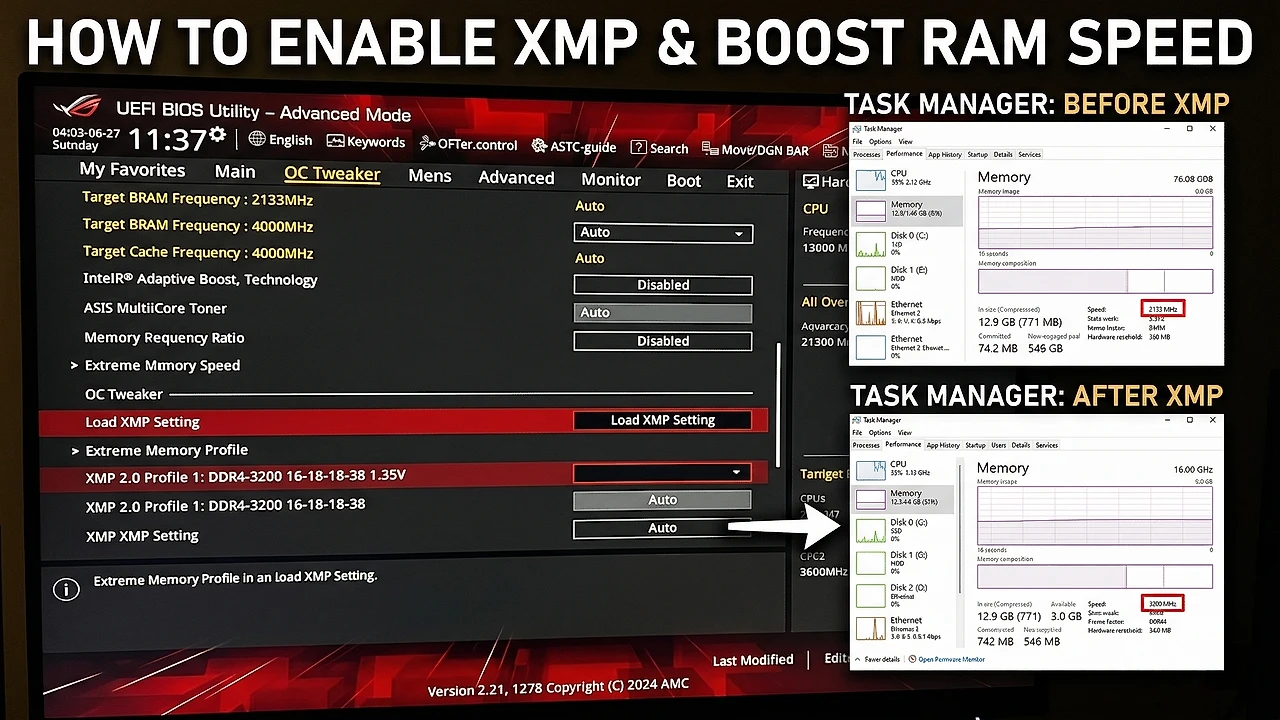
If you have upgraded your RAM at any point or bought a prebuilt, there is a good chance your RAM is running below its rated speed. Most DDR4 and DDR5 kits run at a default of 2133MHz unless XMP (Intel) or EXPO (AMD) is manually enabled in BIOS.
How to check:
- Open Task Manager > Performance > Memory — look at the “Speed” value
- Compare to the speed printed on your RAM stick
If they do not match, restart your PC, enter BIOS (usually Del or F2), and enable XMP/EXPO. This is free performance you are leaving on the table otherwise.
Tweak 8: Set CPU and GPU Priority for Your Game
You can manually tell Windows to give your game higher CPU priority through Task Manager — or better yet, use a tool like Process Lasso to automate this.
Manual method:
- Launch your game
- Open Task Manager > Details tab
- Right-click the game’s .exe > Set Priority > High
Avoid setting it to “Realtime” — that can actually destabilize your system.
Tweak 9: Clean Up Your Storage and Defrag (HDD Users)
If you are gaming on an HDD — which, no judgment, plenty of budget builds still do — fragmentation is real and it slows down level load times and causes in-game hitches.
For HDD users:
- Run Windows Defragmenter monthly
- Keep at least 15% of your drive free
For SSD users:
- Do NOT defrag your SSD
- Instead, run the TRIM command: open Command Prompt as admin and type
fsutil behavior query DisableDeleteNotify— if it returns 0, TRIM is already active
Tweak 10: Disable Fullscreen Optimizations
This is a lesser-known tweak and honestly one I stumbled on by accident. Windows applies its own “fullscreen optimizations” to games that can sometimes introduce input lag and frame time inconsistency, especially on older titles.
To disable:
- Right-click your game’s .exe > Properties
- Go to the Compatibility tab
- Check “Disable fullscreen optimizations”
- Also check “Run this program as an administrator”
Results vary by game, but for titles like older Call of Duty entries or Minecraft, this made a genuinely noticeable difference for me.
Tweak 11: Use NVIDIA Low Latency Mode or AMD Radeon Anti-Lag
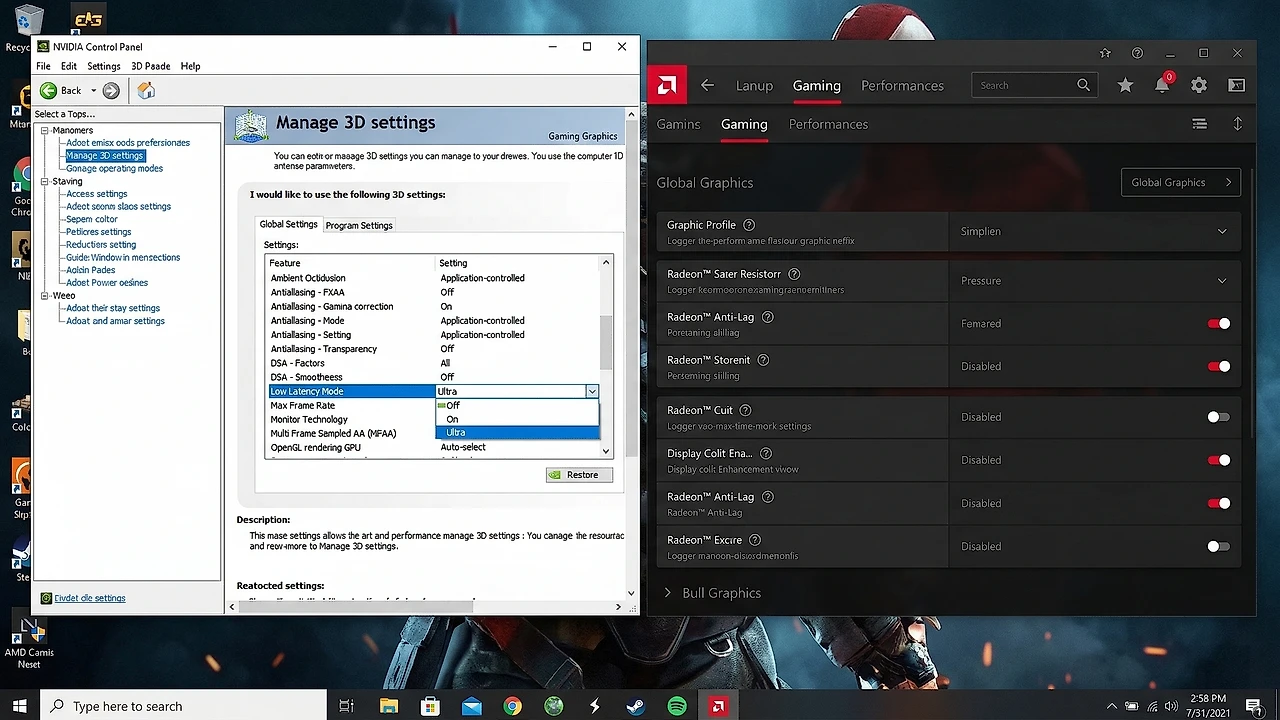
If you are on NVIDIA, open the NVIDIA Control Panel and under “Manage 3D Settings” look for Low Latency Mode. Set it to “Ultra” for the lowest input lag. This is especially impactful in competitive shooters.
AMD users have Radeon Anti-Lag under the Radeon Software settings, which achieves a similar result.
These settings do not always increase raw FPS but they reduce the delay between your input and the on-screen response — which for competitive gaming, frankly matters more.
Tweak 12: Adjust Visual Effects for Best Performance
Windows runs a bunch of visual animations and effects in the background that consume GPU and CPU resources. On a budget PC, turning these off gives back meaningful resources.
How to do it:
- Search “Adjust the appearance and performance of Windows” in the Start menu
- Select “Adjust for best performance” — or manually uncheck the options you want
What you lose: window fade animations, shadow effects, smooth fonts. What you gain: slightly snappier performance and freed-up GPU overhead.
Tweak 13: Monitor Thermals and Repaste If Needed
Thermal throttling is a sneaky FPS killer. When your CPU or GPU hits its thermal limit, it automatically reduces clock speeds to protect itself — and your FPS tanks as a result.
Check temps using:
- HWiNFO64 (free, detailed)
- MSI Afterburner (free, overlay support)
General thermal limits:
- CPU: under 85-90C under load is acceptable
- GPU: under 83C is ideal; 90C+ is a concern
If your CPU is hitting 95C+ consistently, it needs new thermal paste. A tube of decent paste costs $5-8 and can drop temps by 10-15C. That is a free FPS boost, effectively.
Tweak 14: Tweak Your Network Settings (For Online Games)
This one does not affect raw FPS, but if you play online titles, network-related stutters often get misattributed to FPS issues. High ping and packet loss create hitches that feel like frame drops.
Quick wins:
- Use a wired Ethernet connection over Wi-Fi whenever possible
- Set DNS to Cloudflare (1.1.1.1) or Google (8.8.8.8) for faster resolution
- Disable Windows auto-tuning: open Command Prompt as admin and run
netsh int tcp set global autotuninglevel=disabled
These changes help reduce the frequency of those annoying mid-game freezes that feel like a performance issue but are actually network-related.
Tweak 15: Use an FPS Optimization Software (With Caution)
There are legitimate tools that automate many of the tweaks above. Razer Cortex is the most well-known free option. It temporarily closes background processes, manages memory, and applies system-level tweaks before you launch a game.
I will be honest — I have mixed feelings about these tools. They work, but they are also doing things you could do manually with more control. For beginners, though, Razer Cortex is genuinely useful and free.
Summary Table: All 15 Tweaks at a Glance
| # | Tweak | Difficulty | FPS Impact | Cost |
|---|---|---|---|---|
| 1 | High Performance Power Plan | Easy | Medium | Free |
| 2 | Clean Install GPU Drivers | Medium | High | Free |
| 3 | Kill Background Processes | Easy | Medium | Free |
| 4 | Enable Windows Game Mode | Easy | Low-Medium | Free |
| 5 | Adjust Resolution/Render Scale | Easy | Very High | Free |
| 6 | Disable Xbox Game Bar | Easy | Low-Medium | Free |
| 7 | Enable XMP/EXPO in BIOS | Medium | Medium | Free |
| 8 | Set Game CPU Priority | Easy | Low-Medium | Free |
| 9 | Clean Storage / Defrag | Easy | Low | Free |
| 10 | Disable Fullscreen Optimizations | Easy | Low-Medium | Free |
| 11 | NVIDIA Low Latency / AMD Anti-Lag | Easy | Latency | Free |
| 12 | Adjust Windows Visual Effects | Easy | Low | Free |
| 13 | Monitor Temps and Repaste | Medium | High* | $5-8 |
| 14 | Network Tweaks | Medium | Stutter Reduction | Free |
| 15 | Use FPS Optimization Software | Easy | Medium | Free |
*Only applicable if thermal throttling is occurring
Frequently Asked Questions
Can these tweaks damage my PC?
Not if you follow the instructions as written. Enabling XMP/EXPO in BIOS is the most “advanced” step here and is entirely safe on supported hardware.
How much FPS gain can I realistically expect?
It varies heavily by system and game. In CPU-bound scenarios, combining multiple tweaks has netted 20-35% FPS improvements in community benchmarks. In GPU-bound scenarios, resolution and render scale changes are your biggest lever.
Do I need to apply all 15 tweaks?
Start with Tweaks 1, 2, 3, 5, and 7. Those five cover the majority of gains for most budget PCs. Apply the rest incrementally.
Final Thoughts
Budget gaming is not a limitation — it is a constraint that forces smarter decisions. Every tweak on this list is free or nearly free, and together they can transform a frustrating gaming experience into a genuinely enjoyable one.
The honest reality is that no software tweak replaces a hardware upgrade forever. But the goal here is to squeeze every last frame out of what you already own before spending money you might not need to spend.
Have you tried any of these tweaks? Drop your results or questions in the comments below — I read every one and genuinely curious what kind of FPS gains people are seeing on different setups.
