
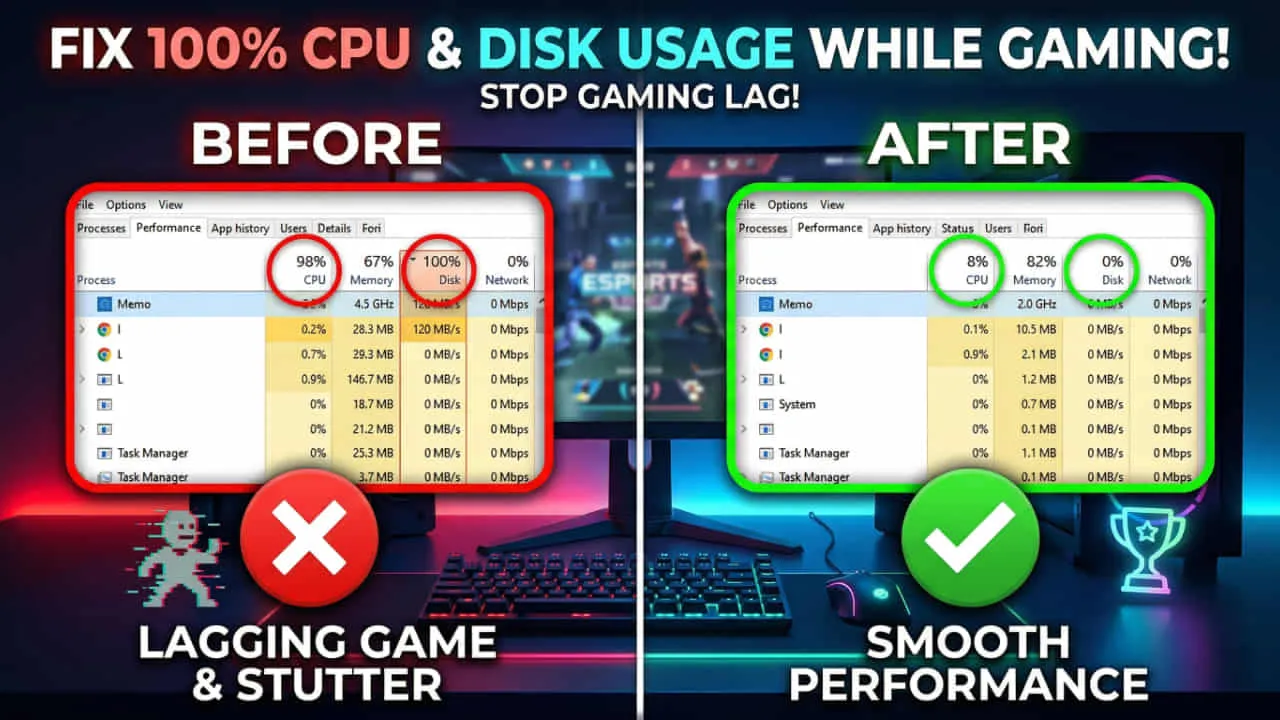
High CPU or disk usage can make gaming sessions frustrating, causing lag, stuttering, and reduced frame rates. If you’re experiencing 100% CPU or disk usage while gaming on Windows, this comprehensive guide will help you identify and fix the underlying issues.
Understanding the Problem
When your CPU or disk reaches 100% usage while gaming, your system struggles to keep up with demands. This results in poor performance, frame drops, and an unresponsive system. According to Tom’s Hardware, several factors can cause this issue including background processes, driver problems, and system configuration issues.
Common Causes
- Background applications consuming resources
- Outdated or incompatible drivers
- Windows Update downloading in the background
- Antivirus scans running during gameplay
- Disk fragmentation on traditional HDDs
- Malware or unwanted software
Method 1: Close Unnecessary Background Processes
One of the easiest ways to reduce CPU and disk usage is to close programs you don’t need while gaming.
- Press Ctrl + Shift + Esc to open Task Manager
- Click on the Processes tab
- Sort by CPU or Disk usage by clicking the column header
- Right-click resource-heavy processes and select End Task
Important: Don’t close system-critical processes. Only close applications you recognize as non-essential.
Also Check: 15 Pre-Game Tweaks to Boost FPS on Any Budget PC (2026 Guide)
Method 2: Update Graphics and System Drivers
Outdated drivers are a common cause of performance issues. Visit the NVIDIA Drivers page or AMD Support to download the latest GPU drivers for your graphics card.
To update other drivers:
- Press Win + X and select Device Manager
- Right-click on the device and select Update driver
- Choose Search automatically for drivers
Method 3: Disable Windows Search Indexing
Windows Search can cause high disk usage, especially on older systems.
- Press Win + R and type
services.msc - Find Windows Search in the list
- Right-click and select Properties
- Change Startup type to Disabled
- Click Stop and then OK
Also Check: Best Must have Software For Gaming PC (2026)
Method 4: Adjust Power Settings
Windows power settings can throttle performance. Setting your plan to High Performance can help.
- Open Control Panel > Power Options
- Select High Performance
- Click Change plan settings > Change advanced power settings
- Expand Processor power management
- Set Minimum processor state to 100%
Method 5: Disable SuperFetch/SysMain
SuperFetch (SysMain on Windows 10/11) can cause high disk usage, as noted on Microsoft Support.
- Press Win + R and type
services.msc - Locate SysMain
- Right-click and select Properties
- Change Startup type to Disabled
- Click Stop and then Apply
Method 6: Scan for Malware
Malware can consume significant system resources. Run a full system scan using Windows Defender or a trusted third-party antivirus like Malwarebytes.
Method 7: Optimize Game Settings
Reducing in-game graphics settings can significantly lower CPU and GPU usage. Lower settings like shadows, anti-aliasing, and view distance to improve performance.
Method 8: Check for Disk Errors
Disk errors can cause performance problems. To check:
- Open Command Prompt as Administrator
- Type
chkdsk /f /rand press Enter - Restart your computer to run the scan
Also Check: GTA 6 PC System Requirements: Will Your PC Run It? (2026 Update)
Frequently Asked Questions (FAQ)
Why does my CPU reach 100% when gaming?
100% CPU usage while gaming can occur due to background processes, insufficient cooling causing thermal throttling, outdated drivers, or your CPU simply being underpowered for the game you’re playing.
Is 100% disk usage bad for my computer?
Yes, sustained 100% disk usage can slow down your system significantly and may reduce the lifespan of your hard drive, especially mechanical HDDs. It’s important to identify and fix the cause.
Should I disable Windows Update to fix high disk usage?
While temporarily pausing Windows Update can help, it’s not recommended long-term as you’ll miss critical security patches. Instead, schedule updates during times when you’re not gaming.
Will upgrading to an SSD help with disk usage issues?
Yes, upgrading from an HDD to an SSD can dramatically improve performance and reduce perceived disk usage issues since SSDs handle read/write operations much faster than traditional hard drives.
Can antivirus software cause high CPU usage while gaming?
Yes, real-time scanning and scheduled scans can consume significant CPU resources. Consider adding your game folders to the antivirus exclusion list or scheduling scans during non-gaming hours.
By following these methods systematically, you should be able to reduce CPU and disk usage while gaming, resulting in smoother gameplay and better overall system performance.
