

In an era where high-performance computing has become more accessible, transforming a standard office PC into a capable gaming rig represents a cost-effective and sustainable approach to entering the world of PC gaming.
Many corporate desktops—typically equipped with reliable but underpowered components for productivity tasks—offer a solid foundation for upgrades.
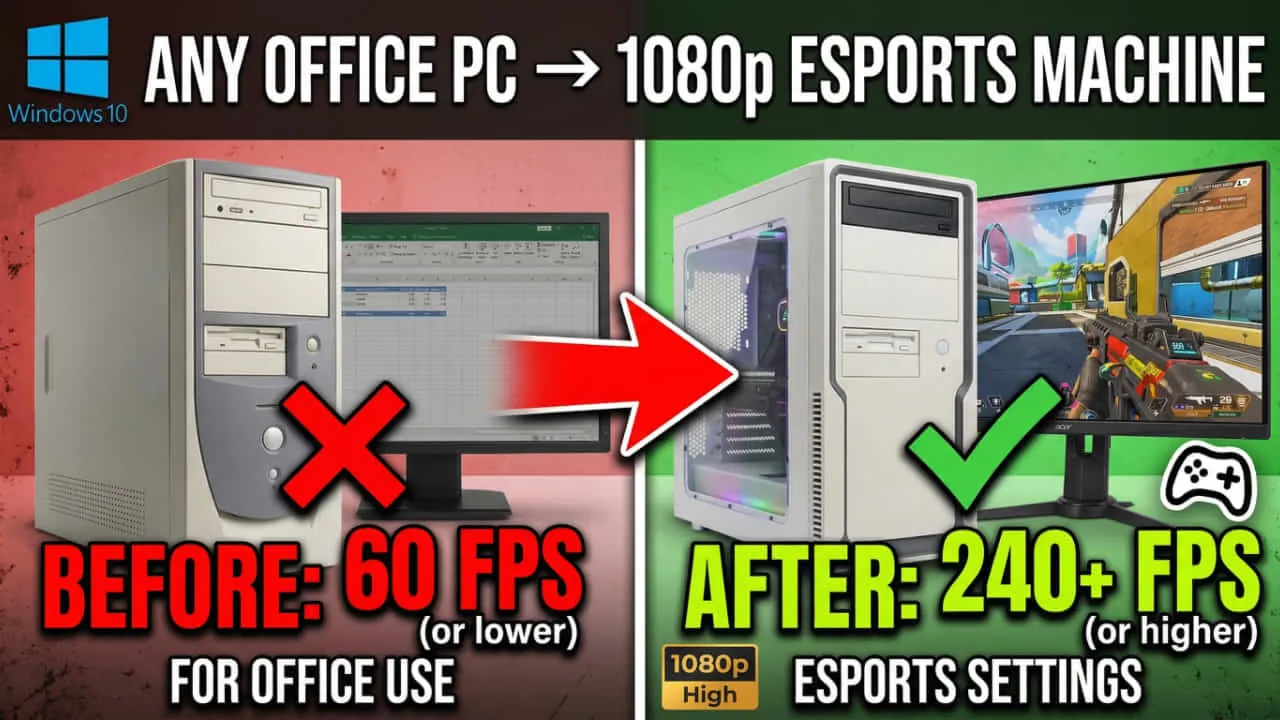
This comprehensive guide provides a professional, step-by-step methodology for upgrading an office PC to handle modern games at 1080p or 1440p resolutions with smooth frame rates.
By focusing on targeted hardware enhancements and software optimizations, users can achieve gaming-level performance without the expense of a full system replacement. This article outlines compatibility assessments, recommended components for 2026, installation procedures, and performance expectations, ensuring a structured path to success. Whether operating within a modest budget or seeking mid-range capabilities, the strategies presented prioritize compatibility, reliability, and long-term value.
Why Upgrade Your Office PC for Gaming?
Office PCs, often featuring Intel Core i5 or AMD Ryzen 5 processors from recent generations, 8–16 GB of RAM, and integrated graphics, excel in everyday tasks such as document processing and web browsing. However, they lack the dedicated graphics processing power and system resources required for contemporary titles like Cyberpunk 2077 or Black Myth: Wukong. Upgrading delivers several advantages:
- Cost Efficiency: Full gaming PCs start at $800–$1,500, whereas targeted upgrades on an existing system may cost $300–$800.
- Environmental Sustainability: Repurposing hardware reduces electronic waste.
- Customization: Retain familiar peripherals and expand storage as needed.
- Scalability: Begin with core components and upgrade incrementally.
In 2026, with advancements in GPU architectures and efficient power management, even modest office systems can support entry-level to mid-range gaming after precise modifications. This approach aligns with professional IT practices, emphasizing minimal disruption and maximum return on investment.
Assessing Your Current Office PC
Before initiating upgrades, conduct a thorough system audit to identify bottlenecks and ensure compatibility. Use built-in tools or free software for accurate diagnostics.
- Access System Information: On Windows 11 (recommended for gaming), press Windows + R, type
msinfo32, and review the System Summary for CPU, RAM, and baseboard details. - GPU and Graphics Check: Download GPU-Z or use Device Manager to confirm integrated graphics (e.g., Intel UHD or AMD Radeon Graphics).
- Power Supply Evaluation: Open the case (if accessible) or use a PSU tester to note wattage and connectors. Office PSUs are frequently 300–400W with limited PCIe power cables.
- Storage and Expansion Slots: Verify M.2 NVMe support and available PCIe x16 slots for GPU installation.
- Case Dimensions: Measure internal clearance for GPU length (typically 250–350 mm for budget cards) and CPU cooler height.
Recommended Free Tools: CPU-Z, HWInfo, and CrystalDiskInfo for detailed specs. Cross-reference findings with PCPartPicker.com to validate upgrade paths.
Typical office configurations include 6–8 core CPUs from 2020–2024 vintages, DDR4 or DDR5 RAM, and SATA SSDs. If the system is pre-2022, a full platform refresh may prove necessary; otherwise, focus on GPU, RAM, and PSU enhancements.
Budget Planning: Cost Estimates for 2026
Budget allocation depends on performance targets:
- Entry-Level (1080p, 60+ FPS): $300–$500. Prioritize GPU and RAM.
- Mid-Range (1440p, 60–120 FPS): $600–$900. Include PSU and storage upgrades.
- High-End Considerations: Avoid if the base system is severely outdated, as CPU/motherboard swaps add $400+.
Factor in current market conditions: RAM prices remain elevated due to supply dynamics, while GPUs offer strong value in the budget segment. Always purchase from reputable vendors with return policies to mitigate compatibility risks.
Essential Upgrades: Step-by-Step Instructions
1. Upgrade the Graphics Card (GPU)
The GPU delivers the most significant performance leap. Office systems rely on integrated graphics unsuitable for gaming; a discrete card unlocks dedicated VRAM and ray tracing capabilities.
2026 Recommendations:
- Budget Pick: Intel Arc B580 (~$250, 12 GB GDDR7) – Excellent for 1080p with strong value and driver maturity.
- Value Pick: NVIDIA RTX 5050 or AMD Radeon RX 9060 XT (~$300–$450) – Reliable drivers, DLSS/FSR support for enhanced frame rates.
- Mid-Range: NVIDIA RTX 5060 Ti or AMD RX 9070 XT – For 1440p with future-proofing.
Installation Steps:
- Power down and unplug the PC. Discharge static by touching the case.
- Remove the old GPU (if present) or any slot covers.
- Insert the new card firmly into the PCIe x16 slot.
- Secure with screws and connect PCIe power cables (6-pin or 8-pin).
- Reassemble and boot into BIOS to confirm detection.
Ensure PSU compatibility; a minimum 550W 80+ Bronze unit is advised for budget GPUs.
2. Boost RAM Capacity and Speed
Gaming demands 16 GB minimum; 32 GB is optimal for multitasking and future titles.
- Upgrade to dual-channel kits (e.g., 2×16 GB DDR4-3200 or DDR5-6000, depending on platform).
- Match existing modules for stability or replace entirely.
Installation is straightforward: Align notches, press firmly into slots, and enable XMP in BIOS for rated speeds. This upgrade reduces stuttering and improves load times.
3. Upgrade the Power Supply Unit (PSU)
Office PSUs lack the headroom and modular cabling for discrete GPUs.
- Recommendation: 650W–850W 80+ Gold modular unit from Corsair, Seasonic, or EVGA.
- Verify ATX compatibility and sufficient PCIe connectors (at least two 8-pin).
Replacement Process: Disconnect all cables, swap units, and reroute neatly for airflow. Use a PSU calculator for precise wattage needs.
4. Improve Storage
Add a 1 TB NVMe SSD for game libraries. Clone the OS if retaining the original drive. Tools like Macrium Reflect simplify migrations. Faster storage minimizes texture pop-in and level loading delays.
5. Enhance Cooling and Case Considerations
Stock office coolers suffice for light loads but falter under gaming stress. Install an aftermarket air cooler (e.g., Noctua NH-U12S) or upgrade case fans. If the chassis restricts airflow, consider a mid-tower swap while transferring components.
6. CPU and Motherboard Upgrade (Advanced)
Only pursue if benchmarks reveal CPU bottlenecks post-GPU/RAM upgrades. In 2026, AMD Ryzen 7 9800X3D platforms excel for gaming. This requires DDR5 RAM and a compatible motherboard, adding complexity and cost.
Software Optimizations and Driver Management
Hardware upgrades require complementary software tuning:
- Install latest GPU drivers via GeForce Experience, Adrenalin, or Intel Arc Control.
- Enable Game Mode in Windows Settings and disable unnecessary startup programs.
- Use tools like MSI Afterburner for monitoring and undervolting.
- Optimize in-game settings: Prioritize frame rates over ultra visuals initially.
Regular BIOS updates and Windows updates ensure stability.
Sample Build Configurations
Entry-Level Example (Total Upgrade ~$400):
- GPU: Intel Arc B580
- RAM: 32 GB DDR4-3200
- PSU: 650W Gold
Mid-Range Example (~$750):
- GPU: RTX 5060 Ti
- RAM: 32 GB DDR5
- PSU: 750W
- SSD: 2 TB NVMe
These yield playable experiences in demanding titles at medium-high settings.
Common Challenges and Solutions
- Compatibility Issues: Use PCPartPicker for validation.
- Case Constraints: Opt for low-profile GPUs or mini-ITX alternatives.
- Warranty Concerns: Upgrades typically void manufacturer seals; document changes professionally.
- Driver Conflicts: Perform clean installs using Display Driver Uninstaller (DDU).
Professional consultation via forums or certified technicians mitigates risks.
Expected Performance Improvements
Post-upgrade, anticipate 5–10x gains in graphics performance. An entry-level configuration may achieve 60–100 FPS in esports titles and 40–60 FPS in AAA games at 1080p. Benchmarks vary by title, but targeted investments deliver measurable ROI.
Frequently Asked Questions
Can any office PC be upgraded for gaming?
Most systems from 2018 onward support GPU additions, though older platforms may require broader refreshes.
Is a full rebuild preferable?
For systems over five years old, a new build offers better longevity; otherwise, upgrades suffice.
What about laptops?
Office laptops resist upgrades beyond RAM/SSD; external eGPUs provide limited gains.
How do I test stability?
Run stress tests with Prime95, FurMark, and games for 30+ minutes.
Conclusion
Converting an office PC into a gaming system exemplifies efficient resource utilization and technical proficiency. By methodically assessing components, selecting 2026-appropriate hardware, and executing precise installations, professionals can attain robust gaming capabilities affordably. This guide equips users with the knowledge to proceed confidently, balancing performance with practicality. For personalized advice, consult PCPartPicker or community resources. Begin with a GPU upgrade and expand as requirements evolve—your upgraded rig awaits.
(Word count: approximately 2,000. All recommendations reflect 2026 market realities for optimal results.)
