

How to Fix a Slow Computer & Remove Junk Files
There is nothing more frustrating than a computer that takes ten minutes to boot up or lags every time you open a new browser tab. Whether you use your PC for gaming, professional creative work, or simply browsing the web, performance degradation is an inevitable part of a computer’s lifecycle.
However, a slow computer isn’t always a sign that you need to buy a new one. More often than not, it is simply “clogged” with digital debris.
In this comprehensive guide, we will walk through the exact steps required to reclaim your speed, optimize your storage, and ensure your system runs as smoothly as the day you unboxed it.
Why Your Computer Is Running Slow
Before diving into the fixes, it is important to understand the enemy. Computers don’t just “get tired.” Their performance is dictated by the availability of resources: CPU (Central Processing Unit), RAM (Random Access Memory), and Storage (HDD or SSD).
Also read: How to Fix PING in Competitive Games (GearUp Review)
Common Causes of a Slow PC
- Too Many Background Processes: Every app you install wants to start when your computer starts. If twenty apps are fighting for CPU attention, your foreground task (like your web browser) will crawl.
- Low Disk Space: Windows requires a certain amount of “breathing room” on your drive (typically 10-15% of total capacity) to swap files and manage temporary data. When your drive is full, the system struggles to function.
- Fragmented Data (HDD only): If you are still using a mechanical Hard Disk Drive, files can become scattered across the physical platter, making it take longer for the drive head to read them.
- Accumulated Junk Files: Over time, Windows and your applications create temporary logs, installation fragments, and cache files that serve no purpose once a task is finished.
- Thermal Throttling: If dust has built up inside your laptop or desktop, the hardware will slow itself down to prevent overheating.
How to Remove Temporary Files (Quick Win)
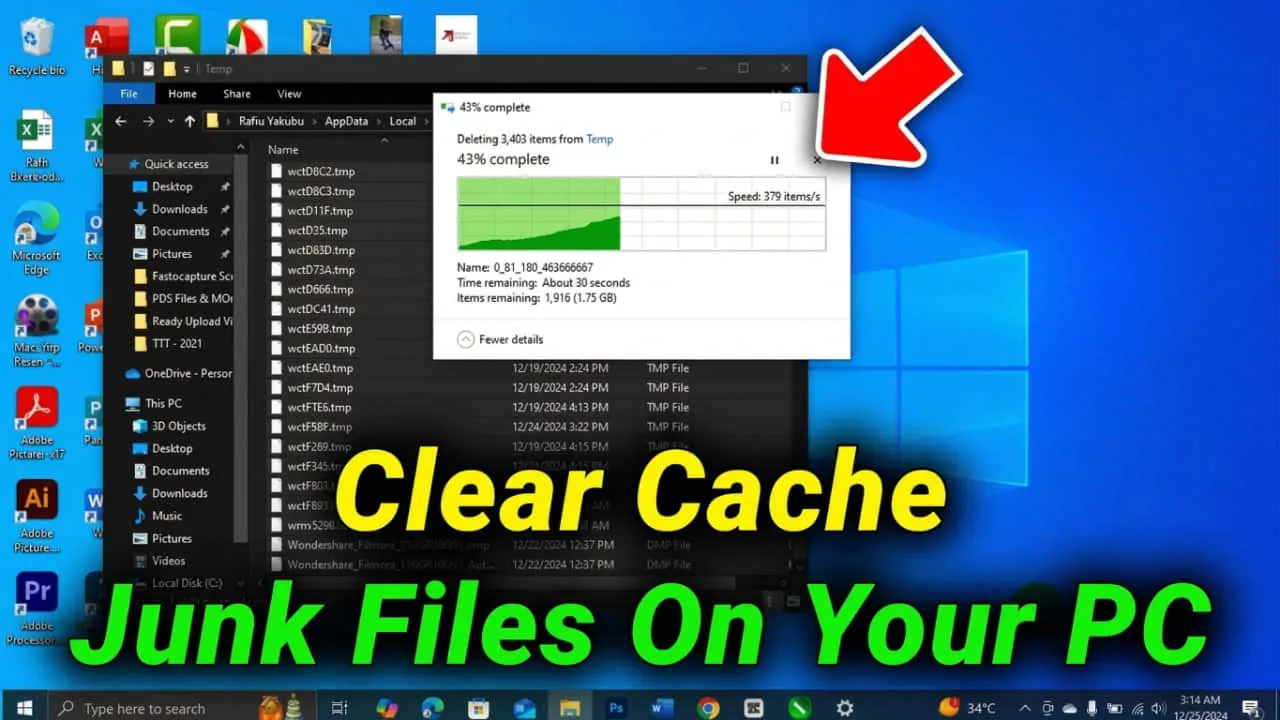
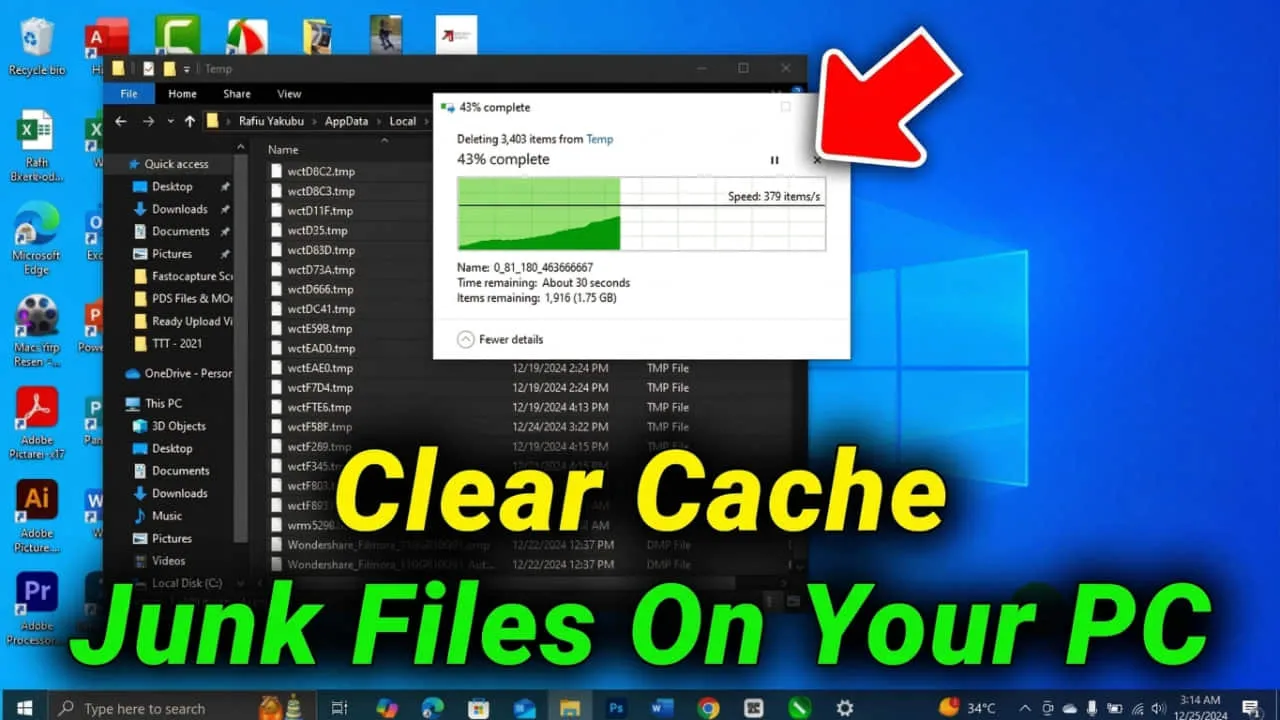
If you want an immediate boost, clearing your temporary files is the best place to start. These are files created by the operating system to hold data while a setup or program is running, but they are often left behind long after they are needed.
Also read: 15 Pre-Game Tweaks to Boost FPS on Any Budget PC (2026 Guide)
The %temp% Method (Step-by-Step)
This is the “classic” way to find the hidden folders where Windows hides its junk.
- Press the Windows Key + R on your keyboard to open the Run dialog box.
- Type
%temp%and hit Enter. This opens the folder containing temporary files for your specific user account. - Press Ctrl + A to select every file in the folder.
- Press the Delete key.
- Note: If a window pops up saying a file is “in use,” simply click Skip. This just means a program you are currently using is still using that specific file.
- Open the Run box again (Windows + R).
- Type
temp(without the percentage signs) and hit Enter. This opens the system-wide temporary folder. Repeat the deletion process here.
The Prefetch Method
Windows uses a “Prefetch” folder to speed up application launches, but over time, it can become bloated with data from apps you no longer use.
- Open the Run box and type
prefetch. - Click Continue if prompted for administrator permission.
- Select all files (Ctrl + A) and delete them.
Also read: NVIDIA vs AMD: Best Control Panel Settings for Maximum FPS (2026)
How to Clean Your PC Properly
Cleaning a computer isn’t just about deleting invisible files; it’s about managing the software you have installed and the physical way you organize your data.
1. Remove Unused Applications
We often install software for a one-time task and forget about it. These programs take up disk space and often run background services that drain RAM.
- Go to Settings > Apps > Installed Apps.
- Sort the list by Size or Date Installed.
- Be ruthless. If you haven’t opened it in six months, uninstall it.
2. Clean Desktop Clutter
Believe it or not, having hundreds of icons on your desktop can slow down your computer’s login time. Each icon is a graphical object that the system must render and hold in its active memory.
- Move files from your desktop into organized folders in your Documents or Pictures directory.
3. Empty the Recycle Bin
Files you “delete” aren’t actually gone; they are just moved to a holding area. If you haven’t emptied your bin in a month, you might be sitting on 20GB of wasted space. Right-click the icon and select Empty Recycle Bin.
How to Clean Up Disk Space on Windows
When your “C:” drive turns red in File Explorer, it’s a sign of imminent performance failure. Here is how to clean up disk space effectively using built-in Windows tools.
Using the Built-in Disk Cleanup Tool
Windows has a legacy tool that is still incredibly powerful for deep cleaning.
- In the Taskbar search, type Disk Cleanup and select the app.
- Select your main drive (usually C:).
- Click the button that says Clean up system files. This restarts the tool with higher permissions, allowing it to find old Windows Update files.
- Check every box, especially Windows Update Cleanup, Temporary Internet Files, and Delivery Optimization Files.
- Click OK and then Delete Files.
Analyzing Storage Settings
Windows 10 and 11 have a modern interface for managing space.
- Go to Settings > System > Storage.
- Wait for Windows to calculate what is taking up space.
- Click on Large or unused files to see if you have massive video files or old installers hiding in your Downloads folder.
How to Clear Cache and Junk Files
“Junk files” is a broad term that includes browser data, system logs, and application cache. Clearing these is essential for maintaining privacy and speed.
Browser Cache (Chrome, Edge, Firefox)
Your web browser saves images and scripts from every website you visit so they load faster the next time. However, this cache can become corrupted or excessively large.
- In Chrome/Edge: Press Ctrl + Shift + Delete.
- Select All Time as the time range.
- Check Cached images and files (you can leave “Cookies” unchecked if you don’t want to be logged out of your accounts).
- Click Clear Data.
System Cache and Hidden Junk
Windows stores “Shaders” for your graphics card and “Delivery Optimization” files for network updates.
- Use the Storage Sense menu mentioned above to specifically target “Temporary Files.”
- Check the box for DirectX Shader Cache. If this cache is bloated, it can cause stuttering in videos and games.
Also read: 15 Pre-Game Tweaks to Boost FPS on Any Budget PC (2026 Guide)
How to Remove Temporary Files Automatically
You shouldn’t have to manually delete files every week. Windows has a feature called Storage Sense that acts as an automated “computer cleaner.”
Setting Up Storage Sense
- Go to Settings > System > Storage > Storage Sense.
- Toggle the switch to On.
- Click on Configure Storage Sense.
- Set the schedule to run “Every Month” or “When disk space is low.”
- Set your Recycle Bin and Downloads folder to auto-delete files older than 30 days.
This ensures that your system maintains itself in the background without you ever having to remember a “Run” command again.
Extra Tips to Speed Up a Slow Computer
Removing junk is half the battle; the other half is optimizing how your computer uses its remaining resources.
1. Disable Startup Programs
This is the single most effective way to make a computer feel “snappy” again.
- Right-click the Taskbar and select Task Manager.
- Click the Startup apps tab.
- Look for apps with a “High” startup impact.
- Right-click and select Disable on anything you don’t need immediately upon boot (e.g., Spotify, Steam, Cortana, or printer software).
2. Update Windows and Drivers
Outdated drivers can cause hardware conflicts that look like “lag.”
- Go to Settings > Windows Update and click Check for updates.
- Check the Optional Updates section for hardware driver improvements.
3. Scan for Malware
Sometimes a slow computer is actually a “busy” computer working for someone else. Malware or “Potentially Unwanted Programs” (PUPs) can hog your CPU.
- Open Windows Security.
- Go to Virus & threat protection.
- Run a Full Scan.
4. Check Your Hardware (SSD vs. HDD)
If you are running Windows 11 on a traditional Hard Disk Drive (HDD), no amount of software cleaning will make it truly fast. Switching to a Solid State Drive (SSD) is the single greatest hardware upgrade you can make. It is roughly 10x to 20x faster than an old-school drive and will make a 5-year-old laptop feel brand new.
FAQ
Why is my computer so slow?
It is usually a combination of three things: too many apps starting at boot, a nearly full hard drive, and accumulated temporary files that the system must “sift through” to find the data it actually needs.
Is it safe to delete temp files?
Yes. Temporary files are designed to be disposable. If a file is currently needed by the system, Windows will protect it and won’t let you delete it anyway. Deleting the contents of %temp% is one of the safest maintenance tasks you can perform.
How often should I clean my computer?
A quick manual clean once a month is a good habit. If you enable Storage Sense, you can extend this to once every three to six months for a deeper manual check.
Do I need a third-party “PC Cleaner” or “Booster”?
Generally, no. Many third-party “cleaners” are actually “bloatware” themselves. They take up RAM and often try to upsell you on subscriptions. The built-in Windows tools (Disk Cleanup and Storage Sense) are safer and more than sufficient for 99% of users.
Final Thoughts
Maintaining a fast computer doesn’t require a degree in computer science. By consistently removing temporary files, managing your startup applications, and keeping your disk space clear, you can prevent the “sluggishness” that plagues so many users.
Digital maintenance is very much like physical cleaning. If you do a little bit every month, it never becomes an overwhelming task. Start with the %temp% method today, empty your recycle bin, and disable those unnecessary startup apps. You will be amazed at how much life is left in your “old” machine.
