

Gaming performance in 2025 has become more critical than ever, whether you’re a casual player or a competitive esports enthusiast. The difference between 60 FPS and 120 FPS can be the deciding factor in multiplayer matches, and every frame counts. Fortunately, numerous free FPS optimizer tools are now available that can dramatically improve your gaming experience without spending a single dollar. This comprehensive guide explores the best free optimizers in 2025 and how they can transform your gaming PC.
🚀 Why FPS Optimization Matters
Before diving into specific tools, let’s understand why optimizing your PC for gaming is essential:
- Smoother Gameplay: Higher and more stable frame rates eliminate stuttering and hitching
- Reduced Input Lag: Faster system response times give you a competitive edge
- Better Visual Quality: Balanced settings maintain visual fidelity while improving performance
- Extended Hardware Lifespan: Efficient resource management reduces strain on components
- Competitive Advantage: In multiplayer games, every millisecond of responsiveness matters
- Consistent Performance: Stable FPS prevents frustrating performance drops during crucial moments.
📊 Top 5 Free FPS Optimizers for 2025
1️⃣ Razer Cortex: Game Booster ⭐⭐⭐⭐☆
Razer Cortex remains the industry leader for free PC optimization, combining professional-grade features with user-friendly simplicity.
Key Features:
- One-click boost mode for instant optimization
- Game library integration (Steam, Epic, GOG, etc.)
- Built-in FPS counter and performance monitoring
- Automatic system cleanup after gaming sessions
- RAM and CPU prioritization for active games
Performance Results: Delivers 8-15% FPS improvement on mid-range systems
Why Choose It:
The tool automatically shuts down unnecessary background services without requiring technical knowledge. Razer’s reputation in gaming peripherals translates to reliable optimization algorithms.
2️⃣ Process Lasso ⭐⭐⭐⭐⭐
For advanced users seeking granular control, Process Lasso offers the most powerful CPU optimization available for free.
Key Features:
- CPU priority automation for gaming processes
- Real-time frametime monitoring
- Intelligent background app management
- Lower CPU latency and reduced frametime spikes
- Gaming-specific optimization profiles
Performance Results: Higher 1% lows, more stable FPS, dramatically reduced stuttering
Best For: Competitive gaming in titles like Fortnite, CS2, Valorant, and Apex Legends
Sub-points to Consider:
- Steep learning curve for beginners
- Highly customizable for power users
- Compatible with low-end and high-end systems
- Proven results in CPU-intensive games
3️⃣ Hone – PC Gaming Optimizer ⭐⭐⭐⭐⭐
Hone represents the newest generation of FPS boosters, featuring one-click optimizations across 2,000+ game titles.
Key Features:
- One-click system optimization
- Supports 2,000+ game titles natively
- BIOS-level adjustments for advanced users
- Network lag reduction and latency optimization
- Real-time background process management
Free Plan Includes:
- 10 one-click optimizations
- PC cleaner tools
- Essential game optimizations
- Backup management
Community Feedback: Users report significant system latency reduction, even after 7 months of PC optimization
4️⃣ Wise Game Booster ⭐⭐⭐⭐☆
Perfect for casual gamers, Wise Game Booster provides a balance between simplicity and effectiveness.
Key Features:
- One-click and manual optimization modes
- Network tune-up options for online gaming
- Quick access to system information
- Completely free and ad-free
- Beginner-friendly interface
Performance Results: Excellent for reducing loading times and minor stuttering
Ideal For: Casual gamers and older PC owners who want straightforward optimization without complexity
5️⃣ HD OPTI – FPS Booster ⭐⭐⭐⭐☆
A newer contender focused specifically on gamers, HD OPTI provides automated optimization with minimal user intervention.
Key Features:
- Automated FPS boosting
- Latency and input lag reduction
- Better hit registration improvements
- Vendor-specific GPU optimization (NVIDIA, AMD)
- Network enhancement for online gaming
- Input device latency reduction (keyboard/mouse/controller)
Special Features:
- Network jitter stabilization
- Automatic game settings optimization
- Junk file removal and system health checks
- One-click optimization with intelligent automation.
📈 Comparison Table: Features & Ratings
| Tool | Price | Ease of Use | FPS Boost | CPU Heavy Games | Best For | Rating |
|---|---|---|---|---|---|---|
| Razer Cortex | Free | ⭐⭐⭐⭐⭐ | 8-15% | Good | All users | ⭐⭐⭐⭐☆ |
| Process Lasso | Free | ⭐⭐⭐☆☆ | 10-20% | Excellent | Competitive gaming | ⭐⭐⭐⭐⭐ |
| Hone | Free | ⭐⭐⭐⭐⭐ | 10-18% | Very Good | Modern games | ⭐⭐⭐⭐⭐ |
| Wise Game Booster | Free | ⭐⭐⭐⭐⭐ | 5-12% | Fair | Casual players | ⭐⭐⭐⭐☆ |
| HD OPTI | Free | ⭐⭐⭐⭐☆ | 12-16% | Excellent | Competitive players | ⭐⭐⭐⭐☆ |
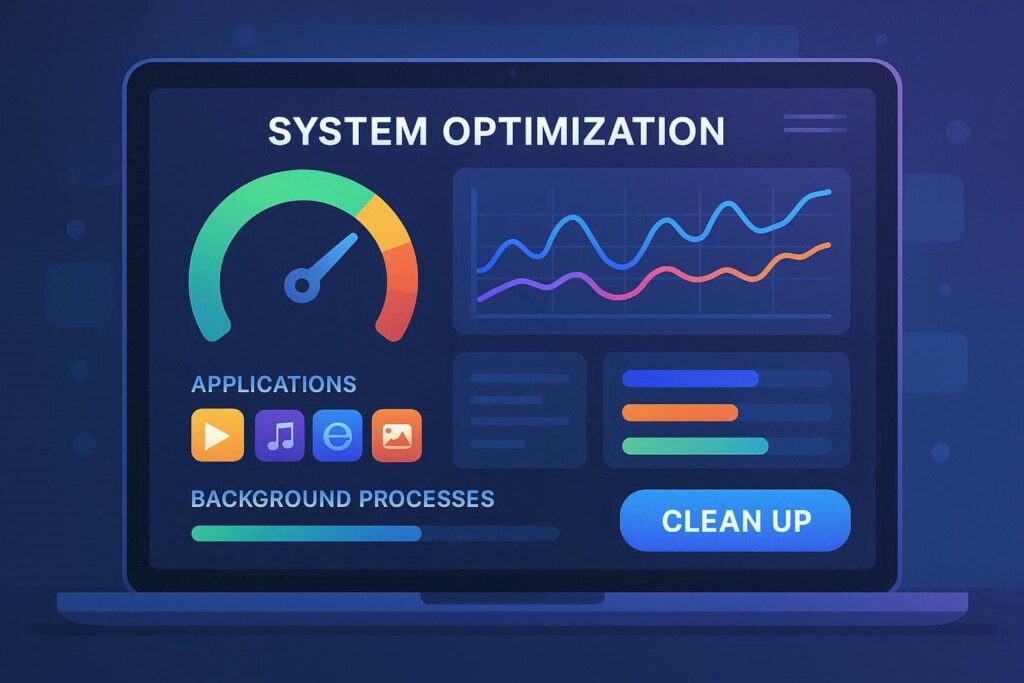
🎯 Advanced Optimization Techniques
Beyond installing a free optimizer, leverage these additional strategies:
GPU Optimization
- Hardware-accelerated GPU scheduling: Enable in Windows Settings → System → Display → Graphics settings
- Vendor-specific drivers: Keep NVIDIA or AMD drivers updated
- GPU memory management: Monitor VRAM usage and adjust texture quality accordingly
CPU Tuning
- Background process management: Disable unnecessary Windows services
- Power settings: Switch to “High Performance” mode
- Core prioritization: Assign more cores to game processes
System-Level Tweaks
- Disable visual effects: Reduce Windows animations for smoother operation
- Update storage drivers: Ensure your SSD has latest firmware
- RAM management: Keep 2-4GB available for optimal performance
🛠️ Installation & Usage Guide
Getting Started (5-Minute Setup)
Step 1: Download your chosen optimizer from official sources only
Step 2: Run the installer and complete the basic setup
Step 3: Launch the tool and select “One-Click Optimize” or “Auto-Optimize”
Step 4: Allow the tool to restart (if required)
Step 5: Launch your favorite game and monitor FPS improvements
Pro Tips for Maximum Results
- Run optimization before each gaming session
- Monitor system temperatures to ensure thermal stability
- Create system restore points before major optimizations
- Check tool settings monthly for new features
- Verify compatibility with your specific hardware.
🎮 Game-Specific Optimization
Different games require different optimization approaches:
CPU-Intensive Games (GTA V, Cyberpunk 2077, Apex Legends)
- Use Process Lasso for CPU priority management
- Disable CPU-bound background processes
- Enable high-performance power settings
Competitive Shooters (CS2, Valorant, Overwatch 2)
- Prioritize latency and input lag reduction
- Use Hone’s network optimization features
- Monitor frametime stability with HD OPTI
MMORPGs (Final Fantasy XIV, World of Warcraft)
- Focus on consistent FPS maintenance
- Optimize draw distance and crowd density settings
- Use Wise Game Booster for sustained performance
⚠️ Safety & Best Practices
Always Remember:
- Download from official websites only to avoid malware
- Create system backup points before optimization
- Verify tool reputation through independent reviews
- Read user feedback on trusted platforms
- Test optimizations with your primary games first
- Maintain updated antivirus protection
Avoid These Common Mistakes:
- Installing multiple optimizers simultaneously (causes conflicts)
- Deleting system files without understanding their purpose
- Overclocking without adequate cooling solutions
- Ignoring system stability in pursuit of maximum FPS.
💡 Common Questions About FPS Optimizers
Q: Do free optimizers actually work?
Yes, reputable tools like Razer Cortex and Process Lasso deliver measurable 8-20% FPS improvements through legitimate system optimization.
Q: Can optimizers damage my PC?
No, established tools are fully reversible and tested extensively. However, improper settings in advanced tools can impact stability.
Q: How often should I optimize?
Run optimization 1-2 times weekly or before gaming sessions. One-click tools require minimal time investment.
Q: Will optimization affect non-gaming performance?
Quality optimizers only stop background processes during gaming, restoring them afterward for normal productivity.
🏆 Final Recommendation
For most gamers in 2025, Razer Cortex: Game Booster offers the perfect balance of ease, effectiveness, and safety. It requires minimal configuration while delivering substantial FPS improvements across thousands of game titles.
For competitive esports players, Process Lasso provides unmatched CPU optimization, despite its learning curve.
For those seeking modern features, Hone impresses with 2,000+ game optimizations and intuitive one-click operation.
The best optimizer is the one you’ll consistently use. Start with a free tool today and experience the dramatic difference proper PC optimization can make in your gaming performance. Every frame matters, and these tools ensure you’re not leaving FPS on the table.
