
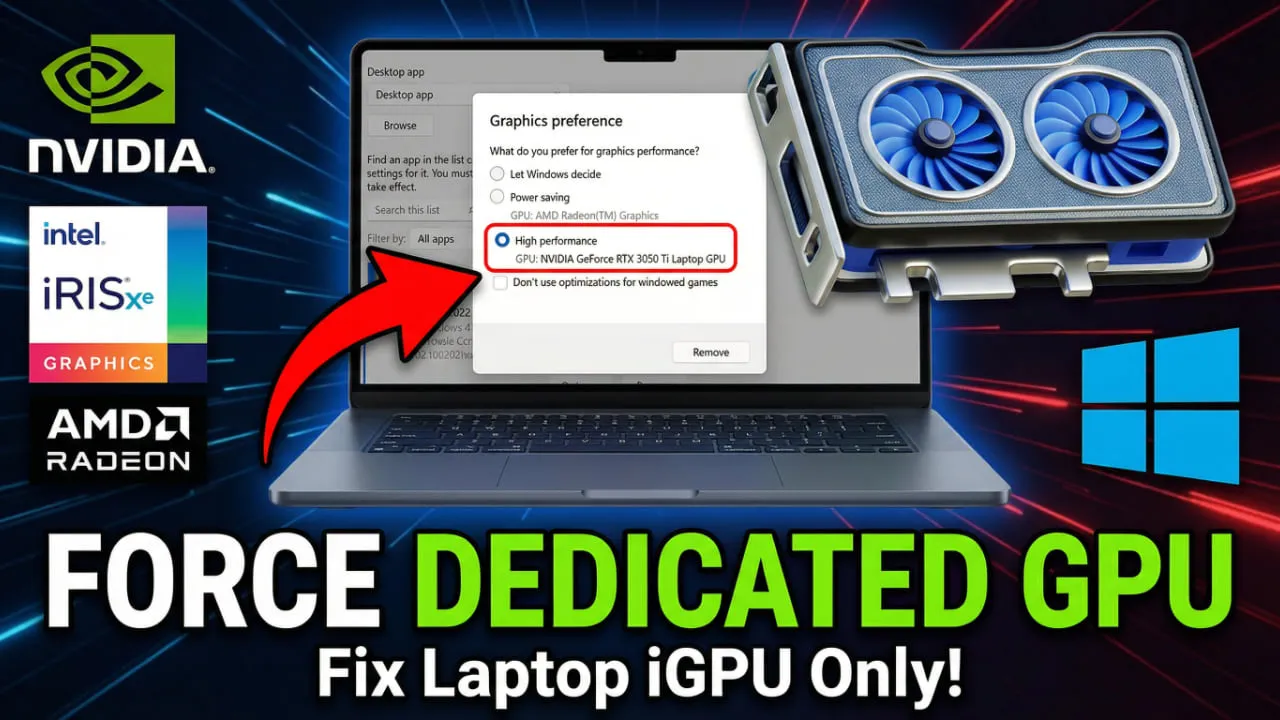
If you’ve ever noticed your laptop running games slowly despite having a dedicated GPU, chances are it’s using the integrated graphics (iGPU) instead of the real GPU.
This is a surprisingly common issue that can tank your gaming performance without any obvious warning.
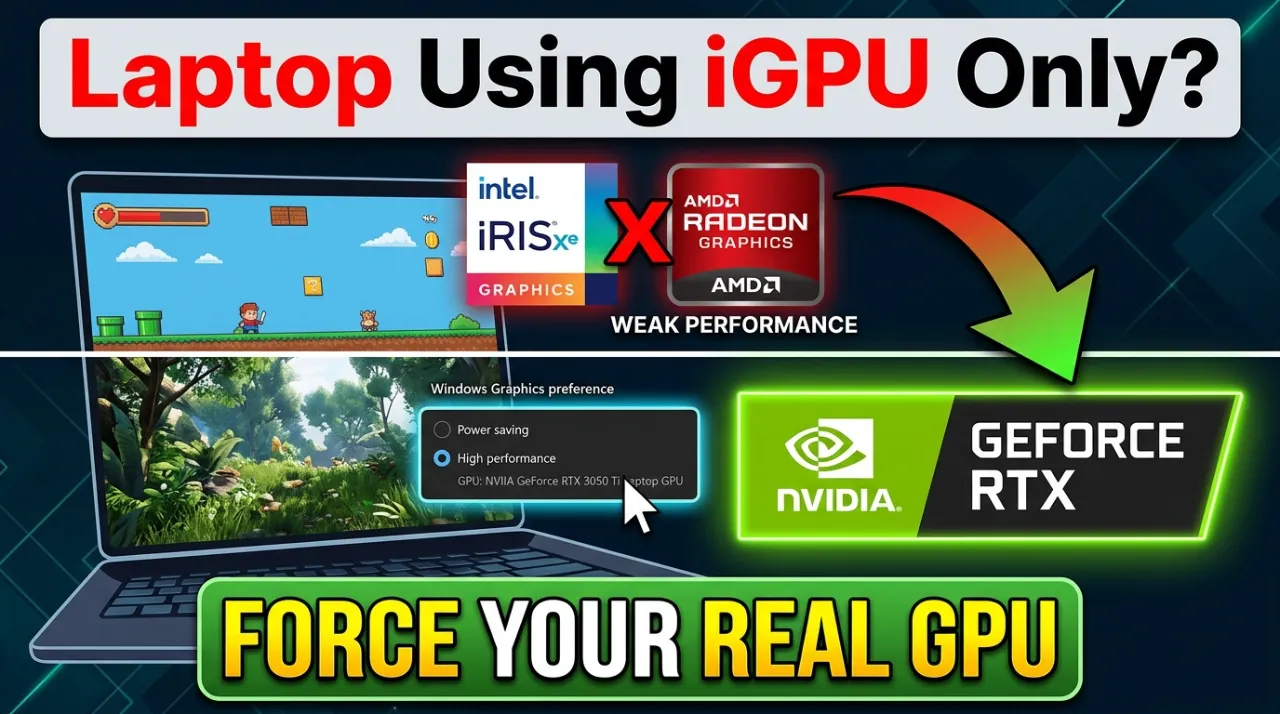
In this guide, we’ll explain why this happens and show you exactly how to force your laptop to use the dedicated GPU.
Why Is My Laptop Using the iGPU Instead of the Dedicated GPU?
Modern laptops use a technology called NVIDIA Optimus (or AMD’s equivalent) that automatically switches between the integrated GPU and the discrete GPU to save battery. While this is great for battery life, it can cause games and GPU-intensive apps to run on the weaker iGPU instead of your dedicated graphics card.
Common reasons your laptop defaults to iGPU:
- Power saving mode is enabled
- The app/game is not whitelisted in GPU control panel
- Outdated GPU drivers
- BIOS settings defaulting to iGPU
- The discrete GPU is not properly detected
How to Check Which GPU Your Game Is Using
Before making changes, confirm which GPU is actually being used. You can use GPU-Z to monitor GPU activity in real time, or check via Task Manager:
- Press Ctrl + Shift + Esc to open Task Manager
- Go to the Performance tab
- Click on GPU 0 and GPU 1 — the one showing high usage while gaming is the active GPU
Method 1: Force GPU via NVIDIA Control Panel
This is the most reliable method for NVIDIA users. The NVIDIA Control Panel lets you set per-application GPU preferences.
- Right-click your desktop and open NVIDIA Control Panel
- Navigate to Manage 3D Settings
- Click the Program Settings tab
- Click Add and browse to your game’s .exe file
- Under “Select the preferred graphics processor for this program”, choose High-performance NVIDIA processor
- Click Apply
After doing this, relaunch the game. It should now run on your dedicated GPU.
Method 2: Force GPU via Windows Graphics Settings
Windows 10 and 11 have built-in GPU preferences that work independently from the NVIDIA/AMD control panels. This is great for apps not listed in the driver panel.
- Go to Settings > System > Display
- Scroll down and click Graphics settings
- Click Browse and add your game or application
- Click the app in the list, then click Options
- Select High performance and click Save
Method 3: Change Power Plan to High Performance
Sometimes the iGPU is used simply because the laptop is in a low power state. Switching to a High Performance power plan forces the system to use the dedicated GPU more aggressively. According to Microsoft’s support documentation, power plans directly affect GPU behavior.
- Press Win + R, type
powercfg.cpl, and press Enter - Select High performance or Ultimate Performance
- Relaunch your game
Method 4: Update or Reinstall GPU Drivers
Outdated or corrupt drivers can cause the system to fall back to the iGPU. Always keep your GPU drivers updated. You can download the latest NVIDIA drivers from the official NVIDIA driver download page, or AMD drivers from AMD’s support site.
To do a clean driver install:
- Download Display Driver Uninstaller (DDU)
- Boot into Safe Mode and run DDU to completely remove old drivers
- Restart and install the latest drivers from the manufacturer
Method 5: Check BIOS Settings
Some laptops allow you to change the GPU mode in BIOS. Access BIOS by pressing F2, Del, or F10 at startup (varies by manufacturer). Look for options like:
- Primary Display — set to “PEG” or “Discrete”
- GPU Mode — switch from “Hybrid” to “Discrete Only”
Note: Not all laptops expose these options in BIOS. ASUS ROG, MSI, and Lenovo Legion laptops often have dedicated “GPU Mode” settings in their BIOS or companion software.
Method 6: AMD Radeon Settings (For AMD GPU Laptops)
If you have an AMD discrete GPU, you can configure per-app GPU preference through Radeon Software:
- Right-click the desktop and open AMD Radeon Software
- Go to Gaming > Add a Game
- Browse to your game’s executable
- Under GPU settings, set to High Performance
Verify the Fix Is Working
After applying any of the above methods, verify the fix using one of these tools:
- GPU-Z — real-time GPU load monitoring
- Task Manager > Performance > GPU
- MSI Afterburner — shows active GPU usage overlay in-game
Frequently Asked Questions (FAQ)
Why does my laptop use the iGPU even when plugged in?
Even when plugged in, Windows may still default to power-saving behavior. Make sure your power plan is set to High Performance and that the specific app/game is assigned to the discrete GPU in NVIDIA Control Panel or Windows Graphics Settings.
Can I disable the iGPU entirely?
Technically yes — you can disable the iGPU via Device Manager — but this is not recommended. Many laptops route the display output through the iGPU, so disabling it may result in a black screen or boot issues. Always create a restore point before attempting this.
How do I know if my GPU is working properly?
Run a benchmark like 3DMark and compare your scores against similar hardware. If scores are significantly lower than expected, the iGPU may be active or your GPU may be throttling due to temperature.
Does forcing the GPU drain the battery faster?
Yes. The dedicated GPU consumes significantly more power than the iGPU. Running on the discrete GPU all the time will reduce battery life, which is why NVIDIA Optimus and similar technologies were created. It’s best to use the dedicated GPU only when gaming or running GPU-intensive tasks.
What if none of these methods work?
If you’ve tried all the above steps and the system still defaults to iGPU, there may be a hardware issue with the dedicated GPU or a deeper driver conflict. Consider checking your manufacturer’s support page, running Windows Update, or consulting a technician. Some budget laptops also have their iGPU and dGPU sharing VRAM, which can cause unusual behavior.
