
Experiencing high CPU usage while gaming can cause stuttering, frame drops, and overall poor performance. If your processor is constantly running at 100% during gameplay, you’re likely dealing with CPU bottlenecking that severely limits your gaming experience. This comprehensive guide will show you exactly how to reduce CPU usage while gaming in 2026. Reduce CPU Usage While Gaming
Why Is Your CPU Usage So High While Gaming?
Before diving into solutions, it’s crucial to understand what causes excessive CPU usage during gaming. Your processor handles game physics, AI calculations, and system processes simultaneously. When the CPU can’t keep up, you’ll notice:
- Stuttering and frame drops even with a powerful GPU
- Slow loading times and texture pop-in
- Input lag and delayed responses
- System overheating and thermal throttling
- Reduced overall gaming performance
Method 1: Close Background Applications and Processes

Background applications consume significant CPU resources. Follow these steps to identify and close unnecessary programs:
- Press Ctrl + Shift + Esc to open Task Manager
- Click the CPU column to sort by usage
- Identify non-essential processes consuming CPU power
- Right-click and select End Task for each unnecessary program
Common CPU-hungry programs to close include web browsers (Chrome uses massive resources), streaming software, Discord overlay, RGB control software, and video editing applications running in the background.
Method 2: Optimize Windows Power Settings
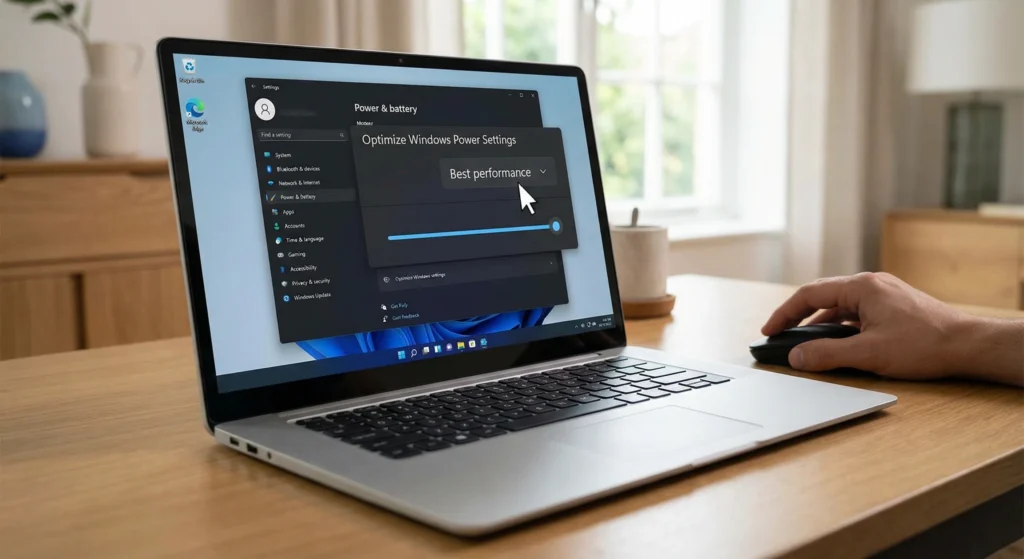
Windows power plans directly impact CPU performance. Setting your PC to High Performance mode ensures maximum processor speed:
- Open Control Panel and go to Power Options
- Select High Performance plan (if not visible, click “Show additional plans”)
- Click Change plan settings → Change advanced power settings
- Expand Processor power management
- Set Minimum processor state to 100%
- Set Maximum processor state to 100%
For gaming laptops, ensure you’re plugged in and using the highest performance mode in your manufacturer’s control panel (like ASUS Armoury Crate or MSI Dragon Center).
Method 3: Disable Windows Game DVR and Xbox Game Bar
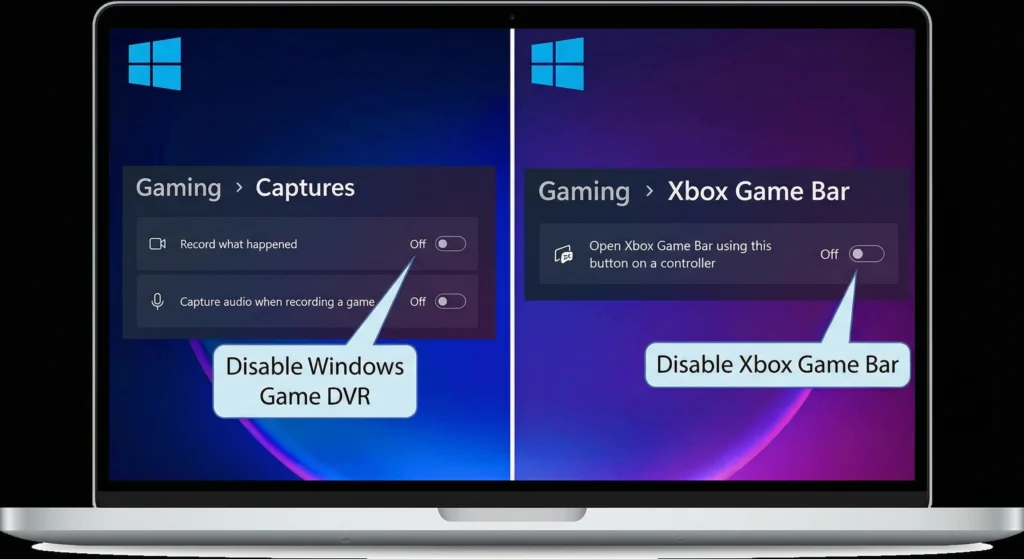
Windows Game DVR constantly records gameplay in the background, causing significant CPU overhead. Here’s how to disable it:
- Open Windows Settings (Win + I)
- Go to Gaming → Xbox Game Bar
- Toggle OFF Enable Xbox Game Bar
- Navigate to Captures
- Toggle OFF Record in the background while I’m playing a game
This alone can reduce CPU usage by 5-15% in many games, especially on mid-range processors.
Method 4: Update Graphics Drivers and Game Patches

Outdated drivers cause inefficient CPU utilization. Always use the latest GPU drivers from NVIDIA or AMD, as they include game-specific optimizations that reduce CPU overhead:
- NVIDIA users: Download GeForce Experience or visit nvidia.com/drivers
- AMD users: Use AMD Software Adrenalin Edition or visit amd.com/support
Additionally, ensure your games are fully updated. Developers frequently release patches that improve CPU optimization and reduce processing demands.
Method 5: Adjust In-Game Graphics Settings

Certain graphics settings are extremely CPU-intensive. Lowering these specific options can dramatically reduce processor load:
- Shadow Quality: Shadows require complex calculations – set to Medium or Low
- Draw Distance: Reduces the number of objects the CPU must track
- Physics Quality: Lower this to reduce physics calculations
- NPC/Crowd Density: Fewer AI entities means less CPU work
- Particle Effects: Reduce smoke, explosions, and environmental effects
Keep textures and anti-aliasing high (these are GPU-dependent) while lowering CPU-bound settings for the best balance.
Method 6: Set CPU Priority to High for Games
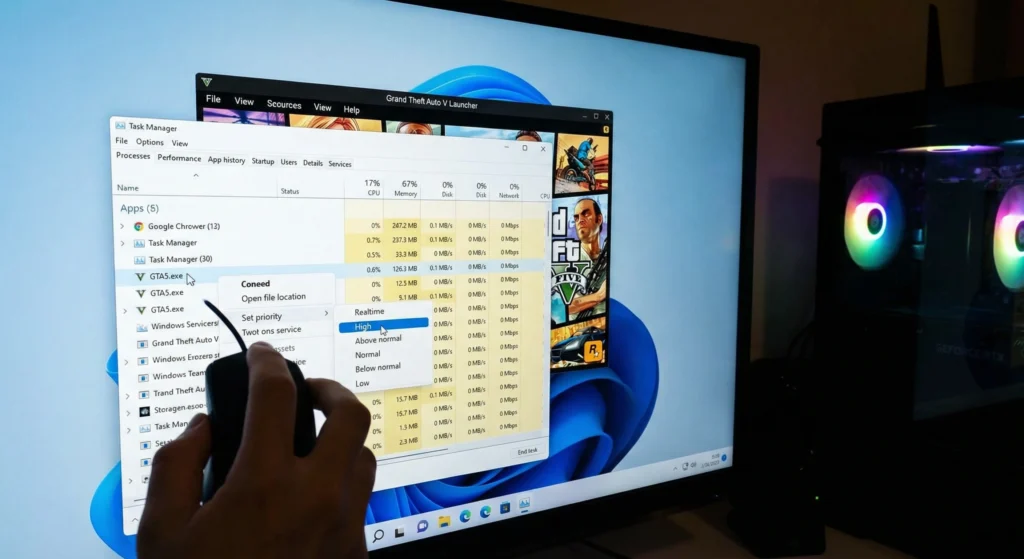
Windows allocates CPU resources equally by default. Changing priority gives your game more processing power:
- Launch your game
- Open Task Manager (Ctrl + Shift + Esc)
- Find your game in the Processes tab
- Right-click → Set Priority → High (NOT Realtime)
Note that you’ll need to do this each time you launch the game, or use third-party tools like Process Lasso to make it permanent.
Method 7: Disable Unnecessary Startup Programs

Programs that auto-start with Windows consume CPU resources constantly:
- Open Task Manager (Ctrl + Shift + Esc)
- Go to the Startup tab
- Identify programs you don’t need at startup
- Right-click and select Disable
Common programs to disable: Spotify, Steam (unless you want it), Discord, Microsoft Teams, Adobe Creative Cloud, and manufacturer software you don’t actively use.
Method 8: Enable Game Mode in Windows 11

Windows Game Mode optimizes system resources for gaming by prioritizing game processes and reducing background activity:
- Press Win + I to open Settings
- Go to Gaming → Game Mode
- Toggle ON Game Mode
Game Mode is particularly effective on systems with 4-6 core CPUs where resource allocation makes a significant difference.
Method 9: Perform a Clean Windows Installation

If you’ve exhausted other options, Windows bloat and corrupted system files might be causing high CPU usage. A clean installation removes all junk and starts fresh. Before doing this, backup your data and create a bootable Windows USB drive from Microsoft’s website.
Many users report 20-30% CPU usage reductions after a clean install, especially on systems that have been running for years without maintenance.
Method 10: Check for Malware and Viruses

Cryptominers and malware often disguise themselves as legitimate processes while consuming massive CPU resources:
- Run a full scan with Windows Security
- Download and scan with Malwarebytes (free version works)
- Check Task Manager for suspicious processes with random names
Pay attention to processes that use significant CPU but have vague names or are located in unusual folders.
Advanced Solutions for Persistent CPU Issues
Disable CPU Core Parking
Modern CPUs park unused cores to save power, but this can cause performance issues in games. Use third-party tools like Quick CPU or ParkControl to disable core parking for maximum performance.
Undervolt Your CPU
Undervolting reduces heat and power consumption without sacrificing performance. Tools like Intel XTU or ThrottleStop allow you to safely reduce voltage, which can prevent thermal throttling that causes performance spikes.
Upgrade Your Cooling Solution
Overheating causes CPUs to throttle performance. If your processor consistently reaches 85-90°C while gaming, invest in better cooling—either a quality air cooler or an AIO liquid cooling system.
When to Consider Hardware Upgrades
If you’ve tried all optimizations and still experience 90-100% CPU usage in modern games, your processor might be genuinely bottlenecking your system. Consider upgrading if:
- You’re using a CPU older than 5-6 years
- Your CPU has fewer than 6 cores/12 threads
- You have a powerful GPU (RTX 3070 or higher) paired with an old CPU
- You play CPU-intensive games like simulation titles or large multiplayer games
Popular gaming CPU upgrades in 2026 include AMD Ryzen 7 7800X3D, Intel Core i7-14700K, or budget options like Ryzen 5 7600X.
Conclusion
Reducing CPU usage while gaming requires a combination of software optimizations, settings adjustments, and sometimes hardware upgrades. Start with the quick fixes like closing background apps and adjusting power settings, then move to more advanced solutions if needed. Most users will see significant improvements by following methods 1-8 in this guide.
Remember to monitor your CPU usage with tools like MSI Afterburner or HWiNFO during gaming to track improvements. Aim for 60-80% CPU usage during gameplay—this provides headroom for sudden spikes while maintaining optimal performance.