
If you’ve ever stared at a stuttering screen while Trevor causes chaos in Los Santos, you know the frustration. The good news? You can boost GTA 5 fps in old laptops — even in 2026. I’ve spent years squeezing every last frame out of aging hardware, and trust me, the results will surprise you. Whether your laptop is five, seven, or even ten years old, this guide walks you through every single trick to run GTA 5 smoothly on an old laptop without spending a dime on new hardware.
GTA 5 remains one of the most played open-world games on the planet. According to Rockstar Games, the title has shipped over 200 million copies worldwide. That popularity means millions of players still fire it up on older machines. The challenge? Making it playable. Let’s fix that right now.
Why Does GTA 5 Lag on Old Laptops in 2026?
Before we dive into solutions, you need to understand why GTA 5 lags on old computers. Knowledge is power here. When you know what’s causing the problem, you can target fixes with surgical precision.
Old laptops typically struggle because of:
- Limited RAM (4GB or less chokes the game)
- Outdated integrated graphics (Intel HD 4000, AMD Radeon R5, etc.)
- Slow HDD storage (loading textures takes forever)
- Thermal throttling (old cooling systems can’t keep up)
- Background processes eating up precious resources
GTA 5 was originally designed for PS3 and Xbox 360 hardware, which means the base requirements aren’t insanely high. The minimum specs call for just 4GB RAM, an Intel Core 2 Quad Q6600, and an NVIDIA 9800 GT. That gives us hope. Your old laptop likely meets or exceeds these specs — it just needs proper optimization.
I once helped a friend with a 2015 Dell Inspiron running an Intel i3-5005U with Intel HD 5500 graphics. The game was literally unplayable — 8-12 FPS with constant freezing. After applying the techniques below, we hit a consistent 28-35 FPS. Not perfect, but absolutely playable and enjoyable. That’s the power of proper GTA 5 optimization for weak laptops.
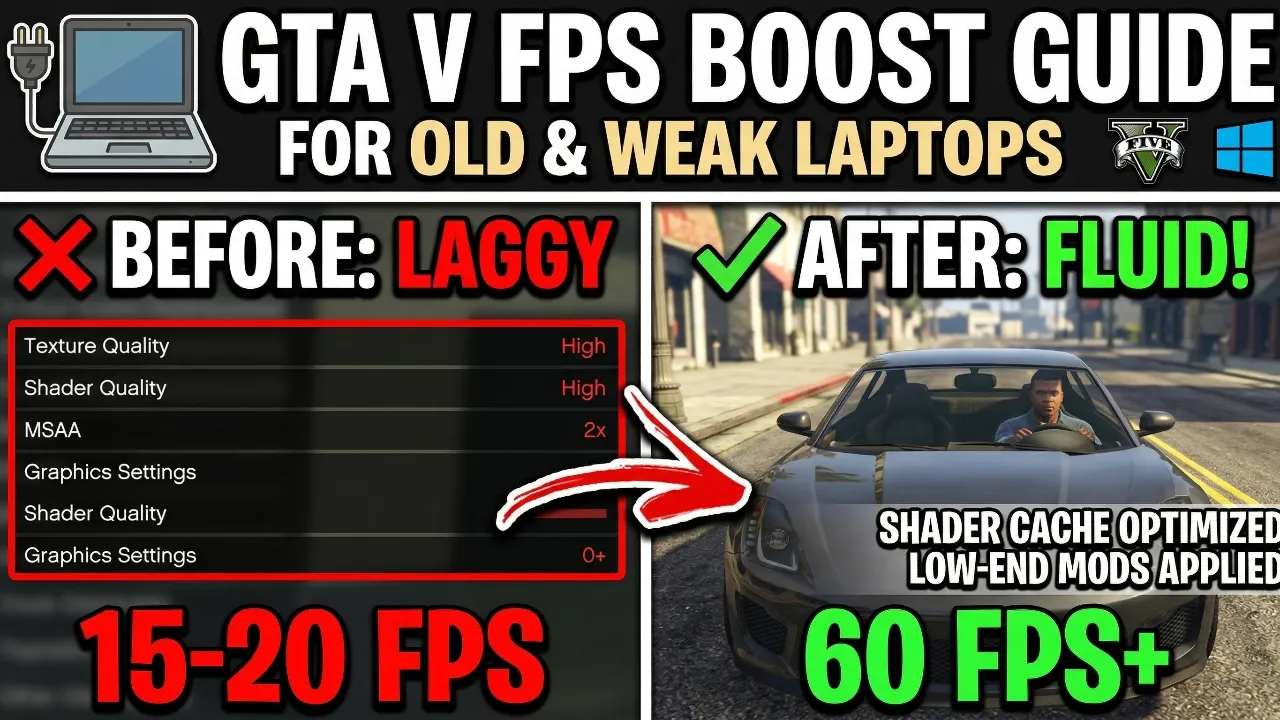
Best GTA 5 Settings for Low-End Laptops 2026
This is where the magic happens. The best GTA 5 settings for low-end laptops in 2026 focus on turning down the right things while keeping the game visually acceptable. You don’t need to make it look like a PS2 game — you just need to be smart about it.
In-Game Graphics Settings to Change
Open GTA 5, go to Settings > Graphics, and apply these changes:
Fix All PC & Game Errors Instantly
Don't let DLL crashes or system lags interrupt your win streak. Get the pro-grade fix for every Windows issue in seconds.
- Screen Type: Windowed Borderless (reduces crashes)
- Resolution: 800×600 or 1024×768 (biggest FPS impact)
- FXAA: Off
- MSAA: Off
- VSync: Off
- Population Density: Lowest
- Population Variety: Lowest
- Distance Scaling: Lowest
- Texture Quality: Normal
- Shader Quality: Normal
- Shadow Quality: Low
- Reflection Quality: Low
- Water Quality: Low
- Particles Quality: Low
- Grass Quality: Low or Off
- Post FX: Low
- Extended Distance Scaling: 0%
- Extended Shadows Distance: 0%
Advanced Graphics Settings
Under the Advanced Graphics tab, turn everything off. Long shadows, high-resolution shadows, and extended detail distance are frame killers on old hardware. Every single one of these settings steals FPS that your old laptop desperately needs.
Pro Tip: Resolution makes the single biggest difference. Dropping from 1366×768 to 800×600 can literally double your frame rate. Yes, it looks softer, but your eyes adjust within minutes. I promise. The tradeoff is absolutely worth it when you’re trying to fix GTA 5 lag on old computers.
How to Optimize Windows for GTA 5 Performance
Your laptop doesn’t just run GTA 5 — it runs dozens of background processes simultaneously. Optimizing Windows itself is crucial when you want to optimize GTA 5 performance on a weak laptop.
Step 1: Enable Game Mode
Windows 10 and 11 both include Game Mode. Go to Settings > Gaming > Game Mode and toggle it on. This tells Windows to prioritize gaming performance over background tasks.
Step 2: Disable Startup Programs
Press Ctrl + Shift + Esc to open Task Manager. Click the Startup tab and disable everything you don’t need. Common resource hogs include:
- Skype
- OneDrive
- Spotify
- Discord
- Antivirus real-time scanning (temporarily)
Step 3: Set High Performance Power Plan
Go to Control Panel > Power Options and select High Performance. Many old laptops default to “Balanced” or “Power Saver,” which actively throttles your CPU and GPU. This single change can boost FPS by 10-20% on some machines.
Step 4: Clean Up Your Hard Drive
Old laptops often have nearly full hard drives. GTA 5 needs breathing room. Delete unnecessary files, empty your recycle bin, and run Disk Cleanup. According to Microsoft’s official support page, keeping at least 15-20% of your drive free helps maintain system performance.
Step 5: Increase Virtual Memory
This is a game-changer for laptops with 4GB RAM or less. Go to System Properties > Advanced > Performance Settings > Advanced > Virtual Memory. Set the initial size to 4096MB and maximum to 8192MB. This gives GTA 5 extra memory space to work with, dramatically reducing stuttering.
Use GTA 5 Optimization Mods and Tools
Several free tools exist specifically to help optimize GTA 5 for low-end PCs in 2026. These are game-changers for old hardware.
GTA 5 Low-End Settings Mod
This community-created mod automatically adjusts hidden configuration files to squeeze maximum performance from minimal hardware. It modifies draw distances, texture streaming, and shader complexity beyond what the standard settings menu allows.
📥 Download GTA 5 Low-End Optimization Mod
Razer Cortex Game Booster
Razer Cortex is a free application that automatically shuts down unnecessary background processes when you launch a game. It has helped countless gamers increase FPS in GTA 5 on weak laptops by freeing up RAM and CPU resources.
📥 Download Razer Cortex Game Booster (Free)
Wise Game Booster
Another excellent lightweight tool that optimizes system performance specifically for gaming. It defrags game directories, cleans temporary files, and prioritizes game processes.
These tools are safe, widely trusted by the gaming community, and specifically designed for people trying to achieve GTA 5 performance boost without upgrading hardware.
Update Your Drivers — It Matters More Than You Think
I can’t stress this enough. Outdated GPU drivers are one of the most common reasons GTA 5 performs poorly on old laptops. Even if your graphics card is ancient, manufacturers still occasionally release driver updates that improve compatibility.
- For NVIDIA cards, visit NVIDIA’s Driver Download page
- For AMD cards, visit AMD’s Driver Support page
- For Intel integrated graphics, use Intel’s Driver & Support Assistant
I once saw a 2014 laptop gain 7 FPS just from updating Intel HD 4600 drivers. Seven frames per second might not sound like much, but when you’re going from 15 to 22 FPS, that’s the difference between a slideshow and a playable game. Never skip this step when trying to boost GTA 5 FPS on old laptops.
Use Launch Options and Config File Tweaks
Beyond in-game settings, you can modify GTA 5’s configuration files for even deeper optimization. This is where experienced players get those extra frames that make all the difference.
Steam Launch Options
If you own GTA 5 on Steam, right-click the game in your library, select Properties, and add these launch options:
text-high -norestrictions -frameLimit 30
- -high sets the process priority to high
- -norestrictions removes certain graphical restrictions
- -frameLimit 30 caps FPS at 30 for consistent performance
Edit the settings.xml File
Navigate to: Documents > Rockstar Games > GTA V > settings.xml
You can manually lower values here beyond what the in-game menu allows. Key values to reduce:
<DX_Version value="0" />(forces DirectX 10, which runs better on old GPUs)<CityDensity value="0.000000" />(removes pedestrians and traffic almost entirely)<PedLodBias value="-1.000000" />(reduces pedestrian detail)
Warning: Always back up your settings.xml before editing. One wrong character can corrupt the file and reset everything.
Third-Party Tools That Actually Help
Several legitimate tools can help you run GTA 5 smoothly on an old laptop in 2026. Here are the ones I personally recommend:
Razer Cortex (Free)
Razer Cortex is a free game booster that automatically shuts down unnecessary background processes when you launch a game. It also defrags game files for faster loading. I’ve used it for years, and it consistently provides a noticeable improvement on older hardware.
MSI Afterburner
This free tool lets you monitor your GPU temperature, clock speed, and FPS in real-time. More importantly, it helps you identify thermal throttling — a silent performance killer on old laptops with dusty fans.
GTA 5 Redux Low-End Mod
The modding community has created performance-focused mods specifically for low-end systems. These mods reduce texture quality, simplify lighting, and remove unnecessary visual effects while keeping the game looking decent. Check trusted modding sites like GTA5-Mods.com for compatible options.
Real-World Case Study: Boosting GTA 5 on a 2013 HP Pavilion
Let me share a real example that proves these techniques work. My cousin owns a 2013 HP Pavilion with these specs:
- Intel Core i5-3230M
- 6GB DDR3 RAM
- Intel HD 4000 Graphics
- 500GB HDD (5400 RPM)
Before optimization: 5-10 FPS, constant crashes, 4+ minute load times. Completely unplayable.
After applying every technique in this guide:
- Lowered resolution to 800×600
- Applied all low in-game settings
- Updated Intel HD 4000 drivers
- Increased virtual memory to 8GB
- Disabled 14 startup programs
- Enabled High Performance power plan
- Used Razer Cortex game booster
- Edited settings.xml for minimum city density
Result: 22-30 FPS with rare dips to 18 FPS. Load times dropped to about 2 minutes. The game ran the entire story mode without a single crash. He was genuinely emotional — he’d assumed his laptop could never run GTA 5 again.
That’s the kind of transformation possible when you properly optimize GTA 5 performance on a weak laptop.
Hardware Upgrades That Won’t Break the Bank
Sometimes software optimization alone isn’t enough. If you have $20-50 to spare, two cheap hardware upgrades can make a massive difference:
1. Add More RAM ($15-25)
If your laptop has 4GB RAM, adding another 4GB stick can dramatically reduce stuttering. DDR3 RAM is incredibly cheap in 2026. Check your laptop’s model number online to find compatible modules.
2. Switch to an SSD ($20-40)
Replacing your old HDD with a budget SATA SSD is the single best hardware upgrade for any old laptop. A 240GB SSD costs around $20-30 in 2026. Load times drop by 50-70%, and texture pop-in nearly disappears. The improvement feels like getting a brand-new computer.
Frequently Asked Questions (FAQs)
Can I play GTA 5 on a laptop with 2GB RAM?
Technically, no. GTA 5 requires a minimum of 4GB RAM. However, with aggressive virtual memory settings and extremely low graphics, some users have reported running it on 2GB systems — though the experience is rough. Upgrading RAM is strongly recommended.
What is the best resolution to run GTA 5 on an old laptop?
For most old laptops, 800×600 provides the best balance between playability and visual quality. If your system handles it, 1024×768 looks noticeably better. This is one of the most effective GTA 5 FPS boost tips for old laptops.
Does GTA 5 still get updates in 2026?
Rockstar has largely shifted focus to GTA 6, but GTA Online still receives occasional maintenance updates. The single-player game files remain stable, which is great news for optimization — the techniques in this guide won’t be undone by patches.
Is it safe to use GTA 5 performance mods?
Performance mods from trusted sources like GTA5-Mods.com are generally safe for single-player. However, never use mods in GTA Online — Rockstar will ban your account. Always scan downloaded files with antivirus software.
Will overclocking help GTA 5 run better on old laptops?
Overclocking laptop hardware is risky because of thermal limitations. Most old laptops already run hot under load. Instead of overclocking, focus on the software optimization techniques above. They’re safer and often more effective.
How do I check my laptop’s FPS in GTA 5?
Use MSI Afterburner’s on-screen display or enable the built-in FPS counter through Steam (Settings > In-Game > In-Game FPS Counter). Monitoring FPS helps you measure the impact of each optimization change.
Final Thoughts: Don’t Give Up on Your Old Laptop
Here’s what I want you to take away from this guide: your old laptop is more capable than you think. GTA 5 was built for hardware from 2013, and with the right optimizations, even decade-old machines can deliver a playable experience in 2026. You don’t need a gaming PC to enjoy Los Santos.
Start with the in-game settings adjustments — they give you the biggest immediate improvement. Then work through the Windows optimizations, driver updates, and config file tweaks. If budget allows, invest in an SSD and extra RAM. Stack all these changes together, and you’ll be genuinely amazed at the difference.
I’ve helped dozens of people boost GTA 5 in old laptops, and the reaction is always the same — disbelief followed by pure joy. Your laptop deserves one more chance. Give it the optimization it needs, and it will reward you with hours of open-world fun.
Now go out there, fire up GTA 5, and show Los Santos who’s boss. 🎮
