

Stuck in the clouds again? Here is the definitive guide to fixing the GTA Online infinite loading screen and black screen glitches on PC, PS5, and Xbox. Stop waiting and start playing with these proven workarounds.
If you are reading this, I know exactly where you are right now. You aren’t robbing banks or racing supercars; you are staring at a drone shot of Los Santos while a spinning circle mocks you in the corner of your screen. We jokingly call it “Cloud Simulator,” but honestly, it is infuriating. Even in 2026, with high-speed internet and SSDs, GTA Online’s peer-to-peer connection architecture still struggles to put players into sessions smoothly.
I have lost count of how many times I’ve finished a Heist setup, only to get hit with a black screen that forces me to restart the entire game. It’s not just you, and it’s usually not your internet. It’s the way the game syncs data. Over the years, I’ve tested basically every “fix” Reddit and YouTube have to offer. Most don’t work. But a few actually do.
Below, I’m going to walk you through the specific methods that have saved my keyboard from being smashed. Whether you are on PC or console, here is how to force the game to load.
Understanding the Problem: Why Is It Taking So Long?
Before we fix it, you have to understand why this happens so you stop blaming your router. Unlike modern dedicated servers, GTA Online relies heavily on a Peer-to-Peer (P2P) system. When you see that “Joining Public Session” text, your game isn’t just loading a map; it’s trying to establish a handshake connection with 29 other players.
If just one of those players has a strict NAT type or a lagging connection, your game hangs while trying to sync with them. The “Infinite Loading Screen” is essentially your game politely waiting for data that is never going to arrive.
Method 1: The “Resource Monitor” Fix (PC Only)
Best for: Stuck in clouds, frozen loading screens.
This is, hands down, the single most effective trick for PC players. I use this almost daily. It forces your computer to pause the game’s network activity for just a moment, which disconnects you from the struggling “host” and drops you into your own session instantly.
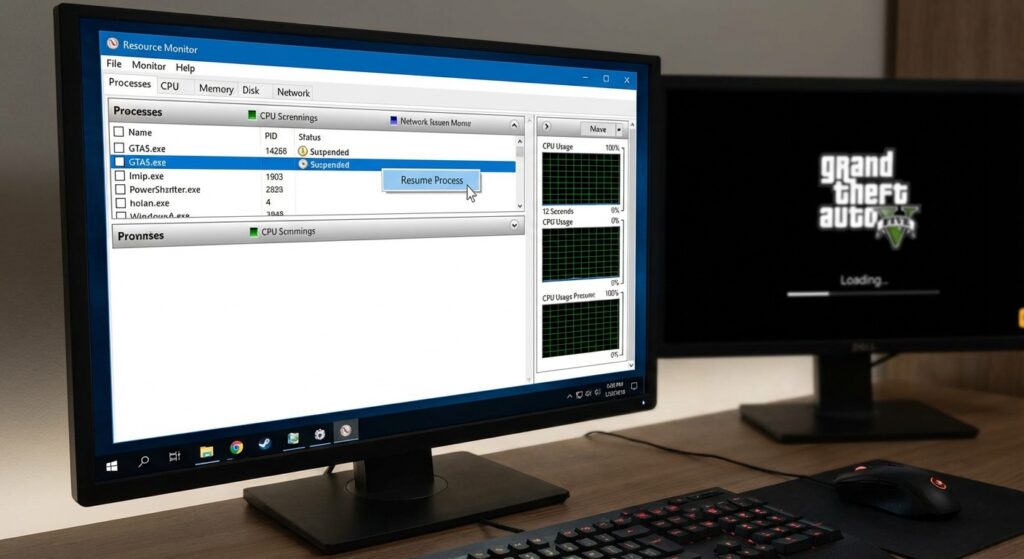
Step-by-Step Instructions:
- Alt-Tab out of GTA 5. Don’t close the game; just minimize it or switch windows.
- Open Task Manager. You can do this by right-clicking the taskbar or pressing
Ctrl + Shift + Esc. - Go to Performance. Click on the “Performance” tab and then click the link at the bottom that says “Open Resource Monitor”.
- Find the Process. In the Resource Monitor window, look for
GTA5.exe. It usually sits at the top if the game is running. - Suspend Process. Right-click
GTA5.exeand select Suspend Process. Confirm it when the window pops up. - The Count. Wait exactly 10 to 12 seconds. (I usually count “One Mississippi…” up to ten).
- Resume Process. Right-click
GTA5.exeagain and hit Resume Process. - Tab Back In. When you open the game window, you should see everyone else in the lobby “leave” simultaneously.
Why this works: You essentially forced a “lag switch” on yourself. The game realizes it can’t sync with others, so it dumps you into a Solo Public Session where you are the host. The loading screen vanishes instantly because you no longer need to sync with anyone else.
Method 2: The Console DNS Flush (PS5 & Xbox Series X/S)
Best for: Connection timed out errors, general connectivity issues.
Console players don’t have a Task Manager, so we have to get a bit more technical with the network settings. I’ve found that the default DNS settings provided by ISPs (Internet Service Providers) are often trash for gaming. They can bottleneck your connection to Rockstar’s services.
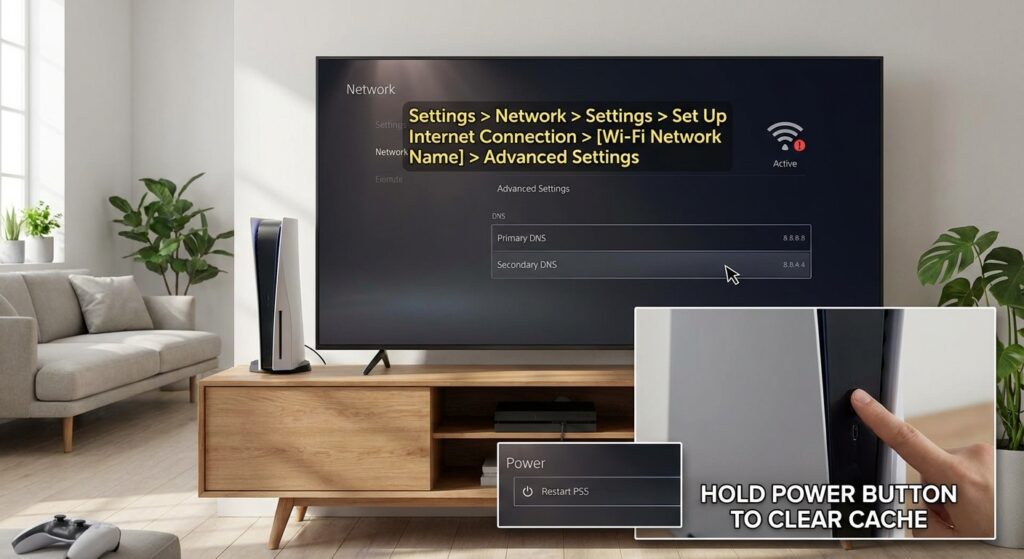
Switching to a public, high-speed DNS like Google or Cloudflare can often bypass the “Files required to play GTA Online could not be downloaded” error.
How to Change DNS on Consoles:
For PlayStation 5:
- Go to Settings > Network > Settings > Set Up Internet Connection.
- Highlight your network and press the Options button (three lines).
- Select Advanced Settings.
- Change DNS Settings to Manual.
- Primary DNS:
8.8.8.8 - Secondary DNS:
8.8.4.4
For Xbox Series X/S:
- Press the Xbox button and go to Profile & system > Settings > General > Network settings.
- Select Advanced settings.
- Select DNS settings.
- Choose Manual.
- Enter
8.8.8.8for Primary and8.8.4.4for Secondary.
After doing this, I highly recommend you Clear the Cache on your console. On Xbox, you can do this by holding the power button for 10 seconds to do a hard reset. On PS5, shut down completely and unplug it for a minute. It sounds like voodoo, but it clears temporary files that often get corrupted during updates.
Method 3: The “Invite-Only” Pre-Load Strategy
Best for: Prevention, avoiding the black screen entirely.
Look, if you are trying to load directly into a Public Session from the main menu, you are asking for trouble. The game tries to dump you into a populated lobby, which is where the loading bugs happen.
The most reliable way to play in 2026 is to change your startup flow.
- Load into Story Mode first. It loads much faster because it’s offline.
- Once you are playing as Franklin, Michael, or Trevor, pause the game.
- Go to Online > Play GTA Online > Invite Only Session.
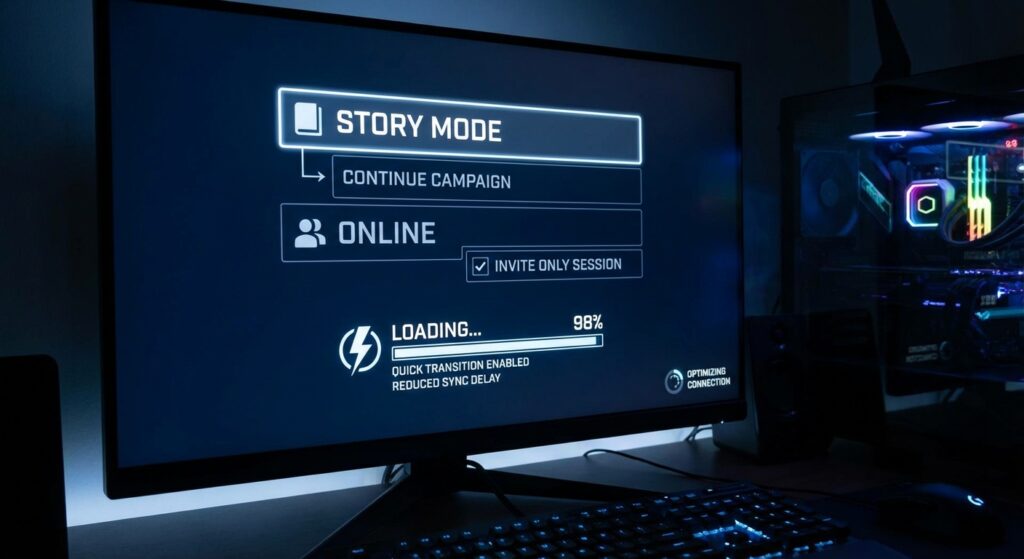
Why do this? An Invite Only session doesn’t require syncing with 29 other random players. It loads almost instantly. Once you are in, you can use the “Find New Session” option to jump into a Public lobby if you really want to. I’ve found that transitioning from an Invite Only session to a Public one is way smoother than loading from the main menu.
Comparison of Session Types for Loading Times
Here is a quick breakdown of what you can expect based on my experience over the last few months.
| Session Type | Loading Stability | Risk of Infinite Load | Recommended For |
| Public Session | Low | High | PVP, Business Battles |
| Invite Only | Very High | Very Low | Heist Preps, Agency Work |
| Crew Session | Medium | Medium | Car Meets |
| Solo Session | High | Low | Solo Grinding |
Method 4: Fixing the “Black Screen” Entering Properties
This is a specific, nasty variation of the glitch where you walk into your Casino Penthouse, Agency, or Nightclub, and the screen goes black, but you can still hear the game sounds. You might even hear your character walking, but you can’t see anything.
The Fix:
Do not quit the game yet! There is a weird workaround involving Rockstar Social Club.
- Press the Home key (on PC) to open the Social Club overlay.
- Find a friend who is playing the game and select Join Game.
- Cancel the join request immediately when the alert pops up.
Sometimes, just triggering this overlay alert forces the game to “refresh” the video output. If that fails, try unplugging your controller and plugging it back in (a common fix for Xbox users). If you are completely stuck, the Resource Monitor trick (Method 1) can sometimes pop you out of the black screen and spawn you outside the building.
Hardware Checks: Is It Your Drive?
I have to mention this because it matters. If you are still running GTA 5 on an old HDD (Hard Disk Drive), you are going to have texture pop-in and long loads no matter what.
Upgrading to an NVMe SSD made a massive difference for me. The game has to stream assets constantly. If your drive is slow, the game pauses everything (infinite load) while it catches up. If you’re on PC, check your drive health. If you see 100% disk usage in Task Manager while the game is loading, your hard drive is the bottleneck, not the servers.
When Nothing Works: Verify Game Files
If you have tried the DNS flush, the Resource Monitor trick, and the Invite-Only method and still can’t get in, your game data might be corrupted. This happens a lot after big DLC updates.
- Steam: Right-click GTA 5 > Properties > Installed Files > Verify integrity of game files.
- Epic Games: Go to Library > Click the three dots on GTA 5 > Manage > Verify.
- Rockstar Launcher: Settings > GTA V > Verify Integrity.
This takes a while, but it will find missing texture files that cause the game to hang.
Conclusion: Don’t Let the Cloud Simulator Win
The infinite loading screen in GTA Online is a rite of passage, but it doesn’t have to end your gaming night. By using the Resource Monitor trick on PC or managing your DNS settings on console, you can bypass the terrible P2P syncing that causes these issues.
My advice? Stick to Invite Only sessions whenever you are doing Heist preps or solo work. It’s safer, loads faster, and you won’t get blown up by an Oppressor Mk II the second you spawn.
Did the Resource Monitor trick work for you, or did you find another workaround? Drop a comment below—I’m always looking for new fixes to add to the list. If you are still struggling with frame rates after you finally load in, check out our guide on Optimizing GTA 5 Graphics Settings for High FPS.