

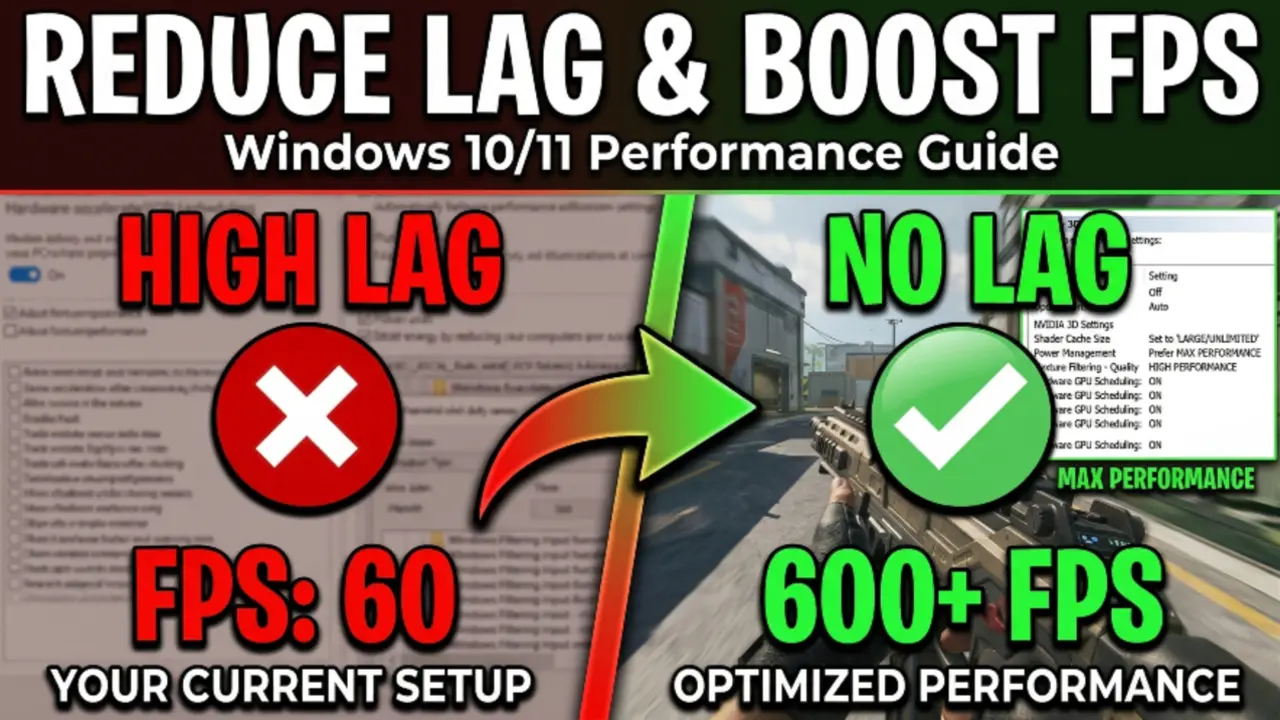
Is lag ruining your gaming experience? Whether you’re experiencing stuttering, frame drops, or network lag, this comprehensive guide will help you reduce lag and boost FPS in PC games using proven optimization techniques that work in 2026.
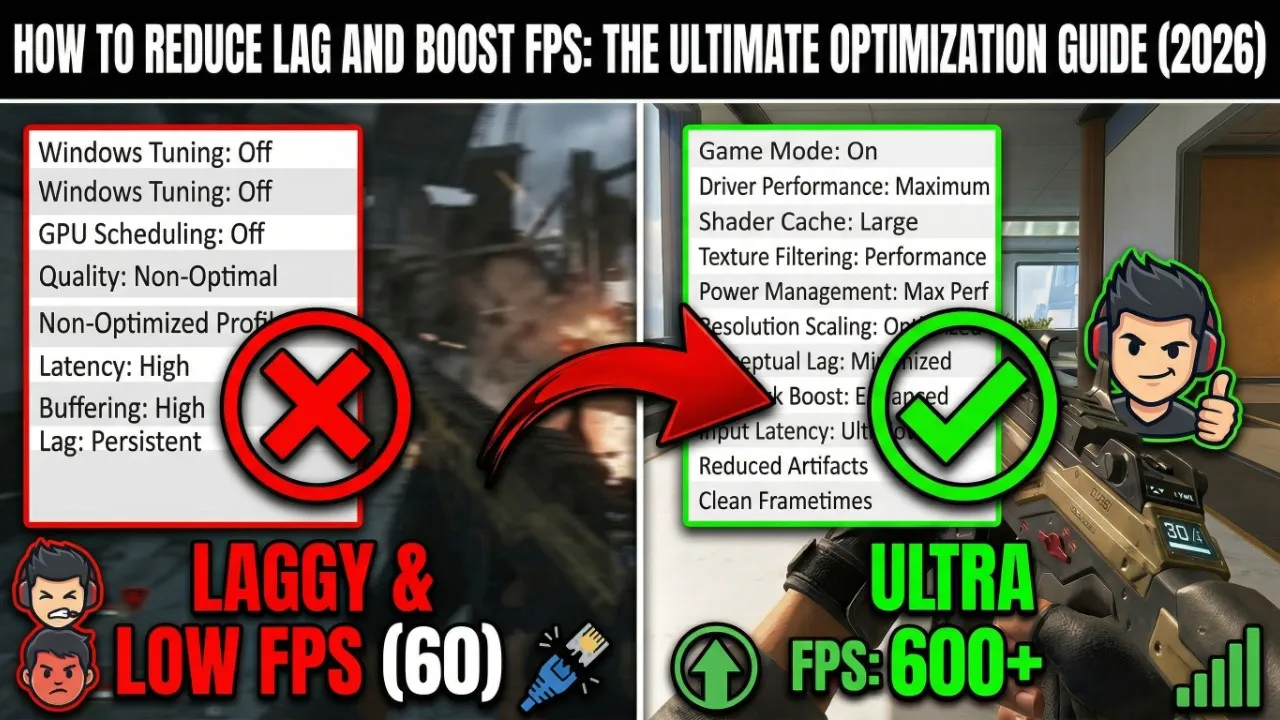
Understanding Gaming Lag and FPS: What’s Affecting Your Performance?
Before diving into solutions, it’s crucial to understand the difference between FPS lag (frame rate issues) and network lag (latency issues). Low FPS causes choppy visuals and stuttering gameplay, while network lag results in delayed input responses, especially in online multiplayer games. How to Reduce Lag and Boost FPS
Common causes of low FPS and lag include:
- Outdated or poorly optimized graphics drivers
- Background applications consuming system resources
- Incorrect in-game graphics settings
- Windows power management settings limiting performance
- Thermal throttling from overheating components
- Network congestion and high ping in online games
How to Boost FPS in PC Games: Graphics Settings Optimization
Optimizing your in-game graphics settings is the fastest way to improve FPS without spending money on hardware. Here are the most impactful settings to adjust:
Essential Graphics Settings to Reduce for Maximum FPS
Shadow Quality: Shadows are one of the most demanding graphical features. Reducing shadow quality from “Ultra” to “Medium” or “Low” can provide a significant FPS boost with minimal visual impact. In competitive games, many players disable shadows entirely for better visibility.
Anti-Aliasing (AA): While AA smooths jagged edges, it’s extremely resource-intensive. Try reducing from MSAA or SSAA to FXAA or TAA, which offer better performance with acceptable quality. At 1080p and above, you can often disable AA entirely without major visual degradation.
Texture Quality: This setting primarily affects VRAM usage rather than GPU processing power. If you have 4GB+ VRAM, you can keep textures on high. However, if you’re experiencing stuttering, reduce texture quality to prevent VRAM overflow.
Post-Processing Effects: Motion blur, depth of field, and ambient occlusion significantly impact performance. Disabling these effects can provide 10-20% FPS improvements while actually improving competitive gameplay by reducing visual clutter. How to Reduce Lag and Boost FPS
View Distance and Render Distance: Reducing how far the game renders objects can dramatically improve FPS in open-world games. Balance this based on your game type—competitive shooters benefit from higher view distance, while single-player games can sacrifice some distance for better performance.
Advanced Windows Optimization for Gaming Performance
Your Windows configuration significantly impacts gaming performance. These optimizations can help you reduce lag and achieve smoother gameplay:
Windows Game Mode and Priority Settings
Enable Windows Game Mode: Press Windows + I to open Settings, navigate to Gaming > Game Mode, and enable it. This prioritizes system resources for gaming applications and reduces background interruptions.
Set High Priority for Games: Open Task Manager (Ctrl+Shift+Esc) while your game is running, find the game process under the Details tab, right-click it, set priority to “High” (not Realtime, which can cause instability).
Disable Unnecessary Background Services
Many background applications and services consume valuable CPU, RAM, and disk resources. To optimize your PC for gaming:
- Disable Windows Search indexing during gaming sessions
- Turn off automatic Windows Updates (temporarily)
- Close browser tabs, Discord overlays, and streaming software when not needed
- Disable Xbox Game Bar recording features if you’re not using them
- Use Task Manager to identify and close resource-hungry background processes
Power Plan Optimization for Maximum Performance
Windows power plans can throttle your CPU and GPU performance. To ensure maximum gaming performance:
- Open Control Panel > Power Options
- Select “High Performance” plan (or “Ultimate Performance” if available)
- Click “Change plan settings” > “Change advanced power settings”
- Set “Processor power management” minimum and maximum state to 100%
- Disable “USB selective suspend” to prevent peripheral lag
Graphics Driver Optimization: Maximizing GPU Performance
Your graphics card drivers are critical for optimal gaming performance. Outdated or incorrectly configured drivers are a leading cause of FPS drops and lag.
Update to Latest GPU Drivers
For NVIDIA users: Download GeForce Experience or visit NVIDIA’s website to get the latest Game Ready drivers. NVIDIA frequently releases optimized drivers for new game releases.
For AMD users: Use AMD Adrenalin software or download drivers from AMD’s support page. AMD’s driver updates often include significant performance improvements for specific games.
For Intel users: Download Intel Graphics Command Center or visit Intel’s driver support page for the latest integrated graphics drivers. How to Reduce Lag and Boost FPS
Graphics Control Panel Settings for FPS Boost
NVIDIA Control Panel Settings:
- Set “Power Management Mode” to “Prefer Maximum Performance”
- Set “Texture Filtering – Quality” to “Performance”
- Disable “Vertical Sync” (unless experiencing screen tearing)
- Set “Low Latency Mode” to “Ultra” for competitive gaming
- Enable “Game Ready” optimizations for your specific games
AMD Radeon Settings:
- Enable “Radeon Anti-Lag” for reduced input latency
- Enable “Radeon Boost” for dynamic resolution scaling during fast motion
- Disable “Radeon Chill” for maximum FPS (or configure appropriately)
- Set “Texture Filtering Quality” to “Performance”
Network Optimization to Reduce Lag in Online Games
For online gaming, network lag (high ping and latency) can be just as problematic as low FPS. Here’s how to reduce ping and improve network performance:
Essential Network Optimizations
Use Wired Ethernet Connection: WiFi introduces latency and packet loss. A wired Ethernet connection provides stable, low-latency connectivity essential for competitive gaming.
Close Bandwidth-Heavy Applications: Streaming services, downloads, and video calls consume bandwidth and increase latency. Close these applications before gaming.
Quality of Service (QoS) Settings: Configure your router’s QoS settings to prioritize gaming traffic over other network activities. Most modern routers have gaming-specific QoS profiles.
Change DNS Servers: Switch to faster DNS servers like Google DNS (8.8.8.8, 8.8.4.4) or Cloudflare DNS (1.1.1.1) to reduce DNS lookup times.
Port Forwarding: Forward the specific ports used by your games to ensure optimal connectivity and reduce NAT-related lag. Check your game’s documentation for required ports. How to Reduce Lag and Boost FPS
Hardware Upgrades That Actually Matter for Gaming
If software optimizations aren’t enough, strategic hardware upgrades can provide substantial FPS improvements:
Most Impactful Upgrades for FPS Boost
Graphics Card (GPU): The single most important component for gaming performance. Upgrading from a budget GPU to a mid-range or high-end card can double or triple your FPS. In 2026, look for GPUs with at least 8GB VRAM for modern games at 1080p/1440p.
RAM Upgrade: 16GB is the minimum for modern gaming; 32GB is ideal for multitasking. Ensure RAM runs at its rated speed by enabling XMP/DOCP in BIOS. Dual-channel configuration (2 sticks) provides better performance than single-channel.
SSD Storage: While SSDs don’t directly boost FPS, they eliminate stuttering caused by slow asset loading. An NVMe SSD provides the fastest loading times and reduces texture pop-in during gameplay.
CPU Upgrade: If your CPU bottlenecks your GPU (CPU usage consistently at 100% while GPU usage is low), consider upgrading. Modern 6-core or 8-core CPUs provide excellent gaming performance. Boost FPS
System Maintenance for Consistent Gaming Performance
Regular PC maintenance prevents performance degradation over time:
- Clean dust from components: Dust buildup causes overheating and thermal throttling, reducing performance. Clean your PC every 3-6 months.
- Reapply thermal paste: CPU and GPU thermal paste degrades over time. Reapplying quality thermal paste can reduce temperatures by 5-15°C.
- Update BIOS/UEFI: Motherboard BIOS updates can improve CPU performance and fix stability issues.
- Defragment HDD (not SSD): If you store games on a mechanical hard drive, regular defragmentation improves loading times.
- Scan for malware: Malware and cryptominers can consume significant system resources, reducing gaming performance.
Game-Specific Optimization Techniques
Different games require different optimization approaches:
Competitive Multiplayer Games (CS2, Valorant, Apex Legends)
For competitive games, prioritize high FPS over visual quality. Target 144+ FPS for smooth gameplay on high refresh rate monitors. Disable all unnecessary visual effects, reduce shadows and anti-aliasing, and enable performance-focused settings in your GPU control panel.
AAA Single-Player Games
For story-driven games, balance visual quality with performance. Aim for consistent 60+ FPS. Use dynamic resolution scaling if available, which automatically adjusts resolution to maintain target FPS. Enable DLSS (NVIDIA) or FSR (AMD) for AI-upscaled performance gains.
Open-World Games
These games are particularly demanding. Reduce view distance, grass density, and object detail. Enable texture streaming if available to reduce VRAM usage. Consider upgrading to 16GB+ RAM as open-world games benefit significantly from additional memory.
Monitoring and Troubleshooting FPS Issues
Use performance monitoring tools to identify bottlenecks:
MSI Afterburner + RivaTuner: Displays real-time FPS, GPU usage, CPU usage, temperatures, and RAM usage in-game. Essential for identifying performance bottlenecks.
Windows Task Manager: Monitor resource usage while gaming to identify background processes consuming resources.
GPU-Z and HWiNFO: Advanced monitoring tools for detailed hardware statistics and sensor data.
Conclusion: Achieving Optimal Gaming Performance in 2026
Reducing lag and boosting FPS requires a multi-faceted approach combining graphics settings optimization, Windows tweaks, driver updates, and network improvements. Start with free software optimizations before considering hardware upgrades. Most gamers can achieve 20-50% FPS improvements through proper optimization alone.
Remember to monitor your system regularly, keep drivers updated, and maintain your hardware to ensure consistent gaming performance. By following this comprehensive guide, you’ll enjoy smoother gameplay, reduced lag, and a significantly improved gaming experience.
What optimization techniques worked best for you? Share your FPS gains and optimization tips in the comments below to help other gamers improve their PC gaming performance!
