
Imagine this: You have just finished recording an interview with your dream guest. The conversation was electric, the insights were profound, and the energy was perfect. But when you put your headphones on to review the file, your heart sinks. There is a persistent hiss in the background, a distinct echo from the room, and the audio levels are all over the place.
In the past, fixing low-quality audio required expensive studio hardware or a professional sound engineer. Today, AI tools to fix low quality audio have democratized the industry, allowing creators to achieve studio-grade sound from their bedrooms.
In this guide, we will break down why audio quality matters, explain how AI restoration works, and review the top 5 AI audio repair tools available today. Whether you are looking for a free quick fix or a professional software suite, this guide has the answer.
Why Audio Quality Makes or Breaks Your Podcast
Before we dive into the tools, it is critical to understand the “Why.” Many new podcasters prioritize video quality or cover art, but audio is the vehicle for your message.
The Science of Listener Fatigue
Bad audio is not just annoying; it is cognitively draining. When a recording has background noise, hiss, or reverb, the listener’s brain has to work overtime to separate the speech from the noise. This phenomenon is known as “listener fatigue.”
- High Retention: Crisp audio keeps listeners engaged for 45+ minutes.
- High Drop-off: Poor audio causes listeners to click away within the first 60 seconds.
Authority and Brand Perception
Your audio quality directly signals your professionalism. . If your podcast sounds like it was recorded in a bathroom, high-profile guests may hesitate to come on your show, and sponsors will be less likely to invest in your brand.
How AI Audio Restoration Actually Works
Traditional audio repair tools (like EQ and Gates) work by cutting frequencies. Often, this results in the voice sounding thin or robotic because you are removing parts of the sound spectrum.
Artificial Intelligence takes a different approach:
- Analysis: The AI analyzes the waveform and identifies characteristics of human speech versus noise (air conditioners, traffic, wind).
- Isolation: It separates the vocal track from the noise floor.
- Synthesis (The Magic Part): Unlike old tools that just subtract noise, advanced AI (like Adobe or Descript) can actually synthesize missing audio data, reconstructing the voice to make it sound fuller and richer.
Top 5 AI Tools to Fix Low Quality Audio Reviewed
We have tested and analyzed the market to bring you the best options for every budget.
1. Adobe Podcast Enhance (Best Free Tool)
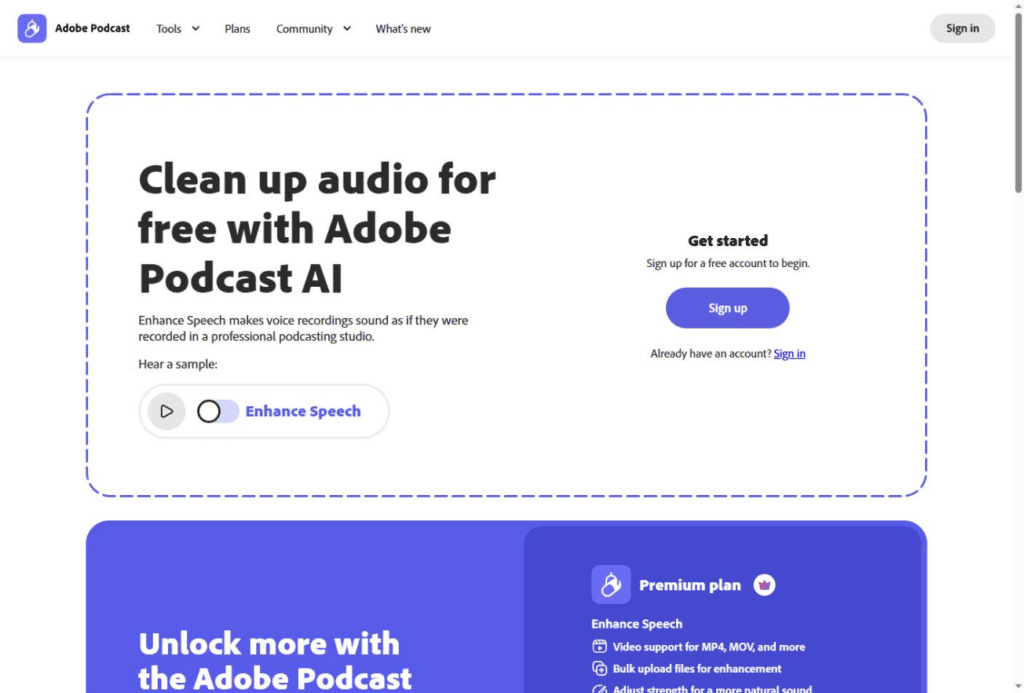
Adobe Podcast Enhance took the internet by storm when it launched. It is a web-based tool designed to take the worst possible recordings and make them sound like they were recorded in a sound-treated studio.
Key Features:
- One-Click Fix: No technical knowledge required. Drag and drop your file.
- Echo Removal: excellent at removing “roomy” reverb.
- Speech Enhancement: Adds body and bass to thin microphone recordings.
Pros & Cons:
- Pros: Completely free (currently), extremely easy to use, effective on very bad audio.
- Cons: Can make voices sound slightly robotic if the effect is too strong; limited customization.
Verdict: The best emergency tool for beginners who need a quick fix without spending money.
(Link suggestion: Link to Adobe Podcast official site)
2. Descript Studio Sound (Best All-in-One Workflow)
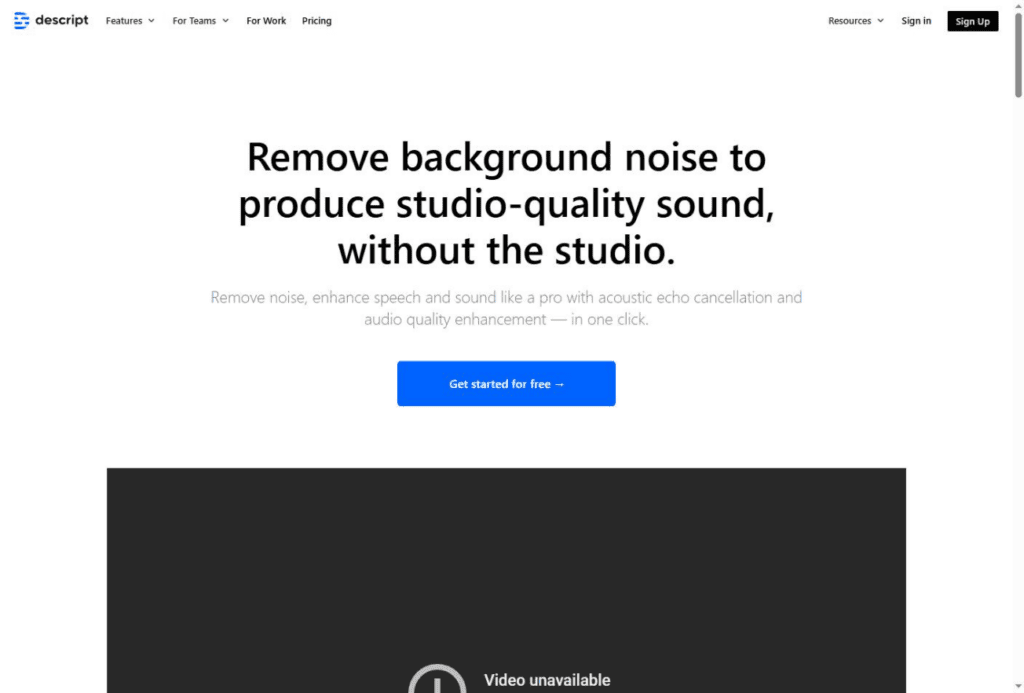
Descript is more than just a repair tool; it is a full audio/video editor that works like a word processor. Their “Studio Sound” feature is a toggle that instantly regenerates voice quality.
Key Features:
- Regenerative Technology: It doesn’t just remove noise; it rebuilds the voice to sound professional.
- Intensity Slider: You can dial the effect back to 50% or 70% to keep it sounding natural.
- Integrated Editing: Fix your audio while you edit your transcript.
Pros & Cons:
- Pros: Seamless workflow, removes echo and noise simultaneously, very natural results.
- Cons: Subscription-based model; requires moving your editing workflow to Descript.
Verdict: The best choice for podcasters who want to edit and mix in a single platform.
3. iZotope RX Elements (Best for Professional Control)
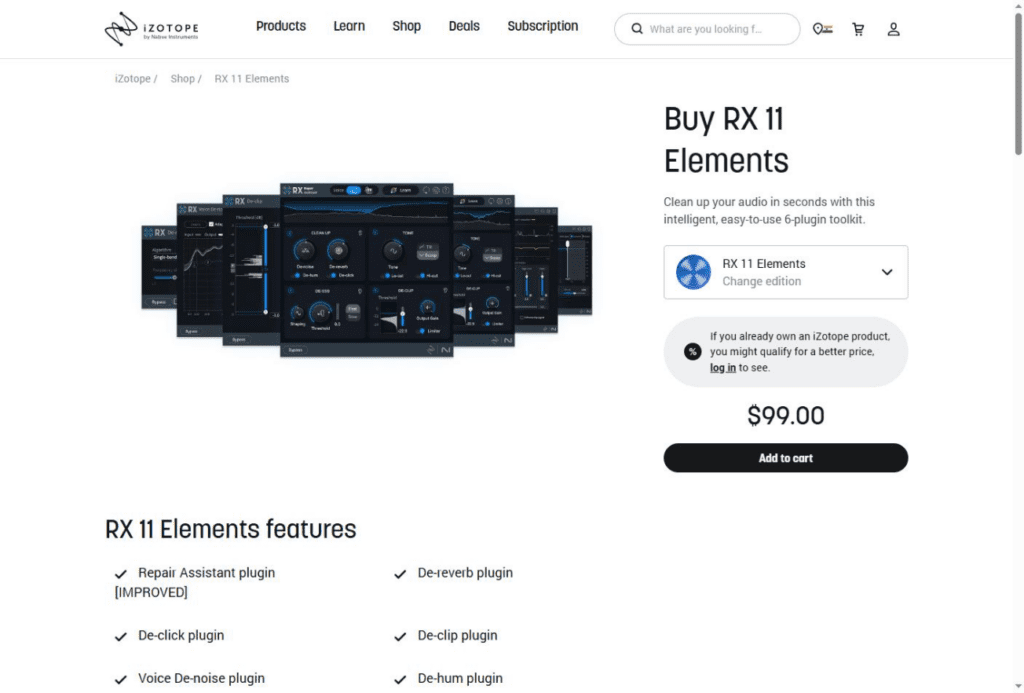
iZotope RX is the industry standard for Hollywood post-production. While the “Advanced” version costs over a thousand dollars, RX Elements is affordable and packed with AI-assistive features.
Key Features:
- Repair Assistant: An AI tool that listens to your audio and suggests a custom “repair chain” of settings.
- De-click & De-clip: Specialized tools to fix mouth noises and distortion.
- Visual Spectrogram: Allows you to “see” the noise (like a siren or cough) and paint it out.
Pros & Cons:
- Pros: Industry-leading quality, granular control, transparent sound (doesn’t sound robotic).
- Cons: Steeper learning curve; requires installation as a plugin or standalone app.
Verdict: The best option for those who want to learn professional audio engineering skills.
4. Auphonic (Best for Automated Mastering)
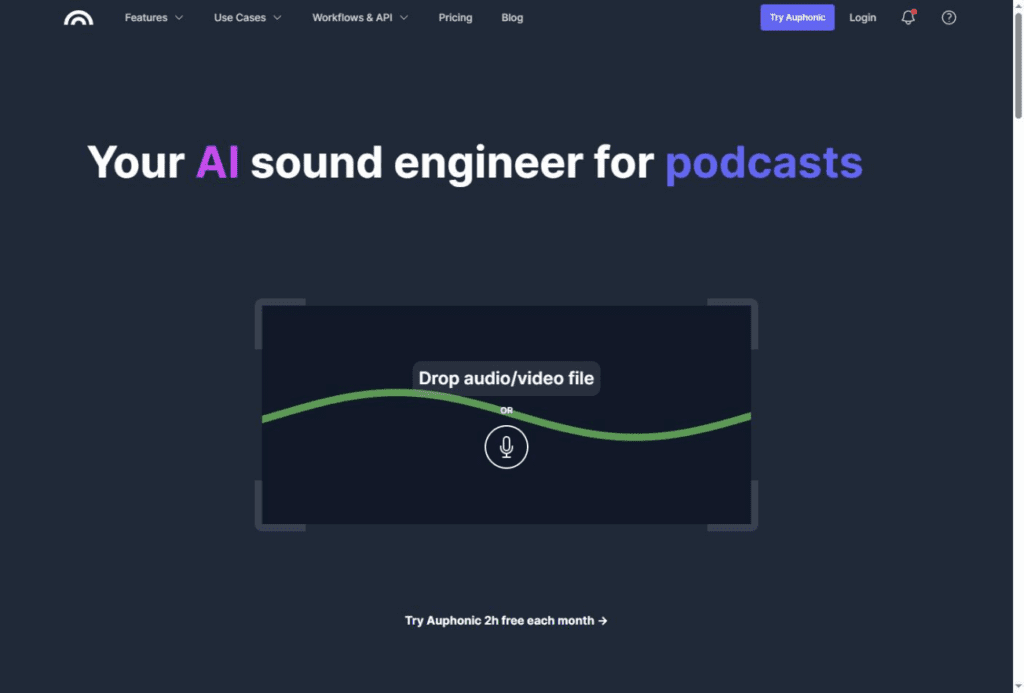
Auphonic is a post-production web service. It is less about “fixing” a single bad track and more about polishing the entire episode to meet broadcast standards.
Key Features:
- Adaptive Leveler: Balances the volume between different speakers automatically.
- Loudness Normalization: Ensures your podcast meets the standard -16 LUFS (Loudness Units).
- Noise & Hum Reduction: Automatically learns the noise profile of the track.
Pros & Cons:
- Pros: “Set it and forget it” batch processing; great free tier (2 hours/month).
- Cons: Not as good at surgical repairs (like removing a specific dog bark) as iZotope.
Verdict: Essential for the final step of your podcast production process.
5. CrumplePop (Best Plugins for Video Editors)
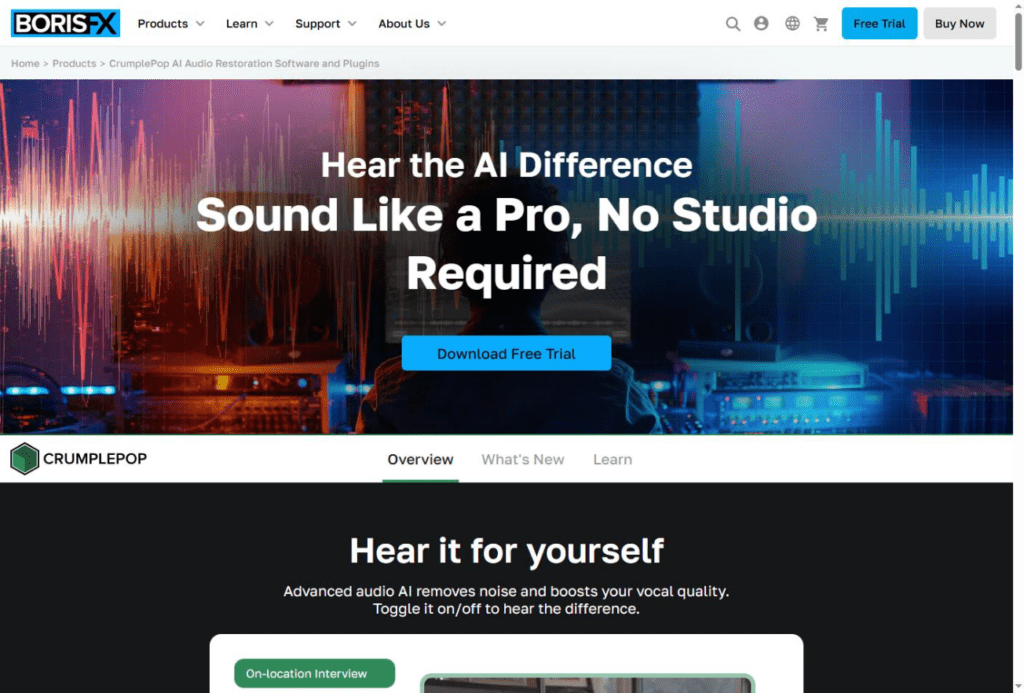
CrumplePop offers a suite of AI plugins (now owned by Boris FX) that plug directly into Premiere Pro, Audition, or Final Cut. They are famous for their simple interface.
Key Features:
- Targeted Tools: Specific plugins for specific problems (e.g., WindRemover AI, RustleRemover AI).
- Simple UI: Usually just one big knob to control the strength of the effect.
- Real-time Playback: Hear the results instantly inside your video editor.
Pros & Cons:
- Pros: Incredibly easy to use inside video editors; high-quality specific fixes.
- Cons: Can be expensive if you need the whole suite; subscription model.
Verdict: Perfect for video podcasters and YouTubers who edit in Premiere or Final Cut.
Comparison Table: Feature Breakdown
| Tool Name | Best For | Price Model | Difficulty |
| Adobe Podcast | Quick, Free Fixes | Free (Beta) | Very Low |
| Descript | Editing Workflow | Subscription | Low |
| iZotope RX | Surgical Precision | One-time Payment | Medium |
| Auphonic | Final Mastering | Freemium | Low |
| CrumplePop | Video Editors | Subscription | Low |
Three Common Audio Mistakes AI Cannot Fix
While AI is powerful, it is not magic. To get the best results from these AI audio tools, you must avoid these recording errors:
- Severe Distortion (Clipping):If your recording volume was too high and the audio “peaked” (hit the red zone), the digital information is lost. AI struggles to reconstruct clipped peaks accurately. Always record at a conservative level (aim for -12dB).
- Overlapping Talk:If two people speak over each other, AI tools have a hard time separating the voices, especially if you want to edit one person out.
- Heavy Wind directly on the Mic:Wind hitting a microphone capsule creates a low-frequency rumble that destroys the vocal frequencies. While tools like CrumplePop help, a physical pop filter or wind shield is always better.
Step-by-Step: How to Use AI to Fix a Bad Track
If you are new to this, here is a simple workflow to save a bad recording:
- Identify the Issue: Is it echo? Hiss? Or low volume?
- Clean the Noise: Use Adobe Podcast Enhance or Descript. Set the intensity to roughly 30-50%. Do not go to 100% unless necessary.
- Check for Artifacts: Listen closely to the ends of words. Does the voice sound cut off? If so, lower the intensity.
- Level the Audio: Upload the cleaned file to Auphonic to ensure the volume is consistent and meets podcast standards.
- Final Listen: Always listen with both headphones and phone speakers to ensure it translates well.
Frequently Asked Questions (FAQ)
What is the best free AI tool for audio repair?
Currently, Adobe Podcast Enhance is the most powerful free tool available. It effectively removes background noise and echo with a simple drag-and-drop interface.
Can AI fix bad mic placement?
To an extent. AI can remove the “room sound” (echo) that comes from being too far from the mic, making the voice sound closer and more direct. However, it cannot fully replicate the “proximity effect” of being right up against a dynamic microphone.
Does AI audio repair sound robotic?
It can if overused. The “robotic” sound usually happens when the noise reduction settings are too aggressive. The key is to find the “sweet spot”—usually between 30% and 60% intensity—where the noise is reduced but the natural human tone remains.
The days of scrapping a podcast episode due to bad audio are over. With the rise of AI tools to fix low quality audio, you have a safety net that ensures your content always sounds professional.
If you want a quick, free solution, start with Adobe Podcast Enhance. If you are looking to streamline your entire editing process, Descript is likely your best investment. For those who demand total control, iZotope RX remains the king of audio repair.