
Boost FPS on weak GPUs with the best NVIDIA and AMD settings. Step-by-step tweaks for control panel, drivers, and in-game options to maximize performance in 2026.
Best NVIDIA & AMD Settings for Higher FPS on Weak GPUs
If you are gaming on a budget GPU, you already know the frustration. A game launches, your GPU fan spins like it is auditioning for a jet engine, and the frame counter refuses to go above 40. The good news is that squeezing more FPS out of a weak GPU is absolutely possible, and it does not require buying new hardware. The right NVIDIA and AMD settings for higher FPS can make a surprising difference, sometimes 20 to 40 percent more frames, just from software changes alone.
This guide walks through every meaningful setting, from the control panel to in-game options, with clear explanations of what each one actually does. No fluff, no vague advice like “lower your settings.” Real, actionable tweaks.
Why GPU Settings Matter More Than You Think
Most people install their GPU drivers, launch a game, and never touch the control panel. That is leaving performance on the table. Both NVIDIA and AMD ship their drivers with settings tuned for a balance of image quality and performance, not maximum frame rate. For a weak GPU, that balance is wrong. You want performance, full stop.
A GTX 1060, RX 580, or even something older like a GTX 970 can still run most games at 1080p if you configure things correctly. The settings below apply to integrated GPUs too, like Intel Iris Xe, where every frame genuinely counts.
Also read: Full OPTIMIZATION tweaks
NVIDIA Control Panel: Best Settings for Higher FPS
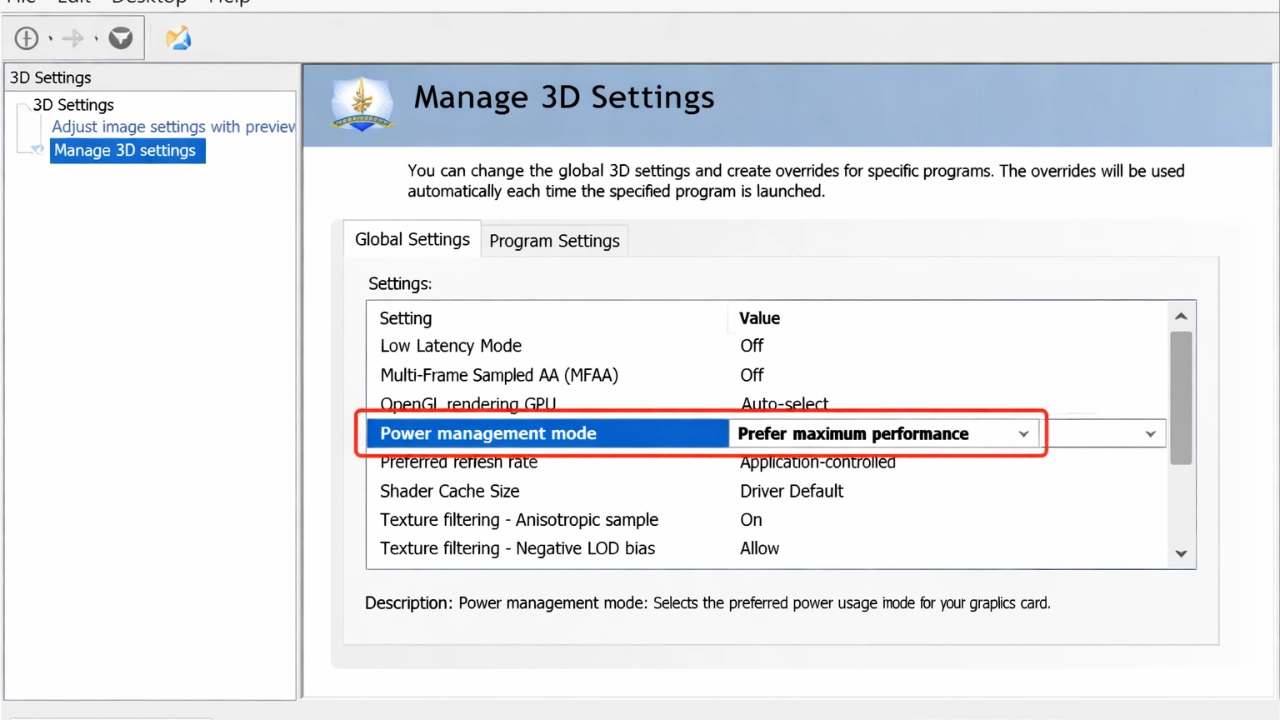
Open the NVIDIA Control Panel by right-clicking your desktop. Navigate to Manage 3D Settings, then the Global Settings tab. Changes here apply to all games unless you override them per-app.
1. Power Management Mode
Set to: Prefer Maximum Performance
By default, NVIDIA uses adaptive power management, which throttles your GPU clock speeds to save energy. On a desktop, there is no reason for this. Switching to Maximum Performance keeps your GPU running at full clock speed at all times, which eliminates microstutters caused by the GPU ramping up too slowly.
2. Texture Filtering – Quality
Set to: High Performance
This controls how textures are filtered at oblique angles. The visual difference at 1080p on a weak GPU is nearly imperceptible, but the performance gain is real. High Performance uses a faster, less accurate method that frees up GPU resources.
3. Vertical Sync
Set to: Off
V-Sync caps your frame rate to your monitor’s refresh rate and introduces input lag. Turn it off globally. If you need screen tear prevention, use in-game options or NVIDIA’s Fast Sync as a compromise. For a weak GPU trying to reach 60 FPS, V-Sync is a liability.
4. Low Latency Mode
Set to: Ultra
Low Latency Mode, formerly known as “Null Rendering Queue” in third-party tools, limits the number of pre-rendered frames. This reduces input lag and, on weak GPUs, can also stabilize frame timing. Ultra is the most aggressive setting and works well in CPU-bound scenarios.
5. Shader Cache Size
Set to: Unlimited
Shader Cache stores compiled shaders on disk so your GPU does not have to recompile them every time you launch a game. On weak GPUs with limited VRAM, this is especially helpful because it reduces stutters when entering new areas.
6. Anisotropic Filtering
Set to: Application Controlled or 2x
Anisotropic Filtering (AF) sharpens textures at a distance. 8x and 16x AF have a measurable performance cost on older GPUs. Set this to 2x or let the application control it and then lower it inside each game.
7. Antialiasing
Set to: Application Controlled, all AA options off globally
Antialiasing is one of the most GPU-intensive features. Turn off FXAA, MSAA, and TXAA in the NVIDIA Control Panel globally, then manage it per game. For weak GPUs, AA should almost always be off or set to the cheapest option available.
NVIDIA Control Panel Quick Reference Table
| Setting | Recommended Value | FPS Impact |
|---|---|---|
| Power Management Mode | Max Performance | High |
| Texture Filtering – Quality | High Performance | Medium |
| Vertical Sync | Off | Medium |
| Low Latency Mode | Ultra | Medium |
| Shader Cache | Unlimited | Low (stutter fix) |
| Anisotropic Filtering | 2x or App Controlled | Medium |
| Antialiasing | Off | High |
| Threaded Optimization | On | High |
AMD Radeon Software: Best Settings for Higher FPS
Open AMD Radeon Software (Adrenalin) from the system tray or by searching for it. Head to Gaming > Global Graphics.
1. Radeon Anti-Lag
Enable: On
Anti-Lag reduces input latency by controlling the pacing between CPU and GPU work. It is not a direct FPS booster, but it makes the game feel significantly more responsive at low frame rates. For weak GPUs hovering around 45 to 60 FPS, this makes a noticeable subjective difference.
2. Radeon Boost
Enable: On
Radeon Boost dynamically lowers render resolution during fast movement, then raises it when the image is still. Since motion blur hides the resolution drop naturally, it is nearly invisible in practice but can add 10 to 20 percent more FPS in fast-paced games. This is one of AMD’s most underrated features.
3. Radeon Chill
Disable: Off
Radeon Chill is a frame rate limiter designed to save power when you are not moving the mouse. Great for laptops, counterproductive for desktop gaming where you want consistent max FPS.
4. Image Sharpening (RSR – Radeon Super Resolution)
Enable: On if using RSR
Radeon Super Resolution lets you render at a lower resolution and upscale to your native resolution. On weak GPUs, dropping to 85 percent resolution scale with RSR can recover 15 to 25 percent FPS with minimal visual quality loss. It is not as good as FSR 2, but it works at the driver level across all games.
5. Texture Filtering Quality
Set to: Performance
Same principle as NVIDIA. High quality texture filtering costs GPU cycles. Switch to Performance mode to free those up.
6. Tessellation Mode
Set to: Override Application Settings, Max Tessellation Level: 8x
Some games use extreme tessellation that murders performance without proportional visual improvement. Capping it at 8x is a reasonable compromise that eliminates the performance spikes from tessellation-heavy scenes.
7. Anti-Aliasing Mode
Set to: Use Application Settings, then disable in-game
Same logic as NVIDIA. Manage AA per game, default to off.
AMD Radeon Software Quick Reference Table
| Setting | Recommended Value | FPS Impact |
|---|---|---|
| Radeon Anti-Lag | On | Low (latency) |
| Radeon Boost | On | High |
| Radeon Chill | Off | Medium |
| RSR / Image Sharpening | On (if needed) | High |
| Texture Filtering | Performance | Medium |
| Tessellation Level | 8x Override | Medium |
| Anti-Aliasing | Off / App Controlled | High |
In-Game Settings That Work Alongside Driver Tweaks
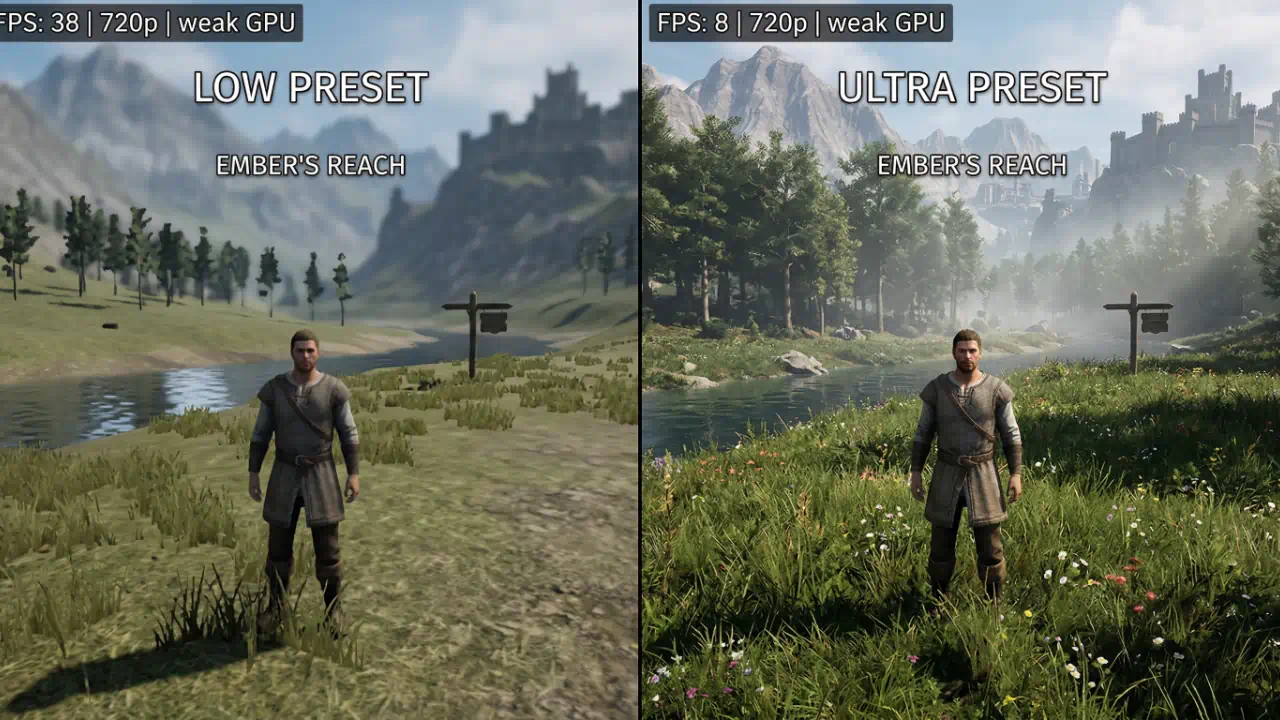
Driver settings alone will not save you if your in-game settings are maxed out. Here are the highest-impact in-game options to adjust on a weak GPU.
Resolution Scale / Render Resolution: Lower this before lowering anything else. Dropping from 100 percent to 85 percent costs less visual quality than you expect and gives back significant FPS.
Shadow Quality: Shadows are disproportionately expensive. Drop from Ultra to Medium or Low. The FPS gain is often 10 to 15 percent by itself.
Ambient Occlusion: Set to Off or Low. SSAO in particular hammers weak GPUs for a subtle depth-shading effect most players barely notice mid-game.
Draw Distance / View Distance: Reduces how far the GPU renders objects. Medium is usually acceptable in most games without making the world feel empty.
Post-Processing Effects: Motion blur, depth of field, chromatic aberration. These do almost nothing visually useful and cost real GPU time. Turn them all off. Honestly, they make games look worse anyway.
Anti-Aliasing: Off, or use TAA at low settings if jagged edges bother you. MSAA at 4x or 8x is not viable on a weak GPU.
Windows-Level Optimizations That Actually Help
The GPU settings only go so far if Windows is fighting you. These system tweaks are worth doing once.
Set Windows Power Plan to High Performance: Go to Control Panel > Power Options. High Performance prevents Windows from throttling CPU and GPU clocks.
Enable Hardware-Accelerated GPU Scheduling (HAGS): In Windows Settings > Display > Graphics Settings, enable Hardware-Accelerated GPU Scheduling. On NVIDIA RTX and AMD RDNA GPUs, this reduces CPU overhead and can stabilize frame times. Note: on very old GPUs (GTX 900 series and older), skip this.
Disable Xbox Game Bar and Game DVR: These background recording features consume CPU and memory. Disable them in Windows Settings > Gaming.
Update Drivers Regularly: Both NVIDIA and AMD regularly release driver updates with game-specific optimizations. An outdated driver on an older GPU can mean missing out on patches that specifically improve performance on your hardware.
For NVIDIA: Download the latest NVIDIA Game Ready Drivers
For AMD: Download the latest AMD Adrenalin Drivers
VRAM Management on Weak GPUs
One thing that catches a lot of people off guard: VRAM limitations hurt worse than raw GPU compute on older cards. A GTX 1060 3GB will suffer in modern games not because the GPU cannot handle the workload, but because it runs out of VRAM and starts paging to system RAM.
Practical fixes:
- Lower texture quality to Medium or High (not Ultra) to reduce VRAM usage
- Close background applications, especially browsers with multiple tabs open
- Disable in-game overlays (Discord, Steam, Xbox) when not needed
- Use tools like GPU-Z to monitor VRAM usage in real time and identify which settings are the biggest VRAM offenders
Using FSR and DLSS on Weak GPUs
AMD FidelityFX Super Resolution (FSR): Works on any GPU, including NVIDIA cards and integrated graphics. FSR 1.0 is a spatial upscaler, FSR 2.x and 3.x use temporal data for better quality. In games that support FSR, enable it at Quality or Balanced mode for a significant FPS boost with acceptable image quality.
NVIDIA DLSS: Only available on RTX 20 series and newer. If your GPU supports it, DLSS Quality mode is the single best way to boost FPS with minimal visual compromise. DLSS 3 Frame Generation requires RTX 40 series and above.
If your GPU supports neither, check if the game supports Intel XeSS, which also runs on any hardware as a fallback.
Monitoring Your FPS Gains
Before and after any change, measure your actual FPS. Do not guess. Use:
- MSI Afterburner + RivaTuner Statistics Server (RTSS): The gold standard overlay for FPS, GPU usage, CPU usage, VRAM, and temperatures. Free and works with all GPUs. Download at MSI Afterburner Official.
- AMD Performance Overlay: Built into Radeon Software, press Alt+R in-game.
- NVIDIA FrameView: NVIDIA’s own tool for capturing detailed performance logs. Available at NVIDIA FrameView.
Make one change at a time, run a benchmark scene, and note the result. That way you know what actually helped versus what made no difference on your specific hardware.
Personal Observations From Experience
A few things worth saying plainly, because a lot of guides skip them:
First, shadow quality is almost always the single biggest win. Every time. Drop shadows to medium before touching anything else.
Second, Radeon Boost is genuinely underrated. Most AMD users have never turned it on. It is not a gimmick.
Third, if your FPS is consistently low across all games regardless of settings, check your GPU temperature. A GPU hitting 90 degrees Celsius or above will throttle its own clocks to protect itself. Cleaning dust out of the card and reapplying thermal paste on older GPUs (GTX 1000 series and RX 500 series are getting old enough that the paste has dried out) can recover 10 to 15 percent performance without touching a single software setting.
Frequently Asked Questions
Will lowering settings in NVIDIA Control Panel affect all games?
Yes. Global settings apply to every application unless you create a per-game profile under Program Settings. It is recommended to use Global Settings for performance tweaks and override specific games that behave poorly.
Can these settings damage my GPU?
No. These are all software-level settings. None of them increase voltage or clock speeds beyond factory spec. The Power Management Mode change simply prevents the GPU from underclocking itself.
What is the single best setting to change right now?
For NVIDIA: Power Management Mode to Maximum Performance. For AMD: enable Radeon Boost. Both have the highest impact-to-effort ratio.
Getting more FPS out of a weak GPU is not about magic. It is about removing the things that are unnecessarily holding performance back. The default driver settings are not optimized for maximum frame rate, and neither are most default in-game configurations. Every setting in this guide has a reason behind it, and together they can realistically push a struggling GPU from unplayable to smooth.
If you found this guide useful, bookmark it and share it with anyone still gaming on older hardware. There are more people in that situation than the hardware upgrade cycle suggests.
Have questions about a specific GPU or game? Drop a comment below or reach out, and I can walk through the settings for your exact setup.
