
Fix laptop FPS drops and thermal throttling with our expert guide. Boost gaming performance, stop low frames, and squeeze every FPS from your laptop GPU.
Let me be straight with you. I spent three evenings last winter watching my gaming laptop drop from 80 FPS to 23 FPS mid-session, and it was genuinely maddening. The machine was less than two years old. After a lot of testing, reading hardware forums, and a fair amount of thermal paste later, I got things sorted. This guide is everything I learned, organized so you do not have to go through the same painful trial and error.
Whether you are chasing a laptop FPS boost for competitive gaming or just want your machine to stop sounding like a jet engine while stuttering through cutscenes, most of the fixes here cost nothing but a little time.
Also read: 15 Pre-Game Tweaks to Boost FPS on Any Budget PC (2026 Guide)
Why Laptop FPS Drops Happen
Unlike desktop PCs, gaming laptops are working within tight physical constraints. Thin chassis. Small fans. Limited airflow. The components are powerful on paper, but they are packed into a space that was not really designed to sustain peak loads for hours at a time.
The most common culprits behind low FPS on laptops include:
- Thermal throttling – the CPU or GPU overheating and reducing clock speeds to protect itself
- Power limits – Windows or the manufacturer capping wattage below what the hardware can actually use
- Background processes – antivirus scans, Windows updates, system telemetry running at the worst possible moments
- Outdated or misconfigured GPU drivers
- Battery mode restrictions – even when plugged in, some laptops silently throttle unless configured correctly
- Dried-out thermal paste on CPUs two or more years old.
These are those which laptop fps boost doesn’t happen.
How to Fix Thermal Throttling
Thermal throttling is the hardware safety mechanism that reduces processor clock speeds when temperatures exceed safe limits. For most laptop CPUs, that threshold is around 95-100 degrees Celsius. For laptop GPUs, it varies by manufacturer but typically kicks in between 83-90 degrees. How to Fix Throttling?
The frustrating part is that modern throttling is gradual. Your CPU does not just turn off. It slowly bleeds performance in small steps, which means you might not notice until you are 20 minutes into a game and your FPS has quietly collapsed from 90 to 40 without any obvious warning.
How to Check If You Are Throttling Right Now
Download HWiNFO64 for Laptop FPS Boost (free, excellent tool) and run it while gaming. Look for these columns in the sensor view:
- CPU Package Power – is it fluctuating wildly instead of holding steady?
- CPU Temperature – hitting 95 degrees or above consistently?
- GPU Temperature – above 85 degrees under sustained load?
- CPU Thermal Throttling – if this column lights up, you have confirmed throttling
You can also use MSI Afterburner to overlay real-time GPU temperature and clock speeds while gaming, which makes it much easier to correlate FPS dips with thermal events.
“If your GPU clock speed is bouncing like a yo-yo instead of holding steady, that is thermal throttling at work.”
Power Settings for Maximum Performance
This is the first thing to fix, and it is free. Windows power management is conservative by default, and laptop manufacturers sometimes add another layer of restrictions on top. Here is how to cut through all of it.
Step 1: Set Windows to Ultimate Performance Mode
- Open PowerShell as Administrator
- Paste:
powercfg -duplicatescheme e9a42b02-d5df-448d-aa00-03f14749eb61 - Hit Enter, then open Power Options in Control Panel
- Select the new “Ultimate Performance” plan
Standard High Performance is not always enough. Ultimate Performance mode disables some processor idle states and keeps components powered up and ready. On my machine, this alone added about 8-12 FPS in CPU-heavy titles.
Step 2: Check Your Manufacturer’s Power Software
Almost every gaming laptop brand has its own performance control app:
- ASUS ROG/TUF: Armoury Crate – set to “Turbo” or “Performance” mode
- MSI: Dragon Center / MSI Center – use “Extreme Performance”
- Lenovo: Lenovo Vantage – enable “Performance Mode”
- Razer: Razer Synapse – set to “High Performance”
- Acer: PredatorSense or NitroSense – check power mode settings
Important: These manufacturer apps often override Windows power settings completely. If you skip this step, your Windows changes might not matter at all. Set both.
Step 3: Disable CPU Core Parking for Laptop FPS Boost
Core parking is a power-saving feature that puts CPU cores to sleep. Under gaming loads, this can cause stuttering. You can disable it by editing the active power plan through the registry or by using a tool like QuickCPU, which provides a clean interface for adjusting CPU performance states.
Cooling Upgrades That Actually Work
Okay, some of these cost money but are worth every dollar if your laptop is more than 18 months old and you are serious about gaming performance.
Repaste the CPU and GPU
Factory thermal paste on laptops is notoriously average, and after 2-3 years it dries out and becomes significantly less effective. Repasting with a quality compound is one of the highest-impact improvements you can make.
Good thermal paste options for laptops (ranked by performance):
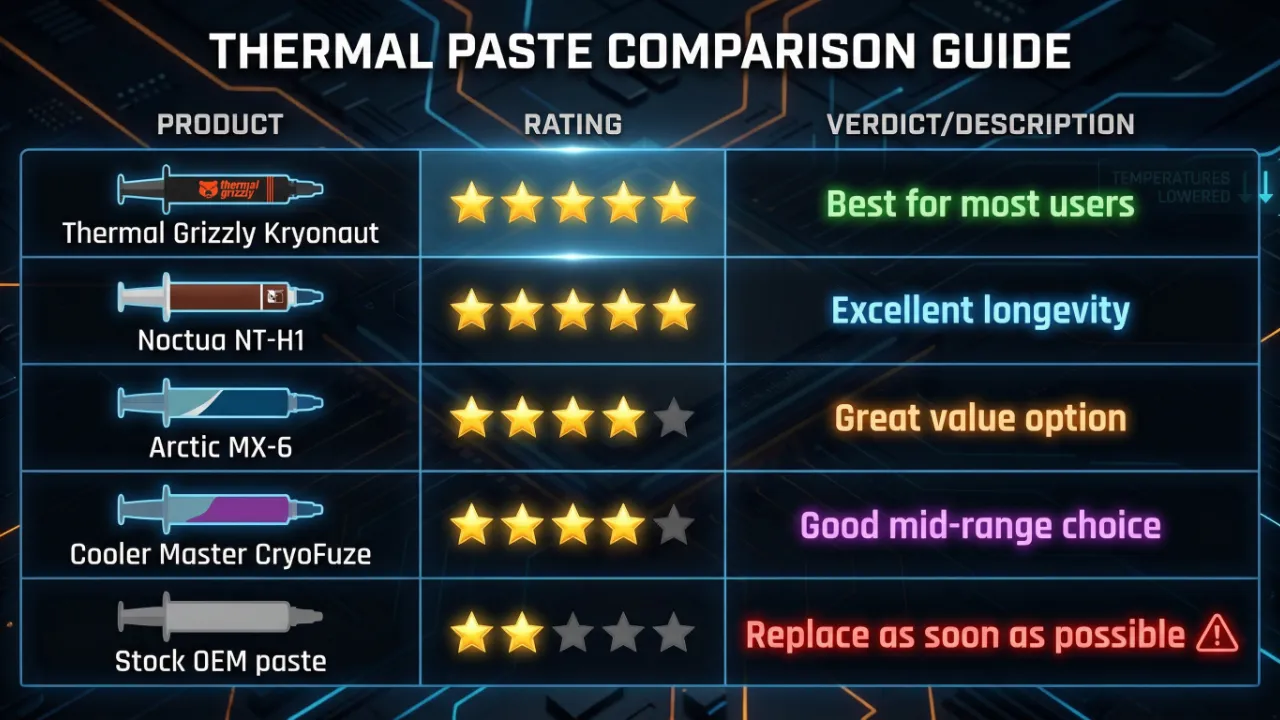
It dropped CPU temperatures by 12 degrees Celsius after repasting my laptop. Twelve degrees. That is not a small number when you consider that throttling starts at 95 and I was sitting at 94 before the repaste.
Laptop Cooling Pads for Laptop FPS Boost
Results vary a lot by laptop model, but a good cooling pad with strong airflow positioned correctly under the intake vents can reduce temperatures by 3-8 degrees. That is meaningful. Look for pads with actual strong fans rather than decorative ones. The Cooler Master MasterNotepal series is reliable.
Undervolting
Undervolting reduces the voltage fed to the CPU, which lowers heat output without reducing performance. This used to require Intel XTU or ThrottleStop, and on modern Intel 12th gen and newer, Undervolting is locked by default. However, some BIOS updates re-enable it. AMD Ryzen laptops generally allow undervolting through the AMD Software: Adrenalin Edition tool under the “Tuning” section.
GPU and CPU Tweaks
Force Dedicated GPU Usage
Many laptops have two GPUs: an integrated Intel or AMD chip for general use and a dedicated NVIDIA or AMD card for gaming. Sometimes games launch on the wrong one, which explains why a game suddenly runs terribly on a machine that should handle it fine.
To fix this in Windows:
- Go to Settings > System > Display > Graphics
- Find your game’s executable and click “Options”
- Select “High performance” to force the dedicated GPU
In NVIDIA Control Panel, go to Manage 3D Settings > Program Settings, select your game, and set the preferred graphics processor to your NVIDIA card.
GPU Overclocking for laptop fps boost (With Caution)
Laptop GPUs can be overclocked, but with much less headroom than desktop cards because of thermal constraints. Using MSI Afterburner, a conservative +100 MHz on core clock and +200-300 MHz on memory clock is a reasonable starting point. Stability test before committing to any overclock setting.
Personally, I find undervolting the GPU more effective than overclocking on a laptop because it reduces heat while maintaining or even improving sustained performance. The GPU undervolting curve editor in Afterburner is the tool for this.
Driver and Software Optimization
Keep GPU Drivers for Laptop FPS Boost
NVIDIA and AMD both release game-ready drivers that often include significant performance improvements for specific titles. Update before major game releases or if you notice sudden performance degradation.
Download NVIDIA drivers from the official NVIDIA driver page and AMD drivers from AMD Support. Avoid driver updater third-party tools – just go direct.
Clean Driver Installation
If you are experiencing odd performance issues or artifacts, a clean driver reinstall often fixes them. Use Display Driver Uninstaller (DDU) in safe mode to fully remove the existing driver before installing a fresh copy. This takes 15 minutes and has fixed more problems than I can count.
Disable Xbox Game Bar and Background Recording
Windows Game Bar and its background recording feature consume CPU and GPU resources even when you are not using them. Disable via Settings > Gaming > Xbox Game Bar and Settings > Gaming > Captures. Also turn off “Record in the background while I’m playing a game” unless you actively need it.
Optimize Windows for Gaming
- Disable Hardware-Accelerated GPU Scheduling if you have older drivers (re-enable on newer ones if it helps)
- Turn on Game Mode in Windows Settings > Gaming > Game Mode
- Set your display to its native refresh rate and make sure it is actually at that rate during gaming
- Disable dynamic resolution scaling if your monitor supports a fixed native resolution
↓ Microsoft’s Official Windows Gaming Performance Tips
In-Game Settings That Kill Your FPS
Not all graphics settings cost the same amount of performance. Knowing which ones to adjust gives you the best visual-to-performance trade-off.
| Setting | Performance Cost | Visual Impact | Recommendation |
|---|---|---|---|
| Ray Tracing | Very High | High | Disable on laptops |
| Resolution Scale | Very High | Very High | Stay at 100% native |
| Shadow Quality | High | Medium | Set to Medium |
| Ambient Occlusion | Medium | Low-Medium | Low or Off |
| Texture Quality | Medium | High | Keep High if VRAM allows |
| Anti-Aliasing | Medium | Medium | Use TAA or DLSS/FSR |
| View Distance | Medium | Medium | Medium is usually fine |
| Anisotropic Filtering | Low | Medium | Keep at 8x or 16x |
| V-Sync | Variable | None | Off, use G-Sync/FreeSync |
| Motion Blur | Low | Subjective | Off (most players prefer) |
Use DLSS, FSR, or XeSS When Available
These upscaling technologies are genuinely excellent now and a huge deal for laptop gamers. NVIDIA DLSS 3.5 and AMD FSR 3 can nearly double your FPS with minimal visual quality loss in quality mode. If a game supports these, use them. There is no reason not to.
Best Free Tools for Laptop FPS Optimization
| Tool | Purpose | Difficulty | Impact | Cost |
|---|---|---|---|---|
| HWiNFO64 | Hardware monitoring and throttle detection | Easy | Diagnostic | Free |
| MSI Afterburner | GPU OC, undervolting, monitoring overlay | Medium | High | Free |
| DDU | Clean GPU driver removal | Easy | Situational | Free |
| ThrottleStop | CPU undervolting and throttle bypass | Advanced | Very High | Free |
| QuickCPU | CPU core parking and power state control | Easy | Medium | Free |
| Process Lasso | Background process priority management | Easy | Medium | Free / Pro |
↓ Download HWiNFO64 Free – Detect Throttling Instantly
Quick Laptop FPS Boost Checklist
Run through this before anything else. These are ordered from easiest to more involved. Most people fix their Laptop FPS Boost issues somewhere in the first five steps.
- Set Windows to Ultimate Performance power plan
- Configure manufacturer software to Performance or Turbo mode
- Plug in the charger (GPU power is often restricted on battery)
- Force dedicated GPU for your games in Windows graphics settings
- Update GPU drivers with a clean install to Laptop FPS Boost
- Disable Xbox Game Bar and background recording
- Enable Game Mode in Windows Settings
- Lower shadow quality and disable ray tracing in-game
- Enable DLSS, FSR, or XeSS if supported
- Download HWiNFO64 and confirm whether throttling is occurring
- Repaste CPU and GPU if the laptop is 2+ years old and temperatures are high
- Try undervolting the CPU with ThrottleStop or AMD software
- Add a quality cooling pad positioned over intake vents
The first five steps on this list are things I walk through with every person who tells me their gaming laptop is running poorly. Nine times out of ten, the issue is solved before we get to step six. Start there.
Laptop FPS Boost guide worked?
Drop a comment below letting us know which fix made the biggest difference for your laptop. These real-world reports help others figure out where to start. Was it the power settings? A repaste? DLSS? Genuinely curious.
Final Thoughts of Laptop FPS Boost Guide
Fixing laptop FPS issues almost always comes down to heat and power management. The hardware in modern gaming laptops is genuinely capable for Laptop FPS Boost, but the thermal and electrical constraints of a thin chassis mean that software and cooling optimization matter more than they do in a desktop environment.
Start with the free stuff: power settings, drivers, in-game settings, and the manufacturer software. If temperatures are still high after that, consider repasting. If you are on an Intel platform and undervolting is available in your BIOS, that is the next high-value move.
A well-tuned mid-range gaming laptop will often outperform a poorly configured high-end one. The hardware is not always the limiting factor. Quite often, it is just the settings.
If you found this guide useful, share it with someone dealing with a frustratingly underperforming laptop. And if you have a fix that worked for you that is not covered here, please do add it in the comments. The gaming laptop optimization space changes quickly, and community knowledge is genuinely valuable.
