
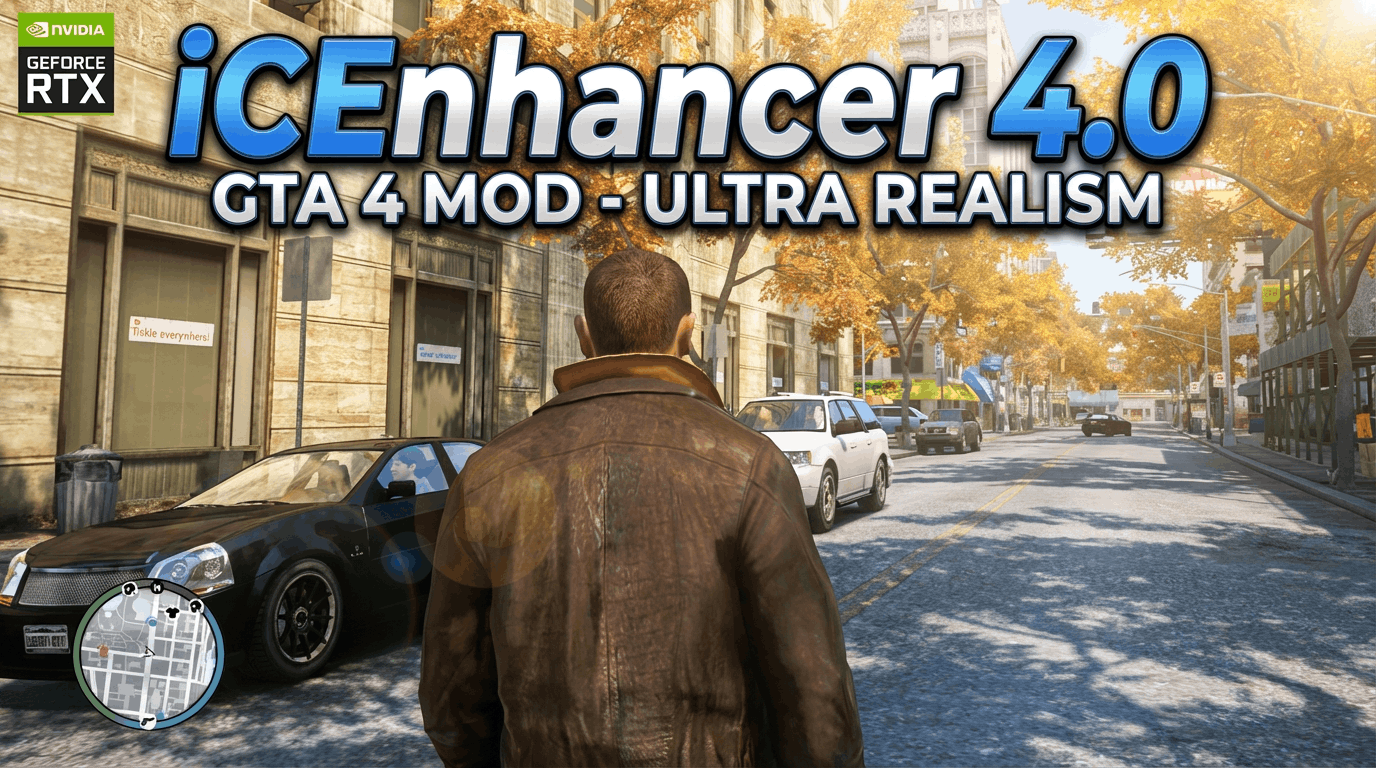
Unlock next-gen visuals in Liberty City! Learn how to download and install iCEnhancer 4.0 for GTA 4 with our step-by-step 2026 guide. Covers downgrading, settings, and troubleshooting.
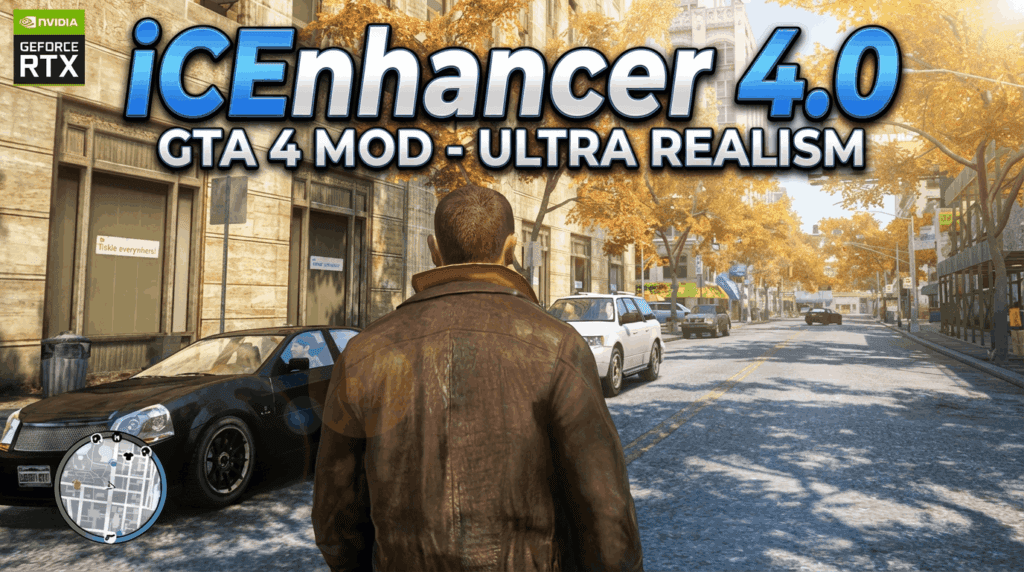
Grand Theft Auto IV remains a masterpiece of narrative depth and physics, but its 2008 visuals have naturally aged. Enter iCEnhancer 4.0, the long-awaited graphical overhaul by Hayssam Keilany. Released effectively in mid-2025, this mod doesn’t just “tweak” colors; it fundamentally transforms the game engine with Physically-Based Rendering (PBR), volumetric fog, and next-gen water shaders.
For gamers in 2026, playing GTA IV without this mod is missing out on how the game was meant to look on modern hardware. However, installing it isn’t as simple as clicking “Subscribe” on a workshop. Because iCEnhancer 4.0 relies on specific older code structures, it requires precise steps—specifically downgrading your game version.
This comprehensive guide will walk you through exactly how to download iCEnhancer 4.0 for GTA 4, downgrade your game safely, and configure it for silky-smooth 4K performance.
System Requirements & Preparation
Before you begin modifying files, ensure your rig can handle the intense lighting calculations iCEnhancer introduces. While GTA 4 is old, this mod pushes the engine to its limits.
Minimum Specs for iCEnhancer 4.0 (1080p/60fps)
- OS: Windows 10 or 11 (64-bit)
- GPU: NVIDIA GTX 1070 / AMD RX 580 (4GB VRAM minimum)
- CPU: Modern Quad-Core (Ryzen 5 / Core i5 8th gen or newer)
- RAM: 16GB DDR4
Critical Pre-Installation Note
You cannot install iCEnhancer 4.0 directly onto the “Complete Edition” (the current Steam/Rockstar Launcher version). You must downgrade the game to version 1.0.4.0 or 1.0.7.0. Version 1.0.4.0 is widely considered the “Golden Standard” for iCEnhancer because it has the best shadow rendering and ENB compatibility.
Action Item: Clean your GTA IV installation. If you have other mods installed, delete the game folder and reinstall a fresh copy from Steam or the Rockstar Launcher before proceeding.
Step 1: Downgrading GTA IV (The Most Important Step)
To make the mod work, we need to roll back the game files to a version that supports the ENB binaries used by iCEnhancer.
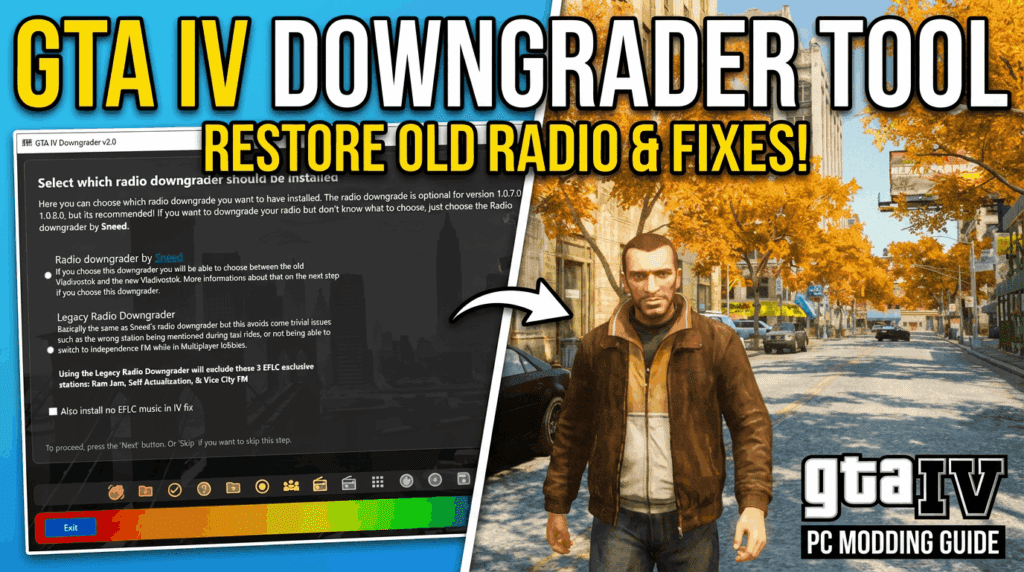
Using the GTA IV Downgrader Tool
- Download the Tool: Search for the “GTA IV Downgrader” by Clouda or look on GTAForums for the latest automated downgrader.
- Run the Installer: Launch the downgrader executable. It will automatically detect your GTA IV installation folder.
- Select Version 1.0.4.0: You will be prompted to choose a patch version. Select 1.0.4.0 (Patch 4).
- Note: While 1.0.7.0 is supported by some ENBs, iCEnhancer 4.0 is optimized for 1.0.4.0 visuals.
- Install Prerequisites: The tool may ask to install XLiveLess (removes Games for Windows Live) and CryENB or standard mod loaders. Ensure XLiveLess is checked; you can skip other graphics mods for now.
- Complete the Process: Let the tool finish. Your game directory now effectively houses the 2009 version of the game engine.
Pro Tip: Create a backup of your clean, downgraded “Grand Theft Auto IV” folder now. If a mod breaks your game later, you can restore this folder without redownloading 20GBs of data.
Step 2: How to Download iCEnhancer 4.0
Now that your foundation is ready, it’s time to get the mod itself.
- Visit the Official Site: Go to the official website of the creator, icelaglace.com, to ensure you are getting the safe, unaltered files.
- Locate the 4.0 Release: Look for the iCEnhancer 4.0 section. It was released around July 2025.
- Download the Archive: Click the download link (often hosted on secure mirrors). The file size is typically small (under 100MB) because it modifies shaders and lighting code rather than adding massive new textures.
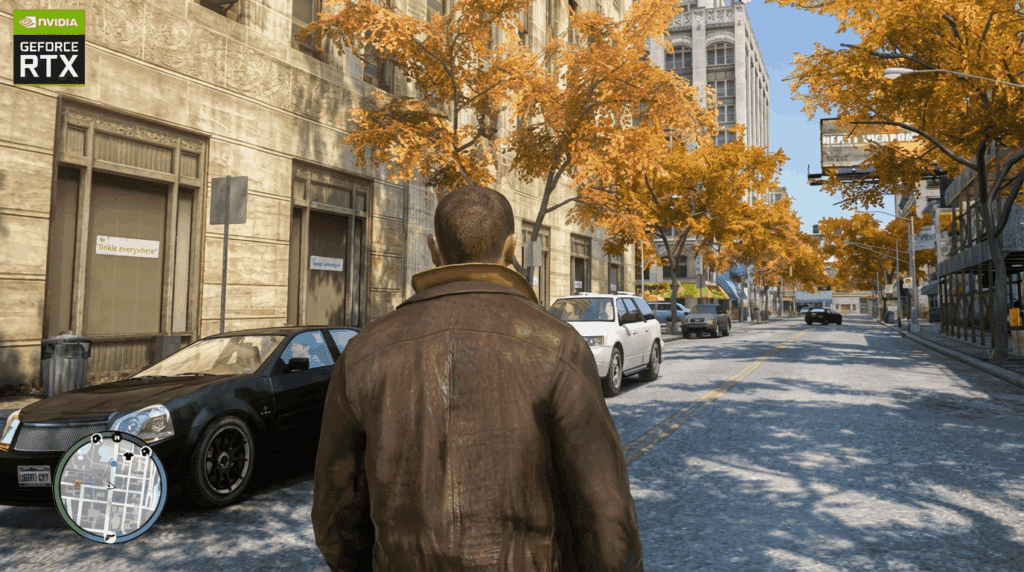
Step 3: Installing iCEnhancer 4.0
Installation Procedure
- Extract the Files: specific Use WinRAR or 7-Zip to extract the downloaded
.zipor.rarfile. - Open the Mod Folder: Inside, you will typically see folders named “1.0.4.0” and “1.0.7.0” or a main root folder. Open the folder corresponding to your downgraded version (e.g., 1.0.4.0).
- Copy to Game Directory:
- Select all files in this folder (including
d3d9.dll,iceconfig.ini,common,pc). - Drag and drop them into your main Grand Theft Auto IV root directory (where
GTAIV.exeis located).
- Select all files in this folder (including
- Overwrite Files: Windows will ask if you want to replace existing files. Click “Yes to All”. This replaces the standard visual settings with the iCEnhancer configurations.
Step 4: Configuration & Best Practices
Once installed, the mod is active immediately. However, you may need to tweak it for your monitor.
- Antialiasing: The game’s native AA is poor. iCEnhancer adds its own AA, but for the best look, disable “Definition” or “Blur” in the in-game display menu (press
Pto toggle the blur effect in some versions). - Resolution: Ensure you are running at your monitor’s native resolution.
- The “Red Sky” Bug: If you downgraded to 1.0.7.0 instead of 1.0.4.0, you might see a red sky. This is a shader conflict. It is highly recommended to stick to 1.0.4.0 to avoid this entirely.
Troubleshooting Common Errors
| Error | Solution |
| Game Crash on Startup | You likely have a conflict with overlay software. Disable MSI Afterburner, Discord Overlay, or GeForce Experience Overlay. |
| “Fatal Error: WS10” | This is often a Games for Windows Live error. Ensure you installed XLiveLess during the downgrade process. |
| Bright/Washed Out Screen | Adjust brightness/contrast in the in-game display menu. iCEnhancer assumes neutral default settings. |
| Textures Disappearing | This is a memory issue. Create a file named commandline.txt in your game folder and add -availablevidmem 4096 (or your GPU VRAM amount). |
Congratulations! You have successfully transformed a classic title into a visual powerhouse that rivals modern releases. Learning how to download iCEnhancer 4.0 for GTA 4 is just the beginning. The modding community is vibrant, and you can further enhance your game with 4K texture packs and realistic car models that complement the new lighting.
Ready to see it in action? Don’t just take our word for it—dive into Liberty City and watch the sunset over the Algonquin Bridge. It’s a view you won’t forget.
What’s Your Favorite GTA Mod?
Did you manage to get iCEnhancer working? Are you combining it with other mods like “Real Cars”? Drop a comment below and share your loadout!