
If you are a gamer, you already know how frustrating it is when your mouse clicks or keyboard presses do not register fast enough on screen. That split-second delay between your input and the game’s response is called input lag, and it can cost you kills, rounds, and ranked matches. In this guide, we will show you exactly how to reduce input lag in Windows 10 and Windows 11 so you can gain a real competitive advantage in 2026.
What Is Input Lag and Why Does It Matter?
Input lag is the total time it takes from when you press a button or move your mouse to when that action appears on your screen. It is different from FPS (frames per second) or ping, although both of those factors also affect your gaming experience. Input lag is measured in milliseconds (ms), and even a 10ms difference can be felt by experienced players in fast-paced games like Valorant, CS2, Fortnite, or Apex Legends. The lower your input lag, the more responsive your game feels. Reducing input lag should be a priority for anyone serious about competitive gaming.
Enable Game Mode in Windows
Windows 10 and Windows 11 both include a built-in Game Mode that prioritizes CPU and GPU resources for your game. To enable it, go to Settings > Gaming > Game Mode and toggle it ON. Game Mode reduces background activity, prevents Windows Update from installing drivers mid-session, and helps maintain a more stable frame rate. While Game Mode alone will not eliminate input lag, it is a solid first step in your optimization journey.
Disable Hardware-Accelerated GPU Scheduling (HAGS) If You Have an Older GPU
Hardware-Accelerated GPU Scheduling (HAGS) was introduced in Windows 10 version 2004. On newer GPUs like NVIDIA RTX 3000 series and above, HAGS can actually reduce input lag by allowing the GPU to manage its own video memory. However, on older cards, it may increase input lag and cause stuttering. Go to Settings > Display > Graphics Settings to toggle HAGS on or off and test which setting works best for your hardware.
Set Your Monitor to Its Maximum Refresh Rate
One of the biggest mistakes gamers make is not configuring their monitor’s refresh rate properly. By default, Windows may set your display to 60Hz even if your monitor supports 144Hz, 165Hz, or 240Hz. Higher refresh rates directly reduce the time between frames being drawn on screen, which translates to lower perceived input lag. Right-click your Desktop > Display Settings > Advanced Display Settings > Display Adapter Properties and set the highest available refresh rate under the Monitor tab.
Turn Off V-Sync
V-Sync (Vertical Sync) synchronizes your GPU’s output with your monitor’s refresh rate to prevent screen tearing. However, it introduces significant input lag, sometimes as high as 50ms or more. For competitive gaming, turn off V-Sync both in the game settings and in your GPU control panel (NVIDIA Control Panel or AMD Radeon Software). If screen tearing bothers you, use NVIDIA Reflex + G-Sync or AMD Anti-Lag + FreeSync instead, which offer tear-free performance with much lower latency.
Use a Wired Mouse and Keyboard
Wireless peripherals have improved dramatically in recent years, but even the best wireless gaming mice still introduce a few milliseconds of polling delay compared to wired alternatives. For the absolute minimum input lag, use a wired USB mouse and keyboard. If you must use wireless, opt for devices with 1000Hz polling rates and 2.4GHz wireless connections, such as those from Logitech G or Razer HyperSpeed lines. Avoid Bluetooth peripherals entirely for competitive gaming, as Bluetooth latency is noticeably higher.
Set Your Power Plan to High Performance
Windows power plans directly affect how your CPU responds to workloads. The Balanced power plan throttles your CPU when it is not under heavy load, which can cause tiny spikes in input lag during the moments just before a game needs full processing power. Switch to High Performance or Ultimate Performance mode. Open Control Panel > Power Options and select High Performance. On Windows 11, you may need to enable Ultimate Performance via PowerShell with the command: powercfg -duplicatescheme e9a42b02-d5df-448d-aa00-03f14749eb61.
Increase Your Mouse Polling Rate
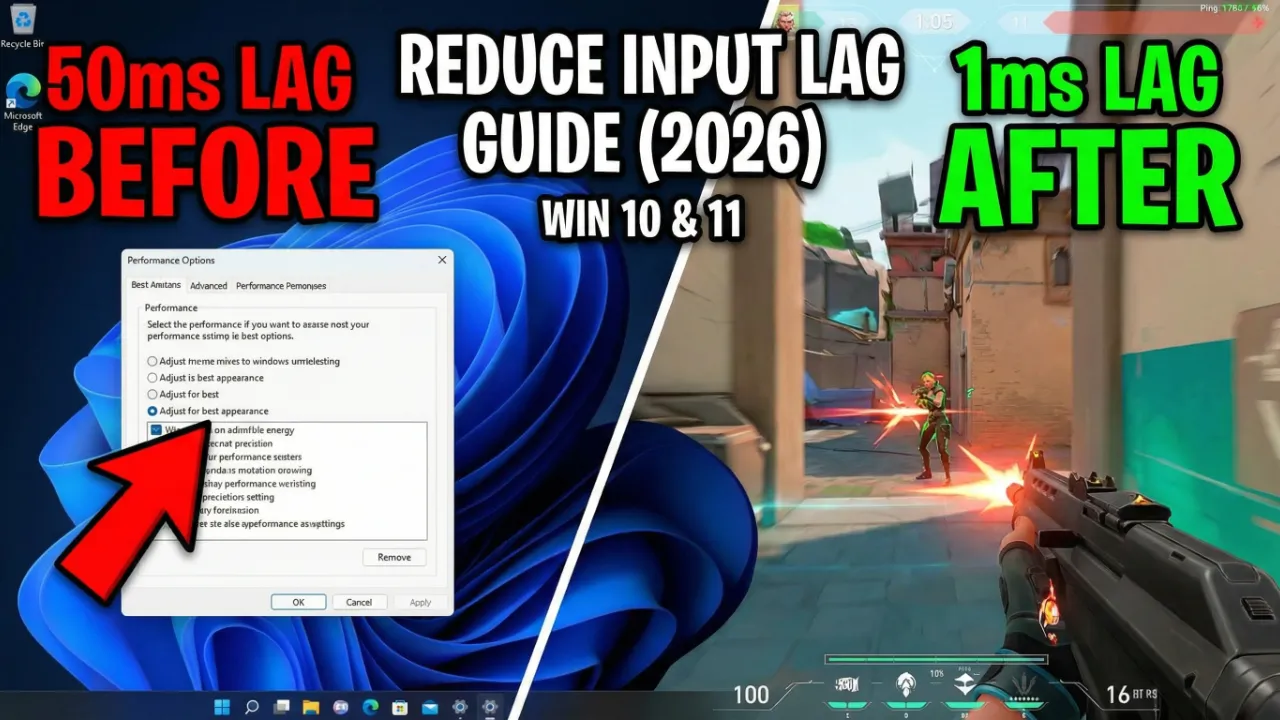
The polling rate of your mouse determines how often it reports its position to your PC. A mouse with a 125Hz polling rate reports every 8ms, while a 1000Hz mouse reports every 1ms. Most modern gaming mice support 1000Hz, and some newer models even offer 4000Hz or 8000Hz. Check your mouse software (Logitech G HUB, Razer Synapse, SteelSeries GG) and set the polling rate to the highest stable option for your system.
Disable Unnecessary Background Processes
Background processes consume CPU cycles and can interrupt your game thread at critical moments, introducing microstutter and input lag. Open Task Manager (Ctrl + Shift + Esc) and close any unnecessary applications before gaming. Pay special attention to browser tabs, Discord video, and cloud sync apps like OneDrive or Google Drive. You can also use the Startup tab to disable programs that launch automatically and consume resources from the moment Windows boots.
Update or Roll Back Your GPU Drivers
Outdated GPU drivers can cause performance issues, but sometimes a new driver update introduces bugs that increase input lag or stuttering. Keep your NVIDIA or AMD drivers up to date through GeForce Experience or AMD Adrenalin. If you notice increased lag after a driver update, use Display Driver Uninstaller (DDU) in Safe Mode to completely remove the driver and install an older stable version.
Enable NVIDIA Reflex or AMD Anti-Lag
NVIDIA Reflex is a latency reduction technology built into many competitive titles including Valorant, Fortnite, Apex Legends, and Call of Duty. It works by reducing the render queue in the GPU pipeline, which directly lowers system latency. Enable it in your game settings and set it to Enabled + Boost. Similarly, AMD Anti-Lag reduces the input-to-display pipeline for AMD GPU users. These technologies are some of the most effective software-level tools for reducing input lag without sacrificing visual quality.
Final Thoughts
Reducing input lag in Windows 10 and Windows 11 is not about making one big change. It is a combination of hardware choices, OS settings, driver management, and in-game configurations all working together. By following the steps in this guide, you can shave valuable milliseconds off your total system latency and gain a real edge in competitive gaming. Start with the quick wins like enabling Game Mode, setting your monitor to max refresh rate, and turning off V-Sync, then work your way through the more advanced tweaks. Every millisecond counts when you are climbing the leaderboard in 2026.
