
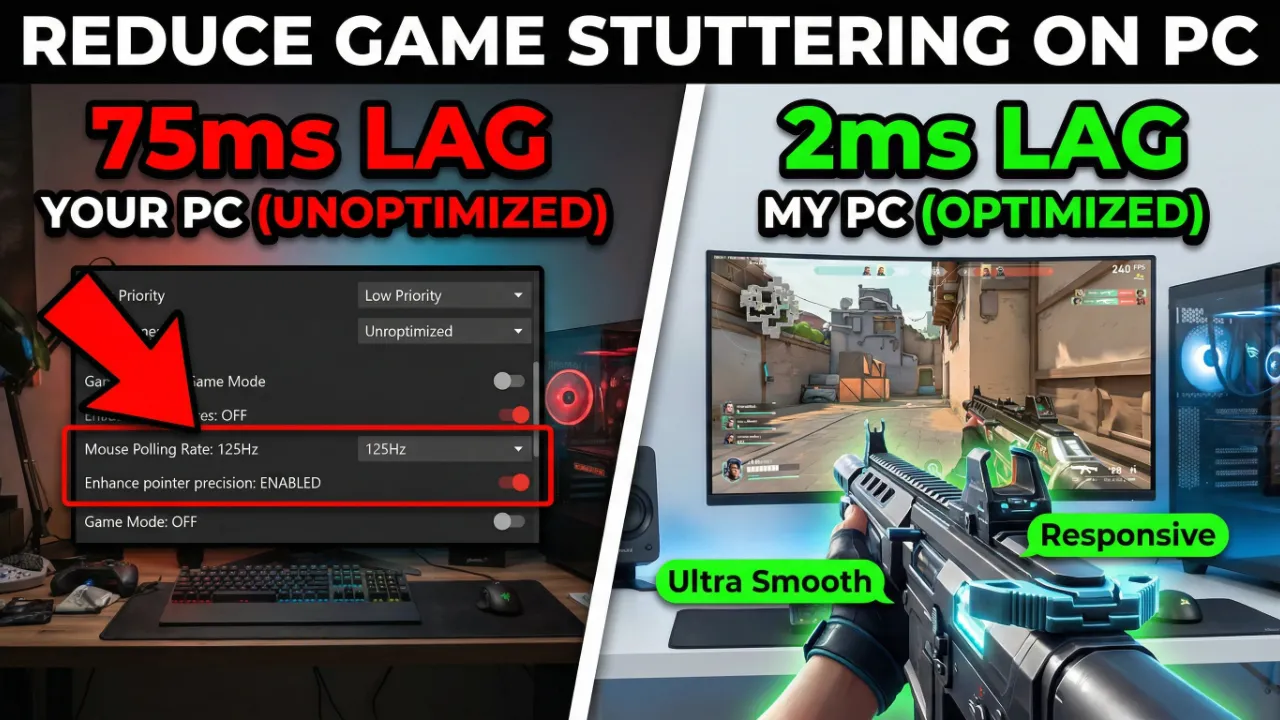
If you have ever been in the middle of an intense gaming session only to have your game suddenly freeze, skip, or jerk — you have experienced game stuttering. Stuttering is one of the most frustrating issues PC gamers face. Unlike low FPS, which is consistent and predictable, stuttering is erratic and kills your reaction time. In this guide, we will walk you through every proven method to fix game stuttering on PC in 2026, from quick settings tweaks to deep system-level optimizations.
What Is Game Stuttering?
Game stuttering occurs when your frame times are inconsistent. Even if your average FPS is 60, if some frames take 50ms and others take 5ms to render, you will see noticeable stuttering. This inconsistency breaks the smoothness of gameplay. Understanding the root cause is the first step to fixing it permanently.
Common Causes of Game Stuttering on PC
Before jumping into fixes, it is important to identify why stuttering is happening on your system. The most common causes include:
- CPU bottleneck — Your processor cannot feed your GPU fast enough
- RAM issues — Insufficient RAM or slow dual-channel configuration
- Shader compilation — DirectX 12 and Vulkan games compile shaders in real-time
- Background processes — Apps hogging CPU or disk resources
- HDD instead of SSD — Slow load speeds causing mid-game hitches
- Outdated or bloated GPU drivers — Driver-related frame time spikes
- Windows power plan — Balanced mode throttles CPU performance dynamically
Fix 1: Set Windows Power Plan to High Performance
The single easiest fix that most gamers miss is the Windows Power Plan. By default, Windows uses the Balanced plan, which dynamically adjusts CPU clock speeds to save energy. This causes the CPU to ramp up and down mid-game, directly causing stutters.
To fix this: Open Control Panel > Power Options > Select High Performance or Ultimate Performance. This keeps your CPU running at full speed at all times, eliminating throttle-induced stuttering. For laptops, only enable this when plugged in to avoid battery drain.
Fix 2: Enable Game Mode and Disable Xbox Game Bar
Windows 11 and Windows 10 have built-in features that can both help and hurt performance. Game Mode prioritizes system resources for your game and should be enabled. Go to Settings > Gaming > Game Mode and toggle it on.
However, the Xbox Game Bar and background recording features can cause significant frame time spikes. Go to Settings > Gaming > Xbox Game Bar and turn it off. Also disable Captures and background recording. These background processes consume GPU and CPU resources without your knowledge, causing sudden stutters.
Fix 3: Update or Clean Install Your GPU Drivers
Outdated or corrupted GPU drivers are a leading cause of random stuttering in games. Both NVIDIA and AMD release driver updates that include performance fixes for popular titles. However, sometimes a bad driver update can make things worse.
The best approach is a clean driver install. Download DDU (Display Driver Uninstaller), boot into Safe Mode, use DDU to completely remove your existing GPU drivers, then install the latest drivers from NVIDIA or AMD’s official website. A clean install removes corrupted files that a standard update leaves behind, often fixing persistent stuttering.
Fix 4: Upgrade to an SSD or Enable DirectStorage
If you are still running games from a hard disk drive (HDD), this is likely causing the most severe stutters. Modern games stream assets directly from storage during gameplay. An HDD with read speeds of 100-150 MB/s simply cannot keep up with the demands of open-world games that stream large textures and world data in real-time.
Moving your games to an NVMe SSD can dramatically reduce or completely eliminate asset-loading stutters. Modern NVMe drives offer read speeds of 3,000-7,000 MB/s, which is orders of magnitude faster. Additionally, if you are on Windows 11 with a supported GPU, enabling DirectStorage can speed up game asset loading even further by bypassing the CPU during texture streaming.
Fix 5: Close Background Applications
Before launching a game, always close unnecessary background applications. Common culprits include web browsers with many tabs open, Discord video features, antivirus real-time scans, cloud sync services like OneDrive or Google Drive, and update services.
Open Task Manager (Ctrl+Shift+Esc) and sort by CPU and Disk usage. Kill any processes that are consuming resources unnecessarily. You can also use MSConfig to disable startup programs and prevent them from loading in the first place. Fewer background processes means more CPU and RAM headroom for your game.
Fix 6: Enable Resizable BAR (ReBAR) and XMP/EXPO
Two BIOS-level settings can significantly improve game performance and reduce stuttering: Resizable BAR (ReBAR) and XMP/EXPO.
Resizable BAR allows the CPU to access the full GPU VRAM instead of just a 256MB window at a time, reducing bottlenecks in data transfer. Enable it in your BIOS if your motherboard and GPU support it. XMP (Intel) or EXPO (AMD) profiles enable your RAM to run at its rated speed. If your RAM is rated at 3600MHz but running at 2133MHz due to no XMP profile, you are leaving massive performance on the table. Enable XMP/EXPO in BIOS to fix this and reduce system-level stuttering caused by memory bandwidth constraints.
Fix 7: Use NVIDIA DLSS, AMD FSR, or Intel XeSS
If your GPU is being pushed too hard, it will struggle to maintain consistent frame times, causing stuttering. Modern upscaling technologies like NVIDIA DLSS 3.5, AMD FSR 3.1, and Intel XeSS 2.0 can dramatically increase your effective FPS without proportionally increasing GPU load.
By rendering the game at a lower internal resolution and upscaling to your monitor’s native resolution, these technologies give your GPU breathing room. This results in not just higher FPS but also smoother, more consistent frame delivery. Always use Quality mode as a starting point to maintain visual fidelity while gaining performance headroom.
Fix 8: Cap Your FPS for Stable Frame Times
One counterintuitive fix for stuttering is to cap your FPS slightly below your monitor’s refresh rate. When your GPU renders frames as fast as possible, it can create frame time variance as it oscillates between extremely high and low outputs. By capping FPS at, say, 141 FPS on a 144Hz monitor, you give the GPU a consistent target and reduce frame time spikes.
Use NVIDIA Inspector, Radeon Chill, or in-game frame rate limiters. Combining an FPS cap with V-Sync off and G-Sync or FreeSync enabled gives you the smoothest possible gameplay experience with minimal input lag and no screen tearing.
Final Thoughts: Stop Stuttering and Start Playing
Game stuttering on PC is a solvable problem. Whether the cause is your power settings, background apps, RAM not running at rated speeds, or an aging hard drive, every single fix listed above has helped real gamers achieve smoother gameplay. Start with the quick wins like Power Plan and background app management, then work your way to hardware-level changes like SSD upgrades and BIOS tweaks.
If you found this guide helpful, check out our other articles on reducing input lag, boosting FPS on low-end PCs, and the best GPU settings for gaming in 2026. At OptiLag, our mission is to help every gamer squeeze maximum performance from their system without spending a fortune on new hardware.
