
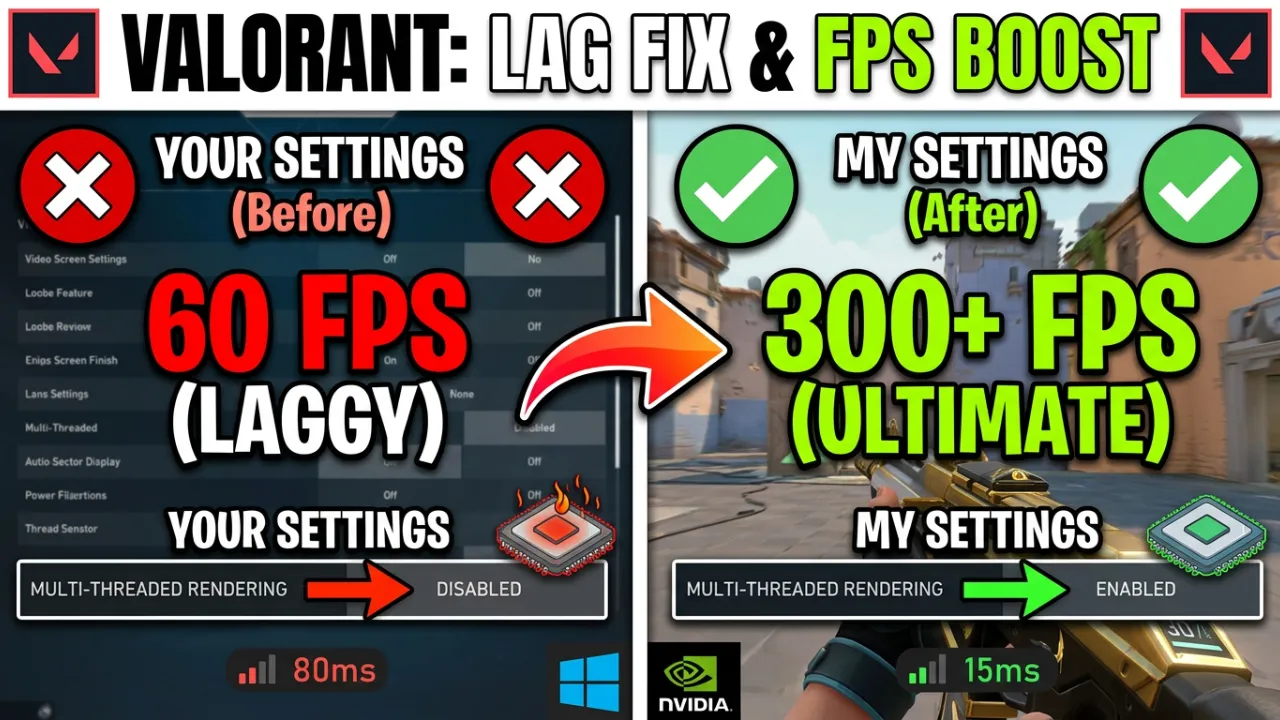
Struggling with lag, FPS drops, and stutters in Valorant? You’re not alone. Millions of players search for a reliable Valorant lag fix every day. Whether you’re on a low-end PC or a high-end gaming rig, this ultimate guide will walk you through every proven method to fix lag in Valorant, boost FPS, reduce input delay, and get the smoothest gameplay possible in 2026. How to Fix Lag in Valorant
Why Is Valorant Lagging? Common Causes of Lag in Valorant
Before diving into fixes, it helps to understand why Valorant lags. The most common causes include:
- High ping / network latency — the most common cause of lag spikes in Valorant
- Low FPS (Frames Per Second) — caused by an underpowered GPU or CPU
- Packet loss — data packets failing to reach Riot’s servers
- Outdated GPU drivers — old drivers cause FPS drops and stutters
- Background apps consuming RAM and CPU
- Incorrect Windows power settings limiting performance
- Overheating hardware causing thermal throttling
Understanding the root cause helps you apply the right Valorant lag fix — whether it’s a network issue, a hardware bottleneck, or a software configuration problem.
How to Fix Lag in Valorant: 12 Proven Methods (2026)
1. Update Your GPU Drivers (Critical FPS Boost)
Outdated graphics card drivers are one of the top causes of Valorant lag and FPS drops. GPU manufacturers like NVIDIA and AMD regularly release driver updates optimized for Valorant and other competitive games.
For NVIDIA users: Download the latest Game Ready Drivers from the NVIDIA website or use GeForce Experience to auto-update. The latest drivers for 2026 include specific Valorant optimization improvements.
For AMD users: Visit AMD.com and download the latest Adrenalin drivers. Make sure to perform a clean installation using DDU (Display Driver Uninstaller) if you’re experiencing persistent issues.
This single step can boost your FPS by 20-40% on average, making it the most effective Valorant FPS boost method available.
2. Optimize Valorant In-Game Settings for Maximum FPS
Your in-game settings have a massive impact on performance. Here are the best Valorant settings for low end PC and high-end systems alike:
Fix All PC & Game Errors Instantly
Don't let DLL crashes or system lags interrupt your win streak. Get the pro-grade fix for every Windows issue in seconds.
- Display Mode: Fullscreen (not windowed or borderless)
- Resolution: Native resolution or 1920×1080 for best balance
- Frame Rate Limit: Uncapped (or cap at 3-5 FPS below your monitor refresh rate)
- Material Quality: Low
- Texture Quality: Low to Medium
- Detail Quality: Low
- UI Quality: Low
- Vignette: Off
- VSync: Off (critical for reducing input lag)
- Anti-Aliasing: None or MSAA 2x
- Anisotropic Filtering: 1x
- Improve Clarity: Off
- Bloom: Off
- Distortion: Off
- First Person Shadows: Off
These settings will give you the best Valorant FPS boost low end PC performance while maintaining competitive visibility.
3. Lower Your Ping: Network Optimization for Valorant
High ping is the enemy of competitive gaming. If you’re searching for how to fix Valorant lag, these network tweaks will help:
- Use a wired Ethernet connection instead of WiFi — this alone can reduce ping by 10-30ms
- Close bandwidth-heavy apps like streaming services, torrents, and auto-updates
- Enable Quality of Service (QoS) in your router settings to prioritize gaming traffic
- Choose the correct server region in Valorant — always select the server closest to your location
- Restart your router before gaming sessions to clear the connection cache
- Disable Windows auto-updates during gameplay
- Use gaming VPN services like ExitLag or WTFast if your ISP has poor routing to Riot servers
These network optimizations are essential for fixing ping in Valorant and eliminating lag spikes during clutch rounds.
4. Windows Optimization: Maximize Gaming Performance
Windows 11 and Windows 10 come with many background processes that can cause Valorant FPS drops. Here’s how to optimize Windows for gaming:
Enable Windows Game Mode: Press Win + G to open Game Bar, go to Settings > Gaming > Game Mode and turn it ON. This prioritizes system resources for Valorant.
Set High Performance Power Plan: Go to Control Panel > Power Options and select “High Performance” or “Ultimate Performance.” This prevents CPU throttling during gameplay.
Disable Fullscreen Optimizations: Right-click Valorant.exe > Properties > Compatibility tab > Check “Disable fullscreen optimizations” and “Run as administrator.”
Close Background Apps: Open Task Manager (Ctrl + Shift + Esc), go to Startup tab, and disable unnecessary programs like Discord overlay, RGB software, and system utilities that aren’t critical.
Disable Xbox Game Bar Recording: Go to Settings > Gaming > Captures and turn off background recording. This can save 10-15 FPS.
5. NVIDIA Control Panel Settings for Valorant
If you have an NVIDIA graphics card, these Control Panel tweaks will reduce input lag in Valorant and boost FPS:
- Low Latency Mode: Set to “Ultra” for minimum input delay
- Power Management Mode: “Prefer Maximum Performance”
- Texture Filtering – Quality: High Performance
- Vertical Sync: Off (this is critical)
- Max Frame Rate: Unlimited or set to your monitor refresh rate
- Threaded Optimization: On
- Shader Cache: On
These settings deliver a significant boost FPS Valorant improvement, especially on mid-range GPUs like the RTX 3060 or GTX 1660.
6. Reduce Input Lag: Mouse and Keyboard Optimization
Input lag can make your aim feel sluggish in Valorant. Here’s how to eliminate it:
- Disable Mouse Acceleration: Go to Windows Settings > Devices > Mouse > Additional mouse options > Pointer Options > Uncheck “Enhance pointer precision”
- Set polling rate to 1000Hz in your gaming mouse software
- Use Raw Input in Valorant to bypass Windows mouse settings
- Lower your DPI to 400-800 for better precision (pro players prefer this range)
- Update peripheral drivers for your mouse and keyboard
These tweaks combined with proper Valorant settings optimization will give you the most responsive aim possible.
7. Fix Packet Loss and Stuttering Issues
Packet loss causes rubber-banding and stuttering in Valorant. Here’s how to diagnose and fix it:
- Test for packet loss: Open Command Prompt and type “ping 8.8.8.8 -n 50” to test your connection stability
- Check your network cables for physical damage
- Update network adapter drivers from your motherboard manufacturer’s website
- Flush DNS cache: Open CMD as admin and run “ipconfig /flushdns”
- Change DNS servers to Google DNS (8.8.8.8 and 8.8.4.4) or Cloudflare (1.1.1.1)
- Contact your ISP if packet loss persists during peak hours
Final Thoughts: Achieving the Ultimate Valorant Experience
By following this comprehensive Valorant lag fix guide, you should see massive improvements in FPS, reduced ping, and eliminated stuttering. Remember that fixing lag in Valorant is often about combining multiple optimizations rather than relying on a single “magic fix.”
Start with the most impactful changes first: updating GPU drivers, optimizing in-game settings, and using a wired connection. Then move on to Windows optimization and NVIDIA Control Panel settings. If you’re still experiencing issues after applying all these fixes, consider hardware upgrades like adding more RAM or upgrading your GPU.
With these optimizations, you’ll be running Valorant on low end PC smoothly or maximizing performance on high-end systems. Whether you’re searching for how to increase FPS in Valorant, reduce input delay, or fix network lag, this guide has you covered. Now get out there and dominate the competition with your newly optimized setup!
