
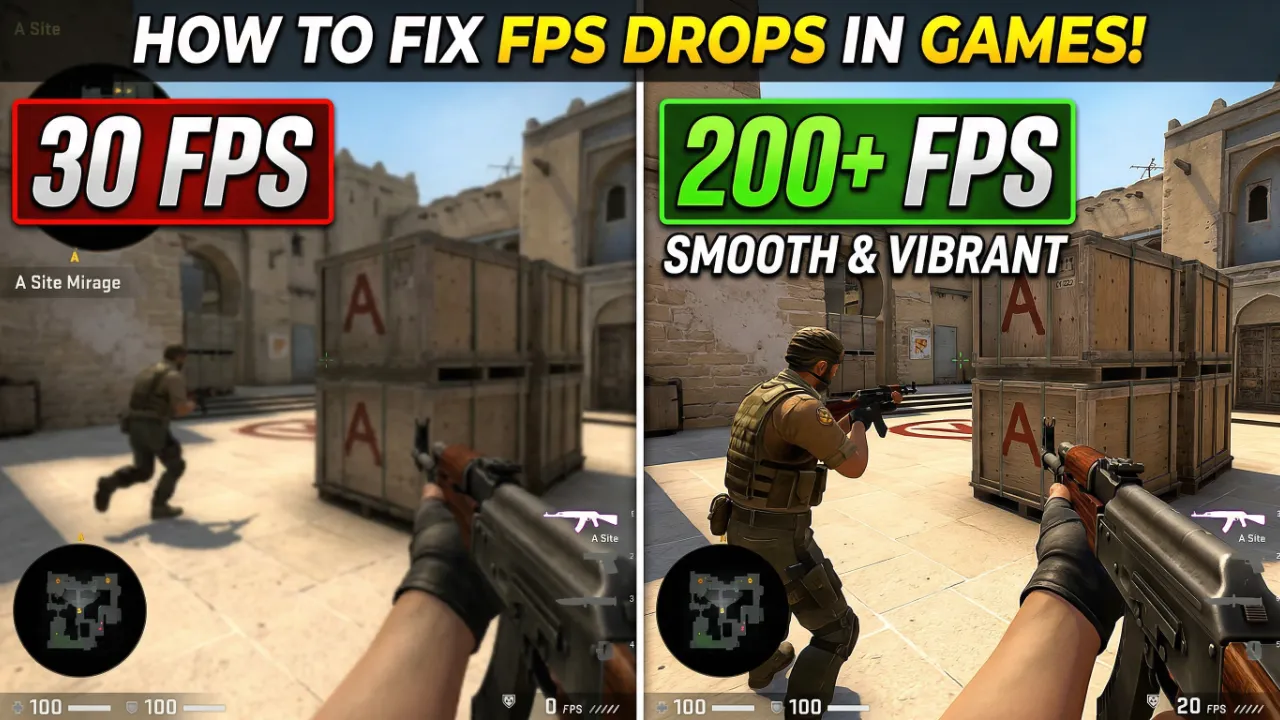
Few things are more frustrating in the world of modern gaming than experiencing sudden, jagged FPS drops during a high-stakes match. You’ve invested in a decent rig, your internet is stable, yet your frames per second plummet at the worst possible moments. This isn’t just a minor annoyance; it’s a competitive disadvantage that can ruin your immersion and your rank. In this comprehensive 2026 guide, we’ll dive deep into why FPS drops happen and how to eliminate them for good.
Why FPS Drops Ruin Gaming
FPS (Frames Per Second) drops, also known as stuttering or frame time inconsistency, occur when your hardware fails to render the game’s visuals at a consistent rate. Unlike a low but steady frame rate, “drops” are unpredictable dips that create a “hitch” in gameplay. This makes aiming impossible, movement feel sluggish, and often leads to the dreaded “game over” screen.
Why It’s Important to Fix
Stability is the foundation of skill. If your PC is fluctuating between 144 FPS and 40 FPS, your muscle memory cannot adapt. In fast-paced titles like Apex Legends, Fortnite, or CS:GO, a split-second stutter is the difference between winning a duel and being sent back to the lobby. Beyond competition, consistent performance prevents hardware strain and reduces the likelihood of system crashes.
The Fix: Step-by-Step Solution to Restore Performance
1. Optimize Your GPU Settings
The Graphics Processing Unit (GPU) is the heart of your gaming performance. Most FPS drops are caused by the GPU being overwhelmed or throttled.
- Update Drivers: Ensure you are on the latest NVIDIA or AMD drivers. Legacy drivers often lack optimizations for newer game patches.
- NVIDIA Control Panel: Set ‘Power Management Mode’ to ‘Prefer Maximum Performance’ and ‘Texture Filtering Quality’ to ‘High Performance’.
- AMD Software: Disable ‘Radeon Chill’ and enable ‘Anti-Lag’ for reduced input latency and smoother frame delivery.
2. Manage System Resources & Background Processes
Modern games are CPU-intensive. If your processor is busy handling background tasks, your game will suffer from micro-stutters.
- Disable Overlays: Discord, Steam, and Xbox Game Bar overlays consume significant VRAM and CPU cycles. Turn them off.
- Close Chrome: Web browsers are notorious for “hardware acceleration” issues that conflict with games.
- Game Mode: Ensure Windows 10/11 ‘Game Mode’ is toggled ON to prioritize gaming tasks.
3. Temperature & Thermal Throttling
If your PC gets too hot, it will automatically slow down to protect itself. This is called thermal throttling and is a primary cause of FPS drops after 20-30 minutes of play. Use tools like HWMonitor to check your temperatures; if they exceed 85°C, consider cleaning your fans or reapplying thermal paste.
Advanced SEO Optimization & Schema
To ensure this guide reaches the gamers who need it most, we’ve implemented structured data and targeted keywords.

One thought on “How to Fix FPS Drops in Games: The Ultimate 2026 Guide”