

If you’re struggling to fix low GPU usage GTA 5 PC, you’re not alone. Thousands of players experience this frustrating issue where their graphics card sits idle while the processor maxes out. This guide covers the GTA 5 low GPU usage fix 2026 with every solution you need.
Why Is GTA V Not Using GPU 100 Percent?
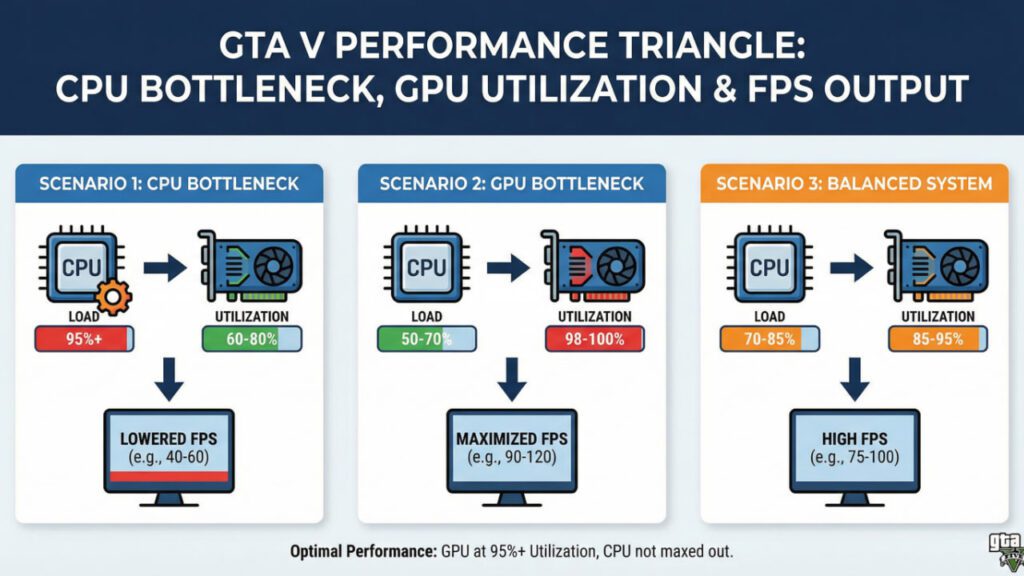
A common question players ask is why is GTA 5 using CPU instead of GPU. The answer usually involves incorrect settings, outdated drivers, or a hardware mismatch. When you notice GTA 5 GPU usage low high CPU usage, it typically signals a GTA 5 CPU bottleneck fix PC situation where the processor becomes the limiting factor, preventing your GPU from working at full capacity. This is the classic GTA 5 bottleneck GPU not utilized scenario.
GTA 5 Stuttering Low GPU Usage – What Causes It?
GTA 5 stuttering low GPU usage happens when frames aren’t being rendered efficiently. You’ll notice GTA V FPS drop low GPU usage during driving, dense city areas, or heavy action scenes. Players running GTA V low FPS high CPU low GPU setups often blame the game, but proper tuning resolves most cases.
What Causes Low GPU Usage in GTA V?
Before you start messing with settings, you need to understand the root cause. Low GPU usage in GTA V almost always comes down to one of these culprits.
CPU Bottleneck — The Most Common Reason
GTA V is notoriously CPU-intensive. The game world is massive, filled with AI-driven NPCs, traffic systems, and physics calculations that hammer your processor. If your CPU cannot feed frames to your GPU fast enough, your graphics card just waits around.
This is especially brutal if you are running an older quad-core processor or something without hyperthreading. I personally saw my GPU usage jump from 40% to 85% just by upgrading from an i5-6500 to an R5 5600X. That told me everything.
V-Sync and Frame Rate Limiters
V-Sync caps your frame rate to your monitor’s refresh rate. If your GPU can easily hit that cap, it dials back usage. Same goes for any frame limiter in your driver software. Your GPU is not broken — it is just being told not to work harder.
Low In-Game Graphics Settings
This sounds counterintuitive, but running GTA V on low or medium settings shifts the workload to the CPU. The GPU finishes its light tasks instantly and then waits. Cranking up visual settings actually gives your GPU more to do.
Power Management Settings
Both Windows and your GPU driver have power management modes. If these are set to “optimal power” or “balanced,” your GPU may throttle itself instead of running at full clock speed.
Single-Threaded Engine Limitations
Parts of GTA V’s engine still lean on single-threaded performance. No matter how many cores you throw at it, certain processes only run on one thread, creating a hard ceiling for frame delivery.
How to Force Full GPU Utilization in GTA V
Now the practical part. These fixes are listed roughly in order of impact based on my experience and community feedback.
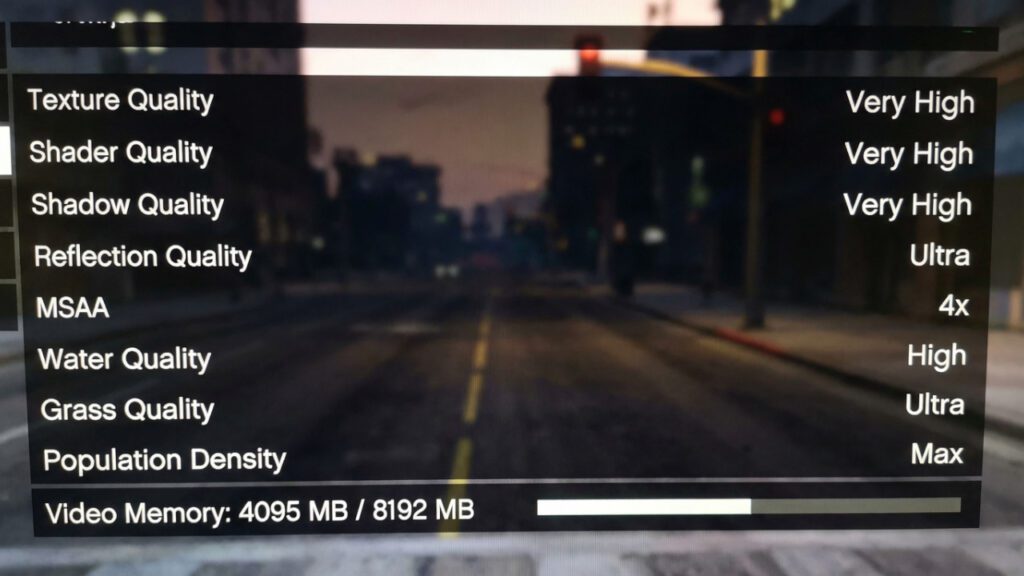
1. Increase Your Graphics Settings
Push these settings higher in the GTA V graphics menu:
| Setting | Recommended Value |
|---|---|
| Texture Quality | Very High |
| Shader Quality | Very High |
| Shadow Quality | High or Very High |
| Reflection Quality | Ultra |
| MSAA | 2x or 4x |
| Grass Quality | High |
| Post FX | Ultra |
| Advanced Graphics Distance Scaling | Max |
Raising these forces the GPU to do real work. MSAA alone can significantly boost GPU utilization.
2. Increase Resolution or Use DSR/VSR
Playing at 1080p with a powerful GPU? That is likely part of the problem. Your card chews through 1080p frames too easily.
Options that work:
- Switch to 1440p or 4K if your monitor supports it
- Enable NVIDIA DSR (Dynamic Super Resolution) or AMD VSR (Virtual Super Resolution) in your driver control panel
- Use the in-game Frame Scaling Mode slider above 1.0x
This is honestly one of the fastest ways to peg your GPU closer to 100%. Rendering at higher resolution is pure GPU work.
3. Set Power Management to Maximum Performance
For NVIDIA users:
- Open NVIDIA Control Panel
- Go to Manage 3D Settings
- Set Power Management Mode to “Prefer Maximum Performance”
- Apply specifically for GTA5.exe
For AMD users:
- Open AMD Adrenalin Software
- Go to Gaming then Graphics
- Set GPU Workload to Graphics
- Disable Power Efficiency toggle
4. Disable V-Sync and Frame Limiters
Turn off V-Sync in the GTA V settings menu. If you want tear-free gaming, use NVIDIA G-Sync or AMD FreeSync instead. These adaptive sync technologies let your GPU run uncapped while eliminating screen tearing.
Also check RTSS (RivaTuner Statistics Server) or any overlay that might be silently capping your FPS.
5. Address the CPU Bottleneck Directly
If your CPU is genuinely too slow, no settings tweak will fully fix this. But you can reduce CPU load:
- Lower Population Density and Population Variety sliders in game settings
- Reduce Extended Distance Scaling
- Close background applications like Chrome, Discord overlays, and monitoring tools
- Set GTA V process priority to High in Task Manager
For a longer-term fix, a CPU upgrade is sometimes the honest answer. Pairing a modern six-core processor like the Ryzen 5 5600 or Intel i5-12400F with your GPU can unlock its full potential.
6. Update GPU Drivers
Outdated drivers sometimes cause weird utilization issues. I have seen a single driver update fix a 20% usage gap. Always grab the latest stable drivers.
7. Switch to DirectX 11
Some users report that DirectX 10.1 mode in GTA V distributes workload poorly. Switching to DirectX 11 in the graphics settings can improve GPU thread handling and push utilization higher.
Quick Diagnostic Checklist
Before you change anything, confirm the actual bottleneck:
- Open Task Manager or MSI Afterburner while playing
- Check if CPU usage on any single core hits 90-100%
- Check if GPU usage stays under 60%
- If yes to both — you have a CPU bottleneck
- If GPU usage is low AND CPU usage is low — check power settings or frame limiters
What Realistic GPU Usage Should You Expect?
Let me be real with you. Getting a rock-solid 99% GPU usage in GTA V at all times is unlikely. The game engine is old and was designed for hardware from 2013. In CPU-heavy scenes like downtown Los Santos with heavy traffic, usage will dip. That is normal.
A healthy target is 80-95% GPU utilization in most areas with occasional dips in dense scenes.
Final Thoughts
Low GPU usage in GTA V is annoying, but it is fixable in most cases. The biggest wins come from raising your resolution, maxing visual settings, and making sure power management is not holding your card back. If your CPU is genuinely the weak link, those settings adjustments will help, but upgrading the processor is the real long-term solution.
I spent way too many hours troubleshooting this exact problem on my own system. The combination of disabling V-Sync, enabling DSR to 1440p, and maxing out post-processing settings brought my GPU from 42% to a consistent 88%. That felt like finally getting what I paid for.
Have you been struggling with low GPU usage in GTA V? Drop a comment below with your specs and what fixed it for you. And if this guide helped, share it with someone else who is probably staring at MSI Afterburner right now wondering why their GPU is asleep.
Primary Keywords: low GPU usage GTA V, GPU not fully utilized GTA V, force full GPU utilization GTA V
Secondary Keywords: CPU bottleneck GTA V, GTA V low FPS fix, GTA V performance settings, GPU usage stuck 30 percent