
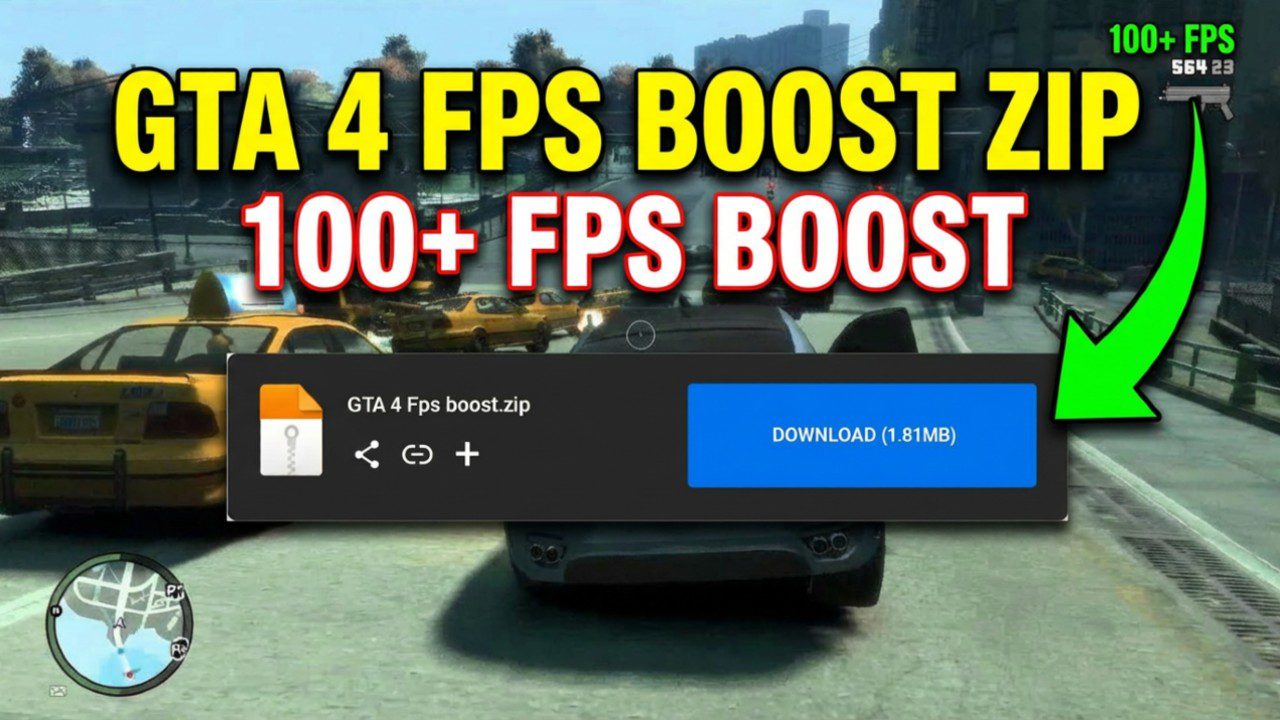
Even years after its release, Grand Theft Auto IV remains one of the most demanding titles to run smoothly on PC due to its notoriously unoptimized port. If you are trying to play this masterpiece on a low-end system with 2 GB or 8 GB of RAM, you’ve likely encountered the “slideshow” effect—stuttering, low frame rates, and game-breaking lag.
Fortunately, you don’t need a high-end RTX rig to enjoy Liberty City. By using a custom configuration fix and a few system-level tweaks, you can transform your experience from an unplayable 10 FPS to a smooth 30–40 FPS, or even higher.
The Secret: Custom Config Files
The primary reason GTA 4 struggles on older hardware is that the game attempts to render high-intensity graphics features—like complex shadows and reflections—that modern GPUs handle easily but older integrated graphics cannot.
A custom lag-fix config works by deep-cleaning the game’s settings. It removes unnecessary visual bloat and optimizes how the game utilizes your RAM and VRAM. This is particularly effective for users on 2 GB and 8 GB RAM systems, as it prevents the game from hitting memory bottlenecks that cause those dreaded micro-stutters.
Step-by-Step Installation Guide
Before you begin, remember the golden rule of modding: Always create a backup. Copy your original GTA 4 game folder to a safe location so you can revert the changes if anything goes wrong.
1. Download and Extract
First, obtain the GTA 4 lag-fix config archive. These are typically small files. Use a tool like WinRAR or 7-Zip to extract the contents of the archive to your desktop.
2. Locate Your Game Directory
Find where GTA 4 is installed on your PC.
- Steam users: Usually located in
Program Files (x86)\Steam\steamapps\common\Grand Theft Auto IV\GTAIV. - Retail/Other: Right-click your game shortcut and select “Open File Location.”
3. Replace the Files
Drag and drop the extracted config files into the main game directory. When Windows asks if you want to replace existing files, click Yes. This overwrites the default, heavy settings with the new, performance-optimized versions.
| Property | Value |
|---|---|
| File Name | GTA 4 Fps Boost.rar |
| File Type | RAR Archive |
| File Size | 123.07 KB |
Beyond the Game: Windows Optimizations
While the config file does the heavy lifting, your operating system also needs to be “game-ready.” Simple Windows tweaks can provide the extra breathing room your CPU needs:
- Game Mode: Ensure “Game Mode” is toggled ON in your Windows settings to prioritize system resources for GTA 4.
- Power Plan: Switch your power plan to High Performance. This prevents your CPU from “throttling” or slowing down to save power during gameplay.
- Background Apps: Close unnecessary programs like Chrome or Discord before launching the game, especially if you are on a 2 GB or 8 GB RAM system.
Realistic Expectations and Results
In many tests, these combined tweaks have pushed performance from a choppy 10 FPS to a playable 40+ FPS. Some users even report hitting 100 FPS on slightly better hardware.
However, it is important to stay realistic. These tweaks will not turn a ten-year-old office laptop into a gaming beast, but they will significantly improve smoothness and playability. If you follow the steps carefully and ensure your background processes are minimized, Liberty City will finally run the way it was meant to.