
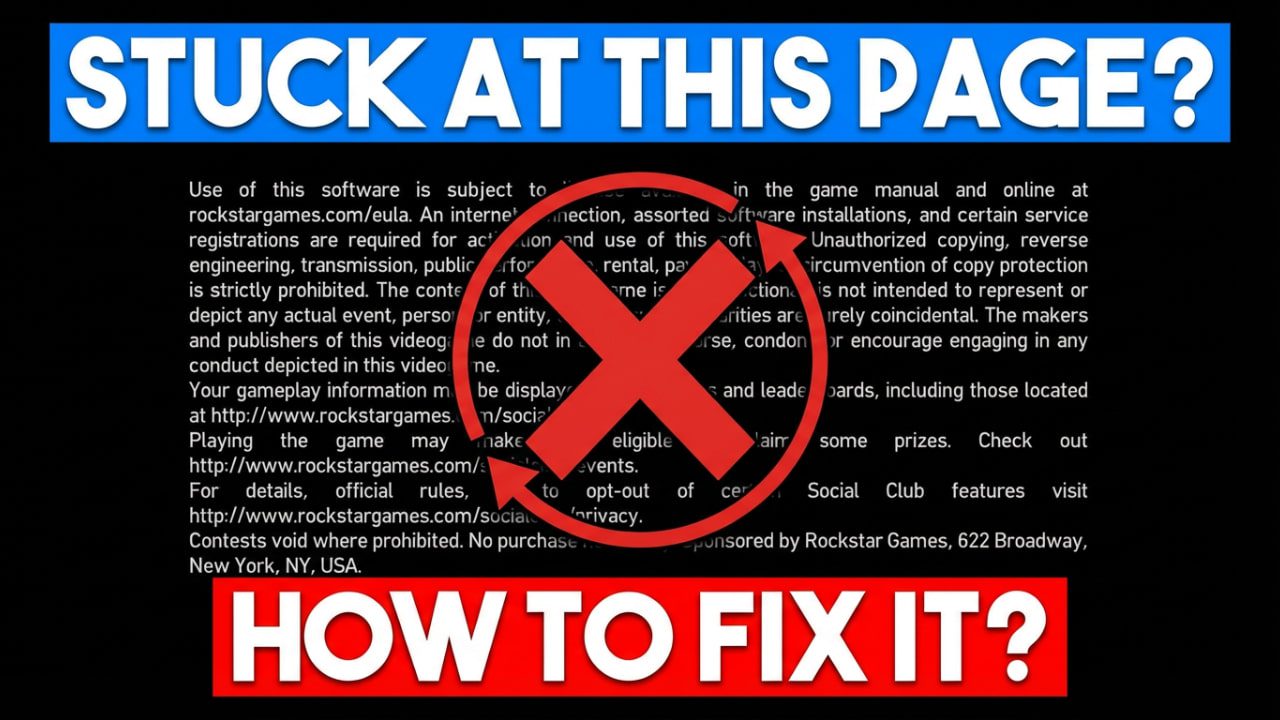
Struggling with GTA 4 stuck at disclaimer screen? This complete guide covers 7 proven methods to fix GTA 4 not loading issues on Windows 10/11. Get your game running today.
Look, I get it. You just want to play some GTA 4 and relive those memories of Liberty City. But instead of cruising around with Niko Bellic, you’re staring at a frozen disclaimer screen. Honestly, it’s one of the most frustrating issues with this game, and I’ve dealt with it more times than I’d like to admit.
The thing is, GTA 4 was released back in 2008. Rockstar designed it for Windows XP and Vista era hardware. Fast forward to 2024, and running it on modern systems like Windows 10 or Windows 11 can be… well, a nightmare. The GTA 4 stuck at disclaimer screen problem happens because of compatibility conflicts, missing dependencies, and outdated game files that just don’t play nice with newer operating systems.
But here’s the good news. After spending way too many hours troubleshooting this myself (and helping friends fix their copies), I’ve put together every working solution. Most of these take just a few minutes.
[Suggested Image: Screenshot of GTA 4 disclaimer screen freeze]
What Causes GTA 4 to Freeze at Disclaimer Screen?
Before jumping into fixes, it helps to understand what’s actually going wrong. In my experience, these are the main culprits:
| Cause | Description | Frequency |
|---|---|---|
| Games for Windows Live | Deprecated Microsoft service causing conflicts | Very Common |
| Corrupt Settings Files | Damaged game configuration data | Common |
| Compatibility Issues | Windows 10/11 conflicts with old game code | Common |
| Missing Visual C++ | Required runtime libraries not installed | Moderate |
| Outdated Graphics Drivers | Driver incompatibility with game | Moderate |
| Administrator Permissions | Game lacking proper access rights | Less Common |
The Games for Windows Live thing is probably the biggest offender here. Microsoft basically abandoned this service, but GTA 4 still tries to connect to it. That’s what causes most of these freezes.
Method 1: Modify the Commandline.txt File
This is more of an advanced tweak, but it’s helped me when nothing else worked. You’re essentially telling the game to skip certain checks.
Steps:
- Open your GTA 4 installation folder
- Create a new text file called “commandline.txt”
- Add these lines:
text-norestrictions
-nomemrestrict
-availablevidmem 2.0
- Save the file and launch the game
The -nomemrestrict flag is particularly useful if you have more than 4GB of RAM. GTA 4 has this bizarre memory detection bug that’s been around forever.
Method 2: Run GTA 4 as Administrator
This one’s simple but surprisingly effective. Sometimes Windows just doesn’t give the game enough permissions to run properly.
Steps to follow:
- Navigate to your GTA 4 installation folder
- Right-click on “GTAIV.exe”
- Select “Properties”
- Click the “Compatibility” tab
- Check “Run this program as an administrator”
- Click Apply, then OK
- Launch the game
I always recommend doing this for “LaunchGTAIV.exe” too, just to be safe. It takes an extra 30 seconds and has saved me headaches before.
Method 3: Enable Windows Compatibility Mode
This fix addresses the core problem. GTA 4 thinks it’s running on an ancient operating system, and sometimes you need to actually tell Windows to pretend it is one.
Here’s what to do:
- Right-click on GTAIV.exe
- Go to Properties and then Compatibility
- Check “Run this program in compatibility mode for:”
- Select “Windows 7” from the dropdown
- Also check “Disable fullscreen optimizations”
- Apply changes and test the game
Windows 7 compatibility mode works best for most people. I tried Windows XP SP3 once and it actually made things worse, so stick with Windows 7 unless you have a specific reason not to.
[Suggested Image: Windows compatibility settings window]
Method 4: Delete the Settings Folder
Corrupted game settings are a sneaky cause of the GTA 4 disclaimer screen freeze. The game creates configuration files that can become damaged over time, especially after Windows updates.
Follow these steps:
- Press Windows + R to open Run dialog
- Type “%localappdata%” and hit Enter
- Look for the “Rockstar Games” folder
- Open it and find the “GTA IV” subfolder
- Delete the entire “GTA IV” folder
- Restart the game (it will create fresh settings)
Fair warning: this resets all your graphics settings and keybindings. But your save files are stored separately, so you won’t lose any progress. That’s the important part.
Method 5: Install Games for Windows Live (Or Remove It)
Here’s where things get a bit complicated. You have two options with GFWL, and honestly, both can work depending on your situation.
Option A: Install GFWL Properly
Some versions of GTA 4 actually need Games for Windows Live to function. You can download the Games for Windows Live client from Microsoft’s official store.
Option B: Use xliveless (For Non-Steam Versions)
If you have an older retail copy, xliveless completely bypasses GFWL:
- Download xliveless from a trusted source
- Extract xlive.dll to your GTA 4 game folder
- Launch the game normally
I personally prefer Option B when it’s applicable. Removes one more thing that can go wrong.
Method 6: Update Graphics Drivers
Outdated GPU drivers cause more problems than people realize. This applies to both NVIDIA and AMD cards.
For NVIDIA users:
- Visit the NVIDIA Driver Download page
- Enter your GPU model and download the latest driver
For AMD users:
- Go to AMD Drivers and Support
- Use the auto-detect tool or manually select your card
After installing new drivers, restart your computer before testing GTA 4. I’ve seen people skip the restart and wonder why nothing changed. Don’t be that person.
[Suggested Image: Graphics driver update interface]
Method 7: Install Required Visual C++ Redistributables
GTA 4 depends on specific Microsoft Visual C++ versions that might not be on your system. Missing these causes all sorts of weird behavior.
Download and install these:
| Redistributable | Download Link |
|---|---|
| Visual C++ 2005 | Microsoft Download Center |
| Visual C++ 2008 | Microsoft Download Center |
| Visual C++ 2010 | Microsoft Download Center |
Install both x86 and x64 versions of each. Yes, it seems redundant, but GTA 4 is a 32-bit application that sometimes calls 64-bit libraries. Just do it.
Quick Troubleshooting Reference Table
| Issue | Recommended Fix | Time Required |
|---|---|---|
| Instant freeze at disclaimer | Delete settings folder | 2 minutes |
| Freeze after 5-10 seconds | GFWL fix or xliveless | 5 minutes |
| Black screen then freeze | Graphics driver update | 10 minutes |
| Random crashes throughout | Install Visual C++ | 5 minutes |
| Works once then breaks | Run as administrator | 1 minute |
Still Not Working? Try These Additional Steps
If you’ve gone through everything above and GTA 4 is still stuck at the disclaimer screen, here are a few more things worth trying:
- Verify game files through Steam or your game launcher
- Disable antivirus temporarily (some flag GTA 4 files as suspicious)
- Install DirectX End-User Runtime from Microsoft
- Try windowed mode by adding “-windowed” to commandline.txt
- Check for Windows updates that might have broken compatibility
And honestly? Sometimes a clean reinstall is the answer. I know that’s not what anyone wants to hear, but if your installation is corrupted beyond repair, starting fresh can save you hours of troubleshooting.
Conclusion: Getting Back to Liberty City
The GTA 4 stuck at disclaimer screen error is annoying, no question about it. But it’s definitely fixable. Most people solve it with the compatibility mode fix or by dealing with Games for Windows Live properly. The commandline.txt tweaks and Visual C++ installations handle most of the remaining cases.
For what it’s worth, once you get past this initial hurdle, GTA 4 usually runs fine. It’s just getting there that’s the challenge.
Have you tried these fixes? Which one worked for you? Drop a comment below and let me know. If you’re still stuck, describe your specific situation and I’ll try to help out.
Found this guide helpful? Share it with anyone else struggling to get GTA 4 running. And check out our other gaming troubleshooting guides for more solutions to common PC gaming problems.