
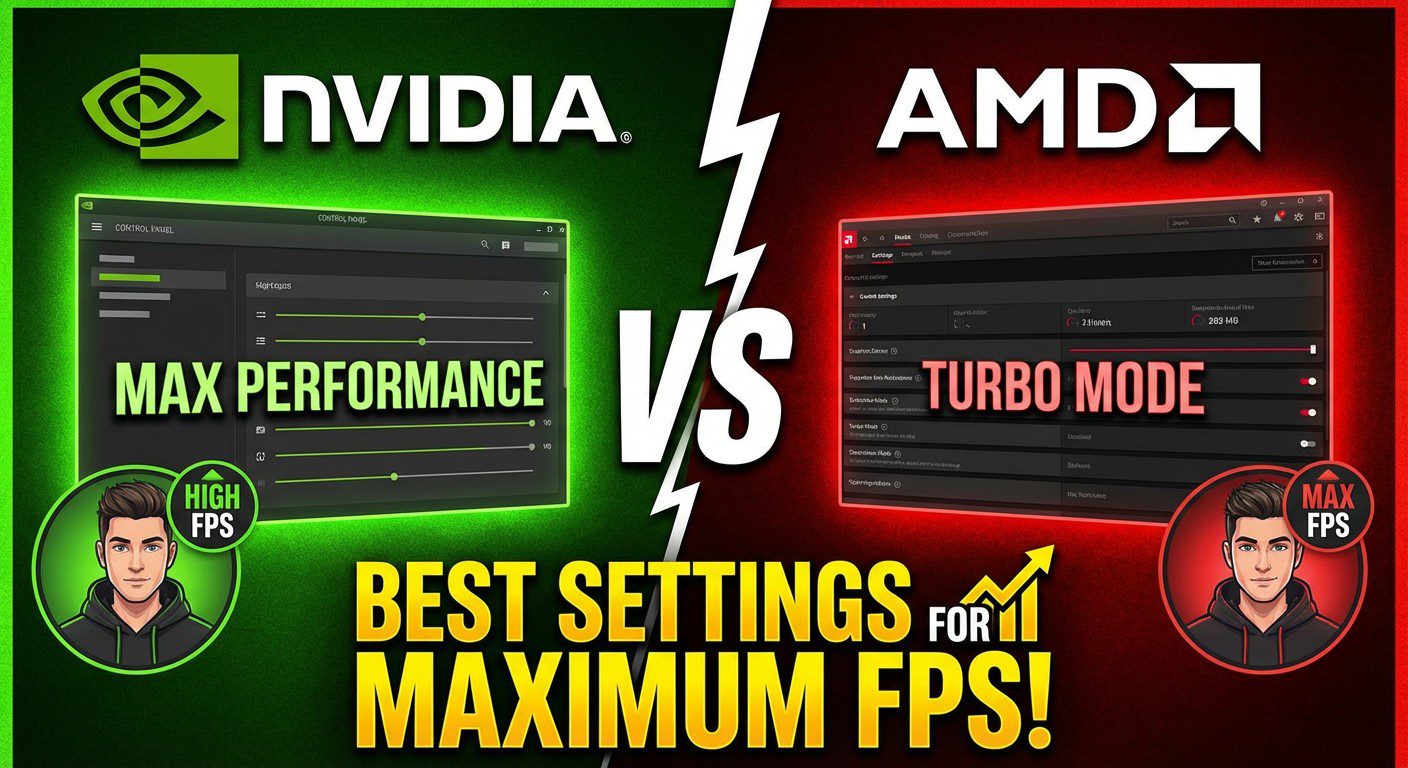
Unlock your GPU’s full potential! Discover the best NVIDIA Control Panel and AMD Adrenalin settings for maximum FPS, lower input lag, and smoother gameplay in 2026. Best Control Panel Settings for Maximum FPS
Are you getting the most out of your graphics card? Whether you are Team Green (NVIDIA) or Team Red (AMD), the default driver settings are rarely optimized for pure speed. Manufacturers often prioritize power efficiency or visual fidelity over raw performance, leaving free frames on the table. Best Control Panel Settings for Maximum FPS.;

In this guide, we dive deep into the NVIDIA Control Panel and AMD Software: Adrenalin Edition to reveal the critical settings that will boost your FPS, reduce system latency, and give you the competitive edge you need in 2026. Unlock your GPU’s full potential! Discover the best NVIDIA Control Panel and AMD Adrenalin settings for maximum FPS, lower input lag, and smoother gameplay in 2026. Best Control Panel Settings for Maximum FPS.
Also Read: Fix lag issues in Windows 10 Completely
Best NVIDIA Control Panel Settings for FPS
If you own a GeForce card (RTX 30, 40, or 50 series), the NVIDIA Control Panel is your command center. While the interface may look dated, it houses powerful tools to force your GPU into high-performance mode.
1. Manage 3D Settings (Global)
Navigate to Manage 3D Settings > Global Settings. This is where the magic happens. Change the following for an immediate performance uplift:
- Power Management Mode:Prefer Maximum Performance.
- Why: This forces your GPU to run at higher clock speeds consistently, preventing stuttering during demanding scenes.
- Texture Filtering – Quality:High Performance.
- Why: This sacrifices a negligible amount of texture sharpness for a tangible boost in frame rates.
- Low Latency Mode:On or Ultra.
- Why: Drastically reduces input delay. Use “Ultra” for DX9/DX11 competitive shooters like CS2 or Valorant.
- Threaded Optimization:Auto (or On).
- Why: Allows games to utilize multiple CPU cores effectively.
- Vertical Sync (V-Sync):Off.
- Why: V-Sync introduces significant input lag. Only use it if screen tearing is unbearable, or use G-SYNC instead. Best Control Panel Settings for Maximum FPS
2. Change Resolution & Refresh Rate
Don’t laugh—many gamers buy high-refresh-rate monitors but forget to enable them!
- Go to Display > Change Resolution.
- Ensure your Refresh Rate is set to the maximum Hz supported by your monitor (e.g., 144Hz, 240Hz, 360Hz).
- Scroll down to “Output Dynamic Range” and set it to Full for better color accuracy.
3. NVIDIA Image Scaling (NIS)
For users with older GPUs, enable Image Scaling. This driver-level spatial upscaler renders the game at a lower resolution and sharpens it, boosting FPS significantly with minimal visual loss.
Best AMD Adrenalin Settings for FPS
AMD’s software suite is modern and feature-rich. To access these tweaks, open AMD Software: Adrenalin Edition and click on the Gaming tab, then Graphics.
1. Global Graphics Profile
Start by selecting the eSports profile. This disables most post-processing effects that drain performance. From there, fine-tune these specific options:
- Radeon Super Resolution (RSR):Enabled (Conditional).
- Why: Like NIS, this upscales lower resolutions to your native display resolution. Great for boosting FPS in demanding single-player titles.
- Radeon Anti-Lag:Enabled.
- Why: Essential for competitive gaming. It synchronizes CPU and GPU work to reduce input latency.
- Radeon Boost:Use with Caution.
- Why: Dynamically lowers resolution during fast mouse movements. Good for shooters like Apex Legends, but can make visuals blurry.
- Radeon Chill:Disabled.
- Why: This is a power-saving feature. For maximum FPS, we want raw power, not efficiency. Best Control Panel Settings for Maximum FPS
2. Advanced Settings
Click on the Advanced drop-down to reveal the deep-dive options:
- Texture Filtering Quality: Performance.
- Surface Format Optimization: Enabled.
- Tessellation Mode:Override application settings (Set level to Off or 2x).
- Why: Aggressive tessellation ruins performance. Capping this prevents games from over-rendering useless geometry details.
Official GPU Manufacturer Resources
Linking directly to the source establishes credibility for your technical claims.
- NVIDIA Official GeForce Drivers Download – The primary source for the latest NVIDIA driver updates.
- AMD Drivers and Support Home – The official landing page for all Radeon software and Adrenalin updates.
- NVIDIA Reflex Technology Deep Dive – Detailed explanation of how to minimize system latency.
- AMD FidelityFX Super Resolution (FSR) Overview – Official documentation on AMD’s upscaling technology.
- NVIDIA DLSS (Deep Learning Super Sampling) Technology – Explaining the AI-powered performance boost for RTX users.
Benchmark & Comparison Sites
These links support the “NVIDIA vs. AMD” comparison section with data-driven results.
- Tom’s Hardware: GPU Benchmarks and Hierarchy – A constantly updated list comparing the raw power of all modern GPUs.
- TechPowerUp: GPU Database – The most comprehensive database for checking specific card clock speeds and architecture.
- Digital Foundry (Eurogamer) – Industry-standard technical analysis of game performance and graphics settings.
Optimization Tools & Community Guides
Practical resources for users looking to clean their systems or dive deeper into tweaks.
- Display Driver Uninstaller (DDU) Official Site – The essential tool for clean driver installations.
- Blur Busters: G-SYNC 101 – The definitive guide on settings for G-SYNC, V-Sync, and input lag.
- PCGamingWiki – A community-driven encyclopedia that helps fix performance issues for specific game titles.
Windows System Optimization
Supporting your “Advanced Optimization Tips” with official Microsoft and technical documentation.
- Microsoft Support: Optimize your Windows PC for Gaming – Official tips for Windows 10 and 11 users.
- MajorGeeks: How to Enable Hardware-Accelerated GPU Scheduling – A step-by-step guide for this specific Windows setting.
NVIDIA vs. AMD: Feature Comparison Table
Which company offers the better software ecosystem for performance? Here is a breakdown of their equivalent technologies.
| Feature Category | NVIDIA Feature | AMD Feature | Winner for FPS? |
| Upscaling (AI) | DLSS (Deep Learning Super Sampling) | FSR (FidelityFX Super Resolution) | NVIDIA (DLSS) – Better image quality retention. |
| Driver Upscaling | NIS (NVIDIA Image Scaling) | RSR (Radeon Super Resolution) | Draw – Both work similarly at a driver level. |
| Latency Reduction | NVIDIA Reflex + Low Latency Mode | Radeon Anti-Lag / Anti-Lag+ | NVIDIA – Reflex integration is often superior. |
| Interface | Control Panel (Slow, Dated) | Adrenalin (Modern, Fast) | AMD – Much easier to use and overlay-supported. |
Pro Tip: Always prioritize in-game upscalers (DLSS/FSR) over driver-based ones (NIS/RSR) as they generally offer superior image quality and motion stability. Best Control Panel Settings for Maximum FPS
Advanced Optimization Tips (Both Platforms)
Optimizing your control panel is only step one. Combine those changes with these system-level tweaks for the ultimate “Max FPS” rig.
1. Enable “Game Mode” in Windows
Windows 10 and 11 have a dedicated Game Mode that prioritizes gaming processes and suppresses background tasks.
- Settings > Gaming > Game Mode > On.

2. Hardware-Accelerated GPU Scheduling (HAGS)
This feature offloads memory management tasks from the CPU to the GPU.
- Settings > System > Display > Graphics > Change default graphics settings > Hardware-accelerated GPU scheduling > On.
3. Use DDU for Clean Installs
If you are switching from NVIDIA to AMD (or vice versa), or just updating drivers, old files can cause conflicts and stuttering.
- Download Display Driver Uninstaller (DDU).
- Boot into Safe Mode.
- Wipe the old drivers completely before installing the latest version. Best Control Panel Settings for Maximum FPS
Conclusion: Who Wins the FPS War?
In the battle of NVIDIA vs. AMD, the “best” settings are remarkably similar in philosophy: disable eye candy, prioritize power, and reduce latency.
- NVIDIA Owners: Your strength lies in Reflex and DLSS. Ensure these are always enabled in supported games, and use the Control Panel to force maximum power performance globally.
- AMD Owners: You have a user-friendly advantage. Use the Adrenalin software to aggressively override tessellation and enable Anti-Lag to make your gameplay feel snappy and responsive. Best Control Panel Settings for Maximum FPS
Don’t settle for default performance. Apply these settings today and squeeze every last frame out of your hardware!
Which settings gave you the biggest boost? Let us know in the comments below!