
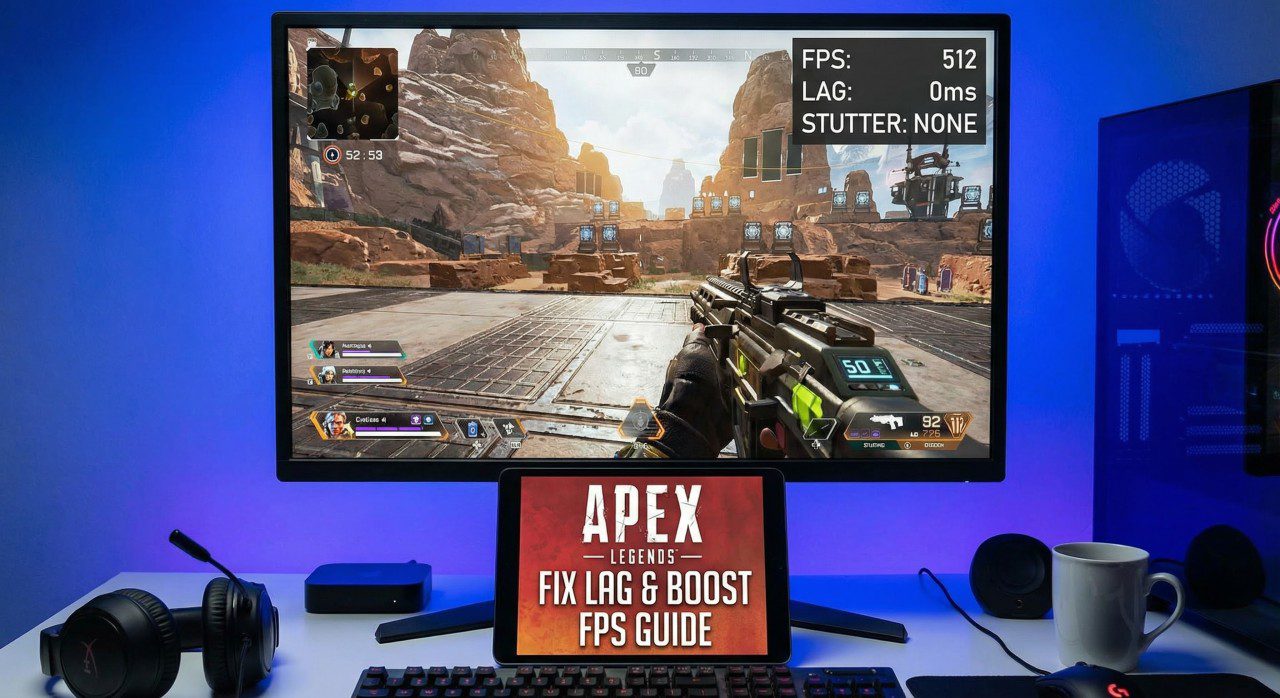
Apex Legends FPS Boost: If you’re dropping frames, experiencing lag, or stuttering in Apex Legends, you’re not at your competitive best. Apex Legends is a fast-paced battle royale where milliseconds matter — every frame counts. This complete guide covers every optimization from in-game settings to config tweaks to help you get 500+ FPS and eliminate lag for good.
Best In-Game Settings for Max FPS in Apex Legends
Apex Legends has a surprisingly detailed graphics menu. Use these settings for the best FPS without sacrificing competitive visibility:
- Display Mode: Fullscreen — never Borderless or Windowed
- Resolution: 1920×1080 or lower (1280×720 for extreme FPS gains)
- Field of View (FOV): 90–100 — higher FOV gives more awareness but slightly reduces FPS
- V-Sync: Disabled
- Anti-Aliasing: TSAA or None — TSAA is GPU-efficient; None gives maximum FPS
- Texture Streaming Budget: Medium or Low (do not use High — causes VRAM spikes in Apex)
- Texture Filtering: Bilinear or Anisotropic 2x
- Ambient Occlusion Quality: Disabled — major FPS drain in Apex Legends
- Sun Shadow Coverage: Low
- Sun Shadow Detail: Low
- Spot Shadow Detail: Disabled
- Volumetric Lighting: Disabled
- Dynamic Spot Shadows: Disabled
- Model Detail: Low
- Effects Detail: Low
- Impact Marks: Low or Disabled
- Ragdolls: Low
With these settings, most Apex Legends players see an immediate 40–80% FPS increase.
Fix Low GPU Usage in Apex Legends
Low GPU usage in Apex Legends is a well-known issue caused by CPU bottlenecks, wrong power settings, or Apex’s engine limitations. Here’s how to fix it:
- Set Apex Legends Launch Arguments: In EA App or Steam → Apex Legends Properties → Launch Options → Add:
+fps_max unlimited +cl_showfps 1 - Set Apex to High Priority: Task Manager → Details → Right-click r5apex.exe → Set Priority → High.
- NVIDIA Control Panel — Apex Legends Profile: Add r5apex.exe → Power Management = Prefer Maximum Performance, Low Latency Mode = Ultra, Vertical Sync = Off, Texture Filtering = High Performance.
- Disable Hardware-Accelerated GPU Scheduling (HAGS): HAGS can actually hurt performance in Apex Legends on some GPUs. Test both settings — on or off — and keep whichever gives higher FPS.
- Use DirectX 11 instead of DX12: Apex Legends’ DX12 implementation can cause micro-stutters on many GPUs. Go to Apex settings → Advanced → switch to DirectX 11 for smoother frametimes.
- Verify EA App / Origin Cache: Corrupted game files in Apex can cause GPU underutilization. EA App → My Games → Apex Legends → Repair.
Windows Optimization for Apex Legends FPS
Windows-level tweaks make a significant difference in Apex Legends performance. Apply these for maximum FPS:
- Use Ultimate Performance Power Plan: Open CMD as Admin → type:
powercfg -duplicatescheme e9a42b02-d5df-448d-aa00-03f14749eb61→ Press Enter → Go to Power Options and select Ultimate Performance. - Disable Xbox Game Bar: Settings → Gaming → Xbox Game Bar → Off. It causes background CPU/RAM usage that affects Apex performance.
- Disable Game Mode: Settings → Gaming → Game Mode → Off. Some users report Apex Legends stutter with Game Mode enabled.
- Set Apex GPU Preference to High Performance: Settings → System → Display → Graphics → Browse → Add r5apex.exe → Options → High Performance.
- Disable Fullscreen Optimizations: Right-click r5apex.exe → Properties → Compatibility → Check “Disable fullscreen optimizations”.
- Clean Boot: Use MSConfig to start Windows with only essential services running. This identifies background apps that are stealing CPU/RAM from Apex Legends.
- Update Windows: Outdated Windows builds can have incompatibilities with Apex Legends’ anti-cheat (EAC) that cause performance issues.
Config File Tweaks (Stutter Fix) for Apex Legends
Apex Legends’ config files can be edited to reduce stutter, improve frame pacing, and unlock additional performance. Here’s how:
Step 1 — Navigate to Apex Legends config folder:
%userprofile%\Saved Games\Respawn\Apex\local\Step 2 — Open videoconfig.txt and set (or confirm) these values:
"setting.cl_gib_allow" "0"
"setting.csm_enabled" "0"
"setting.mat_ambient_light_r" "0"
"setting.mat_ambient_light_g" "0"
"setting.mat_ambient_light_b" "0"
"setting.r_lod_switch_scale" "0.5"
"setting.stream_memory_mb" "0"
"setting.shadow_detail" "0"
"setting.volumetric_lighting" "0"
"setting.postfx" "0"
"setting.dvs_enable" "0"
"setting.dvs_gpuframetime_min" "1"
"setting.dvs_gpuframetime_max" "1"
Step 3 — Set videoconfig.txt to Read-Only: Right-click videoconfig.txt → Properties → Check Read-only. This prevents Apex Legends from overwriting your performance settings on launch.
Step 4 — Add Apex Legends Launch Flags: In EA App → Apex Legends → Settings → Advanced Launch Options:
+fps_max unlimited -dev -preload -novid +cl_showfps 1Network Optimization (Lag & Packet Loss Fix) for Apex Legends
High ping and packet loss in Apex Legends cause teleporting, missed shots, and rubber-banding. Fix them with these steps:
- Use Wired Ethernet: Wi-Fi causes unstable latency that’s especially noticeable in Apex Legends’ 20-player squads. A wired connection reduces ping variance significantly.
- Select the Correct Apex Legends Data Center: In Apex Legends → Settings → Data Center → Choose the server with the lowest ping. Always pick manually, never auto-select.
- Add Network Launch Options:
+cl_updaterate 128 +cl_cmdrate 128can help improve connection quality on high-performance Apex servers. - Flush DNS: Open CMD as Admin → type
ipconfig /flushdns. Old DNS entries can cause initial connection delays to EA’s servers. - Switch to Cloudflare DNS: Network Settings → IPv4 → Manual DNS → 1.1.1.1 / 1.0.0.1. This often reduces your ping to EA’s servers by 5–15ms.
- Check for Packet Loss: Use PingPlotter or the in-game network graph (+net_graph 1) to identify if packet loss is the cause of your rubber-banding in Apex Legends.
- QoS on Router: Prioritize Apex Legends traffic in your router settings (UDP ports 1024–65535 for EA) to reduce ping spikes during peak hours.
Update & Optimize GPU Drivers for Apex Legends
Apex Legends frequently receives updates that require current GPU drivers for optimal performance. Outdated drivers can cause crashes, stutters, and low FPS. Here’s the correct approach:
- NVIDIA Users: Download the latest Game Ready Driver from nvidia.com. During installation, select Custom → Clean Installation. In NVIDIA Control Panel → Manage 3D Settings → Program Settings → Add r5apex.exe → Set Low Latency Mode = Ultra, Power Management = Prefer Max Performance, Vertical Sync = Off.
- AMD Users: Download the latest Adrenalin driver from amd.com/support. Use AMD Cleanup Utility first. In AMD Software → Gaming → r5apex.exe → Set Anti-Lag = Enabled, Radeon Chill = Off, Enhanced Sync = Off.
- Use DDU for Clean Driver Install: Boot into Safe Mode → Run Display Driver Uninstaller (DDU) → Reinstall latest GPU drivers. This eliminates driver remnants that cause Apex Legends stuttering and crashing.
- Enable NVIDIA Reflex in Apex Settings: Apex Legends supports NVIDIA Reflex Low Latency — go to Settings → Video → NVIDIA Reflex → Enabled + Boost. This dramatically reduces click-to-kill latency even at 500+ FPS.
Conclusion
Apex Legends FPS Boost is entirely achievable on most modern PCs. By optimizing in-game settings, fixing low GPU usage, applying Windows tweaks, editing config files, optimizing your network connection, and using clean GPU drivers, you can push Apex Legends well past 500 FPS on high-end hardware and get silky-smooth gameplay on mid-range systems.
Apply these fixes from top to bottom. The performance improvements are cumulative. A smoother Apex Legends experience means faster reactions, better aim, and more wins in the Apex Games.
Still having problems? Drop your PC specs in the comments below and our community will help you diagnose what’s holding your Apex Legends performance back.