

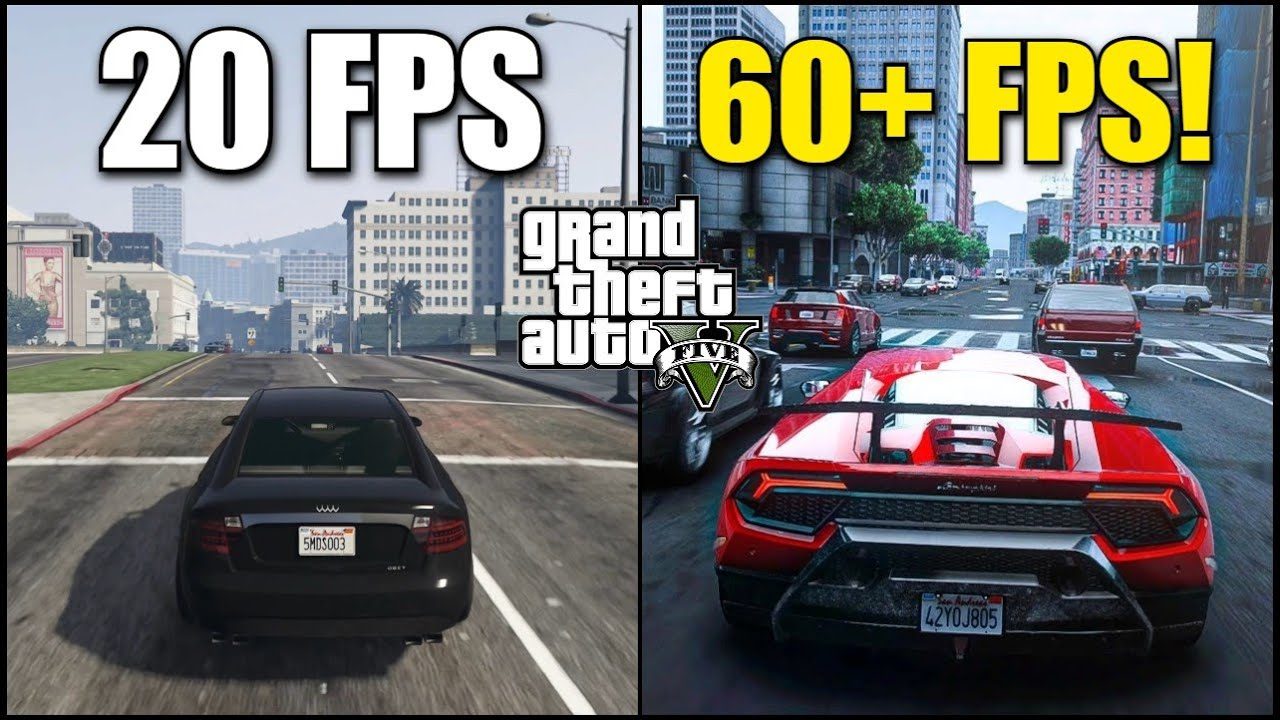
Grand Theft Auto V remains one of the most popular titles in gaming, but its extensive modding community often pushes hardware to its limits. For players on low-end PCs or systems without dedicated graphics cards, balancing visual fidelity with playable frame rates can be a daunting challenge. Drawing from the expert advice in this video guide, this article outlines a step-by-step strategy to eliminate lag and maximize performance.
Identifying the Root Cause
Before diving into technical fixes, it is essential to diagnose why your game is lagging [00:26]. Common culprits include mod conflicts, where multiple scripts interfere with each other, and hardware limitations, where the PC simply lacks the “brawn” to handle demanding “fancy” graphics mods [00:41]. Additionally, incorrect in-game or mod-specific configurations can lead to unnecessary resource drain [01:03].
System Preparation and Safety
The first rule of modding is protection. Always back up your game files and saves before making significant changes [01:38]. This ensures that if a setting or mod causes a crash, you can restore your progress without a full reinstallation. Furthermore, evaluate your hardware against the mod’s requirements. If your system is significantly underpowered, consider opting for “lighter” performance-focused mods rather than heavy visual overhauls [01:24].
Troubleshooting Mod Conflicts
If you experience stutters after installing new content, try disabling or removing mods one by one [01:53]. This process of elimination is the most effective way to identify a problematic script. To further reduce the load on your CPU and GPU, avoid “overlapping” mods—using two different mods that both enhance shadows, for instance, creates redundant processing work for your system [06:30].
Fine-Tuning Graphics Settings
To see immediate FPS gains, you must adjust the core GTA 5 graphics menu [02:07]. Focus on lowering the following high-impact settings:
- Textures: Lowering this frees up VRAM.
- Shadows and Reflections: These are notoriously demanding on older hardware.
- Quality Sliders: Reducing detail at a distance can significantly stabilize frame rates.
Many advanced graphics mods, like the ENB Series, come with their own configuration menus [02:44]. Tinkering with these allows you to disable specific expensive effects (like ambient occlusion or heavy depth of field) while keeping the overall aesthetic improvement.
System-Wide Optimizations
Performance isn’t just about the game; it’s about the environment it runs in.
- Update Drivers: Keeping your graphics drivers current is like giving your computer’s engine a “tune-up,” ensuring it processes visuals as efficiently as possible [03:51].
- Clean Your System: Close unnecessary background applications and uninstall “bloatware” to free up RAM and CPU cycles for the game [06:50].
- Use Monitoring Tools: Utilities like MSI Afterburner help you see if your GPU or CPU is hitting 100% usage, allowing you to pinpoint exactly where the bottleneck occurs [06:16].
Leveraging Optimization Tools
For those who want a faster solution, specialized tools like the GTAB Graphics Settings file can automatically apply optimized configurations tailored for low-end hardware [04:52]. These utilities act as “magic helpers,” bypassing the need for manual trial and error.
Final Thoughts
Fixing lag on a low-end PC requires patience and experimentation [07:11]. There is rarely a “one-size-fits-all” button; instead, success comes from finding the unique balance of settings that works for your specific hardware. By following these steps, you can enjoy a modded, high-quality GTA 5 experience without the frustration of constant stuttering.
