

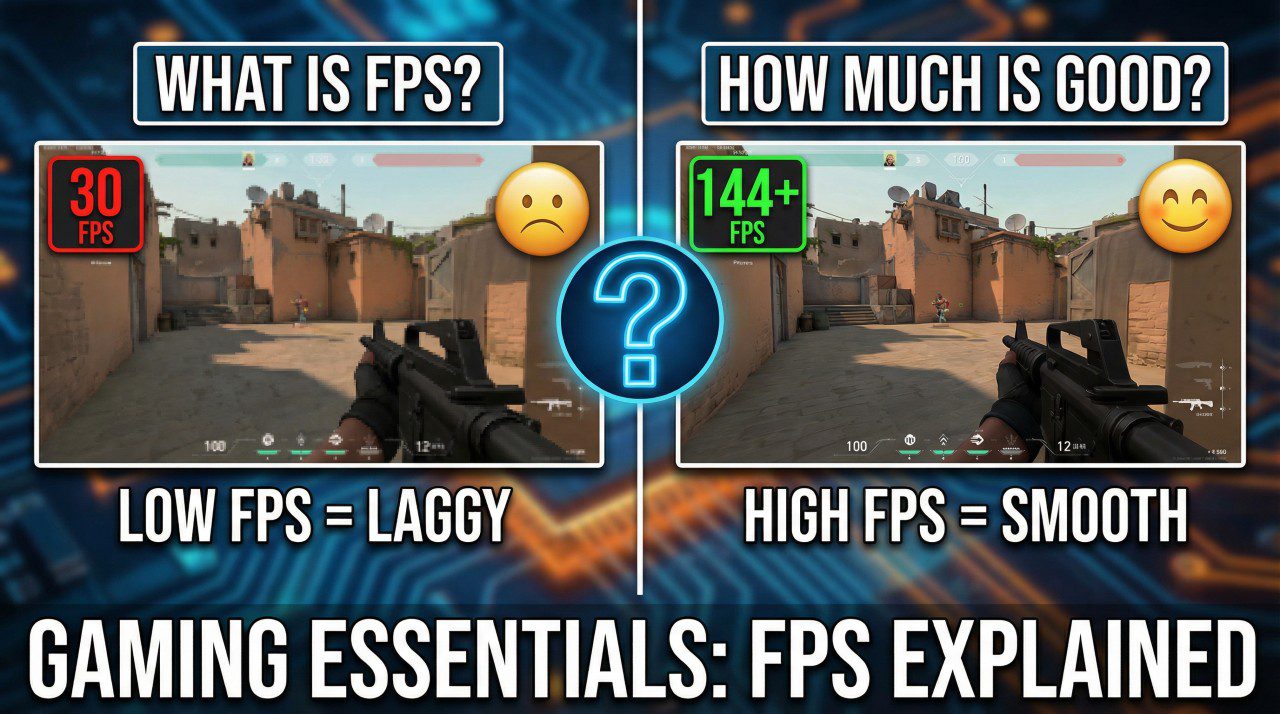
In the expansive universe of PC gaming and consoles, few metrics are as obsessively tracked as FPS. Whether you are building a custom rig or optimizing settings in Cyberpunk 2077, understanding frame rate is essential for maximizing your hardware’s potential. But what exactly is FPS, and is there such a thing as “too much” speed?
This guide breaks down the technical definitions, the critical relationship between FPS and Refresh Rate, and provides expert recommendations on the ideal targets for every gaming genre.
What Is FPS in Gaming?
FPS stands for Frames Per Second. It is a frequency unit that indicates how many unique consecutive images (frames) your Graphics Processing Unit (GPU) can render and output to your display every second.
Think of a video game like a digital flipbook. If you flip through the pages slowly, the motion looks jerky and disjointed. If you flip through them quickly, the drawing appears to move smoothly. In gaming, a higher FPS means your GPU is “flipping the pages” faster, resulting in more fluid motion and superior visual clarity.
Why FPS Is Critical for Gameplay
Frame rate is not just about aesthetics; it fundamentally changes how you interact with the digital world.
- Visual Smoothness: Higher frame rates significantly reduce motion blur, making animations look more lifelike and immersive.
- Reduced Input Lag: This is crucial for competitive play. At higher frame rates, the time between clicking a mouse and the action happening on screen (latency) is drastically reduced. At 60 FPS, a new frame is generated every 16.6ms. At 144 FPS, that drops to roughly 6.9ms, giving you a mathematical advantage in reaction time.
- Clarity in Motion: Fast-moving objects, such as enemy players in a First-Person Shooter, are easier to track with high FPS because their movement path has fewer “gaps” or stutters.
FPS vs. Refresh Rate (Hz): The Critical Difference
A common misconception is that buying a powerful GPU automatically guarantees a smooth experience. This is only half the battle. You must understand the synchronization between your system’s output and your monitor’s capabilities.
- FPS (Frames Per Second): The speed at which your PC or Console generates frames.
- Hz (Hertz): The speed at which your monitor updates the image on the screen.
If your PC is pushing 200 FPS but your monitor is a standard 60Hz office screen, you will physically only see 60 images per second. The extra frames are “wasted” and can even cause a visual artifact called screen tearing, where the monitor displays parts of two different frames simultaneously. Conversely, if you have a 144Hz monitor but your PC can only manage 60 FPS, you simply won’t get the full benefit of that expensive hardware.
How Much FPS Is Good for Gaming? (Detailed Tiers)
The “perfect” FPS depends entirely on your hardware budget and the type of game you are playing. Here is the professional breakdown of the standard performance tiers found in modern gaming.
30 FPS: The Console Minimum
- Best for: Slow-paced storytelling games, older consoles (PS4, Switch), and budget hardware.
- Experience: This is widely considered the absolute minimum for playability. While it can feel “cinematic” (similar to the 24-fps standard of movies), fast camera movements will appear choppy. Input lag is noticeable but manageable for single-player titles.
60 FPS: The Golden Standard
- Best for: AAA Adventure games, RPGs, and general PC gaming.
- Experience: This is the target for the PlayStation 5, Xbox Series X, and most mid-range PCs. 60 FPS offers a balance of fluidity and visual fidelity. It removes the “stutter” seen at 30 FPS and is generally considered the “sweet spot” for non-competitive gamers.
120-144 FPS: The Competitive Edge
- Best for: Multiplayer shooters (Call of Duty, Apex Legends), racing sims, and competitive titles.
- Experience: Moving from 60 to 144 FPS is often described as the most noticeable upgrade in gaming. Animations become incredibly fluid, and tracking fast targets becomes much easier. This requires a dedicated high-refresh-rate monitor.
240 FPS and Above: Professional Esports
- Best for: Top-tier pros in Valorant, CS2, and Overwatch.
- Experience: The law of diminishing returns applies here. While the jump from 60 to 144 is massive, the jump from 144 to 240 FPS is subtler. However, for pros where every millisecond counts, the reduced input latency can be the difference between winning and losing in Esports tournaments.
Ratings: Recommended FPS by Game Genre
Different games have different demands. Below is a rating table to help you target the right performance for your playstyle.
| Game Genre | Minimum Playable | Recommended Target | Ideal (Pro/Enthusiast) | Smoothness Priority |
|---|---|---|---|---|
| RPG / Story (e.g., Witcher 3) | 30 FPS | 60 FPS | 90+ FPS | Medium |
| Competitive FPS (e.g., Valorant) | 60 FPS | 144 FPS | 240+ FPS | Critical |
| Racing Sims (e.g., Forza) | 60 FPS | 120 FPS | 144+ FPS | High |
| Fighting Games (e.g., Tekken) | 60 FPS (Locked) | 60 FPS | 60 FPS | Fixed |
| Strategy / RTS (e.g., Civ VI) | 30 FPS | 60 FPS | 100 FPS | Low |
Data synthesized from competitive standards and player feedback.
Factors That Affect Your FPS
If you are struggling to hit these targets, several factors might be bottlenecking your performance.
1. Resolution (1080p vs. 4K)
Resolution is the biggest FPS killer. Rendering a game at 4K Resolution requires your GPU to calculate 4x as many pixels as 1080p.
- Pro Tip: Most competitive gamers stick to 1080p or 1440p to maximize their frame rate, rather than sacrificing speed for 4K visuals.
2. Graphics Settings
Shadows, Ray Tracing, and Anti-Aliasing are resource-heavy. Turning off Ray Tracing alone can often double your FPS. Technologies like NVIDIA DLSS or AMD FSR can also artificially boost your FPS by rendering the game at a lower resolution and upscaling it using AI.
3. Hardware Bottlenecks
Your system is only as fast as its slowest part. A powerful GPU (like an RTX 4080) will be held back if paired with an older CPU. This is often called a “CPU bottleneck,” where the graphics card sits idle waiting for instructions.
How to Measure Your FPS
You cannot improve what you do not measure. Here are the best FPS Counter tools to check your real-time performance in 2025.
- Steam Overlay: The easiest method for Steam games. Go to Settings > In-Game > In-game FPS counter to toggle it on.
- MSI Afterburner: The gold standard for power users. It provides detailed graphs on FPS, frame times, and GPU temperatures.
- NVIDIA GeForce Experience: Both GPU manufacturers include built-in overlays. Default shortcut is usually
Alt+R(NVIDIA) orCtrl+Shift+O(AMD). - Windows Game Bar: Built directly into Windows 10/11. Press
Win + Gto see the performance widget.
Conclusion
So, how much FPS is good for gaming? For the average gamer enjoying a single-player adventure, 60 FPS remains the perfect balance of visual fidelity and smooth performance. However, if you aspire to climb the ranks in competitive shooters, investing in hardware that supports 144 FPS or higher is a verified competitive advantage.
Ultimately, the “best” FPS is the one that looks smooth to your eyes and feels responsive under your fingers. Start by measuring your current performance with an FPS Monitor, adjust your resolution if necessary, and enjoy the fluidity of high-frame-rate gaming.
